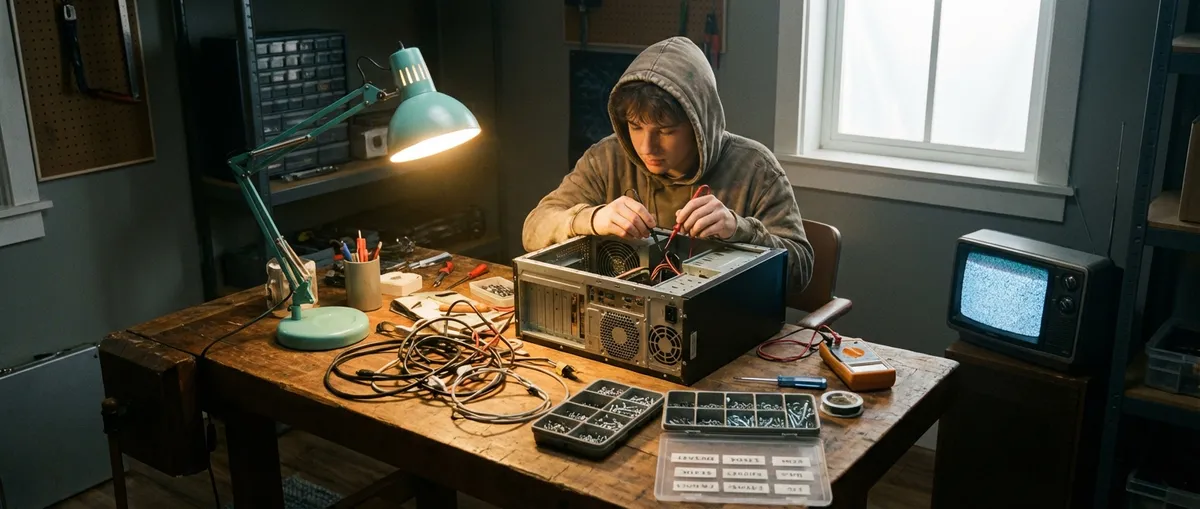
When your electronics misbehave, it’s tempting to assume they’re dead and start shopping. In reality, many “broken” devices are suffering from simple issues you can fix in minutes with basic tools and a calm approach. This guide walks you through five practical, step‑by‑step solutions to common electronics problems so you can restore function, avoid unnecessary replacements, and keep your gear running longer.
1. When Your TV Has No Picture (But Sound Still Works)
A TV that plays sound but doesn’t show a picture often scares people into thinking the screen is fried. In many cases, the problem is far simpler—and fixable without opening the TV.
Step‑by‑step fix
Check for the basics (power and input)
- Make sure the TV’s power light is on. - Press the Input or Source button on the remote and slowly cycle through all inputs. - Pause 3–5 seconds on each input to see if the picture appears.
Inspect HDMI and other cables
- Turn the TV off and unplug it from the wall. - Unplug and firmly re‑seat each HDMI or AV cable—both at the TV and the device (cable box, game console, streaming stick). - If you have a spare HDMI cable, swap it in to rule out a bad cable. - Try a different HDMI port on the TV—ports can fail over time.
Test with a known‑good source
- Plug in something simple that you know works (like a streaming stick or laptop via HDMI). - If that works but your cable box or console doesn’t, the issue is likely with that external device, not the TV.
Check brightness and picture settings
- Turn the TV back on. - Go to the Picture or Display settings. - Confirm the Brightness, Backlight, and Contrast aren’t set extremely low or off. - Reset picture settings to Default or Standard if needed.
Power cycle the TV (soft reset)
- Turn the TV off. - Unplug it from power for 2–3 minutes. - Press and hold the TV’s physical power button (if present) for 10–15 seconds to discharge residual power. - Plug it back in and turn it on.
Look for a faint image (backlight test)
- In a dark room, shine a flashlight closely and at an angle on the TV screen while it’s supposed to be showing an image. - If you can faintly see the menu or picture, the backlight may have failed—this usually requires professional repair.
When to stop DIY:
If cables and settings check out, you’ve tried a power reset, and there’s still no visible image (or only a faint image under a flashlight), the issue is likely internal (backlight, power board, or T‑CON board). At that point, get a professional estimate and compare it to the cost of replacement.
2. Laptop That Won’t Charge or Power On
A “dead” laptop is often just stuck in a weird state or blocked by a simple charging issue. Before you assume the motherboard is gone, run through these checks.
Step‑by‑step fix
Confirm the outlet and power strip
- Plug a phone charger or lamp into the same outlet to verify it’s working. - If you’re using a power strip or surge protector, plug the charger directly into the wall to eliminate the strip as the problem.
Inspect the charger and ports
- Check the entire length of the cable for kinks, burns, or fraying. - Wiggle the connector gently at the laptop side—if it’s loose or only charges at certain angles, the port or cable may be damaged. - If available, test with a known‑good compatible charger (borrow one or use another in the house).
Remove external hardware
- Disconnect everything: USB drives, external monitors, docking stations, printers. - Sometimes peripherals can interfere with boot or power delivery.
Perform a hard reset (discharge residual power)
- Unplug the charger. - If the battery is removable: take out the battery. - Press and hold the power button for at least 15–20 seconds. - Reinsert the battery (if removable) and plug the charger back in. - Try powering it on again.
Check for charging indicators
- Look for charging lights near the charging port or on the keyboard. - On many laptops, an orange/amber light means charging; white/green means charged. - If no lights come on with a known‑good charger and a good outlet, power may not be reaching the internal circuits.
Try a bare‑minimum boot
- For laptops with removable RAM or storage (desktop‑style access): - If you’re comfortable and the warranty allows it, remove the bottom cover (with laptop unplugged). - Reseat the RAM sticks carefully (remove and reinsert). - Disconnect and reconnect the battery cable if it’s accessible and you’re experienced enough. - Attempt to power on again.
When to stop DIY:
If another charger doesn’t help, no lights ever appear, and a hard reset doesn’t change anything, you may be dealing with a failed DC jack, battery, or motherboard. These are repairable but typically need pro tools and skills.
3. Wi‑Fi Feels Broken: Slow, Dropping, or Not Connecting
When Wi‑Fi acts up, people often blame the internet provider first. While that’s sometimes accurate, many connection issues start inside your home—and you can often fix them in minutes.
Step‑by‑step fix
Confirm if the internet is actually out
- Test Wi‑Fi on multiple devices (phone, laptop, tablet). - If only one device is slow or not connecting, the issue is with that device, not your router or ISP. - If all devices are affected, move on to the router/modem.
Reboot modem and router in the right order
- Unplug the modem and router from power. - Wait 30 seconds. - Plug the modem back in first and wait until all its lights stabilize (usually 1–3 minutes). - Plug the router back in and give it another 1–2 minutes. - Test again on a device near the router.
Check cable connections
- Make sure the coaxial or fiber line into the modem is tight and undamaged. - Verify the Ethernet cable between modem and router is firmly connected (if they’re separate devices). - Replace any visibly damaged Ethernet cables.
Move closer and bypass potential interference
- Stand near the router with a phone or laptop and test speed or basic browsing. - If it’s fast near the router but weak farther away, the issue is signal coverage, not the internet itself. - Move the router to a more central, high, and open location (not on the floor, not behind a TV, not in a cabinet).
Forget and reconnect to Wi‑Fi on the device
- On the problem device, go to Wi‑Fi settings. - Tap your network name, select Forget or Remove. - Reconnect by selecting the network and re‑entering the password. - This clears out corrupted connection settings.
Check for network overload
- Count how many devices are using Wi‑Fi (phones, TVs, consoles, smart devices). - Pause large downloads, 4K streams, game updates, and cloud backups during troubleshooting. - If the network improves, you’re hitting your router’s or plan’s limits—consider a better router or a higher‑speed plan.
Update router firmware
- Log into your router (the login address is often printed on a label, like 192.168.0.1). - Look for a Firmware Update or Software Update section. - Apply available updates, then reboot the router again.
When to stop DIY:
If your modem’s “Internet/Online” light is off or red after reboots, or you see an official outage notice from your ISP, contact them. Persistent issues after you’ve optimized placement, cables, and settings may point to aging hardware—replacing an old router often makes a night‑and‑day difference.
4. Phone That Won’t Charge or Charges Very Slowly
A phone that suddenly stops charging is frustrating, but it’s often caused by lint, a weak adapter, or a worn cable. Address those before assuming the battery is shot.
Step‑by‑step fix
Try a different known‑good charger and cable
- Use an original or certified charger and cable (USB‑IF, MFi for Apple). - Plug into a wall outlet, not a laptop or power strip USB port—those often supply less current. - If it charges normally with another charger, replace the faulty accessory.
Inspect and clean the charging port
- Power off the phone. - Use a bright light to inspect the port for lint, dust, or debris. - Gently insert a non‑metal tool (wooden toothpick or plastic SIM tool) and carefully pull out debris. - Do not spray liquids or compressed air directly into the port; gentle manual cleaning is safer.
Check for a loose or wobbly fit
- With the phone off, plug in the cable. - Gently wiggle the connector. - If it’s very loose or the cable falls out easily, the port may be worn or damaged—likely a job for a repair shop.
Turn off high‑drain features while charging
- Switch to Airplane Mode or turn the phone off while charging. - Close games and streaming apps. - Lower screen brightness or let the screen turn off quickly. - This reduces power draw so more energy goes into the battery.
Check battery and charging settings
- On Android: go to Settings → Battery and look for battery health or optimization options. - On iPhone: Settings → Battery → Battery Health & Charging. - If battery health is severely degraded (e.g., below ~80% on many phones), even a good charger may struggle to provide long runtimes.
Rule out temperature issues
- If the phone feels very hot or very cold, charging may slow down or pause. - Let the device return to room temperature before charging again. - Avoid charging under pillows, on couches, or in direct sun.
When to stop DIY:
If multiple quality chargers and a clean port still don’t help, or the battery drains extremely fast even after a full charge, the battery is likely nearing end‑of‑life. Professional replacement is usually cheaper than buying a new phone and can restore normal use.
5. Speaker or Headphones with Distorted or No Sound
Distorted audio, only one side working, or no sound at all doesn’t automatically mean your headphones or speakers are trash. Start with the signal and settings.
Step‑by‑step fix
Test with another device
- Plug your headphones or speaker into a different phone, laptop, or tablet. - If they work fine there, the problem is with the original device’s jack, Bluetooth, or settings.
Check volume and output settings
- On your device, make sure volume is turned up and not muted. - On computers, open sound settings and confirm the correct output device is selected (e.g., “Headphones” or the speaker name). - Many systems default back to built‑in speakers after updates or reboots.
Inspect cables and connectors
- Examine the headphone or speaker cable for cuts, severe twists, or exposed wire. - Test gently bending the cable near the plug and near any inline controls—if sound cuts in and out, the cable is damaged. - For 3.5 mm jacks, ensure the plug is fully seated; some cases or covers can block full insertion.
Clean the headphone jack or contacts
- Power down the device. - For a 3.5 mm jack, insert and remove the plug a few times to dislodge minor debris. - Use a dry cotton swab or soft brush around the jack opening; avoid liquids. - On Bluetooth earbuds, clean charging contacts and ear tips with a slightly damp cloth, then dry fully.
Reset Bluetooth connections (for wireless devices)
- On your phone or computer, Forget the Bluetooth device. - On the headphones/speaker, perform a factory reset (check the manual or brand website for exact button combination). - Re‑pair from scratch, following on‑screen prompts.
Check app‑specific audio settings
- Some music or video apps have their own volume, EQ, or balance sliders. - Make sure the left/right balance isn’t pushed all the way to one side. - Disable extreme EQ presets (like “Bass Boost”) to see if distortion improves.
When to stop DIY:
If a wired headset only works when you hold the cable a certain way, or a Bluetooth speaker still distorts at low volume even across different devices, the driver or internal amplifier may be damaged. At that point, compare the cost of a repair to the price of a reliable replacement.
Conclusion
Most electronics failures feel catastrophic in the moment, but many boil down to power, connections, settings, or minor wear—and those are squarely in “fix it yourself” territory. By methodically checking cables, cleaning ports, restarting hardware, and ruling out simple configuration issues, you can rescue TVs, laptops, Wi‑Fi, phones, and audio gear that might otherwise end up in the trash. The payoff is more life from your devices, fewer emergency purchases, and a lot less frustration every time a screen goes black or a battery stalls.
Sources
- [FCC: Consumer Guide to Broadband Internet](https://www.fcc.gov/consumers/guides/broadband-speed-guide) - Explains factors that affect home internet and Wi‑Fi performance
- [Apple Support – If your iPhone, iPad, or iPod touch won’t charge](https://support.apple.com/en-us/HT201569) - Official steps for diagnosing and fixing common charging issues
- [Microsoft Support – Troubleshoot surface power problems](https://support.microsoft.com/en-us/surface/troubleshoot-surface-power-problems-0a73b4b0-a9cc-3c7b-16ad-539f96eb682d) - Practical guidance that also applies broadly to Windows laptop power issues
- [Samsung TV Support – No picture or black screen](https://www.samsung.com/us/support/troubleshooting/TSG01109749/) - Manufacturer troubleshooting for TVs with sound but no image
- [Harvard University – Electronic Waste and Recycling](https://green.harvard.edu/tools-resources/how/guide-managing-electronic-waste-e-waste) - Context on why repairing electronics before replacing them reduces e‑waste
Key Takeaway
The most important thing to remember from this article is that this information can change how you think about Electronics.



