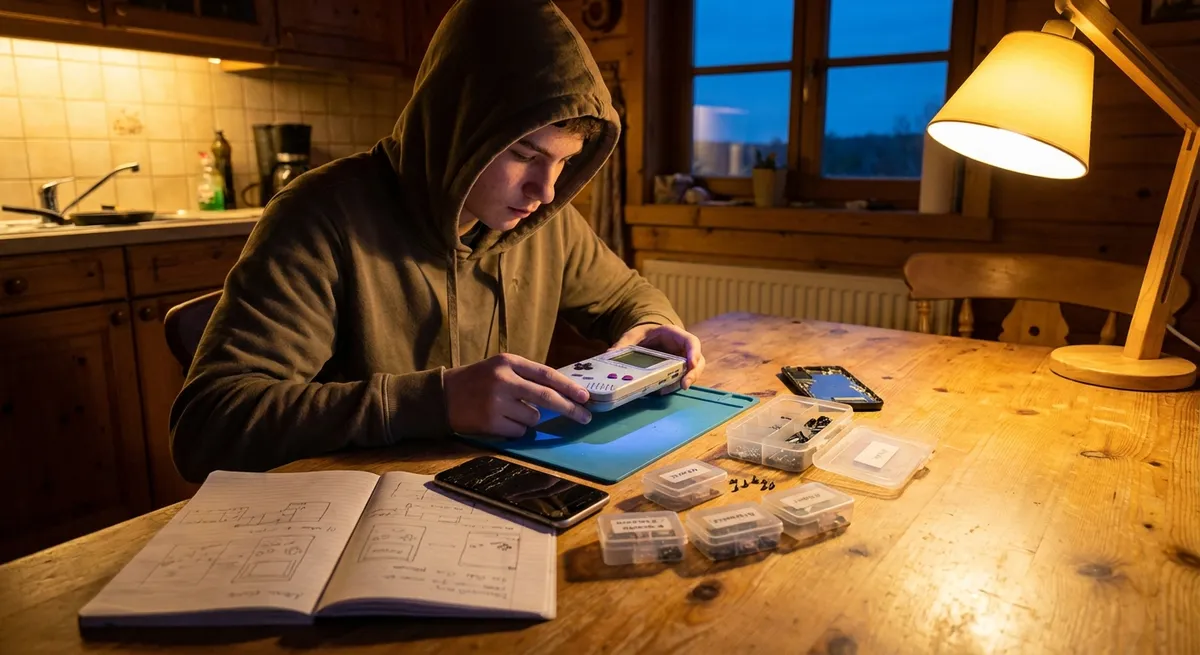
When your gadgets stop cooperating, your day can grind to a halt. The good news: a lot of “dead” or “broken” electronics are just confused, dirty, or misconfigured. You don’t always need a new device or a trip to the repair shop—just a methodical approach and a few basic tools. This guide walks you through five practical, step‑by‑step fixes for common electronics problems you can safely tackle at home.
1. When Your Phone Won’t Charge Reliably
A flaky charging connection is one of the most common—and fixable—issues.
Step 1: Rule out the easy stuff
- Try a different wall outlet.
- Swap in another charging cable and power adapter you know works.
- If wireless charging is available, test it. If that works, your port is the likely problem.
Step 2: Inspect and clean the charging port
- Power off your phone completely.
- Use a bright light to look into the port—lint and dust often pack in tightly.
- With a wooden toothpick or plastic SIM‑eject tool (never metal), gently scrape along the bottom and sides of the port.
- Tilt the phone so debris can fall out; avoid blowing hard with your mouth (moisture risk).
- Optionally use a can of compressed air with short, controlled bursts from a slight angle.
Test charging again. A surprising number of “dead” ports come back after a careful cleaning.
Step 3: Check for loose connections
- Insert the cable and gently wiggle it.
- If it still feels loose after cleaning, compare how it fits in another device (if compatible).
- If the plug is solid in other devices but loose in your phone, the internal port may be damaged.
Step 4: Try a power reset (for software charging glitches)
- iPhone:
- Go to Settings > General > Transfer or Reset iPhone > Reset > Reset All Settings (this doesn’t erase data, but you’ll re‑enter Wi‑Fi passwords).
- Android (varies by brand):
- Go to Settings > General management/System > Reset > Reset settings.
If cleaning and resets don’t help and you need to hold the cable at an angle for it to work, the port hardware likely needs professional repair.
2. TV Has Sound but No Picture (Or a Flickering Screen)
Modern TVs often fail in predictable, fixable ways that don’t always require replacement.
Step 1: Confirm it’s not the source
- Try a different app (if it’s a smart TV).
- Switch to another HDMI source (game console, streaming stick, cable box).
- Replace the HDMI cable with a known‑good one.
- Plug that same source and cable into another TV or monitor if available.
If the second screen works fine, focus on the TV. If the problem follows the source, the external device is at fault.
Step 2: Perform a power drain reset
- Turn off the TV.
- Unplug the power cord from the wall.
- Press and hold the TV’s physical power button (on the frame or under the logo) for 10–15 seconds.
- Leave it unplugged for 1–2 minutes.
- Plug back in and turn it on.
This can clear some firmware and power‑supply glitches.
Step 3: Adjust picture and energy settings
Open Settings > Picture and:
- Disable Energy Saving, Eco Mode, or Power Saving. - Set brightness to a moderate level and disable aggressive Automatic Brightness Control. 2. In Settings > General/System, turn off Auto Power Off or Screen Saver that might be blacking the image.
Step 4: Check for backlight issues
- In a dark room, turn on the TV to a channel or source you know should show a picture.
- Shine a flashlight closely across the screen from an angle.
- If you can faintly see an image, the backlight or related circuitry is failing.
Backlight replacement involves opening the TV and working near high‑voltage components. If the flashlight test shows a faint image, this is the point to stop DIY and get a repair quote or consider replacement.
3. Laptop That Overheats or Suddenly Shuts Down
Thermal problems are common and often caused by dust buildup and poor airflow.
Step 1: Basic airflow check
- Make sure the laptop is on a hard, flat surface—never on a bed, couch, or soft blanket.
- Listen for the fan. If it’s constantly at full speed, that’s a warning sign.
- Check for vents along the sides, back, or bottom. Ensure none are blocked.
Step 2: Use software to see what’s happening
- Install a trusted monitoring tool (e.g., HWMonitor for Windows, Macs Fan Control for macOS).
- Note CPU temperatures at idle and under light use (web browsing, streaming).
- Consistent temps above ~90°C under light use suggest a cooling problem.
- Watch for sudden spikes or fan not ramping up under load.
Step 3: Blow out the dust (non‑invasive method)
- Power off the laptop and unplug it.
- If the battery is removable, take it out.
Use compressed air:
- Aim at intake/exhaust vents. - Short, controlled bursts; don’t spin the fans excessively. - Blow from multiple angles. 4. Let the laptop sit for 10–15 minutes to allow any condensed moisture to evaporate.
Step 4: Dial back the stress
- Uninstall or disable unnecessary startup programs.
In Windows:
- Go to Settings > System > Power & battery > Power mode and choose Balanced or Power saver.
In macOS:
- Go to System Settings > Battery and set Low Power Mode when on battery or even on power adapter if it runs hot constantly.
Step 5: When to open it up—or not
If:
- Temperatures remain very high, and
- The fan sounds rough or doesn’t spin,
then the internal fan or thermal paste may need attention. Opening a laptop can void warranties and risks damage if you’re inexperienced, so this is usually where DIY ends and a service center or local technician takes over.
4. Bluetooth Devices Won’t Connect or Keep Dropping
Headphones, speakers, keyboards, and controllers all suffer from similar Bluetooth headaches.
Step 1: Clear obvious interference
- Move the device and host (phone, laptop, etc.) closer together—ideally within 1–2 meters for testing.
- Turn off or move away from other wireless devices (microwaves, baby monitors, older cordless phones, Wi‑Fi routers) temporarily.
- Avoid placing devices behind large metal surfaces or directly on top of routers.
Step 2: Reset the connection on both ends
On your phone or computer:
- Open Bluetooth settings. - Find the problematic device and choose Forget, Remove, or Delete.
On the Bluetooth device (check the manual for specifics):
- Typically, hold the power or pairing button for 5–10 seconds until you see a flashing LED or hear a tone. - Some devices have a dedicated reset combo (e.g., pressing volume up + volume down together).
Then re‑pair: turn Bluetooth off and back on, then put the device in pairing mode and connect as if it were new.
Step 3: Update firmware and drivers
For phones and tablets:
- Update the OS: Settings > General/Software Update (iOS) or Settings > System > System update (Android).
For laptops:
- Update Bluetooth drivers from the manufacturer’s support site (Dell, HP, Lenovo, Apple, etc.).
For headphones or speakers:
- Check the brand’s app (e.g., Bose, Sony, JBL) or website for firmware updates.
Step 4: Reduce multi‑device confusion
- Turn off Bluetooth on other nearby devices that have been paired with the gadget.
- Many Bluetooth devices can remember only a few pairings. Clear old pairings if possible (check the manual).
- If your headphones are jumping between your phone and laptop, disable Automatic switching or Multipoint in the device’s settings or app, if available.
If you still have frequent drops at close range with updated software and minimal interference, the radio hardware in either the host or the device may be failing, in which case a replacement is often more practical than repair.
5. Home Wi‑Fi Feels Slow or Keeps Cutting Out
Before blaming your internet provider, optimize your own setup.
Step 1: Confirm where the problem really is
- Use a speed test (e.g., fast.com or your ISP’s tool) right next to the router over Wi‑Fi.
- If possible, test with a laptop connected directly to the router via Ethernet.
- If speeds are fine over Ethernet but bad over Wi‑Fi, it’s a wireless issue.
- If speeds are bad on both, contact your ISP or check the modem.
Step 2: Reboot the right way
- Unplug the modem from power.
- Unplug the router from power.
- Wait 30–60 seconds.
- Plug the modem back in and wait until all key lights stabilize.
- Plug the router back in and wait until its Wi‑Fi lights come back.
This clears temporary glitches and IP conflicts.
Step 3: Improve router placement
Place the router:
- In a central location, elevated (on a shelf or cabinet). - Away from thick concrete walls, large appliances, and metal cabinets. 2. Avoid tucking it inside TV stands, closets, or under desks. 3. For multi‑story homes, consider placing it roughly in the vertical center of where coverage is needed.
Step 4: Change Wi‑Fi channel and band
- Log in to your router’s admin page (address is usually on a label: often 192.168.0.1 or 192.168.1.1).
In Wireless or Advanced settings:
- For 2.4 GHz, pick channels 1, 6, or 11 and test each on different days. - For 5 GHz, try a different channel or enable Auto channel selection. 3. Use 5 GHz for devices that are close to the router (faster, less interference), and 2.4 GHz for devices farther away (better range).
Step 5: Offload and update
- Update the router’s firmware from the manufacturer’s website or built‑in update option.
- Limit the number of high‑bandwidth devices on Wi‑Fi at once (streaming, gaming, big downloads).
- When possible, plug stationary devices (desktop PCs, smart TVs, game consoles) into Ethernet to free up Wi‑Fi capacity.
If you still see dead zones after these steps, a mesh Wi‑Fi system or additional access point may be a better investment than repeatedly replacing single routers.
Conclusion
Electronics rarely “just die” without leaving clues. When you approach problems step by step—checking power, connections, settings, and environment—you can often bring gear back from the brink with simple tools and a bit of patience. Start with the safest, least invasive fixes: cleaning ports, resetting devices, updating software, and optimizing placement. When you hit a point where you’d need to open devices or work near high voltage, that’s your signal to hand it off to a professional and protect both your equipment and your safety.
Sources
- [Apple Support: If your iPhone or iPad won’t charge](https://support.apple.com/en-us/HT201569) - Official guidance on diagnosing and fixing common charging issues
- [Samsung Support: How to use and clean the ports on your Galaxy device](https://www.samsung.com/us/support/answer/ANS00062368/) - Details on safely cleaning smartphone ports and connectors
- [Energy.gov: Tips for troubleshooting your home electronics](https://www.energy.gov/energysaver/tips-troubleshooting-your-home-electronics) - Government-backed advice on common home electronics issues and energy use
- [Microsoft Support: Troubleshoot blue screen errors and overheating in Windows](https://support.microsoft.com/en-us/windows/troubleshoot-blue-screen-errors-7b83e44b-39ce-93e0-06a3-6b4c3d0de1e2) - Explains thermal and hardware problems related to PCs
- [Federal Communications Commission (FCC): Interference with Wi‑Fi and Bluetooth](https://www.fcc.gov/consumers/guides/interference-your-wireless-home-network) - Explains common causes of wireless interference and how to reduce it
Key Takeaway
The most important thing to remember from this article is that this information can change how you think about Electronics.



