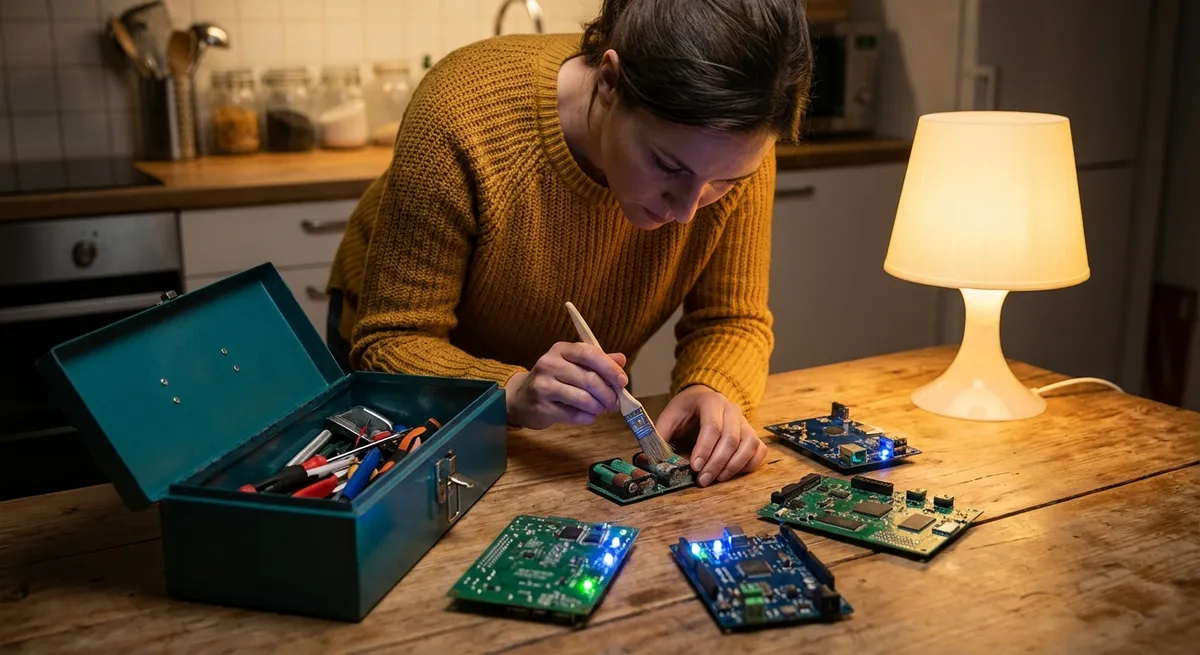
When electronics act up, most people jump straight to “I need a new one.” In reality, a lot of issues can be fixed at home in minutes with basic tools and a calm, systematic approach. This guide walks you through five common electronics problems and gives you clear, practical steps to diagnose and fix them safely—before you spend money on a replacement or a repair shop.
Fix 1: Device Won’t Turn On (Phones, Laptops, Game Consoles)
When a device is completely unresponsive, treat it like a power problem first, not a “it’s dead” problem.
Step 1: Check the power source
- Try a different wall outlet you know is working (plug in a lamp to confirm).
- Remove power strips and extension cords from the equation; plug the device directly into the wall.
- For laptops or consoles with external power bricks, make sure all cable segments are firmly seated.
Step 2: Verify the charger or power cable
- Inspect the cable for kinks, cuts, fraying, or burn marks.
- Wiggle the cable gently near the plugs; if power drops in and out, the cable may be faulty.
- Test with another compatible charger or cable if you have one. If the device works with a different charger, replace the original.
Step 3: Try a forced restart (for phones, tablets, many laptops)
- iPhone (Face ID models): Quickly press and release Volume Up, then Volume Down, then hold the Side button until you see the Apple logo.
- Many Android phones: Hold Power + Volume Down for 10–15 seconds (may vary by brand).
- Laptops: Hold the power button down for 10–15 seconds to force a shutdown, then press again to power on.
Step 4: Remove battery (if possible)
- For older laptops or devices with removable batteries, disconnect from power, remove the battery, and hold the power button for 15–20 seconds (discharges residual power).
- Reinsert the battery, plug in, and try turning it on again.
Step 5: Look for signs of life
- Listen for fan noise, drive spinning, or startup chimes.
- Check for very dim backlight by shining a flashlight at an angle on the screen—if you see a faint image, the device may be on but the display/backlight has failed.
If the device still shows absolutely no signs of life after these steps, the issue may be internal (power supply, motherboard). At that point, weigh repair cost vs. replacement, especially for older devices.
Fix 2: Screen Is On but Nothing Responds (Frozen or Laggy Devices)
When your phone, tablet, TV, or computer is stuck, the goal is to break the freeze safely without corrupting files.
Step 1: Try a normal restart
- For phones/tablets: Hold the power button and tap “Restart” or “Power off,” then turn it back on.
- For smart TVs: Use the remote to power off, unplug the TV from the wall, wait 30 seconds, then plug back in and power on.
- For computers: Use the operating system’s restart option if the cursor and menus still work.
Step 2: Forced restart if the device is completely frozen
- Phones/tablets: Use the forced restart sequence from Fix 1.
- Windows PC: If nothing responds, hold the power button 5–10 seconds until the machine shuts off, wait a few seconds, then turn it on again.
- Mac: Hold the power button until the Mac shuts down, wait, then press it again.
Step 3: Free up resources after reboot
- Uninstall or close recently added apps that might be causing the freeze.
- Delete or move large files you don’t need (photos, videos, downloads) to free up storage.
- On computers, open Task Manager (Windows) or Activity Monitor (Mac) to see if a specific app is consuming all the CPU or memory and close it.
Step 4: Update software and apps
- Check for system software updates (iOS, Android, Windows, macOS, TV firmware).
- Update apps through the app store or built-in app store on smart TVs.
- Many freezes are caused by outdated or incompatible apps.
Step 5: Run a basic health check
- On Windows: Use built-in tools like “Check Disk” for storage issues.
- On macOS: Use Disk Utility’s “First Aid” on your main drive.
- On phones: In Settings, check battery health and storage usage; severely low storage or overheating can lead to recurring freezes.
If freezes keep returning, it can indicate a failing storage drive, bad RAM, or overheating hardware—issues that usually need professional diagnosis.
Fix 3: No Sound or Bad Audio (TVs, Laptops, Speakers, Headphones)
When sound disappears or becomes distorted, think “signal path”: source → settings → output.
Step 1: Confirm the basics
- Make sure the device isn’t muted and volume is turned up (both on the device and any external speakers).
- Check hardware mute switches (some laptops and headsets have physical mute buttons or sliders).
- Test different content (another video, streaming app, local file) to rule out a problem with just one app or website.
Step 2: Verify output settings
- On TVs: Go to audio settings and ensure the correct audio output is selected (TV speakers vs. soundbar vs. HDMI ARC).
- On computers:
- Windows: Right‑click the speaker icon → “Open Sound settings” → make sure the correct output device is selected.
- macOS: Apple menu → System Settings → Sound → Output → pick the right device.
- On phones: In Bluetooth settings, check that audio is routed to the right device (headphones vs. phone speaker).
Step 3: Check physical connections
- For wired speakers/soundbars: Ensure cables are fully plugged in; unplug and replug both ends.
- Try a different cable if available (aux, HDMI, optical).
- For HDMI: Move the cable to another port and switch the TV input accordingly.
Step 4: Test on another device
- Plug the same headphones into a different phone/computer.
- Connect the same speakers to another audio source.
- If the problem follows the accessory, the accessory is at fault; if it stays with the device, the device needs attention.
Step 5: Clean and inspect ports
- Power off the device.
- Use a can of compressed air (short bursts) to blow dust out of headphone jacks and speaker grilles.
- For headphone jacks and charging/audio combo ports, use a wooden or plastic toothpick very gently to remove pocket lint (never use metal).
- Check for corrosion, bent pins, or obvious damage—these often require professional repair.
Persistent audio issues on a single side of headphones or in one TV speaker usually signal hardware failure; replacement is often more cost‑effective than board‑level repair for cheap accessories.
Fix 4: Wi‑Fi or Internet Keeps Dropping (Laptops, Phones, Smart TVs)
When internet connections cut in and out, you need to separate “Wi‑Fi signal problem” from “device problem” and “internet provider problem.”
Step 1: Reboot the network equipment
- Unplug your modem and router (or gateway) from power.
- Wait 30–60 seconds.
- Plug in the modem first, wait until all its lights stabilize, then plug in the router (if separate).
- Wait a few minutes, then test the connection.
Step 2: Check if it’s just one device
- Test multiple devices: phone, laptop, smart TV.
- If all devices are having issues, your router, modem, or internet provider is likely the problem.
- If only one device is dropping, focus your troubleshooting there.
Step 3: Forget and rejoin the network (on the problem device)
- Go to Wi‑Fi settings, select your network, and choose “Forget” or “Remove.”
- Reboot the device.
- Reconnect to the network and re‑enter the password carefully.
- This clears out old network settings that might be corrupt.
Step 4: Move and position smart devices
- For TVs, consoles, or desktops on Wi‑Fi, avoid placing them inside cabinets or behind thick walls.
- If possible, move the router to a more central, high, and open location.
- For stubborn spots, consider a wired Ethernet cable or a mesh Wi‑Fi system for better coverage.
Step 5: Update firmware and drivers
- Log into your router’s admin page (address is usually on the bottom label) and check for firmware updates.
- On computers, update Wi‑Fi drivers (Windows) or ensure macOS is current.
- On phones/TVs, install system software and app updates.
If your speed is consistently lower than what you’re paying for, or drops at the same time every day, contact your internet provider with a log of dates, times, and speed test results.
Fix 5: Device Overheating and Shutting Down (Laptops, Consoles, Phones)
Heat is one of the fastest ways to shorten the life of electronics. If a device is hot to the touch, slowing down, or shutting off, deal with airflow and workload.
Step 1: Give it space and ventilation
- Make sure vents aren’t blocked—laptops shouldn’t sit on soft beds/couches where fabric clogs vents.
- Place devices on hard, flat surfaces; use a laptop stand or cooling pad if you often use it on your lap.
- For game consoles, leave several inches of space around all sides and avoid enclosed TV cabinets.
Step 2: Power down and cool off
- Shut down the device completely; don’t just put it to sleep.
- Let it rest in a cool, dry area away from direct sunlight for at least 15–30 minutes.
- Never put electronics in the fridge/freezer; rapid temperature changes can cause condensation and damage.
Step 3: Clean dust from vents and fans
- Power off and unplug the device.
- Use compressed air in short bursts to blow dust out of vents (from the outside only unless you know how to safely open the device).
- For desktops and some consoles, you can remove panels to access fans—hold the fan blades still with a plastic tool or finger while blowing air so you don’t overspin them.
Step 4: Reduce workload and background tasks
- Close unused apps, browser tabs, and games running in the background.
- On laptops:
- Lower screen brightness.
- Switch to a power‑saving or balanced mode instead of high‑performance.
- On phones: Turn off GPS, Bluetooth, and high‑intensity games/apps when not needed.
Step 5: Check for software or battery issues
- Update to the latest operating system; some updates fix overheating bugs.
- On phones and laptops, check battery health in settings (older, degraded batteries can run hotter).
- If a device is swollen, warped, or the case is bulging, stop using it immediately and seek professional help—this is often a sign of a failing, potentially dangerous battery.
If the device overheats even with light use and good ventilation, an internal fan may be failing or thermal paste may need replacement—jobs best handled by a qualified technician.
Conclusion
Most everyday electronics failures start as small, fixable problems: loose cables, clogged vents, outdated software, or misconfigured settings. By working through simple, step‑by‑step checks—power, connections, settings, updates, and airflow—you can often bring your gear back to life without a trip to the repair shop. Start with the obvious, change one thing at a time, and pay attention to warning signs like repeated shutdowns or visible damage. When a fix goes beyond basic cleaning and settings, or involves swollen batteries and burnt components, it’s time to call a professional or consider replacement.
Sources
- [Apple Support – If your iPhone, iPad, or iPod touch won’t turn on or is frozen](https://support.apple.com/en-us/HT201412) - Official guidance on forced restarts and power troubleshooting for iOS devices
- [Microsoft Support – Troubleshoot blue screen errors](https://support.microsoft.com/en-us/windows/troubleshoot-blue-screen-errors-905f2085-36ab-456c-7efe-2e61469e0025) - Covers system freezes, forced restarts, and basic diagnostics for Windows PCs
- [Federal Communications Commission (FCC) – Consumer Guide to Broadband](https://www.fcc.gov/consumers/guides/getting-broadband) - Background on home internet performance issues and factors affecting connectivity
- [Harvard University IT – Computer Ventilation and Cooling](https://huit.harvard.edu/news/computer-ventilation-and-cooling) - Practical advice on preventing overheating in computers through proper ventilation and cleaning
- [Mayo Clinic – Lithium battery safety and risks](https://www.mayoclinic.org/healthy-lifestyle/adult-health/expert-answers/lithium-batteries/faq-20517039) - Explains safety issues around damaged or swollen lithium‑ion batteries and when to seek professional help
Key Takeaway
The most important thing to remember from this article is that this information can change how you think about Electronics.



