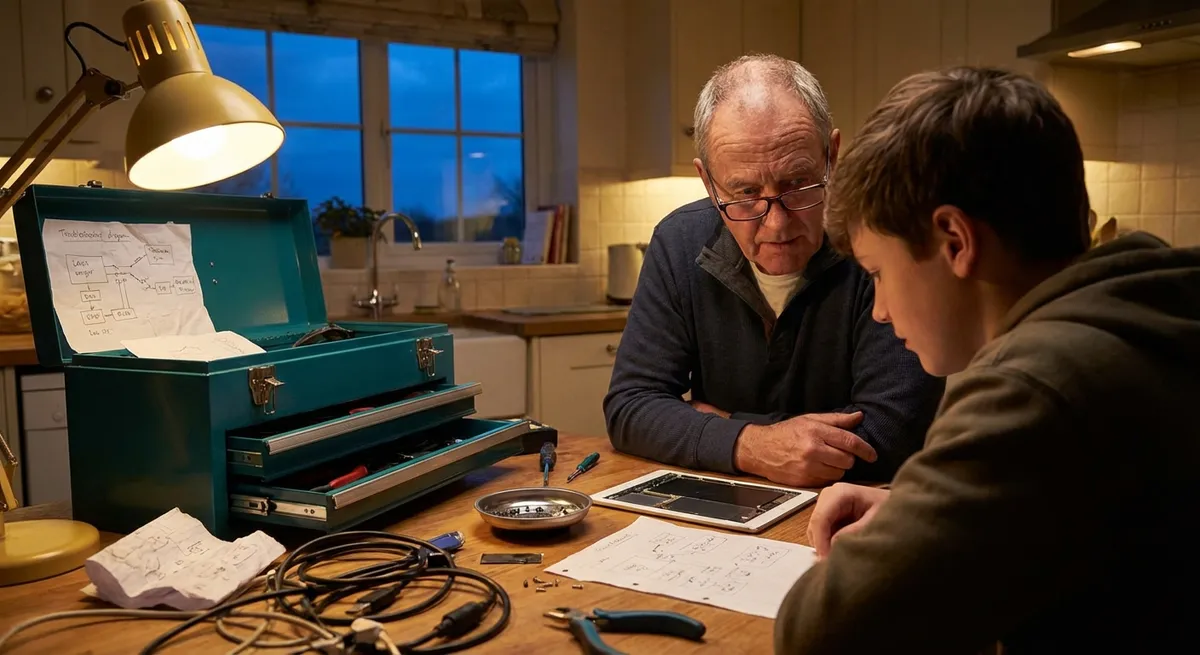
Electronics fail at the worst possible time—right before a meeting, during a movie, or when you finally sit down to relax. Most people jump straight to “it’s broken” and start shopping for a replacement. In reality, many common problems are simple to diagnose and fix at home in minutes. This guide walks through five practical, step‑by‑step solutions you can safely try before paying for a repair or buying new gear.
1. When Your Device Won’t Charge Properly
A slow or unreliable charge is often less about a “dead battery” and more about cables, ports, or power sources. Before assuming the worst, rule out the basics in a systematic way.
Step‑by‑step fix:
Check the wall outlet first
- Plug in a different device or a lamp to confirm the outlet has power. - If you’re using a power strip, try plugging directly into the wall to bypass a faulty strip.
Inspect and test the cable
- Look closely for fraying, kinks, bent connectors, or discoloration near the ends. - Try another known‑good cable with the same device; if the new cable works, you’ve found the problem. - Avoid off‑brand “ultra‑cheap” cables—many don’t meet power standards and fail quickly.
Examine and clean the charging port
- Power off the device. - Use a bright light to inspect the port for lint, dust, or debris (common in phones, tablets, and laptops). - Use a wooden or plastic toothpick (never metal) to gently lift out compacted lint. - Finish with a short burst of compressed air if available.
Try a different power adapter or USB port
- Move the cable to a different USB port or power brick that you know works with other devices. - For phones and tablets, use the manufacturer’s recommended wattage; too low and it will charge very slowly.
Check for software‑based charging limits
- Some laptops and phones have battery health features that cap charging at a certain percentage. - In settings, look for “Battery health,” “Optimized charging,” or “Battery protection” options and temporarily disable to test.
If your device still won’t charge after trying another cable, adapter, and outlet, the issue is likely internal (port damage or battery failure) and may need professional service—especially if the device heats up unusually during charging.
2. Fixing Screens That Flicker, Freeze, or Show No Signal
Whether it’s a monitor, TV, or laptop display, screen issues can be frustrating but are often related to connections or settings, not a dead panel.
Step‑by‑step fix:
Confirm the basics: power and inputs
- Make sure the screen is actually on—look for a power light. - Use the screen’s “Input” or “Source” button to cycle through HDMI/DisplayPort/etc. to the correct one. - For TVs, confirm the correct HDMI port corresponds to the one used on the back.
Check and reseat video cables
- Power off both the screen and the device (PC, console, etc.). - Fully unplug the video cable (HDMI, DisplayPort, VGA) from both ends. - Inspect connectors for bent pins or damage. - Reconnect firmly until you feel or hear a click; loose connections cause flicker and “no signal” errors.
Test with a different cable or device
- Try another cable of the same type if you have one. - Connect a different device (like a laptop or streaming stick) to the same screen and port. - This tells you if the issue is the screen, the original device, or the cable.
Adjust refresh rate and resolution (for computers)
- On Windows: go to Display Settings → Advanced display → choose a standard refresh rate (60 Hz) and recommended resolution. - On macOS: System Settings → Displays → select “Default for display.” - Extremely high or unsupported resolutions/refresh rates can cause flickering or blank screens.
Look for pattern‑based problems
- Flicker only when you move the cable? The cable or port is likely loose. - Image appears then quickly goes black? Power‑saving or sleep settings on the source device may be misconfigured. - Horizontal or vertical lines that don’t change with cables or devices often indicate a failing panel—this is usually a job for a pro or a replacement.
3. Restoring Sound When Speakers or Headphones Go Silent
No audio from your TV, laptop, or Bluetooth speaker doesn’t always mean the hardware is dead. Mismatched settings and simple connection issues account for most “no sound” complaints.
Step‑by‑step fix:
Verify the volume at every level
- Turn up the volume on the device (TV, phone, computer). - Turn up the volume on the speakers, soundbar, or headphones themselves. - Check any mute switches or dedicated mute buttons on remotes and keyboard function keys.
Confirm the correct audio output is selected
- On Windows: - Click the speaker icon → select the right output (speakers, headphones, HDMI, Bluetooth device). - On macOS: - System Settings → Sound → Output → select your desired device. - On TVs: - Audio or Sound menu → choose “TV Speakers” or the correct external audio device.
Inspect physical connections (wired audio)
- Ensure 3.5 mm jacks are fully inserted until they “click” into place. - For optical or HDMI ARC to soundbars, reinsert both ends firmly and confirm the correct input on the soundbar. - Look for bent plugs or obvious cable damage.
Reset Bluetooth connections (wireless audio)
- Turn Bluetooth off and back on in your phone or computer settings. - Put your headphones or speaker into pairing mode (usually holding the power or Bluetooth button). - “Forget” the device in your Bluetooth list, then pair it again fresh. - Keep the audio device within a few feet during setup to avoid interference.
Test with multiple apps and content sources
- Try audio from streaming, local files, and a simple test sound (system sounds). - If only one app is silent, check that app’s internal volume or audio settings. - If everything is silent across all sources, and connections/settings are correct, the speakers or audio circuit may have failed.
4. Solving Wi‑Fi Devices That Keep Dropping or Won’t Connect
When smart TVs, game consoles, or laptops refuse to stay connected, the root cause is often interference, distance, or simple network glitches rather than a bad device.
Step‑by‑step fix:
Power‑cycle your network
- Unplug your modem and router from power. - Wait at least 30 seconds. - Plug the modem back in first, wait until all lights stabilize, then plug in the router. - Once Wi‑Fi is back, test your device again.
Forget and rejoin the network
- On the problem device, go to Wi‑Fi settings. - Select your network → choose “Forget” or “Remove.” - Reconnect and enter the password carefully. - If you have both 2.4 GHz and 5 GHz networks, test both; 2.4 GHz reaches farther, 5 GHz is usually faster at close range.
Reduce interference and improve placement
- Move the device or router away from thick walls, metal objects, and large appliances (microwaves, fridges). - If your router has external antennas, angle them differently (typically one vertical, one horizontal). - Avoid stacking routers on top of other electronics that generate heat and noise.
Check how many devices are connected
- Log into your router’s admin page (often printed on the router label). - Look for a client list and see how many devices are active. - Disconnect or temporarily power off devices you’re not using to free up bandwidth.
Update device and router firmware
- On your device (TV, console, laptop), check for software or system updates and install them. - On the router, use the admin panel to check for firmware updates from the manufacturer. - Reboot both after updates to apply changes.
If one specific device always struggles while others are fine, the Wi‑Fi radio in that device may be failing, or its older Wi‑Fi standard may not play well with newer network settings—an inexpensive USB Wi‑Fi adapter (for computers) can sometimes be a simple workaround.
5. When Buttons, Remotes, or Touch Controls Stop Responding
From TV remotes to game controllers and microwave touchpads, unresponsive controls don’t always mean it’s time to replace the device. Often, it’s power, dirt, or interference.
Step‑by‑step fix:
Start with the power source
- Replace batteries with fresh, high‑quality ones—don’t mix old and new cells. - Ensure batteries are oriented correctly with positive (+) and negative (–) ends lined up. - For rechargeable controllers, connect them with a cable and test while plugged in.
Check for visible damage or blockage
- Inspect remote battery contacts for corrosion (white/green powder). - If present, carefully clean with a cotton swab slightly dampened with isopropyl alcohol (device powered off, batteries removed). - Make sure nothing is covering the IR sensor on the TV or the front of the remote.
Perform a basic reset
- Remove the batteries, press and hold any button for 10–15 seconds to discharge residual power. - Reinsert batteries and test again. - For controllers, look for a small reset hole on the back—use a paperclip to press and hold for a few seconds.
Re‑pair or re‑sync the device
- For smart TV remotes, follow the on‑screen pairing prompts or manufacturer instructions (often pressing and holding specific buttons). - For game controllers, press the pairing button and re‑add via Bluetooth or console settings. - Keep the controller close to the device during pairing and avoid other Bluetooth devices nearby.
Address touch control issues (phones, tablets, appliances)
- Clean screens or touch panels with a microfiber cloth and a tiny amount of screen cleaner (never spray directly onto the device). - Remove cases or screen protectors temporarily to see if they’re interfering. - Power cycle the device (completely off, then back on). - If only certain areas don’t respond at all, the digitizer may be damaged and will likely need professional repair.
Conclusion
Most “dead” or “broken” electronics are suffering from fixable issues: bad cables, dirty ports, wrong settings, or minor connection glitches. Working through these step‑by‑step checks can save money, extend the life of your gear, and cut down on unnecessary e‑waste. Before you replace a device, give it a structured, five‑minute troubleshooting session—often, that’s all it takes to bring it back to life.
Sources
- [Federal Trade Commission – How to Recycle Electronics](https://www.consumer.ftc.gov/articles/how-recycle-electronics) - Explains why repairing and properly handling electronics matters for cost and the environment
- [Apple Support – If your iPhone or iPad won’t charge](https://support.apple.com/en-us/HT204267) - Official guidance on diagnosing charging problems and cleaning ports safely
- [Microsoft Support – Troubleshoot screen flickering in Windows](https://support.microsoft.com/en-us/windows/troubleshoot-screen-flickering-in-windows-10-3d9e862c-35f8-508a-0e3c-695c1f56c98b) - Detailed steps for fixing display issues on Windows devices
- [FCC – Interference with Wi-Fi and other unlicensed devices](https://www.fcc.gov/wireless-interference) - Background on wireless interference that can affect Wi‑Fi and Bluetooth performance
- [Sony Support – Remote control troubleshooting](https://www.sony.com/electronics/support/articles/00023241) - Manufacturer’s checklist for resolving unresponsive remote and button issues
Key Takeaway
The most important thing to remember from this article is that this information can change how you think about Electronics.



