When your favorite gadget stops working, it’s tempting to panic, replace it, or shove it in a drawer “for later.” Instead, you can often bring it back to life with a few basic checks and simple tools. This guide walks you through five practical, step‑by‑step fixes for everyday electronics issues—no engineering degree required.
Before You Start: Safety and Setup
Before you grab a screwdriver, set yourself up for safe and successful repairs.
- Unplug and power down.
Always disconnect devices from power outlets and remove batteries where possible. For laptops and phones, shut them down completely before opening or cleaning.
- Discharge static electricity.
Touch a metal object (like a table leg) before handling sensitive parts. If you have one, use an anti‑static wrist strap clipped to an unpainted metal surface.
- Work in a clear, well‑lit space.
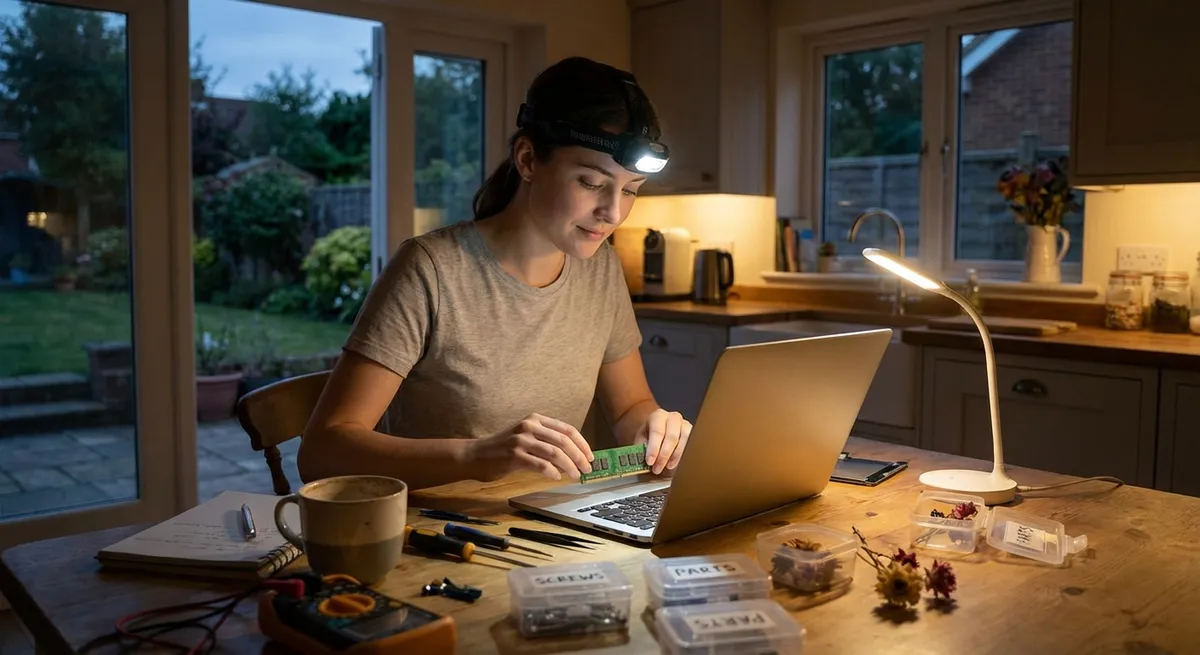
Use a clean table, lay down a light‑colored cloth or mat, and keep small containers (like cups or trays) to hold screws and tiny parts.
- Use the right basic tools.
A minimal starter kit:
- Precision screwdriver set (Phillips and flathead)
- Plastic spudger or guitar pick for prying
- Soft brush (clean, dry paintbrush or makeup brush)
- Isopropyl alcohol (at least 90%) and lint‑free cloths or cotton swabs
- Compressed air can
- Know when to stop.
If you smell burning, see bulging batteries, or find corroded or charred components, don’t keep poking around. Unplug, stop, and consider a professional repair shop.
Fix 1: Phone That Won’t Charge Reliably
A loose cable or worn battery isn’t always the true culprit. Often, the charging port is simply dirty or obstructed.
Step‑by‑step: Clean and diagnose the charging port
- Confirm the basics.
- Test with a different known‑good cable.
- Test with a different wall adapter or USB port.
- Try another outlet if possible.
- Inspect the port.
Use a flashlight to look into the charging port. Lint, dust, or small debris can block good contact.
- Power off the phone.
Turn it completely off before cleaning.
- Gently clean the port.
- Use a wooden or plastic toothpick (never metal) to lightly scrape out lint.
- Insert it very gently, keeping it parallel to the back of the phone.
- Pull out any packed dust; repeat until the port looks clear.
- Avoid liquid cleaners directly in the port.
- Use compressed air (optional).
Short bursts from a distance of a few inches can blow out remaining dust. Don’t hold the can upside down to avoid spraying propellant.
- Test charging again.
Turn the phone on, plug it in, and gently wiggle the plug. If charging is now stable, you likely solved the problem.
- If it still fails, narrow down the issue.
- If no cable/charger works, the port or internal power circuitry may be damaged.
- If wireless charging works but cable charging doesn’t, the physical port is suspect.
At this stage, seek a repair shop if you’re not comfortable with board‑level repairs.
Fix 2: Laptop Overheating and Fan Roaring
A laptop that heats up quickly, runs the fan loudly, or shuts down unexpectedly often just needs airflow restored and thermal load reduced.
Step‑by‑step: Improve cooling and reduce heat
- Check where and how you’re using it.
- Avoid beds, couches, and blankets; they block vents.
- Place the laptop on a hard, flat surface or cooling pad.
- Close the heavyweight apps.
- On Windows: Press
Ctrl + Shift + Escfor Task Manager → “Processes” tab. - On macOS: Open Activity Monitor.
Close high‑CPU apps (video editors, games, multiple browser tabs running video).
- Clean the vents.
- Shut down and unplug the laptop.
- Use compressed air to blow into side/bottom vents in short bursts.
- Keep the fan from spinning excessively by briefly blocking the vent with a card while you spray (to avoid over‑spinning the fan).
- Remove accessible dust (if possible).
- If your laptop has a removable bottom cover, unscrew it (check your model’s guide first).
- Use a soft brush and compressed air to gently clear dust from fans and heatsinks.
- Don’t touch circuit components with your fingers.
- Adjust performance settings.
- On Windows:
- Go to Settings → System → Power & battery → Power mode.
- Choose “Balanced” or “Best power efficiency” instead of “Best performance.”
- On macOS: In newer models, heavy load is managed automatically, but closing unused apps and tabs still helps.
- Re‑test under light and heavy use.
Use the laptop for basic tasks (browsing, documents) and note temperature and fan noise. Then test with a heavier app or a game. If overheating persists, thermal paste or internal cooling parts may need professional service.
Fix 3: TV or Monitor With “No Signal” But Power Is On
A blank screen or “No Signal” message often looks serious but is frequently a connection or input issue, not a dead display.
Step‑by‑step: Restore the image
- Verify the basics.
- Confirm the TV/monitor power light is on.
- Make sure the connected device (PC, console, streaming box) is turned on.
- Check video cables.
- Power everything off.
- Unplug the HDMI/DisplayPort cables from both ends.
- Inspect the cable for kinks or bent connectors.
- Reconnect them firmly; you should feel them “seat” fully.
- Confirm the correct input source.
- Use the remote or buttons to cycle through HDMI 1, HDMI 2, etc.
- Match the port where the cable is plugged in physically to the on‑screen input label.
- Try a different port or cable.
- Move the cable to another HDMI port on the TV/monitor.
- If you have another HDMI cable, swap it in.
- If another device (like a game console) works on the same port and cable, the issue is probably with your original source device.
- Adjust the computer’s display settings (for monitors).
- On Windows:
Win + P→ select “Duplicate” or “Extend.” - On macOS: Apple menu → System Settings → Displays → “Add display” or “Detect Displays.”
Sometimes the system thinks the monitor is disconnected or cloned at an unsupported resolution.
- Check resolution compatibility.
- Set your PC’s resolution to a common standard (e.g., 1920×1080) and refresh rate (60 Hz), then reconnect.
- Older TVs and monitors may reject overly high resolutions or refresh rates.
If it still won’t display…
- Test the monitor/TV with a completely different device (like a DVD/Blu‑ray player or another laptop). - If no device works on any port, the display hardware may need professional repair. - If the display works with other devices, investigate graphics drivers or hardware on the original device.
Fix 4: Wireless Earbuds With One Side Not Working
When one earbud goes silent or cuts in and out, the issue is often pairing, debris in the contacts, or a low battery in just one bud.
Step‑by‑step: Revive the silent earbud
- Clean the earbud and case contacts.
- Power off and remove the earbuds from your ears.
- Use a dry, soft brush (or a soft toothbrush) to gently remove earwax or dust from the speaker mesh and charging contacts.
- Lightly dampen a cotton swab with isopropyl alcohol and gently clean the metal contacts on both the earbud and the case. Let dry completely.
- Check battery and charging.
- Place both earbuds in the case and close it.
- Make sure the case’s charging light turns on when plugged in.
- Leave them to charge for at least 15–20 minutes, then test again.
- Forget and re‑pair the earbuds.
- On your phone: Go to Bluetooth settings → find the earbuds → tap “Forget” or “Remove.”
- Put the earbuds into pairing mode (check the manual; typically pressing and holding a button on the case or buds).
- Reconnect from the phone’s Bluetooth list.
- Reset the earbuds (factory reset).
Each brand has a specific reset method. Common patterns:
- Swap ears and test individually.
- Test each earbud alone (many models allow this).
- If one earbud never plays sound even when acting as the “primary” bud, its internal driver or board may be faulty.
- Update firmware (if available).
- Many brands provide apps (e.g., for Apple, Samsung, Sony) that can update firmware.
- Open the app, check for updates, and install if available.
If cleaning, resetting, and firmware updates don’t help, you may be dealing with a failed driver, failing battery, or damaged internal wiring—time to check warranty options or replacement.
Fix 5: Remote Control That Only Works Sometimes (or Not at All)
A flaky TV or device remote often comes down to batteries, blocked signals, or dirty contacts rather than a dead remote.
Step‑by‑step: Get your remote working again
- Replace the batteries with a fresh set.
- Use new, high‑quality batteries of the correct type (AA, AAA, etc.).
- Make sure they’re oriented correctly (+ and −).
- Don’t mix old and new batteries.
- Check for physical damage or corrosion.
- Open the battery compartment.
- Look for white/green crust (battery corrosion) or rust.
- If you see corrosion, wear disposable gloves and lightly clean the contacts with a cotton swab dipped in a bit of isopropyl alcohol. Let dry completely before inserting new batteries.
- Test the remote’s IR LED with a phone camera.
- Most smartphone cameras can “see” infrared light.
- Open the camera app and point the remote’s front at the camera.
- Press and hold a button: you should see a flashing light in the camera view if the remote is sending IR.
- If you see no light at all even with new batteries, the remote’s LED or internal circuitry may be dead.
- Ensure a clear line of sight.
- Remove objects blocking the path between remote and device.
- Aim directly at the IR sensor (usually near the device’s front panel).
- Reset or re‑pair smart/Bluetooth remotes.
For smart TVs and streaming devices, remotes may use Bluetooth or RF instead of infrared:
- As a last check, test with another remote (if available).
- If a universal remote or phone app (some TVs support this) can control the device, the issue is with the original remote.
- If no remote can control the device, the problem could be with the TV/device’s receiver.
Conclusion
Most everyday electronics failures start with simple issues: dust, loose connections, blocked vents, drained batteries, or misconfigured settings. By following straightforward, safe steps—cleaning ports, improving airflow, checking cables, resetting wireless connections, and testing with known‑good parts—you can rescue many devices from the “dead gadget” pile and delay expensive replacements.
When troubleshooting stalls or you see signs of serious damage (burn marks, bulging batteries, cracks in circuit boards), that’s your cue to involve a professional technician or use an authorized repair center. The more you practice these basic fixes, the more confident you’ll be tackling the next glitch instead of giving up on it.
Sources
- [Apple Support – If your iPhone or iPad won’t charge](https://support.apple.com/en-us/HT201569) - Official guidance on charging issues, ports, and basic troubleshooting
- [Microsoft Support – Troubleshoot blue screen errors and overheating](https://support.microsoft.com/en-us/windows/troubleshoot-blue-screen-errors-79b39ecd-3c33-49f4-b9f9-e4650d5c32a2) - Covers system performance, crashes, and related hardware concerns
- [Samsung – How to connect and troubleshoot your Samsung TV and external devices](https://www.samsung.com/us/support/troubleshooting/TSG01109747/) - Practical information on “No Signal” and HDMI input problems
- [Sony – Troubleshooting Bluetooth and wireless audio devices](https://www.sony.com/electronics/support/articles/00024872) - Explains common wireless earbud and headphone issues and reset steps
- [U.S. Consumer Product Safety Commission](https://www.cpsc.gov/Safety-Education/Safety-Guides/electrical) - Safety guidance for using and working around electrical products and avoiding hazards
Key Takeaway
The most important thing to remember from this article is that this information can change how you think about Electronics.



