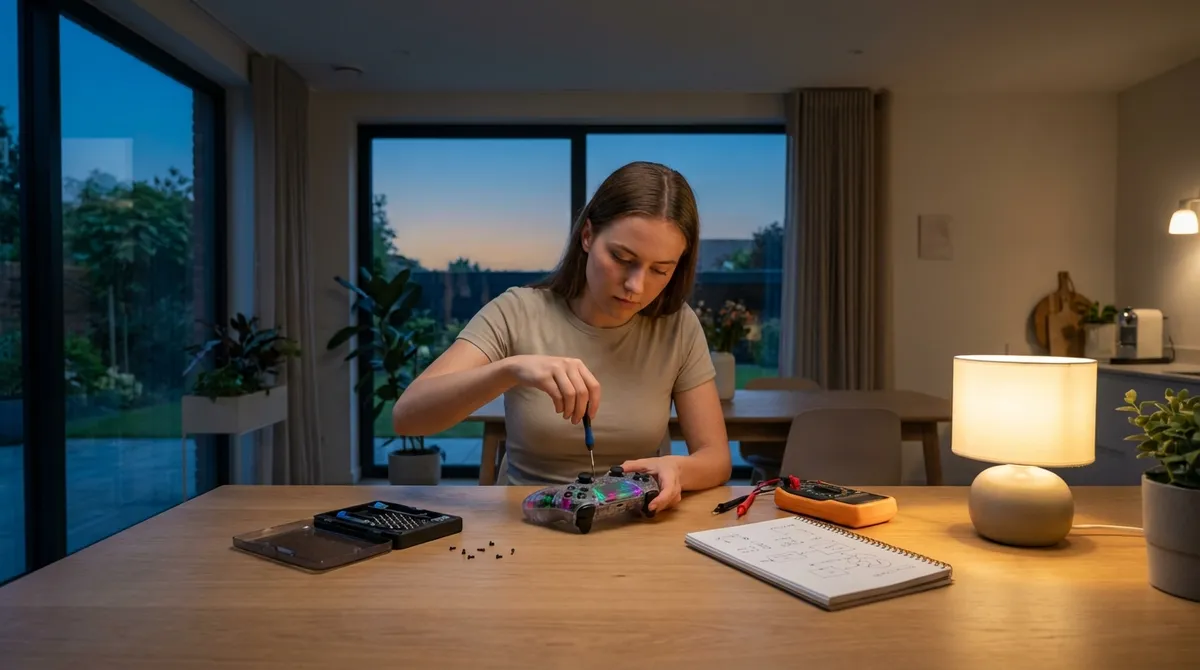
Electronics usually fail at the worst possible moment—right before a meeting, in the middle of a movie, or when you finally sit down to relax. Instead of panicking or immediately buying something new, you can often stabilize or fully fix the problem yourself with a few simple checks. This guide walks you through five common electronics issues and shows you exactly what to do, step by step, before you spend money on a repair or replacement.
1. Laptop Won’t Turn On (No Lights, No Sound)
When a laptop looks completely dead, it’s often a power or static issue—not a destroyed motherboard.
Step‑by‑step checklist
Confirm the power source
- Plug something else (like a phone charger or lamp) into the same outlet. - If that device doesn’t work, switch outlets or reset your power strip.
Inspect the charger and ports
- Check the cable for kinks, burns, or fraying. - Wiggle the plug gently at the laptop—if the charging light flickers, the port or cable may be loose or failing. - Try a different compatible charger if you have one available.
Perform a power drain reset (helps remove “stuck” static)
- Unplug the charger. - Remove the battery if it’s removable. - Hold the power button down for 20–30 seconds. - Reinsert the battery (if removable) and plug in the charger. - Try turning it on again.
Check for hidden life signs
- Look for tiny LEDs on the side or keyboard, or listen for fan noise. - Connect an external monitor with HDMI/DisplayPort to rule out a dead screen.
When to stop and call a pro
- No lights at all with a known‑good charger and outlet. - You smell burning or see scorch marks. - The power jack feels loose or pushes inward when you plug in.
In these cases, further DIY attempts can cause more damage. Document what you tried and share that with a repair technician—it saves diagnosis time and cost.
2. Phone Won’t Charge or Charges Extremely Slowly
Charging problems are often caused by dirt, cable issues, or a weak power source—not a ruined battery.
Step‑by‑step checklist
Clean the charging port (carefully)
- Power the phone off. - Use a wooden or plastic toothpick (never metal) to gently scrape out lint and debris. - Blow gently or use short bursts from a can of compressed air (held upright). - Recheck with a flashlight—many ports are packed with pocket lint.
Test with a known‑good cable and charger
- Try an original or certified charger (MFi for Apple, manufacturer-approved for Android). - Plug into a wall outlet directly, not a USB hub, power strip, or laptop. - If wireless charging works but the cable doesn’t, the port may be damaged.
Check battery and charging settings
- Turn off battery‑intensive apps and screen‑on time while charging. - For Android: - Settings → Battery (or Device Care) → look for “Power saving” or “Battery usage” and disable temporary. - For iPhone: - Settings → Battery → Battery Health & Charging → check for warnings about battery degradation or “charging paused.”
Look for physical or liquid damage
- Inspect the port for bent pins or corrosion (green/white residue). - If the phone has been wet: - Power off immediately and avoid charging until it’s completely dry (24–48 hours). - Do not use rice—use airflow and a dry environment.
When to seek repair
- Cable and charger are known good, but the phone only charges when the plug is held at a specific angle. - Charging stops and starts repeatedly even when the phone is still. - The phone or charger overheats dramatically during charging.
In these cases, a charging port replacement or battery service is often cheaper than buying a new phone.
3. TV Has Sound But No Picture (Or a Flickering Screen)
A “dead” TV screen isn’t always a dead TV. It can be as simple as a loose cable or incorrect setting.
Step‑by‑step checklist
Do the flashlight test
- Turn the TV on and switch to a channel or streaming app that should display something. - In a dark room, shine a flashlight up close to the screen at an angle. - If you faintly see images or menus, the backlight may be failing—but the TV is still processing video.
Confirm the input source
- Press the “Input” or “Source” button on the remote (or TV side buttons). - Slowly cycle through HDMI 1, HDMI 2, AV, etc. - Make sure the cable box/console/streaming stick is also powered on.
Reseat or replace video cables
- Turn off the TV and connected device. - Unplug the HDMI (or other video cable) on both ends. - Inspect for bent pins or damaged connectors. - Plug it back in firmly or try another HDMI port on the TV. - Test with a different HDMI cable if possible.
Reset picture settings
- Find “Settings” or “Menu” on the remote. - Look for Picture or Display options. - Choose “Reset to default” or “Factory picture reset.” - Disable any energy-saving mode that aggressively dims the backlight.
When it’s likely hardware
- You see clear cracks or areas of black “ink” spreading inside the panel. - The flashlight test shows nothing at all, yet the TV’s power light acts normal. - Picture flickers, horizontally lines appear, or image vanishes as the TV warms up.
Panel or backlight repairs can be expensive relative to TV cost. Get a repair estimate first; in many cases, a mid-range new TV may be more economical than a panel replacement.
4. Bluetooth Headphones Won’t Connect or Keep Dropping
Connection issues are usually software conflicts or pairing memory overload—not permanent hardware failure.
Step‑by‑step checklist
Delete and re‑pair from your device
- On your phone/tablet/computer: - Go to Bluetooth settings. - Find your headphones → tap “Forget,” “Remove,” or “Unpair.” - Turn Bluetooth off, wait 10 seconds, then turn it back on. - Put headphones into pairing mode (check manual—usually holding the power/Bluetooth button until the light flashes). - Reconnect as if it’s a new device.
Clear paired devices from the headphones
- Many headphones remember 2–8 devices and can get “stuck.” - Common method: with headphones off, hold the power and volume‑up (or Bluetooth) buttons together for 5–10 seconds. - Watch for a different color flash or voice prompt like “Bluetooth cleared.” - Re-pair with your main device only.
Reduce interference and distance
- Move away from microwaves, Wi‑Fi routers, and crowded wireless spaces. - Avoid blocking the signal with your hand, bag, or thick clothing. - Keep phone and headphones within 3–6 feet while testing.
Check for firmware and OS updates
- Update your phone or laptop to the latest OS version. - Check the manufacturer’s app or website for headphone firmware updates (common for AirPods, Sony, Bose, etc.). - Restart both devices after updating.
When to suspect hardware failure
- Headphones won’t enter pairing mode at all. - They connect to any device for a second, then disconnect, despite resets. - Only one side ever works, no matter what device you use.
At that point, check your warranty or any extended protection plan; Bluetooth modules and internal batteries are common failure points but are sometimes covered.
5. Game Console Overheats, Shuts Down, or Is Extremely Loud
If your console sounds like a jet engine or randomly powers off during gameplay, it’s likely overheating or clogged with dust.
Step‑by‑step checklist
Improve ventilation immediately
- Move the console out of enclosed cabinets. - Keep at least 4–6 inches of space on all sides and above. - Don’t stack other devices on top of it.
Clean vents and intakes
- Power the console down fully and unplug it. - Use a can of compressed air to blow dust out of vents from different angles (short bursts, can upright). - Wipe exterior vents gently with a dry microfiber cloth. - Do not use a vacuum directly on electronics—it can create static.
Check for software and fan control issues
- Update the console system software. - Close unused games/apps running in the background. - Turn off extended “rest mode” features that keep the console warm constantly.
Stabilize operating conditions
- Don’t place the console on soft surfaces like beds or carpets that block airflow. - Avoid placing it near heaters, direct sunlight, or in very hot rooms. - If vertical orientation is allowed by the manufacturer, try it to improve airflow.
When to pursue internal cleaning or repair
- The console stays excessively loud even in menus or idle screens. - It displays overheating warnings or suddenly powers off during normal use. - You see or smell burnt components.
Opening the console often voids warranties. Check official guidance first; if you’re out of warranty, a professional cleaning and fresh thermal paste can significantly extend its life.
Conclusion
Most “dead,” “useless,” or “broken” electronics are actually suffering from power, connection, dust, or basic configuration issues. Working through a structured checklist—power, cables, ports, settings, resets, then physical damage—can turn a crisis into a quick fix. Before you replace a laptop, phone, TV, headphones, or console, spend 10–20 minutes on these steps. You’ll either bring the device back to life or gather the exact information a repair shop needs to help you quickly and cost‑effectively.
Sources
- [Apple Support – If your iPhone or iPod touch won’t charge](https://support.apple.com/en-us/HT201569) – Official troubleshooting steps for phone charging problems
- [Samsung – Fixing TV picture issues](https://www.samsung.com/us/support/troubleshooting/TSG01001012/) – Manufacturer guidance on no-picture and display problems
- [Microsoft – Troubleshoot problems with your Xbox console](https://support.xbox.com/en-US/help/hardware-network/console/console-wont-turn-on) – Covers power, overheating, and shutdown behaviors for consoles
- [Sony – Bluetooth connection troubleshooting](https://www.sony.com/electronics/support/articles/00008674) – Detailed advice for resolving Bluetooth pairing and connection issues
- [U.S. Department of Energy – Consumer electronics and standby power](https://www.energy.gov/energysaver/consumer-electronics-and-standby-power) – Background on power usage and why proper power management matters
Key Takeaway
The most important thing to remember from this article is that this information can change how you think about Electronics.



