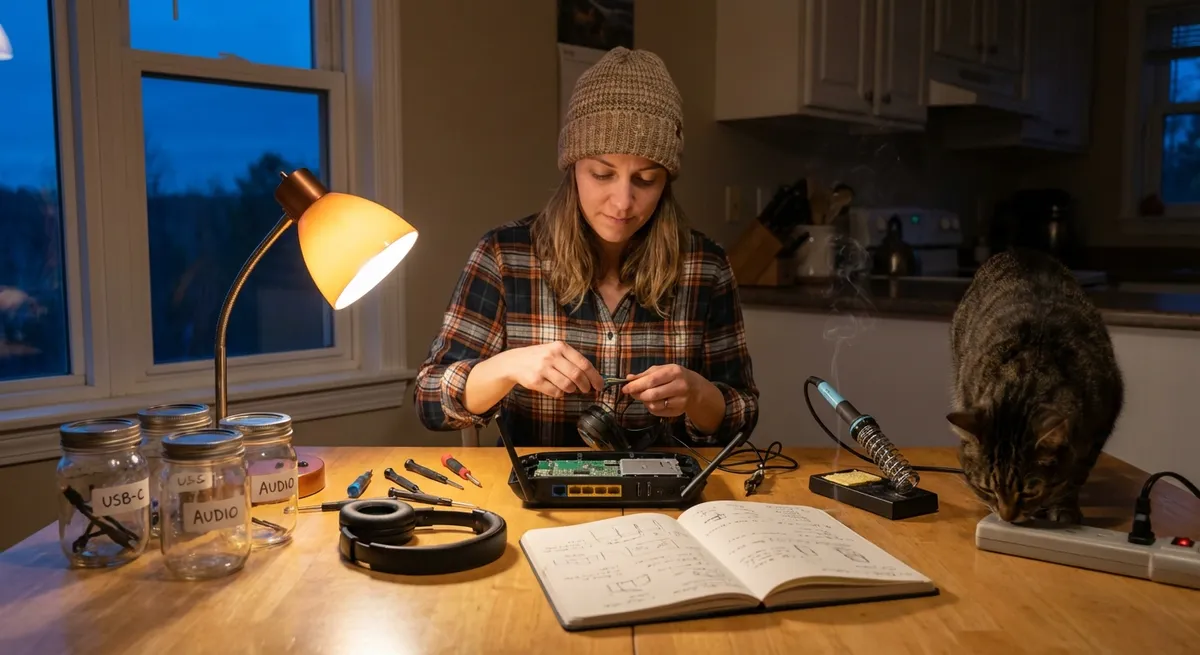
When gadgets misbehave, most people jump straight to “I need a new one” or “I have to call a technician.” In reality, a lot of everyday electronics problems can be fixed in minutes with basic checks and simple tools. This guide walks you through five common issues and shows you exactly what to do before you spend money on a repair—or a replacement.
1. When Your TV Won’t Turn On (But Might Not Be Dead)
A “dead” TV is often a power or settings issue, not a fatal failure. Before assuming the worst, walk through these checks.
Step-by-step:
Confirm the power source
- Unplug the TV and plug something else (like a phone charger and lamp) into the same outlet. - If the other device doesn’t work, reset the circuit breaker and try a different outlet.
Inspect the power cable and connection
- Make sure the TV’s power cable is fully seated in the back of the TV and in the wall or power strip. - Look for kinks, cuts, or frayed areas. If damaged, stop using it and replace the cable.
Bypass the power strip
- Plug the TV directly into the wall outlet, not a surge protector or extension cord. - Some surge protectors cut power after a surge and need to be reset or replaced.
Check the standby indicator light
- If the standby light is on: - Try turning the TV on using both the remote and the physical power button on the TV. - Remove the remote batteries, press every button once to discharge it, reinsert or replace batteries, and try again. - If no light at all: - Unplug the TV for at least 60 seconds, then plug it back in and try again.
Perform a “soft reset”
- Unplug the TV. - Hold the TV’s physical power button (on the bezel) for 10–15 seconds. - Release, wait another 30 seconds, then plug back in and power on.
If the TV still shows no sign of life, you may be dealing with a failed power board or internal component, which generally requires professional service or replacement. But these steps rule out the easy, no-cost causes first.
2. Fixing Wi‑Fi That Keeps Dropping or Feels Sluggish
Unstable or slow Wi‑Fi is often fixable with better placement, simple resets, and small configuration changes—not a new router.
Step-by-step:
Power-cycle your network
- Turn off your modem and router (unplug them from power). - Wait 30–60 seconds. - Plug the modem back in first, wait until all lights stabilize. - Then plug in the router and let it fully boot (2–3 minutes).
Check your router’s position
- Place the router: - High off the floor. - In a central, open location—not in a cabinet, closet, or behind metal objects. - Keep it away from large appliances, microwaves, and thick concrete walls where possible.
Reduce interference
- If your router has both 2.4 GHz and 5 GHz networks: - Use 5 GHz for close-range devices (phones, laptops in the same room) for better speed. - Use 2.4 GHz for far-away rooms (better range through walls). - Turn off or move older electronics that might interfere (baby monitors, cordless phones near the router).
Update firmware and change the channel
- Log in to the router’s admin page (address is often printed on a label, like 192.168.0.1). - Check for a firmware update and install it if available. - Change the Wi‑Fi channel from “Auto” to a less crowded one (use 1, 6, or 11 on 2.4 GHz as starting points).
Test load and devices
- Temporarily disconnect or turn off other Wi‑Fi devices and see if the connection stabilizes. - Run a speed test with only one device connected. If speeds are still far below what you pay for, contact your ISP to check for line issues.
These steps often restore stable, usable Wi‑Fi without any new hardware. If issues persist in distant rooms, consider a mesh Wi‑Fi system or wired Ethernet runs as a next step.
3. Reviving a Smartphone That Won’t Charge
A phone that won’t charge doesn’t automatically mean a dead battery. Ports, cables, and software are common culprits you can fix yourself.
Step-by-step:
Test the obvious: cable and charger
- Try a different cable and a different power adapter, ideally ones that you know work with another device. - Avoid cheap, unbranded chargers; use original or certified third‑party ones.
Inspect and clean the charging port
- Power off the phone. - Shine a light into the port and look for lint, dust, or debris. - Use a wooden or plastic toothpick or a soft brush (never metal) to gently lift out compacted lint. - Blow gently (or use a can of compressed air with short bursts) to clear remaining dust.
Check for loose or wobbly connection
- Gently insert the cable and see if it feels firm. - If the plug feels loose in the port or only charges at certain angles, the port may be physically damaged and likely needs professional repair.
Force a reboot while plugged in
- Plug the phone into a known good charger. - Perform a forced restart: - On many Android phones: hold Power + Volume Down for ~10–15 seconds. - On iPhones: quickly press Volume Up, then Volume Down, then hold the Side button until the Apple logo appears. - Leave it on the charger for at least 20–30 minutes, then check again.
Check battery and charging settings
- Turn off battery‑intensive features (always‑on display, high brightness, location services) to reduce load while charging. - On some Android phones, disable “Optimized Charging” or similar features temporarily to see if normal charging resumes.
If the battery drains extremely fast or the phone only charges when powered off, the battery itself may need replacement. For sealed phones, this is usually a shop job—but your port and charging gear checks should come first.
4. Getting a Laptop to Start Again When It Seems Dead
A laptop that won’t turn on might not be “fried.” Power, static, and peripherals can stop a normal boot. A few basic resets often bring it back.
Step-by-step:
Remove all external devices
- Unplug USB drives, printers, external monitors, docks, and memory cards. - Try starting the laptop with only the power adapter connected (and battery, if it’s non‑removable).
Check power adapter and indicator lights
- Confirm the outlet works using another device. - Inspect the adapter cable for bends, burns, or cuts. - Check for any LED on the adapter or laptop charging port. If none appear with a known good outlet, the adapter might have failed.
Perform a “hard reset” (for most Windows laptops)
- Turn off the laptop and unplug the power adapter. - If it has a removable battery, remove it. - Press and hold the power button for 15–20 seconds to discharge residual power. - Reconnect only the power adapter (leave the battery out if removable) and try turning it on.
Respond to beeps or lights
- If the laptop beeps or shows blinking LED patterns, note the exact pattern. - These are diagnostic codes—look up your laptop model plus “beep codes” on the manufacturer’s site to see what hardware might be failing (RAM, graphics, etc.).
Try an external display and basic RAM reseat (if comfortable and safe)
- Connect an external monitor or TV to see if the system is actually booting but showing no image on the internal screen. - If you’re comfortable opening the laptop and it’s out of warranty: - Power off, disconnect from power, and hold the power button for a few seconds. - Open the back panel, carefully remove and reinsert the RAM modules. - Close the panel, reconnect power, and try starting again.
If none of the above work and you still see no power lights or fan activity, an internal power or motherboard issue is likely. At that point, you’re into professional diagnostics territory—but you’ve already eliminated the easy (and fixable) causes.
5. Silence a Buzzing or Crackling Speaker
Whether it’s a Bluetooth speaker, soundbar, or PC speakers, noise and distortion often come down to loose connections, interference, or software—not instant replacement.
Step-by-step:
Check physical connections
- For wired speakers: - Ensure cables are firmly seated at both ends. - Inspect the wire for cuts, bends, or exposed copper. - For Bluetooth: - Move the speaker within a few feet of the source device and remove anything blocking line of sight.
Test a different audio source and cable
- Connect the speaker to another phone, computer, or TV. - Use a different audio cable or aux cord if applicable. - If the noise disappears with a different source/cable, the original source or cable is the problem.
Reduce wireless and power interference
- Move the speaker away from routers, microwaves, cordless phones, and large power adapters. - Try a different power outlet, ideally on a different wall, to avoid electrical noise from other devices on the same circuit.
Adjust volume levels correctly
- Set the source device (phone/computer) volume to about 70–80%. - Control the final volume on the speaker itself. - If the source is maxed and the speaker is also high, distortion is much more likely.
Update firmware or audio drivers
- For Bluetooth speakers and soundbars: - Check the manufacturer’s site or app for firmware updates. - For computers: - Update your audio drivers from the PC or motherboard manufacturer’s site. - On phones: - Restart the device and disconnect/re-pair the Bluetooth connection from scratch.
If you still hear crackling at all volumes and with different sources and cables, the speaker’s internal amplifier or drivers may be damaged. At that stage, repair or replacement is more realistic than a DIY internal fix for most people.
Conclusion
Many electronic “failures” are actually simple problems in disguise—dust in a port, a confused router, a tired power strip, or a bad cable. By following clear, step‑by‑step checks, you can rule out the easy issues, recover your devices, and save money on unnecessary repairs or replacements. The next time something stops working, treat it like a small investigation: power, connections, settings, then hardware. That process alone will solve more problems than you expect—and when you do need a pro, you’ll know you’ve already handled everything you safely can at home.
Sources
- [Federal Communications Commission – Interference to Home Electronic Equipment](https://www.fcc.gov/general/interference-home-electronic-equipment) – Explains how electronic interference affects devices and how to reduce it
- [Apple Support – If your iPhone or iPod touch won’t charge](https://support.apple.com/en-us/HT208076) – Official steps from Apple for diagnosing and fixing charging problems
- [Microsoft Support – Troubleshoot blue screen errors and startup issues](https://support.microsoft.com/en-us/windows/troubleshoot-blue-screen-errors-and-other-startup-problems-31ce244b-7cf2-8189-305c-541a0ef5b3f9) – Guidance for dealing with laptops and PCs that won’t start properly
- [Netgear – Improve your WiFi speed and reliability](https://www.netgear.com/home/resources/tips-for-better-wifi/) – Practical router placement and configuration tips to stabilize Wi‑Fi
- [Samsung Support – TV or projector won’t turn on](https://www.samsung.com/us/support/troubleshooting/TSG01001045/) – Manufacturer advice on diagnosing power issues with modern TVs
Key Takeaway
The most important thing to remember from this article is that this information can change how you think about Electronics.



