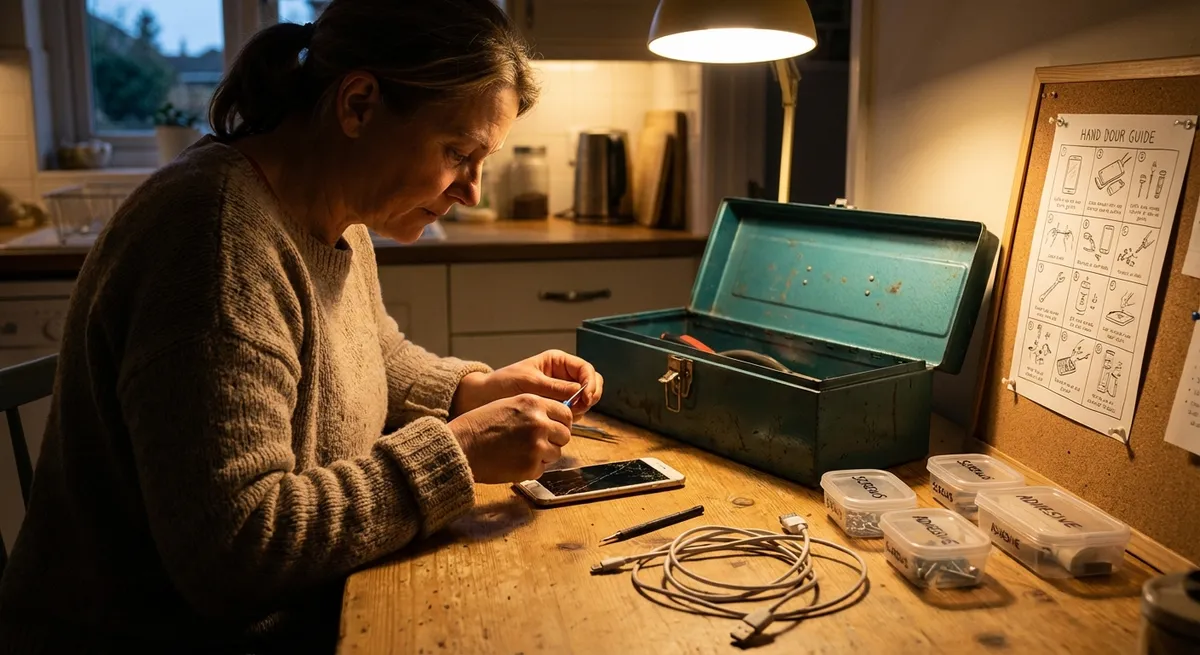
When everyday electronics stop working, it doesn’t always mean you need a new device—or an expensive repair bill. Many “dead” gadgets are just one loose cable, setting change, or clogged port away from working again. This guide walks you through five practical, do‑it‑today solutions you can safely try before calling a pro or replacing anything.
Each section gives you clear steps, what to check, and when to stop and seek expert help.
1. When Your TV Has No Signal or Blank Screen
A TV that suddenly says “No Signal” or shows a black screen often has a simple cause: the wrong input, a loose cable, or an issue with the source device.
Step‑by‑step fix
Confirm the TV is actually powered on
- Check that the standby light changes when you press the power button. - Try powering on using both the TV’s physical button and the remote.
Verify the correct input/source
- Press the “Input” or “Source” button on the remote. - Slowly cycle through HDMI 1, HDMI 2, AV, etc., pausing on each for a few seconds. - Match the input label (e.g., HDMI 1) with where your device (cable box, console, streaming stick) is plugged in.
Check all cable connections
- Power off TV and connected devices. - Firmly reseat HDMI, antenna, or AV cables on both ends. - Inspect cables for kinks, fraying, or bent HDMI pins. - If you have a spare HDMI cable, swap it in to rule out a bad cable.
Restart connected devices in order
- Unplug the TV and all connected devices (cable box, game console, streaming stick) for 30–60 seconds. - Plug in and power on the TV first. - Then power on the source device. - Re‑select the correct input.
Check your signal source
- For cable/satellite: make sure the box is turned on (not just the TV). - For antennas: run a channel scan in the TV’s settings and reposition the antenna near a window or higher up. - For streaming devices: confirm they light up / show status LEDs when powered.
Try a different device or port
- Plug a known‑working device (like a laptop or another console) into the same HDMI port. - If that works, the original device may be the problem. - If no devices work on that port, try another HDMI port on the TV.
When to stop and call a pro
- If the TV powers on but the screen stays black with no menu, no backlight glow, and no sound. - If you see vertical/horizontal lines, large dark patches, or cracks: that’s likely panel damage.
2. Phone Won’t Charge or Charges Very Slowly
Many charging issues come down to dust, cheap cables, or simple software glitches—often fixable at home.
Step‑by‑step fix
Check the outlet and power source first
- Plug a lamp or another device into the outlet to confirm it works. - Avoid charging from low‑power USB ports on old computers; use a wall adapter whenever possible.
Inspect the charging cable and adapter
- Look for frayed insulation, bent or corroded connectors, or kinks near the ends. - Try a different, certified cable and adapter (MFi‑certified for Apple; reputable brands for Android). - Avoid very cheap, unbranded chargers—they can be unreliable or unsafe.
Clean the charging port carefully
- Power off your phone. - Use a wooden or plastic toothpick to gently lift out lint and dust from the port. - Do not use metal objects; avoid compressed air directly in the port on some phones, as pressure can cause issues. - After cleaning, reconnect the cable and see if it fits more securely.
Check for software and battery settings issues
- Restart the phone; minor charging bugs can clear with a reboot. - On Android, check “Battery” settings for power‑saving modes that may limit charging speed. - On iPhone, review “Optimized Battery Charging” under Battery Health, which may slow charging past 80% at certain times.
Try different combinations
- Test your phone with a different adapter and different cable on a known‑good outlet. - If other phones charge fine using the same charger and outlet, the problem is likely your phone, not the power.
When to stop and seek service
- The phone doesn’t recognize any charger, even after cleaning and swapping cables. - The port feels loose, wobbly, or gets hot. - The phone itself gets unusually hot while charging—that can be a sign of battery trouble.
3. Laptop That’s On But Shows a Black or Frozen Screen
A laptop that seems “dead” might just be stuck, low on battery, or confused about which display to use.
Step‑by‑step fix
Force a proper shutdown
- Hold the power button down for 10–15 seconds until all lights go off. - Unplug the charger and remove any external devices (USB drives, external monitors, dongles).
Give it a clean power start
- If the battery is removable: remove it (if safe and possible), hold the power button for 15 seconds, then reinstall and reconnect power. - If the battery is not removable: just leave it unplugged for a minute, then plug the charger back in.
Check that it’s actually powering on
- Press the power button and watch for: - Keyboard backlight - Power LED - Fan noise or drive activity - If there’s absolutely no sign of life, your issue may be power‑related (adapter, battery, or motherboard).
Adjust display and brightness
- For Windows: press Windows + P a few times and select “PC screen only” or “Duplicate” if prompted (it may be sending the display to a non‑existent external monitor). - On many laptops, press the brightness‑up function key repeatedly to ensure brightness isn’t at zero.
Boot into a basic mode
- Windows: power on and repeatedly tap F8, F11, or Shift + F8 (varies by brand) to try entering recovery or safe mode options. - macOS: power on and hold the power button to access startup options, or hold Command + R for recovery mode on Intel Macs.
Try an external monitor
- Connect to a TV or monitor using HDMI or DisplayPort. - If the external display works, your laptop screen or related cable may be the fault.
When to stop and consult a technician
- The laptop powers on (fans or lights) but both internal and external displays stay black. - You hear beeps or see diagnostic lights that repeat in patterns—these often indicate hardware failures. - The device frequently freezes at the brand logo and never fully boots.
4. Wi‑Fi Is Connected but the Internet Is Slow or Keeps Dropping
If your phone or laptop shows a Wi‑Fi connection but web pages crawl or stop loading, the problem could be interference, an overloaded router, or an issue from your internet provider.
Step‑by‑step fix
Confirm the problem isn’t with a single device or site
- Test multiple websites or apps. - Try another device on the same Wi‑Fi. - If only one site is slow, it’s likely a website issue. If all devices are slow, it’s likely your network.
Restart your router and modem properly
- Unplug the power from both modem and router (some devices combine both in one box). - Wait 30–60 seconds. - Plug in the modem first and wait until its lights stabilize. - Then plug in the router and wait 2–3 minutes before testing again.
Move closer to the router and reduce interference
- Test speed or browsing while standing near the router. - Thick walls, large appliances, and metal objects can weaken Wi‑Fi. - Try repositioning the router higher and centrally in your home.
Check for heavy bandwidth use
- Pause large downloads, cloud backups, or 4K streaming on other devices. - If your router supports it, log in to see which devices use the most data and temporarily disconnect nonessential ones.
Switch Wi‑Fi bands or channels
- If you’re on 2.4 GHz and it’s crowded, switch to 5 GHz (often labeled “MyNetwork‑5G” or similar) for faster speeds at shorter range. - In the router settings, change the channel to one with less interference (many routers can auto‑select the best channel).
Bypass Wi‑Fi to test the connection itself
- If possible, plug a laptop directly into the router or modem via Ethernet. - If wired internet is also slow or dropping, the issue likely comes from your ISP or the modem.
When to call your internet provider
- If speeds remain far below your plan after these steps. - If your modem’s “Online” or “Internet” light keeps blinking or going out. - If your provider reports an outage or line issue in your area.
5. Bluetooth Devices That Won’t Pair or Keep Disconnecting
Wireless headphones, speakers, keyboards, and car systems often fail to connect because of pairing memory conflicts or range/interference issues.
Step‑by‑step fix
Turn Bluetooth off and on again on your phone/computer
- Disable Bluetooth, wait 10–15 seconds, then enable it again. - This clears minor connection glitches.
Put the accessory into pairing mode correctly
- For headphones/speakers: usually hold the power or Bluetooth button until a flashing light appears or you hear “pairing mode.” - For keyboards/mice: look for a Bluetooth or connect button on the bottom or side. - Check the manual or manufacturer’s site for the exact steps for your model.
Forget old connections on your device
- On your phone or laptop, open Bluetooth settings. - Find the problematic device in the list and choose “Forget,” “Remove,” or “Unpair.” - Turn the accessory off, then on, and re‑enter pairing mode before trying to reconnect.
Reduce interference and check range
- Move closer—ideally within a few feet—with no big obstacles in between. - Turn off or move away from potential interference sources: microwaves, crowded USB 3.0 hubs near your Bluetooth adapter, or many Bluetooth devices in the same area.
Reset the Bluetooth accessory if possible
- Many devices have a factory reset combination (e.g., holding power + volume buttons). - After a reset, they behave like new devices—so you’ll need to pair again from scratch.
Update software/firmware
- On phones and computers, install OS and Bluetooth driver updates. - Some headphones and accessories have mobile apps that provide firmware updates; check the manufacturer’s site or app.
When to seek support or replacement
- If the device no longer appears in any device’s Bluetooth scan. - If it continually disconnects at very short range (under 1–2 meters), even after resets and updates. - If a physical impact or liquid exposure occurred recently.
Conclusion
Before giving up on “broken” electronics, running through a clear checklist can solve a surprising number of problems. Verifying power and connections, resetting devices in the right order, cleaning ports, and adjusting a few key settings often bring TVs, phones, laptops, Wi‑Fi, and Bluetooth gear back to life.
Use these steps as your first response when something stops working. If the issue persists after these checks—or you notice physical damage, overheating, or strange smells—stop and get professional help. That balance of smart DIY troubleshooting and knowing when to call in a pro is exactly how you save money, avoid damage, and keep your tech working longer.
Sources
- Apple Support – If your iPhone or iPod touch won’t charge - Official guidance on troubleshooting charging issues safely
- Samsung – TV has no picture or a black screen - Manufacturer steps for diagnosing TV display and signal problems
- Microsoft – Troubleshoot black screen or blank screen errors - Detailed instructions for resolving laptop/PC display issues in Windows
- Federal Communications Commission (FCC) – Interference FAQ - Background on wireless interference that can affect Wi‑Fi and Bluetooth
- Wi-Fi Alliance – Wi‑Fi Home Networks - Best practices for improving Wi‑Fi performance and reliability in the home
Key Takeaway
The most important thing to remember from this article is that this information can change how you think about Electronics.



