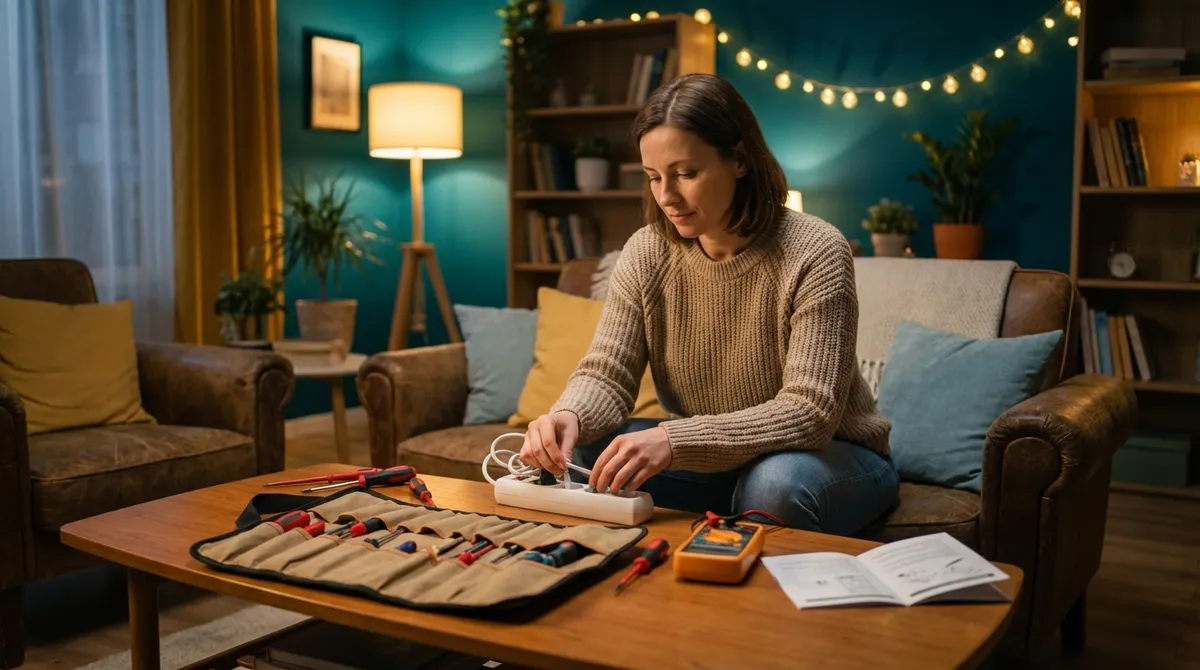
When your electronics act up, it can feel like everything stops at once—no Wi‑Fi, no TV, no music, no work. The good news: a lot of “broken” devices are just confused, misconfigured, or clogged with dust. This guide walks you through five practical fixes you can do yourself at home, step by step, before you spend money on repairs or replacements.
1. When Your TV Says “No Signal” (But the Screen Still Turns On)
A “No Signal” message usually means the TV isn’t getting input from the device you’re trying to use (cable box, streaming stick, game console), not that the TV itself is dead.
Step-by-step fix
Confirm the TV input is correct
- Press the Input, Source, or TV/AV button on your remote. - Slowly cycle through HDMI1, HDMI2, AV, etc. - Pause 2–3 seconds on each input to see if a picture appears.
Check the HDMI (or AV) cable connections
- Turn the TV and connected device off. - Unplug the HDMI cable from both the TV and the device. - Inspect the ports and cable ends for bent pins or obvious damage. - Firmly plug the cable back in until it “clicks” into place.
Test a different HDMI port
- Move the cable from HDMI1 to HDMI2 (or another available port). - Change the TV’s input to match the new port. - If it works on one port but not another, the original port may be faulty.
Try a different HDMI cable
- Swap in another cable if you have one (even from another device). - If the new cable works, the original cable was the problem.
Restart the connected device properly
- Unplug the power cord from the cable box/console/streaming stick. - Wait 30 seconds. - Plug it back in and wait for a full restart, then check the TV again.
Check for loose wall connections (cable/satellite)
- If you’re using a cable box, gently tighten the coaxial connection going into the box and wall outlet (hand‑tight, not with tools). - Avoid over‑tightening.
When to stop and call a pro or manufacturer:
- Physical damage to the HDMI port (wiggly, cracked, or pushed in)
- Burn marks, sparks, or a smell of burning plastic
- The TV doesn’t power on at all (no light, no logo, dead screen)
2. Laptop Overheating or Shutting Down Suddenly
If your laptop gets too hot, it may slow down, freeze, or shut off to protect itself. Heat is often caused by dust, poor airflow, or heavy software running in the background.
Step-by-step fix
Give the laptop proper breathing room
- Place it on a hard, flat surface (desk, table, laptop stand). - Avoid beds, couches, and blankets that block vents. - Do not cover the vents on the sides, back, or underside.
Check for dust buildup in vents
- Turn the laptop off and unplug it. - Use a can of compressed air to blow short bursts into the vents. - Keep the can upright and avoid moisture from the nozzle. - Do not insert sharp objects into the vents.
Close resource‑heavy apps and tabs
- Open Task Manager (Windows) or Activity Monitor (Mac). - Sort by CPU or Memory usage. - Close web browsers with many tabs, video editors, or games you’re not using. - Disable auto‑start apps you don’t need on boot.
Adjust power and performance settings
- On Windows: - Go to Settings → System → Power & battery. - Choose a Balanced or Power saver plan instead of Best performance for routine tasks. - On Mac: - Go to System Settings → Battery. - Reduce “Energy” settings for performance when on battery.
Use a cooling pad or elevate the rear
- A USB‑powered cooling pad can lower temperatures by improving airflow. - At minimum, use small stands or even thick bottle caps at the back corners to allow more air under the laptop.
Update system and drivers
- Install OS updates (Windows Update, macOS Software Update). - Update graphics drivers if you use games or design software.
When to stop and seek service:
- The laptop becomes too hot to touch around the keyboard or bottom.
- You smell burning or see discoloration around vents.
- It shuts down frequently even when idle and cool.
3. Wi‑Fi Is On, But Internet Is Slow or Keeps Dropping
Sometimes the issue is your router, not your internet provider. Interference, old firmware, or poor placement can make a fast connection feel useless.
Step-by-step fix
Power cycle your modem and router correctly
- Unplug both modem and router from power. - Wait 30–60 seconds. - Plug the modem back in first, wait until all lights stabilize. - Plug the router back in and wait 2–3 minutes.
Check if the issue is Wi‑Fi or the whole internet
- Connect one device to the router with an Ethernet cable (if possible). - Run a speed test (e.g., Speedtest.net). - If wired is fast and Wi‑Fi is slow, the problem is your wireless signal, not the incoming connection.
Reposition your router for better signal
- Place it in a central, elevated location, away from the floor. - Avoid placing it next to thick walls, metal cabinets, or inside closed cupboards. - Keep it away from microwaves, cordless phones, and large fish tanks (all can interfere).
- Separate 2.4 GHz and 5 GHz bands (if supported)
- Log into the router’s web interface (address is usually on a sticker: 192.168.x.x).
- Give the 2.4 GHz and 5 GHz networks different names (e.g., “Home_24” and “Home_5G”).
- Use 5 GHz for close‑range, high‑speed devices; 2.4 GHz for distant rooms.
Forget and reconnect Wi‑Fi on problem devices
- On your phone/computer, open Wi‑Fi settings. - Select your network → Forget. - Wait 10 seconds, then reconnect and re‑enter the password. - This clears out old connection data that can cause glitches.
Check for firmware updates on the router
- In the router admin page, look for Firmware Update or Software Upgrade. - Follow the manufacturer’s instructions carefully. - Avoid interrupting power during an update.
When to call your ISP or an expert:
4. Phone Won’t Charge Reliably (Cord Wiggles or Charges Slowly)
A flaky charging connection doesn’t always mean the battery is dying. Dust, cheap cables, or a damaged port can all cause unreliable charging.
Step-by-step fix
Test with a different cable and charger
- Use an original or certified cable (MFi for Apple, manufacturer‑approved for Android). - Plug into a wall outlet, not a laptop USB port, for testing. - If it charges normally with a different setup, your cable or adapter is the issue.
Inspect and clean the charging port
- Power the phone off. - Shine a flashlight into the port—look for lint or debris. - Use a wooden or plastic toothpick (never metal) to gently lift out lint. - Finish with a few short bursts of compressed air, if available.
Check for loose or wobbly port behavior
- Plug the cable into the phone and gently move it up/down/sideways. - If the charging icon flickers or disappears, the port might be physically loose.
Turn off fast charging temporarily (if available)
- In settings (Battery/Charging), toggle off fast/rapid charging. - Use standard charging for a couple of cycles to see if stability improves.
Avoid using the phone while charging
- Heavy use (gaming, video, GPS) can heat the phone and slow charging. - Let it charge undisturbed to see if the issue is really the hardware or just heat/throttling.
Check for software updates and battery health
- Install pending system updates; some fix charging bugs. - On iPhones: Settings → Battery → Battery Health & Charging. - On some Androids: battery health tools are in Device care or similar.
Stop DIY and seek professional help if:
- The port feels loose, cracks, or shifts inside the phone.
- You see corrosion, green/white deposits, or burn marks in the port.
- The phone overheats noticeably during charging.
5. Bluetooth Speakers or Headphones Won’t Connect
Pairing problems are usually about old connections, range, or radios stuck in a glitchy state—not permanent damage.
Step-by-step fix
Turn Bluetooth off and on again on your device
- On your phone/computer, toggle Bluetooth OFF, wait 10 seconds, then turn it back ON. - This resets the Bluetooth radio.
Forget old or stuck connections
- Go to Bluetooth settings and look for your speaker/headphones. - Tap Forget, Remove, or Unpair. - Do this for duplicates or devices you no longer use as well.
Reset the audio device into pairing mode
- Turn the speaker/headphones off. - Turn them on while holding the pairing or power button (often 3–7 seconds) until a blinking light or spoken prompt indicates pairing mode. - Consult the manual or brand’s website if unsure (each model is different).
Keep devices close and avoid interference
- Place the phone and speaker/headphones within 3–6 feet. - Move away from microwaves, Wi‑Fi routers, and crowded 2.4 GHz environments if possible. - Turn off other Bluetooth devices nearby to reduce confusion.
Try a different device to isolate the problem
- Attempt pairing the speaker/headphones with another phone, tablet, or laptop. - If they work fine there, the issue is likely your original device’s Bluetooth settings. - If they fail with everything, the audio device may be at fault.
Update firmware or app (if the brand supports it)
- Some brands (e.g., JBL, Sony, Bose, Apple, Samsung) offer companion apps. - Install the app and check for firmware updates for your headphones or speaker.
When to consider repair or replacement:
- No lights or sounds when turning the device on, even after a full charge.
- Physical damage (cracked casing, exposed wires, water damage).
- Repeated pairing failures across multiple devices after resets.
Conclusion
Most everyday electronics problems come down to three things: bad connections, blocked airflow, or confused software. If you approach each issue methodically—check cables and ports, restart devices in the right order, clear dust, and reset settings—you can solve many “dead” or “broken” gadgets in minutes.
Before you replace a TV, router, laptop, phone, or speaker, run through these steps. You’ll save money, reduce e‑waste, and feel more in control of the tech you already own. And if something really is failing, you’ll know you’ve done the smart basics first—making any pro repair or replacement decision much clearer.
Sources
- [Federal Communications Commission (FCC) – Consumer Broadband Information](https://www.fcc.gov/consumers/guides/consumer-guide-broadband-speeds) – Explains broadband performance factors and common causes of slow internet
- [Apple Support – If your iPhone or iPod touch won’t charge](https://support.apple.com/en-us/HT208387) – Official guidance on troubleshooting iPhone charging issues, including port checks
- [Microsoft – Reduce heat and fan noise in your Surface device](https://support.microsoft.com/en-us/surface/reduce-heat-and-fan-noise-in-your-surface-device-5a52f8b4-52a6-5974-fd9a-2d50e1f029e0) – Practical steps for managing laptop heat and performance, applicable to many Windows devices
- [Wi-Fi Alliance – Wi‑Fi Home Network Quick Guide](https://www.wi-fi.org/discover-wi-fi/wi-fi-home-network-quick-guide) – Overview of Wi‑Fi setup, interference, and best practices for router placement
- [Sony Support – Bluetooth Pairing and Connection Issues](https://www.sony.com/electronics/support/articles/00013125) – Detailed troubleshooting for Bluetooth audio devices that fail to connect or pair
Key Takeaway
The most important thing to remember from this article is that this information can change how you think about Electronics.



