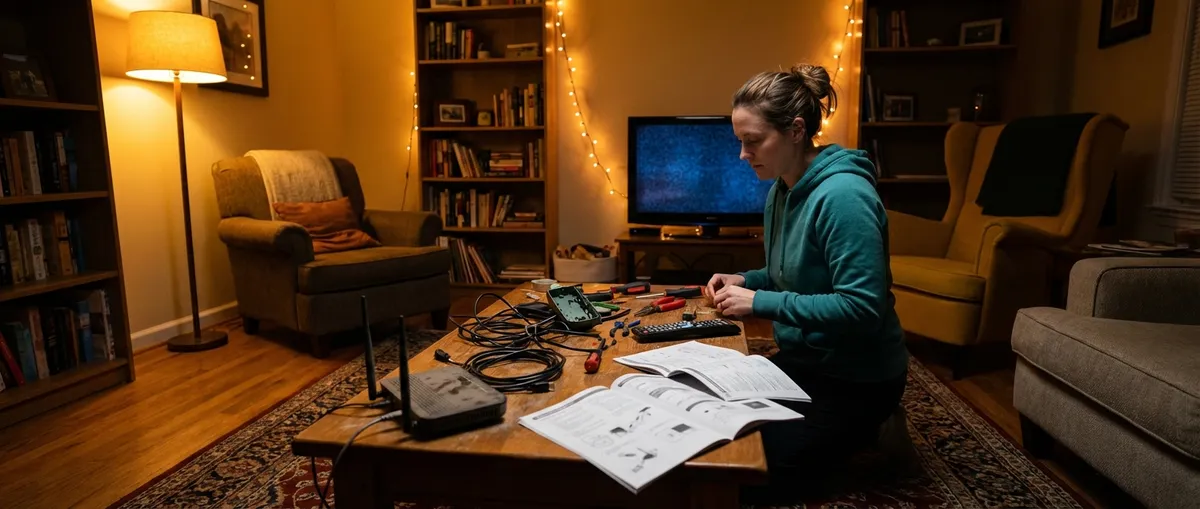
When everyday electronics stop working, it’s tempting to panic, mash buttons, or jump straight to buying a replacement. Most of the time, you don’t need a new device—you just need a clear, safe troubleshooting path. This guide walks you through five common electronics problems with simple, practical steps you can try before calling a pro or hitting “Add to Cart.”
1. TV Won’t Turn On (But You Swear It Worked Yesterday)
A “dead” TV often isn’t dead at all. Power issues, input confusion, or a stuck remote can make a working TV look broken.
Step‑by‑step fix
Confirm the outlet is actually working
- Unplug the TV and plug in something obvious like a lamp or phone charger. - If that doesn’t power on, reset any power strips and check the circuit breaker.
Bypass surge protectors and smart plugs
- Plug the TV directly into a wall outlet. - Surge protectors and smart plugs fail more often than TVs do.
Power‑cycle the TV
- Unplug the TV from the wall. - Press and hold the TV’s physical power button (on the frame/bezel) for 15–30 seconds. - Leave it unplugged for 2–3 minutes, then plug back in and try turning it on.
- Check the remote vs. the TV button
- Try turning the TV on using the button on the TV, not the remote.
- If the TV turns on only from the button, replace the remote batteries and check for stuck buttons (especially Power or Input).
Look for signs of life
- Watch for a standby light (often red or white). - If the light responds to pressing the power button but screen stays black, try shining a flashlight at the screen in a dark room—if you see a faint image, the backlight may have failed (this is usually a repair shop job).
If you get no lights, no clicks, and no response from any outlet, the TV’s internal power supply may be bad. At that point, compare repair quotes against the cost of a new set.
2. Smartphone Won’t Charge or Charges Painfully Slow
Before blaming the battery, rule out simple, fixable problems: cables, adapters, and clogged ports.
Step‑by‑step fix
Swap the cable and charger first
- Try a different cable and wall adapter you know works on another device. - Avoid charging from a computer USB port while testing; it’s often lower power.
Clean the charging port (carefully)
- Power off the phone. - Use a wooden or plastic toothpick to gently scrape out lint and dust from the port. - Follow with a few short bursts of air from a manual blower (avoid canned air too close to the port). - Do not use metal pins or needles—they can damage contacts.
Check for loose connections
- Plug in and gently wiggle the connector at the phone end. - If it feels loose only with one specific cable, that cable is likely worn out. - If every cable feels loose or only charges at certain angles, the port itself may be worn or damaged.
Disable power‑hungry features while charging
- Turn on Airplane Mode and Lower Power/Battery Saver mode. - Close heavy apps (games, video streaming) and let it charge for 15–20 minutes. - If it charges normally in this “low‑stress” state, your battery might be fine, but background usage is too high.
Run a quick battery health check (where available)
- On iPhone: Settings → Battery → Battery Health & Charging to see capacity and performance status. - On Android (varies): Settings → Battery → Battery health (or check your manufacturer’s support page). - If health is significantly degraded (e.g., under ~80% capacity and you see shutdowns), schedule a battery replacement before it fails completely.
If none of the above changes anything, your charging port or internal power circuitry may need professional service.
3. Laptop Overheating or Shutting Down Randomly
If your laptop turns into a space heater, freezes, or shuts off under load, you’re probably dealing with overheating or fan issues.
Step‑by‑step fix
Give it room to breathe
- Use the laptop on a hard, flat surface—not on a bed, couch, or pillow. - Make sure vents (usually on the sides, back, or bottom) are not blocked.
Do a quick air‑clean
- Power off and unplug the laptop. - Use short bursts from a can of compressed air at the side/back vents. - Blow air in short bursts and keep the can upright to avoid moisture. - If you can access a removable bottom panel easily (and your warranty allows it), you can open it to blow out dust more effectively.
Check for runaway software
- Open Task Manager (Windows: Ctrl+Shift+Esc; macOS: Activity Monitor). - Sort tasks by CPU usage and look for apps constantly using 40–90% CPU. - Close or uninstall any non‑essential apps that keep spiking CPU.
Update the system and drivers
- Install the latest OS updates. - Visit your laptop manufacturer’s support page and update: - BIOS/firmware (if recommended) - Chipset and graphics drivers - These often include improved fan control and power management.
Add a cooling assist and adjust behavior
- Use a laptop cooling pad to improve airflow, especially for older machines. - In power settings (Windows or macOS), change the performance profile to Balanced or Energy Saver instead of Performance/High Power. - If the laptop only overheats during gaming or video editing, reduce graphics settings or limit frame rates.
If the fan is making grinding noises, never spins up, or the laptop is still burning hot at light use, it may need a fan replacement or internal re‑paste by a technician.
4. Wi‑Fi Is Connected but the Internet Crawls (or Drops Constantly)
Endless buffering and dropped calls aren’t always your provider’s fault. Often, you can stabilize and speed up Wi‑Fi with a few targeted tweaks.
Step‑by‑step fix
Confirm if it’s Wi‑Fi or the entire internet connection
- Test with two devices (e.g., a phone and a laptop) close to the router. - Run a speed test (e.g., Speedtest.net). - If both are slow, suspect the router or ISP. - If only one device is slow, reset network settings on that device first.
Power‑cycle the modem and router
- Unplug modem and router from power. - Wait at least 30 seconds. - Plug in modem, wait for all lights to stabilize. - Plug in router, wait 1–2 minutes. - Reconnect devices and re‑test speed.
Move and position the router smarter
- Place the router high and central, not shoved in a closet, behind a TV, or on the floor. - Keep it away from thick walls, aquariums, and large metal objects. - If you mainly use Wi‑Fi in one room, try positioning the router closer to that area.
Tidy up your Wi‑Fi environment
- Log into your router’s admin page (address is often on a sticker, like 192.168.1.1). - Change the Wi‑Fi to a less crowded channel (2.4 GHz: channels 1, 6, or 11 are typical options). - If available, enable 5 GHz and connect nearby devices to that band—it’s faster and less congested.
Reduce load and prepare for upgrades
- Pause or limit very heavy downloads/streams during important calls. - Disconnect old devices you don’t use. - If speed tests near the router don’t match your plan during off‑peak hours, contact your ISP and ask them to test the line and, if needed, swap outdated modem/router hardware.
Persistent dead zones in distant rooms are usually a sign you need a mesh Wi‑Fi system or additional access point rather than a new ISP.
5. Bluetooth Headphones Won’t Connect (or Sound Terrible)
When Bluetooth acts up, it’s usually pairing confusion, interference, or outdated settings—not a dead headset.
Step‑by‑step fix
Remove old pairings and start clean
- On your phone/PC, go to Bluetooth settings and “Forget” the headphones. - If the headphones can store multiple connections, clear their memory (check the manual or brand website for the reset procedure).
Put the headphones into proper pairing mode
- Turn them off, then hold the power or dedicated pairing button until you see a blinking light or hear “pairing mode.” - Make sure they’re not also trying to auto‑connect to another nearby device.
Bring devices close and remove interference
- Move the headphones and device within 1–2 meters (3–6 feet). - Turn off or move away from potential interference sources like microwaves, some cordless phones, and crowded Wi‑Fi routers.
Check audio settings once connected
- On your phone/PC, after pairing, open sound settings. - Ensure the headphones are selected as the output device. - If there are separate options for “Headset” and “Headphones,” choose the “Headphones” option for better quality (the “Headset” profile often uses low‑quality audio for calls).
Update firmware and disable power‑saving conflicts
- Install the manufacturer’s app (if available) and check for a firmware update for the headphones. - On your phone/PC, temporarily disable strict Bluetooth or battery‑saving settings that might disconnect devices after a short inactive period. - Try a different device (another phone or laptop) to see if the problem follows the headphones or stays with the original device.
If the headphones still drop audio, crackle, or only connect intermittently across multiple devices, the battery or internal Bluetooth radio may be failing and could need a professional repair or replacement.
Conclusion
Most electronics “failures” are fixable at home with a bit of structure: verify power, reset smart features, clear physical obstructions (dust, lint, blocked vents), and reset software settings before spending money. By walking through these step‑by‑step checks, you can revive a “dead” TV, coax a stubborn charger back to life, cool down an overheating laptop, stabilize flaky Wi‑Fi, and tame misbehaving Bluetooth headphones. When you hit a point where fixes require opening devices or dealing with high‑voltage parts, that’s your signal to call a professional—and you’ll still save time and money by having already ruled out the basics.
Sources
- [Consumer Reports – Troubleshooting Common TV Problems](https://www.consumerreports.org/electronics-computers/tvs/troubleshooting-common-tv-problems-a4832668223/) – Practical guidance on diagnosing power and picture issues with televisions
- [Apple – If your iPhone or iPod touch won’t charge](https://support.apple.com/en-us/HT208077) – Official steps for cleaning ports, checking accessories, and resolving charging issues
- [Microsoft – Troubleshoot blue screen errors and overheating issues](https://support.microsoft.com/en-us/windows/troubleshoot-blue-screen-errors-5a4c4f4a-3f39-45b7-95e0-5c9b9b71df6e) – Covers performance, overheating, and shutdown problems in Windows laptops
- [Federal Communications Commission (FCC) – Wi-Fi Interference](https://www.fcc.gov/wireless-interference-and-spectrum) – Explains common sources of wireless interference that can affect Wi‑Fi and Bluetooth
- [Bluetooth SIG – Common Bluetooth FAQs](https://www.bluetooth.com/learn-about-bluetooth/tech-overview/) – Technical background on Bluetooth behavior, interference, and connection reliability
Key Takeaway
The most important thing to remember from this article is that this information can change how you think about Electronics.



