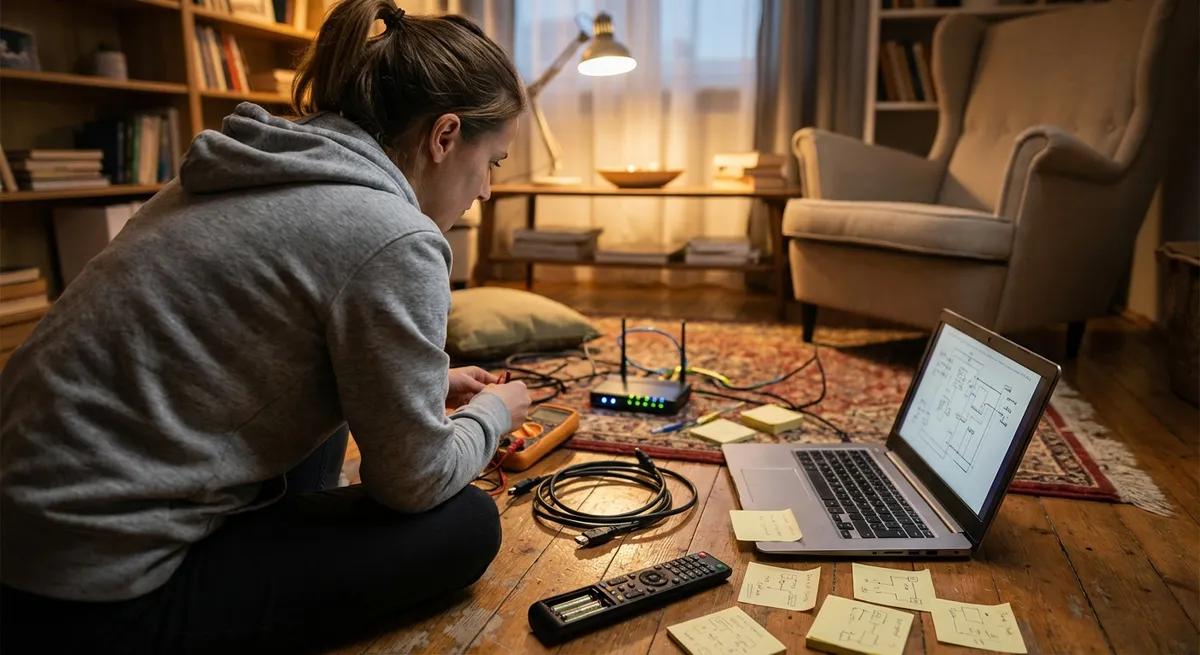
When a device stops working, most people think “time to replace it.” In many cases, you can bring it back to life in minutes with a few simple checks and tools. This guide walks you through five of the most common electronics problems at home and how to fix them safely, step by step—before you spend money on a new gadget or an urgent repair call.
1. When Your TV Won’t Turn On (or Has No Picture)
A “dead” TV is often a power or settings issue, not a dead screen.
Step-by-step fix
Do a hard power reset
- Unplug the TV from the wall. - Hold the TV’s physical power button (on the frame, not the remote) for 10–15 seconds. - Wait 60 seconds, then plug it back in and turn it on. - This clears minor firmware glitches and power protection states.
Check the outlet and power strip
- Plug a phone charger or lamp into the same outlet to confirm it has power. - If you’re using a power strip, test the TV directly in the wall. - Make sure any surge protector’s reset button isn’t tripped.
Inspect the power cable and connection
- Confirm the cable is firmly seated in the TV and the wall. - If it’s a detachable cable (IEC “kettle” style), try swapping it with another known-good cable from a PC or monitor.
Check for standby indicators
- Look for a small standby LED on the TV bezel. - If it’s on but the screen is black, try pressing buttons on the TV itself, not only the remote. - If the standby light blinks in a pattern, note the sequence—search “[Brand] TV blinking light codes” for brand-specific guidance.
Rule out input issues
- Press the “Input” or “Source” button on the TV and slowly cycle through HDMI, AV, etc. - Make sure your streaming box/console is actually powered on. - Try another HDMI port and, if possible, a different cable.
When to stop and call a pro
If the TV shows no standby light, no click sound, and you’ve confirmed power at the outlet and cable, the internal power board may be damaged. That’s not a safe DIY repair unless you’re experienced with high-voltage electronics; contact an authorized service center or local repair shop.
2. Router Online, Internet Offline: Fixing Home Wi‑Fi Dropouts
If your phone and laptop keep dropping Wi‑Fi or showing “Connected, no internet,” the issue is usually local and fixable.
Step-by-step fix
Power cycle modem and router in the right order
- Unplug both modem and router. - Wait at least 60 seconds. - Plug in the modem first; wait until all normal status lights stabilize (often 2–5 minutes). - Then plug in the router and wait another 2 minutes. - Test on one device right next to the router.
Check cable connections and damage
- Make sure the coaxial or fiber cable is firmly connected to the modem and wall outlet. - Inspect Ethernet cables from modem to router—no kinks, cuts, or broken clips. - If you have a spare Ethernet cable, swap it and retest.
Test wired vs wireless
- Connect a laptop directly to the router with Ethernet. - If wired works but Wi‑Fi doesn’t, your router’s wireless settings (or antennas) are the issue. - If both wired and wireless fail, suspect the modem or ISP.
Change congested Wi‑Fi channels
- Log into your router (usually by visiting 192.168.0.1 or 192.168.1.1—check the label on the router). - Under Wireless settings, switch the 2.4 GHz channel from “Auto” to a fixed channel (1, 6, or 11). - For 5 GHz, pick a different channel or enable “Smart Connect” if available. - Save changes and reboot the router.
Relocate the router for better coverage
- Place it in a central, elevated, open location (not behind a TV or inside a cabinet). - Keep it away from microwaves, cordless phones, and thick metal objects. - Retest in problem rooms; if coverage is still weak, consider a Wi‑Fi extender or mesh system rather than a full replacement.
When to contact your ISP
If your modem’s online/DSL light is off or blinking for more than 10–15 minutes after a reboot, the problem is likely outside your home (line or service outage). Call your provider and report a connection issue; note the light behavior and any error messages on your modem’s status page.
3. Laptop That Won’t Charge or Randomly Shuts Off
Random shutdowns or a battery that never seems to fill up can often be fixed with basic checks and a battery reset.
Step-by-step fix
Confirm power adapter function
- Look for a tiny LED on the charger (if present). If it’s off, try another outlet. - Check for cuts, burn marks, or pinched sections in the cable. - If possible, test with a known-good compatible charger (borrow from a colleague or a second device).
Check the power port and connection
- Gently move the plug at the laptop’s power jack. If it feels loose or only charges at certain angles, the port may be poorly soldered or broken. - Inspect inside the port with a flashlight for dust or debris; blow gently with compressed air.
Do a battery and power reset
- Shut down the laptop completely. - Unplug the charger. - If the battery is removable, remove it. - Hold the power button for 20–30 seconds to discharge residual power. - Reinstall the battery, plug the charger back in, and turn on.
Check battery health in software
- On Windows: - Open Command Prompt as administrator and run: powercfg /batteryreport /output "C:\battery-report.html" - Open the report; compare “Design Capacity” vs “Full Charge Capacity.” If full charge is under ~60–70% of design, the battery is heavily worn. - On macOS: - Click Apple menu > About This Mac > More Info > System Report > Power. - Check “Cycle Count” and “Condition.” “Service Recommended” means the battery is near end of life.
Adjust settings that stress the battery
- Lower screen brightness and disable keyboard backlighting. - In power settings, select “Balanced” or “Battery Saver” rather than “Performance.” - Disable unnecessary startup apps that keep the laptop hot, which degrades the battery.
When to seek a repair shop
If the laptop only runs on battery but not when plugged in—or vice versa—the issue might be the DC jack or charging circuitry on the motherboard. These require soldering and board-level diagnosis, which are specialist repairs. Get a quote before replacing the entire laptop; the fix is often cheaper than you’d expect.
4. Phone That Overheats or Drains Battery Too Fast
Hot phones and sudden battery drops usually come from software, charging habits, or a failing battery—not just “old age.”
Step-by-step fix
Remove case and cool it down safely
- Take off any heavy or insulated case. - Move the phone away from direct sun, hot car interiors, or electronics that radiate heat. - Let it cool at room temperature; avoid putting it in a fridge or freezer (condensation can destroy the device).
Check battery usage and power-hungry apps
- On Android: Settings > Battery > Battery usage. - On iOS: Settings > Battery. - Look for apps that use a large share of battery in the background. - Force-stop, disable background activity, or uninstall the worst offenders.
Turn off unnecessary radios and features
- Disable Bluetooth, Wi‑Fi, or GPS when not in use. - Turn off “Always On Display” or similar lock-screen features. - Reduce screen brightness and set the display to turn off after 30–60 seconds.
Use the right charger and cable
- Stick to the manufacturer’s charger or a reputable, certified alternative. - Avoid ultra‑cheap no‑name adapters; they can overheat and wear out the battery faster. - If you’re using fast charging, switch to standard-speed charging when you don’t need a quick top-up.
Update and reset power-draining settings
- Update your OS and apps to the latest version; many updates include battery optimizations. - Clear cache for problematic apps (Android) or reinstall them. - As a last resort, back up your data and perform a factory reset to clear software glitches, then restore only essential apps.
When to replace the battery or device
If your phone shuts down around 20–30% charge or the battery health (on iOS under Settings > Battery > Battery Health) shows below 80% maximum capacity, a battery replacement is often the most effective fix. Many manufacturers and authorized repair shops offer same-day battery swaps that can extend your phone’s life by years.
5. Speakers or Headphones With Distorted or No Sound
From Bluetooth speakers to wired headphones, sound issues are frequently about connections, dirt, or misconfigured settings.
Step-by-step fix
Check volume, mute, and output device settings
- On phones and computers, ensure volume isn’t muted and is set above 50%. - In audio settings, verify the correct output device is selected (e.g., headphones vs laptop speakers). - On TVs, set “Audio Output” to match your device (HDMI ARC, Optical, Bluetooth, etc.).
Inspect physical connections
- For wired headphones/speakers, unplug and reinsert the 3.5 mm jack or USB plug firmly. - Clean the jack port gently with compressed air or a soft, dry brush to remove lint. - For Bluetooth devices, forget the device in your phone’s settings and re‑pair it.
Test with another source and another device
- Plug the headphones/speakers into a different phone, laptop, or music player. - If they work on another device, your original device has a software or port problem. - If they fail on all devices, the issue is in the speakers/headphones.
Eliminate equalizer and enhancement problems
- Disable any audio “enhancements,” equalizer apps, or spatial/3D sound settings. - Reset audio settings to default in your operating system or media app. - Retest with a simple audio track at moderate volume.
Inspect drivers and wiring (for home speakers)
- Power off your amp/receiver. - Check speaker wire polarity (red to red, black to black) and ensure no stray strands are touching between terminals. - Look at the speaker cones through the grille if possible; heavy damage or holes can cause distortion.
When repair or replacement makes sense
If you hear rattling, buzzing at all volumes, or sound coming from only one side despite correct connections and settings, the speaker driver or internal wiring may be damaged. For expensive headphones and active speakers, professional repair can be cost‑effective. For low‑cost earbuds or generic speakers, replacement is typically the more practical choice.
Conclusion
Most “broken” electronics aren’t truly dead—they’re stuck in a bad state, misconfigured, or suffering from wear in one component. By following these structured checks for power, connections, settings, and basic hardware health, you can isolate problems quickly and often fix them on the spot. Before you throw a device away or rush to replace it, run through these steps; a 10‑minute troubleshooting session can save you the cost of a new TV, router, laptop, phone, or speaker.
Sources
- [U.S. Federal Communications Commission – Consumer Guide: Broadband Connections](https://www.fcc.gov/consumers/guides/getting-broadband) - Explains home internet components (modem, router, Wi‑Fi) and common connection issues
- [Apple Support – If your iPhone, iPad, or iPod touch gets too hot or too cold](https://support.apple.com/en-us/HT201678) - Official guidance on overheating behavior and safe operating temperatures for phones
- [Microsoft – Improve PC battery life](https://support.microsoft.com/en-us/windows/improve-pc-battery-life-757e18ff-ef48-3e26-bc2a-375f7791c73a) - Detailed tips on power settings, battery health, and optimization for Windows laptops
- [Apple Support – If your Mac battery won’t charge](https://support.apple.com/en-us/HT204747) - Troubleshooting steps for charging and power issues on macOS devices
- [Sony – No sound or low audio when using speakers or surround sound system](https://www.sony.com/electronics/support/articles/00026487) - Practical checklist for diagnosing speaker and audio output problems
Key Takeaway
The most important thing to remember from this article is that this information can change how you think about Electronics.



