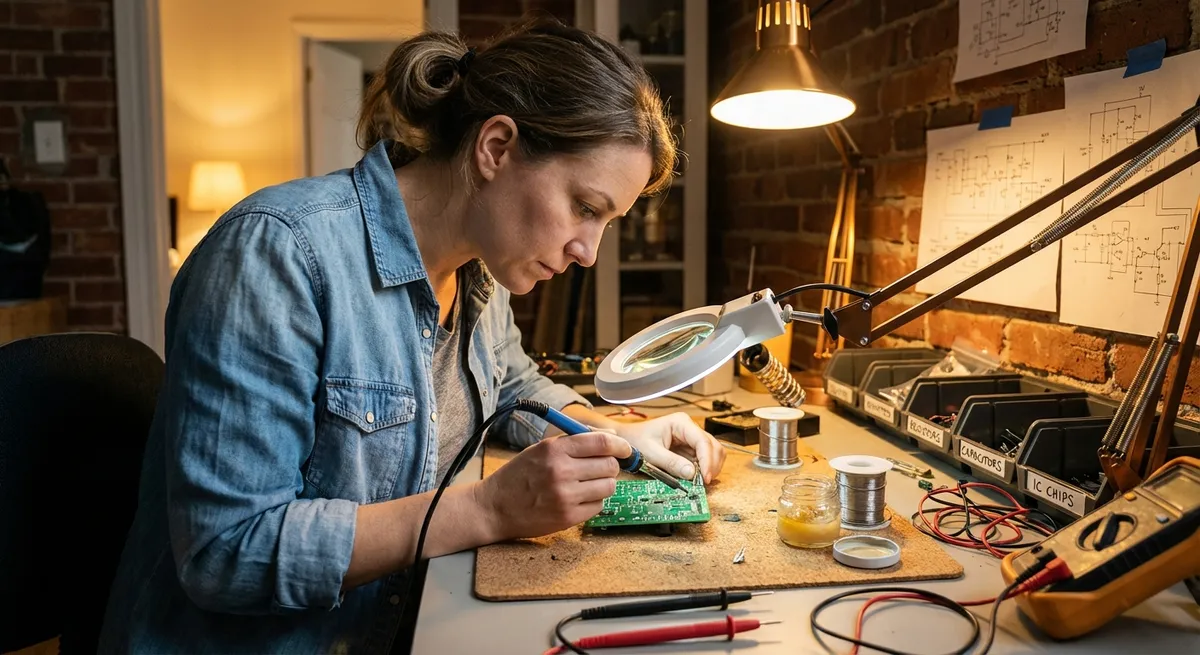
When your electronics stop working, it’s usually at the worst possible moment—right before a work call, a movie night, or a deadline. The good news: many “big” problems have simple fixes you can do safely at home, without special tools or expert skills.
This guide walks you through five practical, step-by-step solutions for common electronics issues. Follow the steps in order, and you’ll often fix the problem—or at least know when it’s time to call a pro.
1. When the TV Won’t Turn On (But the Standby Light Is On)
A TV that looks “dead” but still shows a small red or white standby light is often stuck, not broken. Before assuming it’s a hardware failure, try this reset process.
Step-by-step fix
Power cycle the TV
- Turn the TV off with the remote and the TV’s physical power button (if it has one). - Unplug the TV from the wall outlet or power strip. - Wait at least 60 seconds. This lets residual power drain from internal components. - While unplugged, press and hold the TV’s power button (on the frame) for 10–15 seconds if available. - Plug the TV back in directly to the wall, not a power strip. - Turn it on with the TV button first, then try the remote.
Check the input/source
- Press the Input, Source, or Home button on the remote. - Cycle through HDMI, AV, TV, and other inputs slowly. - Make sure the device you want (cable box, streaming stick, game console) is powered on and firmly connected.
Test a different outlet and power cable
- Plug the TV into a different wall outlet you know works (like one that currently powers a lamp). - If your TV uses a removable power cord (figure-8 or PC-style cable), try a known-good cable from another device.
Disable power-saving features
- Once the TV turns on, go to Settings → Power or Eco. - Turn off settings like Eco Mode, Auto Power Off, or Energy Saving temporarily. - This prevents the TV from going into overly aggressive sleep modes that look like a failure.
When to call a pro
- No standby light at all (even with a verified outlet and power cable). - Burning smell, buzzing, or visible scorch marks on the back or near the power plug. - TV works but shuts off randomly, even after disabling eco settings. - These signs can indicate power board or backlight failure, which should be handled by a technician.
2. Wi‑Fi Keeps Dropping or Feels Slow (Without Buying New Gear)
Unstable Wi‑Fi isn’t always your provider’s fault—and you often don’t need a new router. A few targeted adjustments can dramatically improve speed and reliability.
Step-by-step fix
Reboot your modem and router correctly
- Unplug both modem and router from power. - Wait 30–60 seconds. - Plug the modem back in first. Wait until all its lights are stable (this may take 2–5 minutes). - Plug the router back in and wait another 1–2 minutes. - Test Wi‑Fi on two different devices (e.g., phone and laptop).
Check location and obstacles
- Place the router: - High off the floor (on a shelf, not hidden in a cabinet). - In a central location if possible. - Away from large metal objects, microwaves, cordless phones, and thick concrete walls. - Point router antennas straight up or slightly angled outward if adjustable.
- Split 2.4 GHz and 5 GHz networks
- Log in to your router’s settings (the address and password are usually printed on the router label).
- Give 2.4 GHz and 5 GHz different network names (SSIDs) like:
Home_2GandHome_5G- Connect devices that are far from the router to 2.4 GHz (better range), and those nearby to 5 GHz (faster speed).
Change the channel to reduce interference
- In the router Wi‑Fi settings, look for “Channel.” - For 2.4 GHz, try channels 1, 6, or 11 (these overlap less). - For 5 GHz, leave on Auto or manually test a different channel from the current one. - Save, reboot the router, and test performance again.
Test the actual internet speed
- Stand near the router and run a speed test on your phone or laptop using a browser-based test (search “internet speed test”). - Compare the result to your subscription speed. - If wired (Ethernet) speed is good but Wi‑Fi is slow, it’s a Wi‑Fi configuration/placement issue. - If wired speed is also slow, contact your internet provider with test results.
3. Laptop Overheating or Shutting Down During Use
An overheating laptop that gets loud or suddenly powers off is often suffering from blocked airflow or runaway software—not necessarily a failing component. Fixing this early can extend its life.
Step-by-step fix
Check how and where you’re using it
- Avoid using the laptop on: - Beds, couches, blankets, or your lap for long periods. - Place it on: - A hard, flat surface (desk, table, or laptop stand). - If you must use it on soft surfaces, slide a rigid tray, book, or cooling pad underneath.
Inspect and clean air vents
- Turn off the laptop and unplug it. - Look for vents on the sides, back, or bottom. - Use a can of compressed air: - Blow short bursts into the vents, holding the can upright. - Do this outdoors if possible, as dust can blow out. - Don’t use a household vacuum directly on the laptop—static can damage components.
Close demanding background apps
- On Windows: - Press Ctrl + Shift + Esc to open Task Manager. - Under Processes, look for apps using high CPU (e.g., a browser with many tabs, game launchers, or background updaters). - Right-click and select End Task for non-essential apps. - On macOS: - Open Activity Monitor (Applications → Utilities). - Sort by CPU usage and close unnecessary heavy apps.
Adjust performance and power settings
- On Windows: - Go to Settings → System → Power & battery. - Choose Balanced or Power saver (instead of “Best performance”) when doing light tasks. - On macOS: - Go to System Settings → Battery. - Reduce screen brightness, disable “High power mode” (if present), and adjust sleep timers.
When to get professional help
- Laptop still overheats even on a hard surface, vents cleaned, and light usage. - You hear clicking, grinding, or rattling sounds from inside. - The bottom of the laptop is too hot to touch for more than a second. - These may indicate failing fans or dried thermal paste, which should be handled by a repair shop.
4. Phone Won’t Charge Reliably (Cable Wiggles or Charges Slowly)
A flaky charging connection doesn’t always mean you need a new phone. Often, it’s dust, lint, or a worn-out cable. Addressing the cheap and simple issues first can save you a lot.
Step-by-step fix
Inspect the cable and adapter
- Try another known-good cable and wall adapter (preferably original-brand or certified). - Look for: - Fraying, exposed wires, or bent connectors. - Overheating of the adapter when plugged in. - If a different cable/adapter works perfectly, replace the bad one and avoid wiggling cables to “make it work.”
Clean the charging port safely
- Power off your phone. - Use a bright light to look inside the charging port (USB‑C, Lightning, or Micro‑USB). - If you see lint or debris: - Use a plastic or wooden toothpick (never metal) to gently lift out lint. - Tilt the phone so debris falls out; don’t push it deeper. - Optionally, use compressed air in short bursts. - Turn the phone back on and test charging again.
Check for moisture alerts or corrosion
- Many phones show a “Moisture detected” or similar warning if the port is wet. - If that appears: - Unplug immediately. - Power off the phone. - Let it air dry in a cool, dry room for at least a few hours. - Do not use rice or direct heat (hairdryers, ovens); these can cause more damage.
Test different power sources
- Plug directly into a wall outlet, not just a computer USB port, especially for fast charging. - Try: - Another outlet. - A USB port in a different device (like a laptop) for comparison. - If it charges fine from some sources but not others, the problem is likely the adapter or outlet, not the phone.
When to seek professional repair
- Cable and adapter are new and verified, port is clean, but phone only charges at certain angles. - Phone gets very hot while charging or shuts down unexpectedly. - Visible bent or damaged pins inside the charging port. - These indicate physical port damage or battery issues that should be fixed by a technician.
5. Bluetooth Speaker or Headphones Won’t Connect
Bluetooth pairing can be frustrating, but most connection issues follow the same pattern: old pairings, distance, or interference. A quick reset and clean pairing process usually solves it.
Step-by-step fix
Forget the device and start fresh
- On your phone or laptop: - Go to Bluetooth settings. - Find your speaker/headphones in the device list. - Tap Forget, Remove, or Unpair. - Turn Bluetooth off, wait 10 seconds, then turn it back on.
Put the device in pairing mode correctly
- Power on the speaker/headphones. - Hold the Bluetooth or Power button until you hear: - A voice prompt (“Pairing”). - Or see a flashing LED (often blue/white). - If unsure, quickly check the brand’s support page for exact steps—many use slightly different combinations.
Reduce interference and distance
- Move the speaker/headphones and your phone within 1–2 meters (3–6 feet) of each other. - Turn off or move away from: - Microwaves, baby monitors, cordless phones. - Other Bluetooth devices that are actively connected nearby. - Temporarily disable Bluetooth on other devices that might be auto-connecting to the speaker/headphones.
Avoid being connected to multiple devices at once
- Some headphones can pair with multiple devices, but often only connect audio to one at a time. - Make sure: - Your speaker/headphones are disconnected from any other phone, tablet, or laptop. - If they support multipoint (two devices), clear extra pairings in the device’s app or via the manufacturer’s instructions.
Reset the Bluetooth device
- Many speakers/headphones have a factory reset combination, such as: - Holding Power + Volume Down for several seconds. - After reset: - Put it into pairing mode again. - Reconnect it as a new device from your phone’s Bluetooth menu. - If it still doesn’t appear: - Test it with a different phone or computer. If it fails on all of them, it may need service.
Conclusion
Most electronics problems feel bigger than they are, especially when they interrupt your day. By working through these step-by-step checks—power cycling, cleaning ports and vents, resetting connections, and verifying cables and settings—you can often restore your devices without spending money or waiting for a technician.
If you hit a point where the device shows physical damage, extreme heat, burning smells, or repeated failures after basic troubleshooting, that’s your cue to stop, unplug, and bring in a professional. Knowing where the DIY line ends is just as important as knowing where it starts.
When you do fix something yourself, share what worked—screenshots, before-and-after photos, or simple summaries help others solve the same problem faster. That’s how small home repairs turn into real savings and less tech frustration for everyone.
Sources
- [Samsung Support: TV won’t turn on](https://www.samsung.com/us/support/troubleshooting/TSG01109749/) - Official troubleshooting steps for non-responsive TVs and power issues
- [FCC: Wireless Networks – Factors That Affect Wi‑Fi Performance](https://www.fcc.gov/consumers/guides/wireless-connections-and-bluetooth) - Explains interference, placement, and signal considerations for wireless connections
- [Microsoft Support: Reducing laptop heat and improving performance](https://support.microsoft.com/en-us/windows/help-my-device-is-running-hot-9def11cf-3297-1bfe-dcfd-2a0c3bffc258) - Guidance on temperature, ventilation, and performance settings
- [Apple Support: If your iPhone or iPad won’t charge](https://support.apple.com/en-us/HT201569) - Official instructions for cleaning ports, checking accessories, and resolving charging problems
- [Bluetooth SIG: Bluetooth Basics](https://www.bluetooth.com/learn-about-bluetooth/tech-overview/) - Technical overview of Bluetooth pairing, interference, and connectivity behavior
Key Takeaway
The most important thing to remember from this article is that this information can change how you think about Electronics.



