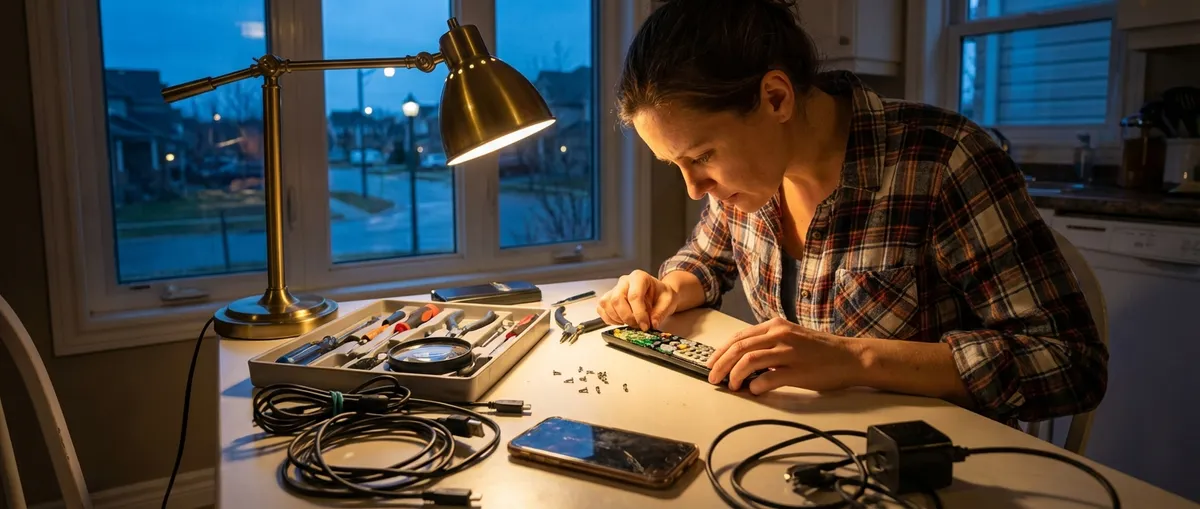
When your favorite gadget suddenly stops working, it can feel like you’re locked out of your own life—no streaming, no music, no work files. But a lot of “dead” electronics aren’t actually dead; they just need a clear, methodical reset or simple repair. This guide walks you through five common problems and the exact steps to tackle each one before you spend money on a replacement or repair shop visit.
1. Laptop Won’t Power On (But You’re Not Ready to Give Up)
A “dead” laptop is often suffering from a power or static issue, not a fatal failure. Work through these steps in order—don’t skip ahead.
Step-by-step: Basic power reset
Check the obvious power chain
- Plug the charger into a different wall outlet you know works (test with a lamp or phone charger). - Confirm the power brick’s light is on (if it has one). - Inspect the cable and connector for fraying, bent pins, or burn marks.
Remove all external devices
- Unplug USB drives, printers, external monitors, docking stations, and SD cards. - A faulty peripheral or port can prevent boot.
Perform a hard reset (discharge static power)
- Shut down (if it’s partly on) and unplug the charger. - If the battery is removable, take it out. - Hold the power button for 15–30 seconds to discharge residual power. - Reconnect only the charger (leave battery out if removable) and try powering on.
Look and listen for life signs
- Fans spin, indicator lights blink, or keyboard backlight flashes? - If you hear activity but see nothing, try connecting an external monitor to check for display issues.
Try a minimal boot
- If you’re comfortable opening the back panel (and it doesn’t void your warranty): - Disconnect the battery (for internal batteries) carefully. - Reseat the RAM (remove, then firmly reinsert) if it’s accessible. - Try powering on with only essential components connected.
If the laptop still shows no signs of life after these steps, stop. You may be dealing with a failed power jack, motherboard, or internal short—repairs that usually require professional tools and experience.
2. Phone Won’t Charge or Connect: Fixing Charging Port Issues
A flaky or dead charging port is often due to pocket lint, oxidation, or a stressed cable—not a doomed phone. Address the easy stuff first.
Step-by-step: Clean and test safely
Test the charger and cable on another device
- If it doesn’t work there either, replace the cable/charger before blaming the phone.
Inspect the charging port with good lighting
- Use a flashlight to look for lint, dust, or bent pins. - Don’t insert metal tools; you can short or damage pins.
Gently clean the port
- Power the phone off. - Use: - A plastic or wooden toothpick, or - A soft brush (anti-static brush or very soft, dry toothbrush). - Gently scrape or brush out debris, tilting the phone so particles fall out, not deeper in.
Check for secure fit
- Plug the cable in and feel for a solid click or snug connection. - Wiggle the connector gently; it shouldn’t feel loose or fall out easily.
Try a different power source and mode
- Plug into a wall outlet, not a laptop USB–some ports don’t provide enough current. - For some phones, leave it plugged in for 10–15 minutes if the battery is extremely low before expecting any response. - If the phone boots, check battery and charging status in Settings → Battery (name varies by platform).
If the port is physically loose, wobbly, or shows bent/broken pins, internal repair or port replacement is needed—this is where a reputable repair shop or manufacturer service center is the safer route.
3. Wi‑Fi Keeps Dropping: Stabilizing Your Home Connection
Before blaming your ISP, rule out local issues: interference, bad router placement, or overloaded hardware are everyday culprits.
Step-by-step: Make your Wi‑Fi predictable again
Power-cycle the whole chain
- Turn off your modem and router. - Wait 30 seconds. - Turn on the modem first and wait until all lights are stable. - Turn on the router and wait 1–2 minutes.
Check location and interference
- Place the router off the floor, in a central, open space (not in a cabinet). - Keep it away from microwaves, cordless phones, baby monitors, and thick walls. - If you’re on 2.4 GHz only, consider enabling 5 GHz (if your router supports dual-band) for devices nearby.
Reduce crowding on the network
- Log into your router’s admin page (address often on a sticker, like 192.168.0.1). - Check for unknown devices and disconnect what you don’t recognize. - Pause or limit big downloads and 4K streaming during important calls or gaming.
Change Wi‑Fi channel (for congestion)
- In the router settings, find Wireless → Channel. - Use “Auto” if your router supports automatic optimization, or manually select a less crowded channel (1, 6, or 11 for 2.4 GHz). - Save and reboot the router.
Update router firmware
- Still in the admin page, find Firmware / Software Update. - Follow the manufacturer’s instructions to update. - Firmware updates often fix stability and security issues.
If your connection is still unstable after this and you’ve tested with multiple devices, call your ISP and log a service issue. Mention that you’ve already power-cycled, checked interference, and updated firmware—they’ll skip basic scripts and get to line tests faster.
4. TV Has Sound but No Picture: Diagnosing Display Problems
Modern TVs can appear “dead” visually while the electronics are still working. The fact that you hear sound is good news: it narrows down the problem.
Step-by-step: Narrow it down to source vs. screen
Confirm the TV is actually on
- Look for a status light that changes color when powered on. - Try pressing the Menu or Settings button on the remote or TV itself. - If the menu appears, the issue is likely the input source, not the panel.
Check the input and cables
- Press the Input / Source button and cycle through HDMI, AV, TV, etc. - Unplug and replug HDMI cables at both ends. - Try a different HDMI port on the TV and a different cable if you have one.
Look for a very dim image (backlight failure test)
- In a dark room, shine a flashlight on the TV screen at an angle while it’s on. - If you can faintly see images or menus, the backlight may be failing—not the entire display. - Backlight repairs are possible but usually best handled by professionals.
Turn off power-saving or eco modes (if you can access menus)
- Some aggressive energy-saving settings can make the screen extremely dim. - In Settings, look for Picture → Energy Saving / Eco / Power Save and disable or set to low.
Perform a full power reset
- Power the TV off and unplug it from the wall. - Hold the TV’s physical power button (if present) for 10–15 seconds. - Leave it unplugged for 2 minutes, then plug it back in and power on.
If the screen stays completely black with no menu, no faint image under a flashlight, and you’ve tested all inputs and cables, the TV likely has an internal panel, T‑Con board, or power board issue—time for a repair quote vs. replacement cost comparison.
5. Bluetooth Speaker Won’t Pair or Keeps Cutting Out
Bluetooth glitches are often caused by old pairings, range issues, or interference. Resetting the relationship between devices usually fixes it.
Step-by-step: Start fresh with clean pairing
Clear old pairings on the speaker
- Put the speaker in Bluetooth pairing mode (usually by holding the Bluetooth button). - Many speakers have a factory reset combo (e.g., holding Power + Volume for several seconds); check the manual or manufacturer’s website. - This removes stubborn old connections.
Forget the device on your phone/computer
- Go to Bluetooth settings. - Find the speaker in the list and tap “Forget” / “Remove”. - Turn Bluetooth off, wait 5 seconds, then turn it back on.
Control the environment
- Move within 3–6 feet of the speaker. - Keep away from Wi‑Fi routers, microwaves, and other Bluetooth devices (like game controllers) during pairing. - Turn off or move away from other connected Bluetooth devices temporarily.
Re-pair step-by-step
- Put the speaker into pairing mode again (LED usually flashes). - On your device, scan for new Bluetooth devices. - Select the speaker and wait until it shows as Connected (not just “Paired”).
Fix audio cutting out
- Make sure your phone or laptop isn’t switching outputs (check audio output settings). - Move the speaker and source closer and keep them in the same room with a clear line of sight. - Update your phone or computer’s OS and Bluetooth drivers, especially on Windows and Android devices.
If the speaker pairs fine to other devices but not to a specific phone or laptop, the problem is likely with that device’s Bluetooth stack—updating OS/drivers or resetting network settings can usually clear it.
Conclusion
Most “broken” electronics aren’t truly broken—they’re confused, clogged, misconfigured, or starved of clean power. By working through structured steps like power resets, cleaning ports, optimizing connections, and isolating faulty components, you can often revive gear that seemed ready for the trash. Use this as your first-response playbook before paying for a repair: start with safe, reversible checks, move methodically, and know when to stop and call in a professional.
Sources
- [U.S. Federal Communications Commission – Interference and Poor Reception](https://www.fcc.gov/consumers/guides/interference-defining-source) - Explains common sources of wireless interference that can affect Wi‑Fi and Bluetooth devices
- [Microsoft Support – Troubleshoot blue screen errors](https://support.microsoft.com/en-us/windows/troubleshoot-blue-screen-errors-44c29fa9-4beb-4e14-81b8-3b1e3c8c54f3) - Official guidance on power and startup troubleshooting for Windows PCs and laptops
- [Apple Support – If your iPhone or iPod touch won’t charge](https://support.apple.com/en-us/HT207414) - Detailed instructions for diagnosing and cleaning charging ports and resolving charging issues on Apple devices
- [Samsung – TV has a black screen or no picture](https://www.samsung.com/us/support/troubleshooting/TSG01001246/) - Manufacturer’s step-by-step guide for diagnosing TVs that have sound but no visible image
- [Intel – Wi‑Fi and Bluetooth Recommendations](https://www.intel.com/content/www/us/en/support/articles/000057513/wireless.html) - Technical recommendations for improving wireless performance and reducing dropouts
Key Takeaway
The most important thing to remember from this article is that this information can change how you think about Electronics.



