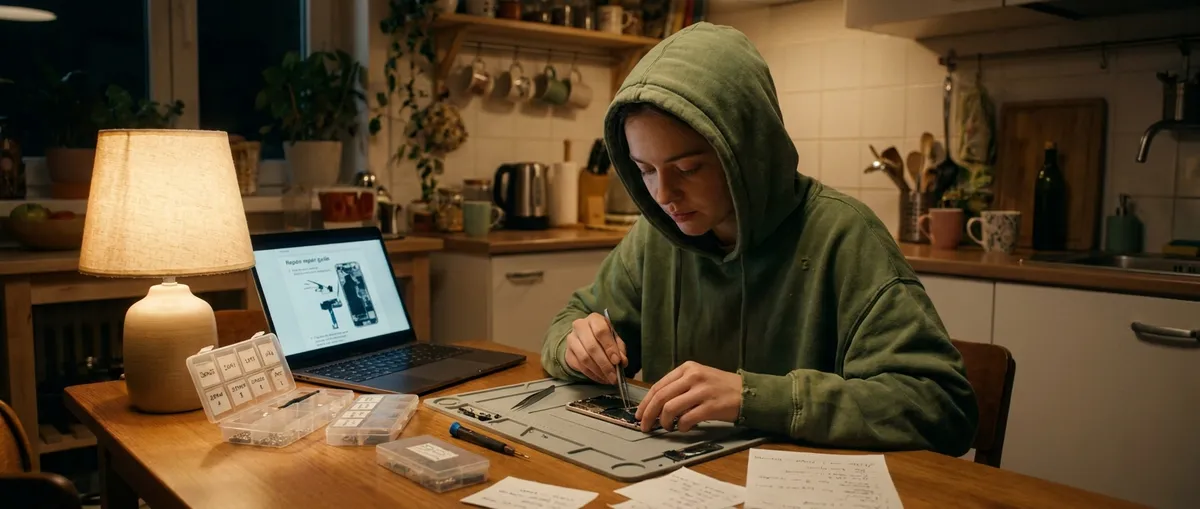
Electronics usually fail at the worst possible moment—right before a meeting, during a movie, or when you finally sit down to relax. Instead of panicking or rushing to replace your device, you can often fix the problem yourself with a few simple checks. This guide walks you through five common electronics issues and shows you exactly what to do, step by step, before you spend money on a new gadget or a repair shop visit.
1. TV Turns On but Shows “No Signal”
When your TV powers up but shows “No Signal,” the TV itself is often fine—the issue is usually the input, cable, or source device (like a cable box, streaming stick, or console).
Step‑by‑step fix
Confirm the TV input
- Press the Input or Source button on your remote. - Slowly cycle through HDMI1, HDMI2, AV, etc. - Pause 3–5 seconds on each to see if the picture appears.
Check all cable connections
- Turn the TV off. - Firmly unplug and replug the HDMI cable from both the TV and device. - If your TV has multiple HDMI ports, move the cable to a different port and change the TV input to match.
Test a different cable
- Swap in another HDMI cable if you have one. - If the picture returns, you’ve found a bad cable—replace it.
Restart the source device
- Unplug the cable box, streaming stick, or console from power. - Wait 30 seconds. - Plug it back in and let it fully restart before checking the TV again.
Bypass extra equipment
- If you’re using an AV receiver or HDMI switch, connect the device directly to the TV. - If it works directly, the problem may be in the receiver/switch or one of its cables.
If none of this works, test another device (like a laptop or game console) on the TV. If no device works on any input, the TV’s HDMI board may be failing and likely needs professional service.
2. Laptop Won’t Charge or Only Charges Sometimes
A laptop that won’t charge isn’t automatically “dead.” The problem could be the outlet, charger, battery, or a simple power reset issue.
Step‑by‑step fix
Verify the outlet
- Plug in a lamp or phone charger to confirm there’s power. - Try another wall outlet (avoid power strips temporarily).
Inspect the charger
- Look for kinks, frayed insulation, burn marks, or bent connectors. - Make sure any power brick is fully seated in both the wall and laptop. - If possible, test with a known-working compatible charger.
Check the charging port
- Power off the laptop. - Use a flashlight to inspect the port for dust, lint, or damage. - If dusty, gently blow air (or use a can of compressed air). Do not use metal tools inside the port.
Perform a hard power reset (for removable-battery models)
- Shut down the laptop. - Unplug the charger. - Remove the battery (if accessible). - Press and hold the power button for 15–20 seconds. - Reinsert the battery, reconnect the charger, and power on.
Check system battery status
- On Windows: - Go to Settings > System > Power & battery (location can vary by version). - Look for battery health or warnings. - On macOS: - Click the Apple menu > System Settings > Battery > Battery Health. - If it reports “Service recommended” or the battery health is very low, the battery may need replacement.
If a different charger doesn’t help and the battery isn’t the issue, your laptop’s internal power circuitry or charging port may be damaged. At that point, a repair shop or manufacturer support is usually required.
3. Smartphone Won’t Charge or Charges Very Slowly
Modern phones are sensitive to dirt, cheap chargers, and cable quality. Before assuming the battery is failing, work through a quick checklist.
Step‑by‑step fix
Check the basics
- Try a different outlet, USB adapter, and charging cable. - Avoid super-cheap cables and bricks; use OEM or certified accessories (e.g., MFi for Apple, or reputable brands for Android).
Clean the charging port
- Power off the phone. - Use a bright light to look inside the port. - If you see lint or dust, use: - A wooden toothpick or plastic tool to gently loosen debris. - A few short bursts of compressed air, if available. - Do not use metal objects that could damage the contacts.
Test wireless charging (if supported)
- Place the phone on a compatible wireless charger. - If it charges wirelessly but not with a cable, the port is likely the problem.
Check battery and charging settings
- iPhone: - Go to Settings > Battery > Battery Health & Charging. - Look for “Maximum Capacity” and any “Service” warning. - Android (varies by brand): - Go to Settings > Battery or Device care and look for battery health or protection features. - Disable any “optimized” or “slow” charging modes temporarily and test again.
Restart and test while powered off
- Restart the phone. - If the battery is very low, power the phone off and let it charge for 30–60 minutes without using it. - If it gains charge faster while off, apps or background processes may be consuming power faster than charging can keep up.
If the port is clean, multiple cables and chargers don’t help, and battery health is poor, replacing the battery or charging port is usually the next step. For sealed phones, this is best left to a repair technician.
4. Wi‑Fi Is Connected but the Internet Is Slow or Drops Out
If your devices say “connected” but everything loads slowly or fails, the problem is usually with the router, interference, or your internet connection—not the device itself.
Step‑by‑step fix
Power cycle your network gear
- Unplug the modem and router from power. - Wait 30–60 seconds. - Plug in the modem first; wait until all lights stabilize. - Plug in the router and wait a few minutes for Wi‑Fi to return.
Test with a wired connection (if possible)
- Plug a laptop directly into the router with an Ethernet cable. - Run a speed test (e.g., on speedtest.net). - If wired is fast but Wi‑Fi is slow, the issue is Wi‑Fi-related, not the internet service.
Reduce interference and improve placement
- Place the router: - In a central, elevated position. - Away from microwaves, baby monitors, cordless phones, and thick concrete walls. - Avoid putting it inside cabinets or behind metal objects.
Check which network you’re on
- Many routers broadcast 2.4 GHz and 5 GHz networks. - Use 5 GHz for closer, faster connections (e.g., living room). - Use 2.4 GHz for farther rooms or devices that struggle with distance.
Limit bandwidth hogs
- Pause large downloads, 4K streaming, or cloud backups temporarily. - In the router’s admin page, check how many devices are connected. - Disconnect devices you’re not using or set up guest networks for visitors.
If you still have issues after these steps, check your provider’s outage page or call support. Persistent slowness at all times might mean you’ve outgrown your current plan and need higher bandwidth or updated equipment.
5. Bluetooth Devices Won’t Pair or Keep Disconnecting
Bluetooth problems are often due to pairing confusion, interference, or old pairing data stored on your phone or computer.
Step‑by‑step fix
Confirm the device is in pairing mode
- Turn the Bluetooth device off, then back on in pairing mode: - Often done by holding the power or Bluetooth button until a light flashes. - Check the device’s manual or model page online if you’re unsure.
Remove old pairings from your phone/computer
- On your phone or laptop, go to Bluetooth settings. - Find the device in the list and choose Forget, Remove, or Unpair. - Turn Bluetooth off, wait 5 seconds, then turn it back on.
Re-pair from scratch
- Put the device back into pairing mode. - On your phone/computer, search for new devices and tap/click the correct name. - If a PIN is requested, use the one provided by the device (often 0000 or 1234).
Reduce interference and distance
- Keep the device and phone/computer within a few feet during testing. - Move away from crowded 2.4 GHz environments (microwaves, Wi‑Fi routers, USB 3.0 hubs). - For headphones, keep your phone in a pocket on the same side as the Bluetooth antenna.
Reset the Bluetooth device
- Many Bluetooth devices have a factory reset combo (e.g., hold power + volume down for several seconds). - Check the manufacturer’s support page for your exact model and follow their reset steps. - After reset, pair again as a new device.
If your Bluetooth device works fine with another phone or computer, the issue is likely with your original device’s Bluetooth software or drivers. Updating your operating system or Bluetooth drivers can often resolve lingering connection issues.
Conclusion
Most everyday electronics problems come down to power, connection, or software issues. Before you replace a TV, laptop, phone, router, or Bluetooth device, running through a clear, step‑by‑step checklist can save you time and money. Start with the simplest checks—cables, ports, restarts, settings—and only move toward professional repair when you’ve ruled those out. A calm, systematic approach turns “it’s broken” into “here’s what I’ll try next.”
Sources
- Federal Communications Commission (FCC) – Interference Problems - Explains common sources of wireless interference affecting Wi‑Fi and Bluetooth devices
- Apple Support – If your iPhone or iPad won’t charge - Official guidance on troubleshooting charging problems and cleaning the charging port
- Microsoft Support – Troubleshoot PC charging and battery issues - Details Windows tools and steps to diagnose laptop power and battery problems
- Consumer Reports – How to improve your WiFi and internet speed - Practical tips on router placement, interference, and boosting Wi‑Fi performance
- Sony Electronics Support – HDMI troubleshooting guide - Manufacturer instructions for diagnosing “No Signal” and HDMI connection issues on TVs
Key Takeaway
The most important thing to remember from this article is that this information can change how you think about Electronics.



