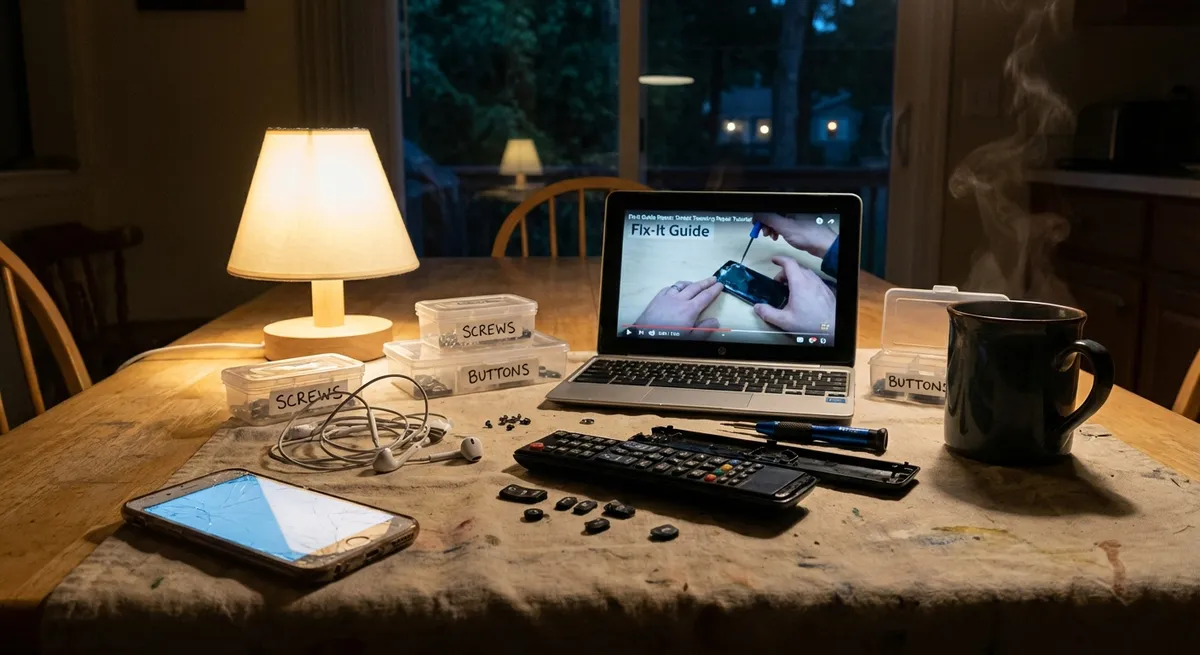
Electronics fail at the worst possible time—right before a work call, during a movie, or when you finally sit down to relax. Instead of panicking or rushing to replace your device, you can often fix the problem yourself with a few simple checks. This guide walks you through five common electronics issues and shows you, step by step, how to troubleshoot them safely and effectively.
1. When Your Device Won’t Turn On
A “dead” device is often just a power or charging issue, not a fatal failure. Before assuming the worst, work through these checks in order.
Step‑by‑step:
Confirm the power source is working
- Plug a different device (like a lamp or phone charger) into the same outlet or power strip. - If that doesn’t work, reset the power strip or try a different outlet.
Inspect the power cable and adapter
- Look for frayed cable insulation, bent connectors, or burn marks. - Lightly wiggle the plug at both ends—if power cuts in and out, the cable may be failing. - If you have a compatible spare cable/adapter, swap it in to test.
Remove and reseat the battery (if removable)
- Unplug the device. - Remove the battery (laptops, older cameras, some tools). - Hold the power button for 10–15 seconds to discharge residual power. - Reinstall the battery firmly, plug in, and try powering on again.
Perform a forced restart or power reset
- For many laptops: hold the power button for 15–20 seconds, release, then press again normally. - For phones/tablets: hold power + volume down for 10–15 seconds (varies by brand—check your manufacturer’s site if unsure).
Check for life signs
- Listen for fans, feel for vibration, or look for small indicator LEDs. - If indicators light up but the screen stays black, you may have a display issue rather than a power issue (see Section 3).
If the device remains completely unresponsive after these steps, stop and consider professional diagnosis—especially if you heard a pop, smelled burning, or saw smoke when it failed.
2. Wi‑Fi Connected but Internet Not Working
When your phone, laptop, or TV says “connected, no internet,” the problem is often with your network, not the device itself. Work from the outside in: internet > router > device.
Step‑by‑step:
Rule out a service outage
- Check another device on the same network (phone, tablet, laptop). - If none of them can reach the internet, the issue may be with your internet provider. - If available, log into your ISP app or status page on mobile data to check for outages.
Power‑cycle your modem and router
- Unplug the modem and router from power (and any Wi‑Fi extenders). - Wait at least 30 seconds—this clears temporary glitches. - Plug in the modem first; wait until all lights stabilize. - Then plug in the router and wait 1–2 minutes before testing.
Forget and reconnect to Wi‑Fi on your device
- Go to your device’s Wi‑Fi settings. - Select your network and choose “Forget” or “Remove.” - Reconnect by entering the Wi‑Fi password again. - This clears stored settings that may be corrupt.
Check for IP or DNS problems
- On a computer, try browsing to a well‑known site by URL (e.g., https://www.bbc.com) and then directly by IP if you have one. - If apps fail but one browser occasionally works, changing your DNS to a public DNS (like Google’s 8.8.8.8 / 8.8.4.4) can help; this is done in your network settings.
Test with an Ethernet cable (if possible)
- Plug your computer directly into the router with an Ethernet cable. - If wired works but Wi‑Fi doesn’t, the router’s wireless function or your device’s Wi‑Fi adapter may be the culprit. - Try updating Wi‑Fi drivers (on PCs) or rebooting the device again.
If nothing restores connectivity but your neighbors or provider confirm an outage, your best fix is waiting or contacting your ISP. If only one device refuses to connect while others work fine, back up its data and consider a network settings reset or full system reset as a last resort.
3. Screen Is On but Shows Nothing (or Stays Black)
Whether it’s a laptop, monitor, or TV, a blank screen doesn’t always mean the display is broken. The problem might be input selection, brightness, or cables.
Step‑by‑step:
Check brightness and power indicators
- Increase brightness using the keyboard keys or on‑screen controls. - Look for power LEDs on the device or monitor—solid lights usually mean “on,” flashing may indicate sleep or an error code.
Verify the correct input source (for monitors/TVs)
- Use the INPUT/SOURCE button on the remote or on the device. - Cycle through HDMI 1, HDMI 2, AV, etc., until you see a picture. - Ensure the device (laptop, console, streaming stick) is powered on.
Check and reseat display cables
- Power everything off. - Unplug HDMI/DisplayPort/VGA cables from both ends. - Inspect connectors for bent pins or damage. - Firmly plug them back in until fully seated—loose connections are a common cause of no signal.
Test with an alternate cable or port
- Try a different HDMI/DisplayPort cable. - Use a different port on the TV or monitor (e.g., HDMI 2 instead of HDMI 1). - If possible, test the cable and device on another display.
Laptop‑specific: external monitor check
- Connect your laptop to an external monitor or TV. - Use the display toggle key (often Fn + F4/F8 or a screen icon) to cycle between internal and external displays. - If the external monitor works but the laptop screen stays black, the internal display or backlight may be faulty and needs professional repair.
If you see faint images under bright light on a laptop screen, the backlight or inverter may have failed. That’s usually beyond DIY unless you’re comfortable opening devices and following model‑specific repair guides.
4. Device Overheating or Fan Running Constantly
Overheating can slow your device, cause random shutdowns, and shorten its life. Dust buildup and poor ventilation are the most common, fixable causes.
Step‑by‑step:
Power down and unplug first
- Shut down the device completely (don’t just close the lid or put it to sleep). - Unplug from power and remove the battery if it’s removable.
Check ventilation and placement
- Ensure vents are not pressed against soft surfaces (beds, couches, blankets). - Place laptops on a hard, flat surface so air can circulate. - Avoid placing devices inside cabinets or tight corners while running.
Clean external vents
- Use a can of compressed air to blow dust out of vents in short bursts. - Hold the can upright and keep the nozzle a few inches away. - For laptops, angle the device so dust can exit, not get pushed further inside.
Reduce workload temporarily
- Close unnecessary browser tabs and apps—especially games, video editing software, or many streaming windows. - On PCs, open Task Manager (Ctrl + Shift + Esc on Windows) or Activity Monitor (macOS) to see what’s using the most CPU and close nonessential tasks.
Update software and drivers
- Install operating system updates; they often include power and fan control improvements. - Update graphics drivers from the manufacturer’s website (NVIDIA, AMD, Intel, or your laptop brand). - On some laptops, use the manufacturer’s utilities (like Dell Power Manager, HP Command Center, etc.) to choose a “quiet” or “cool” profile.
If overheating persists even at light use, or if the device becomes too hot to touch comfortably, stop using it and seek professional service—fans, thermal paste, or internal components may need repair or replacement.
5. Battery Drains Too Fast (Phones, Laptops, Tablets)
Rapid battery drain doesn’t always mean the battery is dead. Often, background apps, screen settings, or charging habits are to blame.
Step‑by‑step:
Check battery health (if available)
- On iPhone: Settings → Battery → Battery Health & Charging. - On many Android phones: Settings → Battery → Battery Usage / Health (location varies by brand). - On laptops: many manufacturers provide battery health tools, or you can generate a battery report (e.g., powercfg /batteryreport on Windows via Command Prompt).
Identify battery‑hungry apps
- In your device’s Battery settings, check which apps use the most power. - Disable background activity for nonessential apps (social media, games, some messaging apps). - Uninstall rarely used apps that constantly sync or send notifications.
Tweak display and power settings
- Lower your screen brightness to the lowest comfortable level. - Shorten screen timeout/auto‑lock time. - Use built‑in Battery Saver/Low Power Mode on phones and laptops.
Optimize charging habits
- Avoid letting batteries drain to 0% regularly; aim to keep charge between ~20–80% for daily use. - Don’t leave devices baking on dashboards, near radiators, or in direct sun while charging. - Use high‑quality chargers from reputable brands or the original manufacturer.
Reset power settings or perform a software refresh
- On laptops, restore default power plans if you’ve heavily customized them. - On phones/tablets, a full restart can clear runaway processes causing drain. - If the device is several years old and battery health is significantly degraded (e.g., under ~80% capacity), plan for a battery replacement—often cheaper than a new device.
If the device swells, the screen lifts, or the case separates, stop using it immediately. A swollen battery is a safety risk and needs urgent, professional, safe disposal and replacement.
Conclusion
Most everyday electronics issues come down to power, connections, settings, or heat—problems you can often diagnose and fix at home with a systematic approach. Start with the simplest checks, change only one thing at a time, and watch for warning signs like burning smells, swelling, or sparks. When you hit those red flags—or when a device still won’t behave after these steps—it’s time to involve a professional.
Use this guide as your quick action plan: confirm power, verify connections, control heat, and manage batteries. With a bit of patience and careful troubleshooting, you’ll save money, extend the life of your devices, and keep your tech running when you need it most.
Sources
- [U.S. Federal Trade Commission – Phone and Tablet Repair Basics](https://www.consumer.ftc.gov/articles/phone-and-tablet-repair) – Guidance on safe repair practices and when to seek professional help
- [Apple Support – If your iPhone or iPad won’t turn on or is frozen](https://support.apple.com/en-us/HT201412) – Official troubleshooting steps for unresponsive mobile devices
- [Microsoft Support – Troubleshoot blue screen errors and no‑boot issues](https://support.microsoft.com/en-us/windows/troubleshoot-blue-screen-errors-98a790a0-6bd5-9bfa-1499-33e3ffde1df1) – Detailed guidance on diagnosing startup and hardware‑related problems on Windows PCs
- [U.S. Department of Energy – Proper ventilation and electronics](https://www.energy.gov/energysaver/articles/thermostats-and-control-systems) – Explains how heat and ventilation affect device efficiency and safety
- [Battery University – How to Prolong Lithium‑based Batteries](https://batteryuniversity.com/article/bu-808-how-to-prolong-lithium-based-batteries) – In‑depth look at lithium‑ion battery behavior, lifespan, and best charging practices
Key Takeaway
The most important thing to remember from this article is that this information can change how you think about Electronics.



