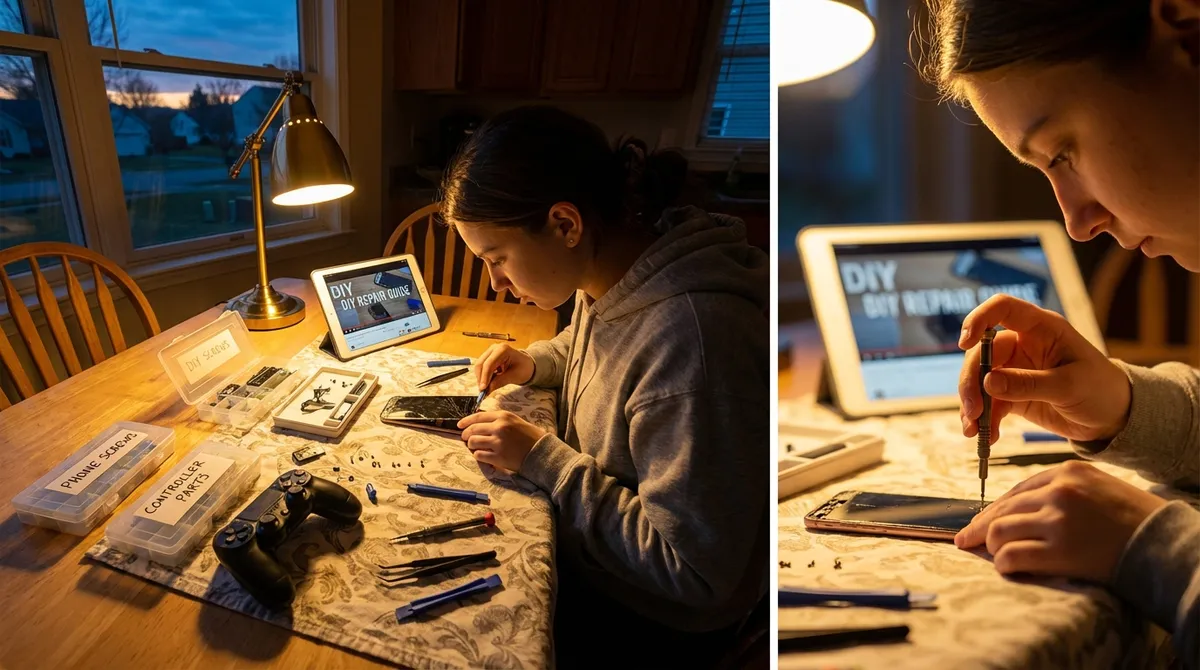
When your electronics stop cooperating, it rarely feels like “just a small issue.” A dead laptop, a phone that won’t charge, or a TV with no signal can stall your whole day. The good news: many of the most common electronics problems can be fixed at home with a bit of methodical troubleshooting and a few basic tools. This guide walks you step by step through five practical, repair‑first solutions so you can get your gear working again instead of replacing it.
1. When Your Smartphone Won’t Charge Reliably
A flaky charging connection doesn’t always mean you need a new phone or battery. Often, the problem is mechanical (port or cable) rather than electronic.
Step 1: Rule out the easy external problems
- Try a different wall outlet you know works (like one powering a lamp).
- Swap to a different charging cable and charger brick, ideally an original or certified one.
- Plug another device into the same cable and charger to confirm whether they work.
Step 2: Safely clean the charging port
- Power the phone off completely.
- Use a bright flashlight to inspect the port for lint, dust, or debris.
- Take a wooden or plastic toothpick (never metal) and gently scrape the bottom and sides of the port.
- Blow out loose debris with short puffs of air or a hand‑squeezed air blower (avoid high‑pressure canned air aimed directly inside).
- Reconnect the charger and test again.
Step 3: Check for loose or wobbly connections
- Insert the cable and gently wiggle it—there should be minimal movement.
- If moving the cable changes the charging status (on/off), the port may be partially detached or worn.
- Do not force or bend the cable; this can make a failing port worse.
Step 4: Reset software that may affect charging
- For Android, reboot into normal mode and ensure battery optimization or “adaptive battery” features are set to default.
- For iOS, check for any “Optimized Battery Charging” settings that may delay full charge intentionally.
- Update the operating system; manufacturers sometimes patch charging and power‑management issues.
Step 5: Decide when to repair vs. replace
- If a cleaned port with known‑good cable and charger still fails, the port or battery may need professional replacement.
- Back up your device before any repair shop visit in case the repair requires more invasive work.
2. Laptop That Won’t Turn On (or Randomly Shuts Off)
A “dead” laptop can often be revived by eliminating power and hardware variables methodically instead of guessing.
Step 1: Confirm it’s not just the screen
Press the power button and listen closely: do fans start briefly, or do you hear drive noise?
2. Shine a flashlight at an angle onto the screen; if you see faint images, the backlight may have failed. 3. Try connecting to an external monitor or TV via HDMI/DisplayPort. If that works, the laptop is on but the display assembly may be the issue.
Step 2: Perform a power reset
- Unplug the charger.
- If the battery is removable, take it out.
- Hold the power button for 15–30 seconds to discharge residual power.
- Reconnect the charger only (leave battery out if removable) and try to power on.
- If it turns on, shut down again and reinstall the battery; then test.
Step 3: Inspect the charger and power port
- Check the charger cable for cuts, kinks, or burnt marks.
- Make sure any removable tips are fully seated.
- Verify that power indicator lights (on the charger or laptop) behave as expected—solid light usually means power is detected.
- Try another compatible charger if you have one or can borrow one.
Step 4: Watch for overheating triggers
- If the laptop powers on but shuts off after a few minutes, touch the underside—excessive heat points to airflow issues.
- Inspect the vents for dust buildup; gently vacuum outside vents or use short bursts of compressed air (with the laptop off and unplugged).
- Avoid blocking vents with soft surfaces (beds, couches, blankets).
- Use a cooling pad if the laptop runs hot under normal workloads.
Step 5: When internal repair is needed
- Persistent no‑power issues with a known‑good charger typically mean:
- Failed power button or power circuit
- Bad DC jack (power port)
- Motherboard or internal power delivery failure
- These usually require professional repair and sometimes board‑level work; back up data immediately if the laptop boots even once.
3. TV Has Sound but No Picture
A TV that talks but doesn’t show anything can often be diagnosed from your living room without special tools.
Step 1: Confirm the symptom
- Power on the TV and increase the volume.
- Press menu or home—if you see the TV’s on‑screen menu, the issue is likely with the input device (cable box, console), not the TV.
- If you hear sound from an HDMI device but never see a picture or menu, proceed.
Step 2: Check cables and input source
- Make sure the HDMI cable is fully inserted on both ends; reseat it firmly.
- Try another HDMI port on the TV.
- Test with a different HDMI cable.
- Manually select the correct input on the TV remote (HDMI1, HDMI2, etc.; don’t rely on auto‑detect).
Step 3: Test the TV alone
- Disconnect all external devices (consoles, streaming boxes, cable boxes).
- Unplug the TV from the wall for 60 seconds, then plug it back in.
- Turn it on with the original remote and check for brand logo or on‑screen menus.
- If menus appear, the TV’s display works; reconnect devices one by one to find the culprit.
Step 4: Look for backlight failure signs
- In a dim room, turn on the TV and shine a flashlight at the screen from a close angle.
- If faint images appear, your backlight is likely dead or failing.
- Sudden loss of picture but working sound is a classic symptom of LED backlight or power‑board failure.
Step 5: Decide on repair vs. replacement
- If under warranty, contact the manufacturer or retailer before doing anything else.
- Backlight and power‑board repairs are often possible but may approach the cost of a new budget TV.
- For larger or high‑end models, repair can be cost‑effective; obtain a quote before discarding the unit.
4. Wi‑Fi Is On, but the Internet Keeps Dropping
When Wi‑Fi looks “fine” but your connection constantly stalls or drops, the issue is often interference, outdated firmware, or a tired router—not necessarily your ISP.
Step 1: Separate Wi‑Fi from internet problems
- On a laptop or phone, run a speed test (e.g., at a reputable site or app) when the connection seems slow.
- When things drop, check if you can still access your router’s admin page (typically something like 192.168.0.1 or 192.168.1.1—check the sticker on the router).
- If you can reach the router but not websites, the problem is likely your internet connection or modem.
- If you cannot even reach the router, it’s likely a Wi‑Fi or local network issue.
Step 2: Power cycle the right way
- Turn off your computer/phone Wi‑Fi.
- Unplug the power from both modem and router.
- Wait 30–60 seconds.
- Plug the modem in first and wait until all lights stabilize (often 1–2 minutes).
- Plug in the router and wait another 1–2 minutes.
- Turn Wi‑Fi back on and test again.
Step 3: Reduce interference and congestion
- Move the router to a central, elevated position—away from thick walls, metal shelves, and appliances.
- Keep it away from cordless phone bases, baby monitors, and microwaves.
Log into the router settings and:
- Change the Wi‑Fi channel (2.4 GHz bands like 1, 6, or 11 are common good defaults). - Split 2.4 GHz and 5 GHz into separate network names (SSIDs) so you can deliberately choose the more stable band.
Step 4: Update firmware and device drivers
- Access the router’s admin interface using the instructions on its label or in its manual.
- Look for a Firmware or Update section and install any recommended stable updates.
- On your laptop/PC, update Wi‑Fi adapter drivers via the manufacturer’s site or your operating system’s update tool.
Step 5: Know when to replace or escalate
- If your router is 5+ years old, it may simply not handle modern traffic or multiple devices well.
- If wired devices (via Ethernet) also disconnect frequently, contact your internet provider with specific times and symptoms.
- Document issues (dates, times, speed tests) to support a request for line checks or modem replacement.
5. Game Console Overheating and Shutting Down
Modern consoles are powerful computers; they’ll shut down to protect themselves when cooling isn’t adequate. You can often fix this without opening the case.
Step 1: Confirm it’s a heat issue
- Play a demanding game and note how long until shutdown or severe lag.
- Touch near the console’s vents—very hot air or a burning‑dust smell suggests overheating.
- Check for on‑screen warnings about ventilation or temperature.
Step 2: Improve airflow immediately
- Place the console on a hard, flat surface—no carpets or soft furniture.
- Move it at least a few inches away from walls and enclosing cabinets.
- Ensure no other devices are blocking (or blowing hot air into) the console’s vents.
Step 3: Clean external vents
- Power the console off and unplug it.
- Use a soft brush and a hand vacuum or low‑pressure air to gently clean vents.
- Avoid inserting objects deep into vents; you’re just clearing surface dust and opening airflow.
- Plug back in and test again.
Step 4: Manage software and usage factors
- Close unused games and apps instead of leaving them suspended.
- Check for system software updates that may improve fan curves or power management.
- Avoid stacking streaming boxes or other consoles directly on top of your main console.
Step 5: When internal cleaning or repair is needed
- If the console remains excessively hot or still shuts down quickly:
- Internal dust buildup on fans or heatsinks may require professional cleaning.
- Thermal paste between the processor and heatsink can dry out over years and may need replacement.
- If under warranty, do not open the console yourself—contact official support first.
- If out of warranty, consider a reputable repair shop experienced with your specific model.
Conclusion
Most day‑to‑day electronics failures aren’t instant “death sentences” for your gear. A structured approach—start with power, cables, airflow, and software, then move inward—often restores function without specialized skills or expensive tools. By cleaning ports, resetting power systems, improving ventilation, and updating firmware, you can extend the life of your devices and avoid unnecessary replacements. When basic steps don’t resolve the issue, you’ll at least know what you’ve ruled out, which makes any professional repair faster, cheaper, and more accurate.
Sources
- [Federal Communications Commission (FCC) – Interference & Poor Reception](https://www.fcc.gov/consumers/guides/interference-to-home-electronics-entertainment-systems) - Explains common causes of interference affecting home electronics and connectivity
- [Apple Support – If your iPhone or iPad won’t charge](https://support.apple.com/en-us/HT201569) - Official guidance on troubleshooting charging issues, including port cleaning and cable checks
- [Microsoft Support – Troubleshoot your Surface that won’t turn on or wake from sleep](https://support.microsoft.com/en-us/surface/troubleshoot-your-surface-that-won-t-turn-on-or-wake-from-sleep-3bb3fc44-208d-b0c9-96c5-74b50d4bdf1d) - Step‑by‑step power and startup diagnostics that also apply broadly to laptops
- [Sony PlayStation – Improve PS5 console ventilation](https://www.playstation.com/en-us/support/hardware/ps5-console-ventilation/) - Official recommendations for preventing overheating and shutdowns in game consoles
- [U.S. Cybersecurity & Infrastructure Security Agency (CISA) – Securing Your Home Network](https://www.cisa.gov/sites/default/files/publications/securing_your_home_network_508_1.pdf) - Covers router placement, firmware updates, and network best practices that improve reliability and security
Key Takeaway
The most important thing to remember from this article is that this information can change how you think about Electronics.



