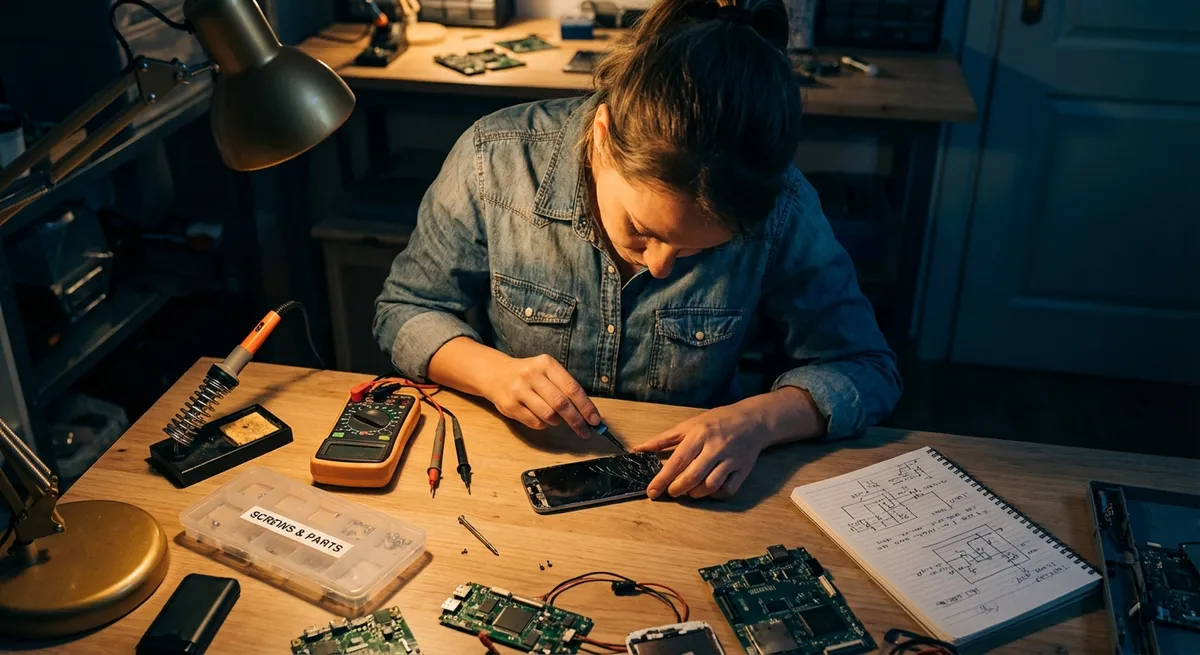
When a gadget stops working, most people either panic or immediately think “time to replace it.” In reality, many common electronics problems can be fixed at home with a bit of patience, a few basic tools, and a clear plan. This guide walks you through five practical, step‑by‑step solutions to everyday electronics issues—helping you save money, cut down on e‑waste, and get your devices working again faster.
Before You Start: Safety and Tools You Actually Need
Before touching any electronics, make safety your default habit.
Unplug devices from power outlets and, where possible, remove batteries before opening anything. Capacitors in power supplies and some TVs can hold a dangerous charge even when unplugged, so if you’re unsure, avoid opening high‑voltage devices like CRT TVs or large power supplies and call a professional instead.
For most low‑voltage consumer electronics (laptops, phones, controllers, headphones, small speakers), a simple toolkit is enough:
- Precision screwdriver set (Phillips, flat, Torx)
- Plastic spudgers or guitar picks (for prying plastic clips without damage)
- Tweezers
- Isopropyl alcohol (≥90%) and cotton swabs
- Microfiber cloth
- Compressed air can
- Small containers or magnetic tray for screws
Take photos as you disassemble so you can retrace your steps. Work on a clean, flat, well‑lit surface and keep drinks away from your workspace. If static electricity is a concern (dry environments, sensitive components), touch a grounded metal object before handling circuit boards or use an anti‑static wrist strap.
Solution 1: Laptop That Overheats and Shuts Down
Frequent shutdowns, a loud fan, or a hot keyboard area often mean your laptop is clogged with dust or struggling with poor airflow.
Step‑by‑step fix
Power down and disconnect
- Shut down the laptop completely (not sleep). - Unplug the power adapter and remove any USB devices. - If possible, remove the battery (on older models that allow it).
Access the vents and fan
- Inspect all air vents (usually on the sides, back, or bottom). - If your model has a removable bottom panel, unscrew it carefully using the correct screwdriver. - Keep screws organized by section so you know where they go later.
Blow out dust safely
- Hold the fan blades gently in place with a toothpick or cotton swab to prevent them from spinning too fast (this can damage the bearings). - Use short bursts of compressed air to blow dust out of: - The fan - Heat sinks (metal fins) - All vents - Aim air in both directions (in and out of vents) to dislodge trapped dust.
Clean vents and surfaces
- Use a dry, soft brush or cotton swabs to loosen stubborn dust around vents and fan housings. - Do not use liquid cleaners inside the laptop.
Reassemble and test
- Reinstall the bottom panel and battery. - Power on the laptop and listen for normal fan behavior. - Monitor temperature and fan noise during typical use. If overheating continues, consider: - Replacing thermal paste (for advanced users) - Using a cooling pad - Reducing CPU load (e.g., closing background apps, updating drivers)
Solution 2: Phone That Won’t Charge Reliably
If your phone only charges when the cable is at a certain angle or stops charging altogether, the problem is often debris or mild wear in the charging port—not necessarily a dead battery.
Step‑by‑step fix
Rule out simple issues
- Try a different, known‑good charging cable. - Try a different wall adapter or USB port. - Check for obvious damage (frayed cable, bent connector, burn marks).
Inspect the charging port
- Power off the phone. - Use a bright light to look inside the port. - Look for lint, dust, or bent pins.
Gently clean the port
- Use a wooden or plastic toothpick (never metal) to very gently loosen lint or packed dust. - Tilt the phone so debris falls out rather than deeper in. - Follow with a few short bursts of compressed air to clear remaining particles. - Avoid using liquids inside the port.
Check for loose connection
- After cleaning, plug in your cable and gently wiggle it. - The connection should feel snug with minimal movement. - If it still feels extremely loose or the phone only charges at certain angles, the port itself may be worn or cracked.
Decide on next steps
- If cleaning fixed the issue, consider: - Using quality cables - Avoiding pulling the phone by the cord - If the port seems physically damaged (wobbling, missing plastic, visible bent pins): - Avoid forcing cables in - Check if your phone supports wireless charging as a temporary workaround - Plan for a professional port replacement, as this often requires micro‑soldering
Solution 3: TV or Monitor With “No Signal” (But Seems to Power On)
A blank screen with a “No signal” message usually points to a connection or settings issue rather than a dead screen.
Step‑by‑step fix
Confirm the screen has power
- Check for a power light or logo when the device turns on. - Make sure the power cable is fully inserted at both ends. - Test a different wall outlet if necessary.
Check input source
- Use the remote or physical buttons to cycle through inputs (HDMI1, HDMI2, DisplayPort, etc.). - Match the input to the port your device is plugged into. - Wait a few seconds on each input to confirm no image appears.
Inspect and reseat cables
- Power off both the screen and the connected device (PC, console, streaming stick). - Disconnect and firmly reconnect HDMI/DisplayPort cables at both ends. - Inspect the cable for visible damage or bent connectors. - If possible, test with a different cable.
Test with a second device
- Connect a different source (e.g., laptop, another console) to the same TV/monitor input. - If a second device works: - The screen and cable are likely fine; focus on the original device’s settings or output. - If a second device also shows “No signal”: - The port or screen may be faulty—try another input port on the TV/monitor.
Adjust output settings on source device
- On a PC: - Use keyboard shortcuts like Windows + P (Windows) or display settings on macOS to ensure it’s set to output to the external display. - Lower resolution settings temporarily to see if an unsupported resolution is the problem. - On consoles: - Boot into safe/resolution mode if supported (check your console manual). - If still no result after trying multiple cables, ports, and devices, the display’s internal board may be the issue and likely needs professional repair.
Solution 4: Wireless Headphones With One Side Not Working
When one earcup or earbud goes silent, it’s often due to dirt, a bad Bluetooth connection, or a minor internal contact problem.
Step‑by‑step fix
Confirm it’s not the source
- Test the headphones with another device (phone, laptop). - Check audio balance in the device settings (ensure left/right balance is centered). - Try both wired and wireless modes if your headphones support both.
Clean ear tips and grills
- Power off the headphones. - Remove silicone tips (if applicable). - Use a dry, soft brush to clear any earwax or dust from speaker grills. - Do not poke sharp objects into the grills; you can damage the drivers.
Reset Bluetooth connection
- Forget the headphones in your device’s Bluetooth settings. - Turn Bluetooth off and back on. - Restart your phone or laptop. - Put the headphones in pairing mode and reconnect.
Perform a factory reset (headphones)
- Check the manufacturer’s manual for the specific reset method (often holding a combination of buttons for several seconds). - After reset, pair the headphones as if they were new.
Check for physical issues
- On over‑ear/ on‑ear models: - Gently move the headband and earcups while audio is playing at low volume. - If sound cuts in and out when you move them, there may be a broken internal wire near a hinge—this usually requires opening the earcup and soldering, best done by someone comfortable with fine electronics. - On true wireless earbuds: - Make sure both earbuds are properly seated and charging in the case. - Clean charging contacts on both the earbuds and case with a cotton swab lightly dampened with isopropyl alcohol, then let dry before use.
Solution 5: Remote Control That Only Works Sometimes (or Not at All)
A flaky remote is usually caused by weak batteries, dirty contacts, or blocked infrared (IR) signals—not an instant reason to buy a new one.
Step‑by‑step fix
Start with the basics
- Replace both batteries with new, matching ones. - Check correct polarity (+ and – alignment). - Make sure battery contacts are not bent or corroded.
Check if the remote is sending a signal
- Use your smartphone camera (most can “see” IR): - Open the camera app. - Point the remote’s front LED at the camera. - Press and hold a button. - Look on your phone screen for a flashing light at the tip of the remote. - If you see flashing: the remote is sending a signal; the problem may be the receiving device or line of sight. - If you don’t: the issue is likely inside the remote.
Clean the battery compartment
- Remove batteries. - If you see white or greenish residue (corrosion), use a cotton swab slightly dampened with vinegar or lemon juice to dissolve it, then wipe dry. - For light dirt, use a dry cloth or cotton swab.
Clean the buttons (for stuck or inconsistent response)
- If you’re comfortable opening the remote: - Remove screws (if any) and gently pry open the case using a plastic tool. - Separate the rubber keypad from the circuit board. - Clean the back of the keypad and the contact points on the board with isopropyl alcohol and a lint‑free cloth or cotton swab. - Allow everything to dry completely. - Reassemble and test.
Check line of sight and interference
- Make sure there’s no solid object blocking the path between the remote and the device. - Bright direct sunlight or certain LED lights can interfere with IR signals—try testing in lower light. - If the remote works only close to the device or at a very narrow angle, the IR LED or receiver may be partially failing and could need replacement.
Conclusion
Most electronics failures that feel like the end of a device are actually fixable problems: dust buildup, loose connections, blocked ports, dirty contacts, or simple software glitches. With a small set of tools, a bit of patience, and a clear step‑by‑step process, you can safely solve many issues yourself—from an overheating laptop to a silent earbud.
When you hit a point where high voltage, swollen batteries, burning smells, or visible board damage are involved, that’s your cue to stop and hand it over to a professional. But for the everyday issues above, you now have a practical, repeatable approach to bring your gadgets back to life instead of sending them straight to the landfill.
Sources
- [U.S. Department of Energy – Electronics Tips](https://www.energy.gov/energysaver/articles/tips-home-electronics) – General guidance on using and caring for home electronics efficiently and safely
- [Apple Support – If your iPhone or iPod touch won’t charge](https://support.apple.com/en-us/HT201569) – Official troubleshooting steps for charging issues, including port inspection and cable checks
- [HP Support – Reducing Heat Inside the PC](https://support.hp.com/us-en/document/ish_2855539-2555465-16) – Explains dust buildup, airflow, and fan behavior for overheating laptops and desktops
- [Sony – TV: No Picture / No Signal Troubleshooting](https://www.sony.com/electronics/support/articles/00024836) – Manufacturer guidance for diagnosing “No signal” problems on TVs and external devices
- [University of Washington – Electronics Safety Guidelines](https://www.ehs.washington.edu/resource/electrical-safety) – Safety considerations for working with electrical and electronic equipment
Key Takeaway
The most important thing to remember from this article is that this information can change how you think about Electronics.



