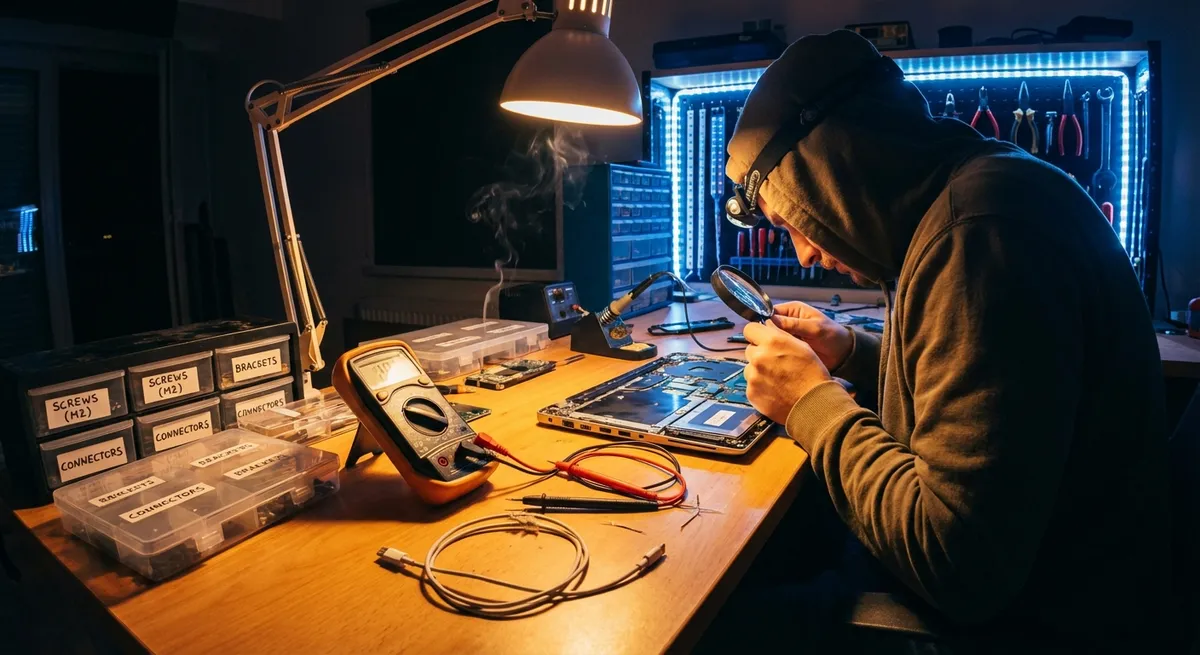
When an everyday device stops working, most people either panic or assume it’s time to replace it. In many cases, you can restore your electronics with a few simple checks and basic tools. This guide walks through five common problems and shows you exactly how to troubleshoot and fix them safely—without guessing, and without wasting money on a replacement before you need to.
1. Dead Device That Won’t Power On
When a gadget won’t turn on, it’s often a basic power issue—not a fatal failure. Systematically eliminating the simple causes can save you from unnecessary repairs or replacements.
Step-by-step fix:
Confirm the outlet or power source works
- Plug in a lamp or phone charger you know works. - If that also fails, reset any tripped breaker or GFCI outlet and test again.
Inspect the power cable and adapter
- Look for fraying, kinks, burn marks, or loose connectors. - Wiggle the plug gently at the wall and at the device; if power cuts in and out, the cable or port may be the issue. - Try a compatible, known-good cable/charger if you have one.
Check the power button and settings
- On some devices, you must press and hold the power button for several seconds. - For laptops and some electronics, perform a hard reset: - Unplug power. - Remove the battery if it’s removable. - Hold the power button for 15–20 seconds. - Reconnect power and try again.
Inspect for internal battery issues (portable devices)
- If it only works when plugged in, the battery may be failing. - Many laptops and phones will show a battery warning in settings—check battery health if available. - For user-replaceable batteries, swap with a new or known-good one.
Look for signs of internal damage
- Burning smell, visible scorch marks, or bulging components (especially batteries) mean stop and do not power it on again. - At this point, a professional inspection is the safest move.
2. Screen Turns On but Stays Black or Flickers
Whether it’s a TV, monitor, or laptop, screen problems are often related to connections, settings, or backlighting—not necessarily a dead display panel.
Step-by-step fix:
Check brightness and display settings
- Make sure brightness isn’t turned all the way down. - For computers, connect a second monitor or TV to see if the system is actually outputting video.
Inspect video cables and ports
- Unplug and firmly re-seat HDMI, DisplayPort, or VGA connectors on both ends. - Try a different cable and a different port (if available) to rule out a bad connector. - Avoid using damaged or severely bent cables.
Test with another source device
- For a TV: plug in a different device (streaming stick, game console, DVD player). - For a monitor: try a different computer or laptop. - If the new device works, the problem is with your original device, not the screen.
Adjust refresh rate and resolution (computers)
- On Windows or macOS, lower the resolution and refresh rate to standard values (e.g., 1920×1080 at 60 Hz). - An unsupported setting can cause flickering or a blank screen.
Check power-saving and sleep settings
- Disable aggressive power-saving modes temporarily. - Turn off “adaptive brightness” if the screen flickers with changing light.
When to suspect hardware failure
- Persistent flickering with any cable or device. - Screen goes black but you can still faintly see an image with a flashlight—this points to a backlight or inverter issue in older displays. - These cases usually require professional service or a replacement panel.
3. Device Overheating or Shutting Down Unexpectedly
Overheating shortens the life of electronics and can cause random shutdowns, lag, or even safety hazards. Dust, blocked vents, and old thermal paste are frequent culprits.
Step-by-step fix:
Power down and unplug first
- Always shut the device off and disconnect power before opening any panels. - Let it cool for at least 10–15 minutes.
Check ventilation and placement
- Make sure vents are not pressed against walls, furniture, or soft surfaces like beds and couches. - Elevate laptops off blankets or carpets; use a hard, flat surface or a cooling pad.
Clean dust from vents and fans
- Use a can of compressed air to blow dust from vents in short bursts. - Prevent condensation by holding the can upright and not shaking it. - If accessible and safe (e.g., desktop PCs), remove side panels and blow dust out of fans and heatsinks—hold fan blades still with a plastic tool or a finger to avoid overspinning.
Check fans for movement and noise
- Power the device on briefly and observe fans if visible: - No movement = likely failed fan. - Grinding or rattling = fan bearing failure. - Failed fans should be replaced; continuing to run an overheated device can cause permanent damage.
Reduce load and update software
- Close unnecessary apps or browser tabs that spike CPU/GPU usage. - Update firmware, BIOS, or drivers—manufacturers often release thermal management improvements. - For game consoles, ensure system software is current and the console is not in a closed cabinet.
When a deeper repair is needed
- If temperatures remain high (e.g., laptops consistently above 90°C/194°F under light use), dried thermal paste may be the problem. - Replacing thermal paste and cleaning internal heatsinks is effective but more advanced; consider professional service if you’re unsure.
4. No Sound or Distorted Audio
Silent speakers, crackling sound, or audio only on one side can often be solved without touching the internal electronics. The problem is usually configuration, connections, or worn cables.
Step-by-step fix:
Verify basic audio settings
- Make sure the volume is turned up on both the device and the app you’re using. - Confirm the device is not muted—look for a mute symbol or LED indicator.
Check the correct output device is selected
- On computers and phones, go into sound settings and make sure the right speaker, headset, or HDMI device is chosen as the output. - For TVs, check “Audio Output” options if using a soundbar or external speakers.
Inspect physical connections
- Reseat 3.5 mm audio jacks, HDMI cables, optical cables, and speaker wires. - For speaker wire, ensure bare copper makes solid contact with terminals and no strands are shorting between positive and negative posts.
Test with different content and apps
- Try a local audio file, a YouTube video, and a streaming app to rule out a bad source. - If only one app is silent, check that app’s own audio settings.
Swap components to isolate the problem
- Plug your headphones into another device. - Plug a different set of headphones or speakers into the original device. - If the issue follows the headphones/speakers, they’re the problem; if it stays with the original device, the output jack or internal audio circuit may be failing.
Tackle distortion and crackling
- Lower the volume to see if the distortion disappears—if yes, speakers may be overdriven. - Disable sound enhancements or “virtual surround” effects in system settings, which can sometimes cause artifacts. - Check power for ground loop issues with audio gear (humming that changes when you touch metal surfaces); using a single grounded outlet or a ground loop isolator can help.
5. Wi‑Fi Devices Disconnecting or Running Very Slowly
Many “broken” smart TVs, streaming boxes, or laptops are actually fine; the real issue is wireless interference, poor router placement, or outdated firmware.
Step-by-step fix:
Rule out a full internet outage
- Test another device on the same network. - If nothing connects, reboot the modem and router: - Unplug both for 30–60 seconds. - Plug in the modem, wait till lights stabilize. - Then plug in the router and wait a few minutes.
Improve router placement
- Place the router in a central, open area—not in a cabinet, closet, or behind a TV. - Elevate it off the floor on a shelf or table. - Keep it away from large metal objects, microwaves, and thick concrete walls.
Reduce interference and congestion
- If your router supports both 2.4 GHz and 5 GHz: - Use 5 GHz for devices that are closer; it’s faster with less interference. - Use 2.4 GHz for distant devices; it travels further but is slower. - Change your Wi‑Fi channel in router settings if neighbors use the same channel (many routers have an “auto” setting that chooses the least crowded channel).
Update router and device firmware
- Log into your router’s admin page (address and login details are usually printed on the router). - Check for firmware updates and apply them carefully. - Update Wi‑Fi drivers or system software on laptops, phones, and smart devices.
- Test wired vs. wireless
- If your device has an Ethernet port, connect it directly to the router with a cable.
- If speeds and stability improve significantly when wired, your Wi‑Fi environment is the bottleneck, not the internet service.
Use extenders, mesh, or better hardware if needed
- For large homes or problematic layouts, consider a mesh Wi‑Fi system or strategically placed range extenders. - If the router is older than 5–7 years, upgrading to a modern model often delivers a substantial improvement in speed and stability.
Conclusion
Most electronics problems start with simple causes: loose connections, blocked vents, confused settings, or minor wear-and-tear. By working through structured checks—power, cables, settings, environment—you can fix many issues at home and make smarter decisions about when professional repair or replacement is really necessary. The more methodical you are, the less time you spend guessing—and the more money you save keeping your devices running longer.
Sources
- [U.S. Consumer Product Safety Commission – Product Safety Guidance](https://www.cpsc.gov/Safety-Education) – General safety practices for working with consumer electronics and powered devices
- [Apple Support: If your Mac won’t turn on](https://support.apple.com/en-us/HT204267) – Example of structured power and startup troubleshooting steps for computers
- [Intel – How to Prevent Laptop Overheating](https://www.intel.com/content/www/us/en/gaming/resources/laptop-overheating.html) – Explains causes of overheating and practical cooling and maintenance tips
- [Microsoft Support: Fix sound problems in Windows](https://support.microsoft.com/en-us/windows/fix-sound-problems-in-windows-73025246-b61c-40fb-671a-2535c7cd56c8) – Detailed walkthrough for diagnosing no-sound and audio issues on PCs
- [Federal Communications Commission (FCC): Consumer Guide to Broadband and Wi-Fi](https://www.fcc.gov/guides/home-networking) – Guidance on Wi‑Fi performance, interference, and home network best practices
Key Takeaway
The most important thing to remember from this article is that this information can change how you think about Electronics.



