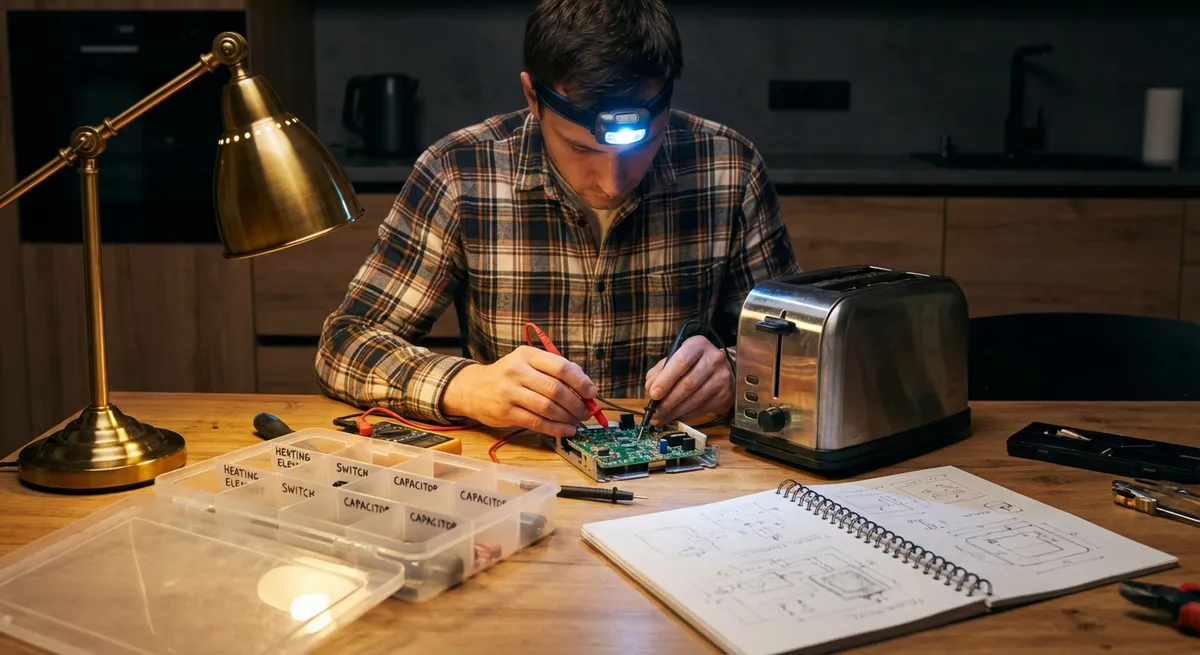
When a device suddenly won’t turn on, charge, or connect, it’s easy to panic—or assume it’s dead. In reality, many “broken” electronics fail for simple, fixable reasons: loose connections, dirty ports, bad cables, or misconfigured settings. This guide walks you through five practical, step‑by‑step solutions you can safely try before paying for a repair or replacing your gear.
These steps focus on safety, simple tools, and fixes you can do in minutes, even if you’re not “techy.”
1. When a Device Won’t Power On
A device that seems completely dead often has a basic power issue. Before assuming hardware failure, rule out the most common causes.
Step-by-step:
Check the power source first
- Try a different wall outlet. - Plug in something else (like a lamp or phone charger) to verify the outlet works. - If using a power strip or surge protector, bypass it and plug directly into the wall.
Inspect and test the power cable
- Look for kinks, frayed insulation, bent plugs, or burn marks. - Wiggle the cable gently at both ends while connected; if the device flickers on/off, the cable may be faulty. - If possible, test with another known‑good cable of the same type (USB‑C, Lightning, barrel connector, etc.).
Confirm the power adapter is correct and functional
- Check the voltage and amperage on the adapter label and compare it to the device’s requirements (often printed on the device or in the manual). - Using the wrong adapter can prevent power‑on or damage the device. - If another compatible adapter is available, test with that.
Remove external accessories
- Disconnect all non‑essential accessories: USB drives, external hard drives, printers, HDMI cables, docks. - A faulty external device can sometimes prevent startup.
Try a basic power reset
- For laptops and some electronics with removable batteries: - Disconnect the charger. - Remove the battery (if possible). - Hold the power button for 15–30 seconds. - Reinsert the battery, connect power, and try turning it on. - For phones/tablets: hold the power button (or power + volume down, depending on model) for at least 10–15 seconds.
Look and listen for signs of life
- Any LED lights, screen flickers, fan noise, or vibration? - If lights blink or fans spin briefly then stop, note any patterns (for example, blinking codes on some laptops help identify errors).
If the device still won’t power on after these steps and there are no signs of life, the internal power circuitry, battery, or main board may be damaged. At that point, professional diagnosis is recommended.
2. Fixing Charging Problems (Phones, Tablets, Laptops, and Accessories)
Charging issues are often caused by dirty ports or worn‑out cables—not dead batteries. A careful cleaning and cable check solves more problems than most people expect.
Step-by-step:
Inspect the charging port
- Use a flashlight to look inside the port. - Check for lint, dust, or corrosion. Pocket lint is especially common in phone ports.
Clean the port safely
- Power off the device. - Use a wooden or plastic toothpick or a dedicated port‑cleaning tool. - Gently scrape out debris from the port walls and bottom—avoid bending the center pin. - Blow out loose dust with short bursts from a hand blower (avoid canned air too close, as cold propellant can cause condensation).
Test with a different cable and adapter
- Try another compatible charging cable that you know works with another device. - Try a different wall adapter or USB port (e.g., on a laptop). - If fast charging doesn’t work but normal charging does, the issue may be the adapter or cable not supporting the fast‑charge standard.
Check for loose connections and movement
- Insert the cable and gently move it side to side. - If it feels extremely loose or only charges when held in one position, the port may be physically worn or detached from the board, which often requires professional repair.
Verify charging status in software
- On phones/tablets: - Check for a lightning/charging icon in the status bar. - If the battery percentage goes down while plugged in, the power input is too low (weak adapter, cable, or high background usage). - On laptops: - Look in the battery or power settings for messages like “Plugged in, not charging,” which may point to battery health or adapter issues.
Reduce power draw during charging
- Close power‑hungry apps or games. - Dim the screen. - For laptops, switch to battery saver mode. - In some cases, powering off completely and leaving it on charge for 30–60 minutes helps recover a deeply discharged battery.
If you’ve tried multiple cables and chargers, cleaned the port, and still see inconsistent charging, the battery or charging circuitry could be failing. Back up your data and consider a professional assessment.
3. Solving Overheating and Automatic Shutdowns
Many devices—including laptops, game consoles, and phones—shut down or slow down dramatically to protect themselves from heat damage. Keeping them cool can restore performance and extend lifespan.
Step-by-step:
Recognize overheating symptoms
- Device feels unusually hot to touch. - Fans run loudly or constantly (on computers/consoles). - Sudden shutdowns, restarts, or performance drops during heavy use (gaming, video calls, etc.).
Improve airflow around the device
- Move the device to a hard, flat surface; avoid soft surfaces like beds, couches, or carpets that block vents. - Ensure vents are not pressed against walls or other objects. - For laptops, consider a cooling pad that adds airflow from underneath.
Clean vents and external dust
- Power off and unplug the device. - Use a soft brush to loosen dust from vents. - Use a hand air blower or short, controlled bursts of compressed air from a distance to blow dust out of vents—keep the can upright to avoid spraying liquid. - Do not poke metal objects into vents or fans.
Reduce internal workload
- Close unneeded apps and browser tabs. - On computers, open Task Manager (Windows) or Activity Monitor (macOS) and close processes using high CPU or GPU. - Lower graphics settings or frame rates in games and intensive apps.
Update software and firmware
- Install the latest operating system and firmware updates—manufacturers often refine fan behavior and power management. - Check driver updates for graphics cards (on PCs), which can affect heat output.
Check your charging habits (phones/tablets)
- Remove thick or poorly ventilated cases while charging if the device gets hot. - Avoid using heavy apps or gaming while charging. - Keep devices out of direct sunlight or hot cars.
If a device continues to overheat after cleaning and reducing workload, there may be internal dust buildup, dried thermal paste, or failing fans. Those typically require opening the device, which is best left to experienced users or professionals.
4. Fixing Wi‑Fi and Bluetooth Connection Issues
Connectivity problems often come down to interference, distance, or configuration. A structured reset usually restores stable connections without any special tools.
Step-by-step:
Confirm the basics
- Ensure Wi‑Fi or Bluetooth is actually enabled in settings. - Check that Airplane Mode is off. - On routers, confirm the Wi‑Fi light is on and not indicating an error.
Restart everything in order
- Turn off the affected device (phone, laptop, TV, etc.). - Unplug power from your router (and modem if separate) for 20–30 seconds, then plug back in. - Wait 2–3 minutes for the network to fully restart. - Turn your device back on and try reconnecting.
Forget and re‑add the Wi‑Fi network or Bluetooth device
- For Wi‑Fi: - Go to Wi‑Fi settings, select your network, tap “Forget” or “Remove.” - Reconnect by entering the password carefully. - For Bluetooth: - Remove/unpair the problematic device, then pair it again following the on‑screen instructions.
Reduce interference and improve signal
- Move closer to the router or Bluetooth device, ideally in the same room with minimal walls. - Keep routers and Bluetooth transmitters away from microwaves, cordless phones, and thick walls. - For Bluetooth audio, avoid placing your phone in thick bags or behind your body while walking.
Check device limits and connection type
- Some routers have limits on how many devices can connect at once; disconnect devices you’re not actively using. - Use 5 GHz Wi‑Fi where possible for higher speeds and less interference, but remember its range is shorter than 2.4 GHz. - For Bluetooth, ensure the device is in pairing mode (often indicated by a blinking light) before trying to connect.
Update firmware and drivers
- Log into your router’s admin page (address typically printed on the device) and check for firmware updates. - Update Wi‑Fi and Bluetooth drivers on laptops through the manufacturer’s website or your OS update system. - Ensure your phone or tablet OS is up to date, as connectivity fixes are common in updates.
If multiple devices in your home struggle to connect, your router or internet service may be the cause. If only one specific device fails to connect anywhere, the wireless hardware in that device could be failing.
5. Reviving a Frozen or Unresponsive Screen
Whether it’s a smartphone stuck on an app, a tablet that won’t respond to taps, or a TV that’s frozen on a menu, many “frozen” screens can be revived without data loss.
Step-by-step:
Wait briefly and watch for changes
- Give the device 30–60 seconds; sometimes it’s just processing a heavy task. - Listen for signs of activity (fans, notification sounds).
Try standard navigation controls
- On phones/tablets: swipe up or use the recent apps button to exit the app. - On computers: try Ctrl + Alt + Delete (Windows) or Command + Option + Esc (macOS) to force‑quit unresponsive apps. - On smart TVs/streaming boxes: press the Home or Back button on the remote for several seconds.
Perform a forced restart (safe reset)
- iPhone (recent models): - Quickly press and release Volume Up. - Quickly press and release Volume Down. - Press and hold the Side button until the Apple logo appears. - Android (most devices): - Press and hold Power and Volume Down together for about 10–20 seconds (varies by brand). - Windows laptop/desktop: - Press and hold the power button for 5–10 seconds until it powers off, wait a few seconds, then turn it back on. - Mac (Intel and Apple Silicon): - Press and hold the power button until the device turns off, wait, then press again to turn it on. - Smart TVs/streaming sticks: - Unplug from power, wait 30 seconds, plug back in.
Check for storage and app issues after reboot
- Make sure there’s sufficient free storage; low storage can cause freezes. - Update or uninstall apps that frequently cause crashes. - On computers, run a quick disk check or use built‑in tools (like Windows’ “Check disk” or macOS’s Disk Utility First Aid).
Back up and then update your system
- As soon as the device is responsive, back up important data (photos, documents, contacts). - Install system updates that often include stability improvements and bug fixes. - If freezes persist after updates, consider a full backup and factory reset as a last resort.
If forced restarts and software cleanup don’t stop repeated freezes—especially if they’re accompanied by strange noises, display artifacts, or random reboots—there could be a deeper hardware fault (failing storage, memory, or graphics).
Conclusion
Most electronics problems that stop your day—no power, no charge, overheating, lost connections, frozen screens—can be traced to a short list of causes that you can safely check yourself. Working systematically through power, cables, ports, ventilation, and settings gives you a clear picture: either you fix it on the spot, or you know it’s time for a professional repair instead of endless guesswork.
Before you replace a “dead” device, walk through these steps. A few minutes of methodical troubleshooting can save you money, protect your data, and keep your electronics running longer.
Sources
- U.S. Department of Energy – Home Electronics: Tips for Energy-Efficient Use - Provides general guidance on safely using and maintaining electronics, including power considerations.
- Apple Support – If your iPhone, iPad, or iPod touch won’t charge - Official instructions on cleaning ports, checking cables, and resolving charging issues.
- Samsung Support – Galaxy device will not turn on or power on - Step-by-step troubleshooting for power and boot problems on mobile devices.
- Microsoft Support – Troubleshoot blue screen errors and freezes in Windows - Explains how to handle system freezes and forced restarts on Windows PCs.
- Federal Communications Commission (FCC) – Interference with Consumer Electronics - Discusses wireless interference factors that can affect Wi‑Fi and Bluetooth connectivity.
Key Takeaway
The most important thing to remember from this article is that this information can change how you think about Electronics.



