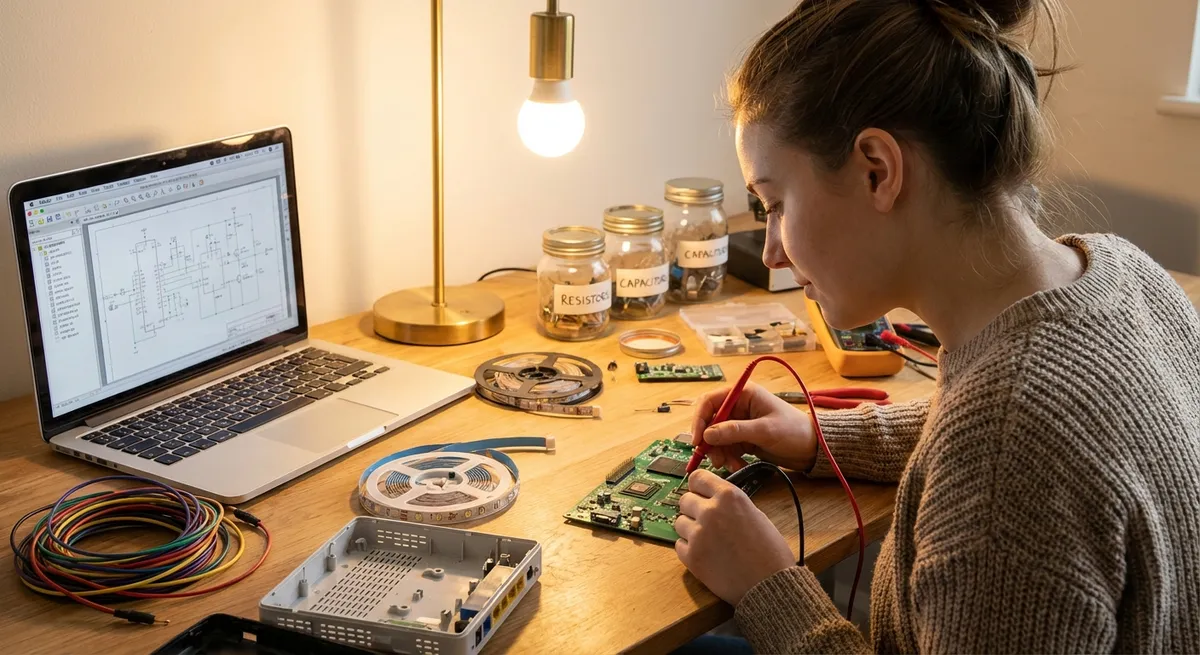
Everyday electronics fail at the worst possible time—right before a meeting, during a movie, or when you finally sit down to relax. You don’t always need a new device or a repair shop visit, though. With a few basic checks and simple tools, you can solve many issues yourself safely and quickly.
This guide walks you step-by-step through five common electronics problems, what usually causes them, and exactly how to fix them before you spend money on a replacement.
1. TV Won’t Turn On (But the Standby Light Is On)
When your TV’s standby light is on but nothing happens when you press power, the problem is often simple: input confusion, remote issues, or power-saving settings.
Step-by-step fix
Check the basics first
- Unplug the TV from the wall. - Wait 60 seconds. - Plug it directly into the wall outlet (not a power strip) to rule out a bad strip. - Try a different outlet if possible.
Power cycle the TV properly
- With the TV unplugged, press and hold the TV’s physical power button (on the frame or back) for 10–15 seconds. - Release, wait 10 seconds, then plug the TV back in. - Turn it on using the physical power button, not the remote, to rule out remote issues.
Confirm the input/source
- Turn on any connected devices (cable box, game console, streaming stick). - Use the INPUT or SOURCE button on the TV (or remote) to cycle through HDMI/AV inputs. - Pause briefly on each input to see if a picture appears. - If your streaming device or console has a light, confirm it’s on.
Test or reset the remote
- Replace all the batteries with fresh, matching batteries. - Ensure they’re installed in the correct direction. - Use your phone’s camera to test the IR sensor: - Point the remote at your phone’s camera. - Press a button; you should see a flickering light on the camera screen if the remote is working (doesn’t apply to Bluetooth-only remotes). - If it’s a smart/Bluetooth remote, re-pair it following the TV brand’s instructions (often done in Settings → Remotes & Accessories or similar).
Disable energy-saving or eco modes
- Go into the TV’s settings menu. - Look for Eco Mode, Power Saving, or Auto Power Off. - Turn these options off or extend timers (e.g., auto power-off after 4 hours). - Save settings and restart the TV.
If the standby light blinks in a pattern (e.g., 3 or 5 flashes repeatedly), search for “[TV brand] [number of blinks] code”—manufacturers often use this to indicate a specific internal fault. At that point, a professional repair or warranty service is usually the safest move.
2. Laptop Overheating and Shutting Down
If your laptop gets hot to the touch, runs loud, or suddenly powers off, it’s likely overheating. Dust build-up, poor airflow, and heavy background tasks are common culprits—most of which you can fix.
Step-by-step fix
Check where you’re using it
- Move the laptop to a hard, flat surface (desk or table). - Avoid beds, couches, blankets, or your lap, which block vents. - Make sure no vents (usually on the sides, back, or underside) are blocked.
Clean the vents (safely)
- Power down the laptop completely. - Unplug the charger and disconnect external devices. - Use a can of compressed air to blow dust away from vents in short bursts. - Keep the can upright to avoid moisture. - Do not insert sharp objects into vents.
Reduce unnecessary background load
- Open Task Manager (Windows) or Activity Monitor (macOS). - Sort by CPU usage. - Close or uninstall apps that constantly run high CPU (e.g., unused updaters, heavy browser tabs, background utilities). - Disable startup apps you don’t need: - Windows: Settings → Apps → Startup - macOS: System Settings → General → Login Items
Update system and drivers
- Install pending OS updates (Windows Update or macOS Software Update). - For Windows laptops, go to the manufacturer’s support site (Dell, HP, Lenovo, etc.) and install the latest chipset, BIOS/UEFI, and graphics drivers. - Restart after updates, then observe if fans behave more normally.
Improve cooling long-term
- Use a cooling pad with fans for thin or older laptops. - Avoid using the laptop in hot environments or under direct sunlight. - If overheating persists, consider a professional cleaning: - Internal dust removal. - Fresh thermal paste between CPU/GPU and heat sink.
If your laptop still overheats and shuts down after these steps, especially under light use, internal components (fans, heat pipes) may be failing—get it inspected before permanent damage occurs.
3. Phone Won’t Charge or Charges Very Slowly
A phone that only charges at certain angles or charges extremely slowly usually has debris in the port, a bad cable, or a weak power source. Start with the cheap, easy checks before assuming the battery is dead.
Step-by-step fix
Test with a known-good charger and cable
- Use the original brand charger (Apple, Samsung, Google, etc.) if you have it. - Avoid very cheap, unbranded chargers—they’re often underpowered or unsafe. - Plug directly into a wall outlet, not a USB port on a computer or a low-power hub.
Inspect and clean the charging port
- Power down the phone completely. - Use a bright light to look inside the port. - If you see lint or dust: - Use a non-metal tool (plastic toothpick or soft wooden toothpick) to gently lift out debris. - Tilt the phone port downward so debris falls out. - Do not use metal pins, paperclips, or needles—these can damage pins or cause shorts. - Follow up with a few gentle bursts of compressed air if available.
Check the cable and adapter carefully
- Look for: - Frayed or exposed wires - Bent or burned connectors - Loose or wobbly plug ends - Try a completely different brand-name cable and adapter. - If wireless charging works fine but wired does not, the port or cable is likely the issue.
Disable battery-heavy features while charging
- Turn off Wi‑Fi hotspot, Bluetooth, GPS, and high brightness. - Close background apps, especially games or video streaming. - If possible, turn on Airplane Mode while charging to speed it up. - For very slow charging, try charging with the phone powered off for 15–30 minutes, then check the battery level.
Check battery health (where available)
- iPhone: Settings → Battery → Battery Health & Charging. - Some Android phones (Samsung, Google, etc.) have battery diagnostics in Settings → Battery & Device Care or via the manufacturer’s support app. - If battery health is significantly degraded or you see a service message, plan for a battery replacement rather than continued troubleshooting.
If the phone still won’t charge at all after these steps, the charging port or internal power circuitry may be damaged. Stop forcing the cable in or wiggling it aggressively—this can make repairs more expensive. Seek an authorized repair center or reputable shop.
4. Bluetooth Speaker Won’t Connect or Keeps Cutting Out
Connection issues with Bluetooth speakers are usually caused by pairing conflicts, distance, interference, or outdated firmware. Resetting and re-pairing cleanly solves most problems.
Step-by-step fix
Delete old pairings on your phone
- Go to your device’s Bluetooth settings. - Find your speaker in the paired devices list. - Tap Forget, Remove, or Unpair. - Turn Bluetooth off, wait 10 seconds, then turn it back on.
Reset the speaker to factory Bluetooth settings
- Many speakers have a reset combination (e.g., holding Power + Volume Down for 5–10 seconds). - If unsure, check the maker’s manual or website for “factory reset” instructions. - After reset, the speaker should enter pairing mode (often indicated by a blinking LED or voice prompt).
Re-pair with a clean connection
- Keep the speaker within 3–6 feet of your phone or laptop during pairing. - Make sure the speaker isn’t connected to another device (smart TVs, tablets, etc.). - In Bluetooth settings, select your speaker from the list and complete pairing. - If prompted for permissions (contacts, calls), you can decline unless you specifically need them.
Reduce interference and obstacles
- Keep both devices in the same room without walls between them during use. - Move away from: - Microwaves - Wi‑Fi routers - Other Bluetooth-heavy areas (game consoles, multiple phones) - Avoid covering the speaker or your phone with bags, jackets, or metal objects.
Update firmware and test another device
- Check the manufacturer’s app or website for speaker firmware updates. - Install any available updates, then restart both devices. - Test the speaker with a completely different phone or laptop. - If it works well with other devices, the issue is likely your original device’s Bluetooth stack—restart it, update its OS, or reset network settings.
If the speaker still drops audio within just a few feet, and you’ve ruled out interference and device issues, its internal Bluetooth module or antenna may be failing. In that case, check warranty options before paying for a repair.
5. Desktop Monitor Says “No Signal”
A powered-on monitor that shows “No Signal” usually isn’t broken—the computer just isn’t sending video, or the signal path (cable/port) is wrong. Work through the chain from the wall to the graphics card.
Step-by-step fix
Confirm power on both devices
- Ensure the monitor is plugged in and turned on (power light should be steady, not blinking). - Press the power button on the PC and listen: - Do fans spin? - Do lights turn on? - Do you hear any beeps? (Repeated beeps can indicate hardware errors.)
Check the cable connection and type
- Identify the cable type: HDMI, DisplayPort, DVI, or VGA. - Make sure the cable is fully inserted on both ends until it clicks or feels snug. - If your PC has both integrated graphics (motherboard) and a dedicated graphics card: - Plug the cable into the graphics card port, not the motherboard port (typically lower on the back of the case).
Set the correct input on the monitor
- Use the monitor’s Input/Source button or on-screen menu. - Cycle through HDMI 1, HDMI 2, DisplayPort, etc., to find the active one. - Wait a few seconds on each input before moving on.
Test with an alternative cable or device
- Try another video cable of the same type (or a different type if both PC and monitor support it). - Test the monitor using a different device (laptop, game console, streaming box). - If the monitor works fine with other devices, the issue likely lies with the original PC.
Basic PC video troubleshooting
- Power off the PC and unplug it. - If you’re comfortable opening the case: - Gently check that the graphics card is firmly seated in its slot. - Ensure the monitor is connected to the graphics card output, not the motherboard. - Plug back in and power on. - If you still get “No Signal” but hear fans and drives, the graphics card may have failed; try connecting the monitor to the motherboard’s video output (if available) to test integrated graphics.
If none of these steps restore a signal and the monitor works on other devices, your PC’s graphics output (card or motherboard) likely needs professional diagnosis.
Conclusion
Most electronics issues look more serious than they are. Before you spend money on a replacement or a repair shop visit, walking through basic checks—power, cables, settings, and simple resets—can bring your gear back to life.
For safe, effective DIY fixes, stick to this approach:
- Start with non-invasive checks (settings, inputs, restarts).
- Move to physical basics (cables, ports, airflow, dust).
- Only then consider internal faults or professional repair.
If something feels unsafe or requires tools and skills you don’t have, stop and get expert help. The goal is to restore your electronics—not risk damaging them or yourself.
Sources
- [Apple Support – If your iPhone or iPad won’t charge](https://support.apple.com/en-us/HT207412) - Official guidance on troubleshooting charging issues safely
- [Samsung Support – Galaxy phone overheating or getting hot](https://www.samsung.com/us/support/troubleshooting/TSG01001416/) - Practical steps for dealing with mobile device overheating
- [HP Support – Reducing Heat Inside the PC to Prevent Overheating](https://support.hp.com/us-en/document/c01657439) - Detailed advice on laptop/desktop cooling and airflow
- [Sony Support – TV troubleshooting guide](https://www.sony.com/electronics/support/articles/00031096) - Example manufacturer process for diagnosing TV power/display problems
- [FCC Consumer Guide – Wireless Devices and Health Concerns](https://www.fcc.gov/consumers/guides/wireless-devices-and-health-concerns) - Background on wireless/Bluetooth safety and interference considerations
Key Takeaway
The most important thing to remember from this article is that this information can change how you think about Electronics.



