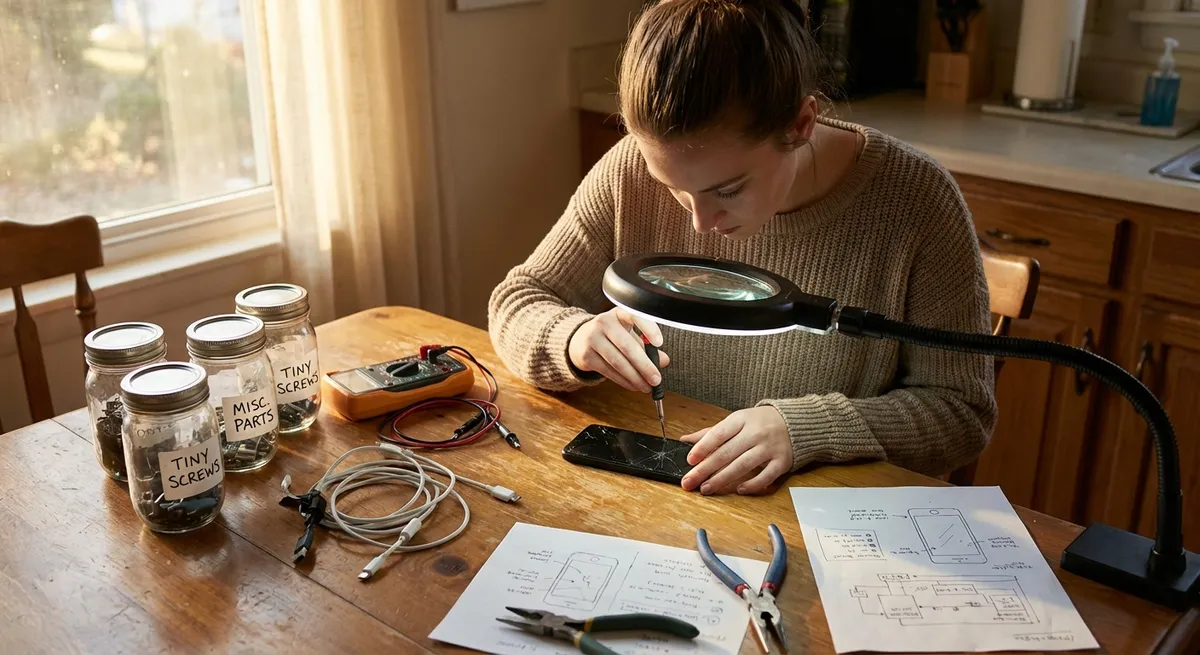
Electronics rarely fail at a convenient time. Your laptop won’t charge before a deadline, your TV refuses to show a picture on game night, or your phone battery dies before lunch. This guide walks you through five practical, step‑by‑step fixes for common electronics problems you can often solve at home—without special tools or advanced tech skills.
1. When Your Phone Won’t Charge Reliably
A phone that only charges at a certain angle—or not at all—is usually dealing with one of three things: dirt, a bad cable, or a failing charger/port. Before assuming the phone is dead, rule out the basics.
Step-by-step fix
Test the outlet and charger first
- Plug a lamp or another device into the same outlet to confirm it works. - Try a different wall adapter if you have one. - If you’re using a power strip, plug directly into the wall to eliminate strip issues.
Swap the cable
- Try at least one known-good cable (preferably new or rarely used). - If the phone charges normally with the new cable, the old one is done—recycle it.
Inspect and clean the charging port
- Power off the phone completely. - Use a bright light to look into the port; lint and dust are common culprits. - Very gently push out debris with a wooden or plastic toothpick (never metal). - Hold the phone port facing down so loosened debris falls out instead of going deeper.
Check for loose connection or wobble
- Plug in the cable and gently wiggle it side to side. - If the cable moves excessively or disconnects with minimal movement, the port may be damaged. - Try charging in one “sweet spot” position while you back up your data in case the port fails completely.
Try a different power source
- Test charging from a laptop USB port and from a wall charger. - If it charges from one but not the other, the issue may be power output rather than the phone itself.
When to stop DIY and get help
If cleaning the port and swapping cables doesn’t help, or if the port feels loose or rattles, schedule a professional repair. Continuing to force the cable can worsen internal damage and increase repair costs.
2. Laptop That Won’t Power On or Randomly Shuts Down
A laptop that won’t start—or dies unexpectedly—may be facing power supply issues, battery problems, or overheating. Work through these steps in order to isolate the cause.
Step-by-step fix
Perform a basic power reset
- Disconnect the charger from the laptop. - If the battery is removable, slide out the battery. - Press and hold the power button for 15–20 seconds to discharge any residual power. - Reinsert the battery (if removable) and plug in the charger. - Try turning it on again.
Check charger and power jack
- Inspect the power adapter cable for kinks, fraying, or burn marks. - Confirm any indicator light on the charger is on when plugged into the wall. - Gently wiggle the charger connector where it plugs into the laptop; if the charging light flickers, the jack may be loose.
Check for signs of life
- Turn it on and listen: - Fan noise? - Hard drive or SSD click/whirr? - Keyboard backlight or status lights? - If lights come on but the screen is black, shine a flashlight at an angle to see if a very faint image appears (possible backlight or display issue).
Rule out overheating shutdowns
- If it powers on but then randomly shuts down: - Feel the underside of the laptop—does it get very hot? - Ensure vents are not blocked by blankets, soft surfaces, or dust buildup. - Use compressed air (short bursts) to blow out vents and fans. Always power the laptop off before cleaning.
Test without the battery (if removable)
- Remove the battery and plug the charger directly into the laptop. - Try to power it on using AC alone. - If it works on AC without the battery, the battery may be failing and should be replaced.
When to stop DIY and get help
If there is no sign of life at all (no fans, no lights) after testing another charger or outlet, or if the power jack is physically loose, you’ll likely need a technician to diagnose motherboard or internal power issues.
3. TV Has Sound but No Picture (Blank or Black Screen)
If your TV is on, audio works, but the screen stays black, you may have a simple input issue, a loose cable, or a backlight problem. This sequence helps you narrow it down.
Step-by-step fix
Confirm the TV is actually powered on
- Check for a power indicator light changing color (standby vs on). - Use the physical power button on the TV—not just the remote—to rule out a remote issue.
Check the input source
- Press the “Input” or “Source” button on the remote or TV. - Cycle through all inputs (HDMI1, HDMI2, AV, etc.) and pause for a few seconds on each. - Make sure your device (cable box, streaming stick, console) is powered on.
Reseat or replace the HDMI cable
- Power off both the TV and the connected device. - Unplug the HDMI cable from both ends and plug it back in firmly. - Try another HDMI port on the TV. - If you have a spare HDMI cable, test with that.
Try a different device on the same TV
- Plug in a different source (e.g., a game console instead of the streaming stick). - If the new device works, the original source is likely the problem. - If none of the devices display a picture, the issue is likely with the TV.
Perform a soft reset
- Turn off the TV and unplug it from the wall. - Press and hold the TV’s power button (on the unit) for 10–15 seconds to discharge residual power. - Leave it unplugged for at least 60 seconds. - Plug it back in and power it on again.
When to stop DIY and get help
If the screen remains black but you can faintly see an image with a flashlight, your backlight or display panel may be failing—a professional repair is needed. If your TV is still under manufacturer warranty, contact the brand’s support before attempting any internal repairs.
4. Wi‑Fi Is Slow or Keeps Dropping on One Device
When one device constantly loses connection—but others are fine—the problem is often local to that device: Wi‑Fi settings, interference, or a minor software glitch.
Step-by-step fix
Toggle Wi‑Fi off and on
- On your phone, tablet, or laptop, turn Wi‑Fi off. Wait 10 seconds. Turn it back on. - This forces the device to renegotiate its connection with the router.
Forget and rejoin the network
- Go to your device’s Wi‑Fi settings. - Tap or click your network name and choose “Forget,” “Remove,” or “Delete.” - Reconnect by selecting the network again and entering the password. - This clears corrupt or outdated connection details.
Check for interference and distance
- Move closer to the router, ideally in the same room with a clear line of sight. - Avoid placing the router behind metal objects, inside cabinets, or next to microwaves or cordless phones. - If performance improves up close, range or interference is the issue.
Restart router and problematic device
- Power off the device fully (not just sleep). - Unplug the router (and modem if separate) from power for 30–60 seconds. - Plug the modem back in first, wait for all lights to stabilize, then plug in the router. - Turn the device back on and reconnect to Wi‑Fi.
Update device software and network drivers
- For phones/tablets: go to Settings → Software Update and install any pending updates. - For Windows laptops: - Open Device Manager → Network adapters. - Right-click your Wi‑Fi adapter → “Update driver” (or visit the manufacturer’s site for the latest driver). - For Macs: run Software Update from System Settings.
When to stop DIY and get help
If every device in the home is slow or dropping, contact your internet provider to check for outages or line issues. If only one device still struggles after these steps, bring it to a technician; the internal Wi‑Fi card or antenna may be failing.
5. Overheating Electronics: Fans Roaring, Devices Getting Hot
Phones, laptops, game consoles, and streaming boxes can all overheat—especially in warm rooms or enclosed spaces. Overheating can shorten component lifespan and cause random shutdowns or lag.
Step-by-step fix
Shut down and unplug before working
- Turn the device fully off (not just sleep). - Unplug from power where applicable. - Let it cool for 5–10 minutes before handling.
Give it room to breathe
- Ensure vents are not blocked by walls, books, or fabric. - For laptops: use them on hard surfaces (desk, table), not on beds or cushions. - For consoles/streaming devices: leave several inches of space around all sides, especially the back.
Clean vents and fans (externally)
- Use a can of compressed air; hold it upright to avoid spraying liquid. - Short bursts into vents from multiple angles—don’t spin fans with continuous air streams. - For desktop PCs, power off, unplug, then remove the side panel if you’re comfortable, and blow dust away from fans and heat sinks.
Reduce workload temporarily
- Close unused apps and browser tabs. - For laptops and PCs, check Task Manager (Windows) or Activity Monitor (Mac) for apps consuming high CPU and close those you don’t need. - Lower game or video quality settings, which reduces processor and graphics load.
Improve the environment
- Avoid direct sunlight on the device. - Move it away from heaters or other hot electronics. - For laptops, consider a cooling pad (a stand with built‑in fans) if you regularly run heavy tasks.
When to stop DIY and get help
If a device still overheats quickly after cleaning vents and reducing workload, or you smell burning plastic or see discoloration, power off immediately and seek professional service. Continued use could cause permanent damage or, in rare cases, a fire risk.
Conclusion
Most everyday electronics failures come down to a few patterns: power problems, loose or dirty connections, software glitches, overheating, or signal issues. By walking through these structured steps—testing power, checking cables, cleaning ports and vents, and resetting connections—you can often revive your gear without a service appointment.
When your own fixes don’t stick, use what you learned to describe the problem clearly to a technician: what you tried, what changed, and what didn’t. That saves time, reduces guesswork, and often lowers repair costs. The goal isn’t to turn you into a full-time repair tech—it’s to give you enough “first aid” skill to keep your electronics working when you need them most.
Sources
- [Federal Communications Commission (FCC) – Interference and Consumer Electronics](https://www.fcc.gov/consumers/guides/interference-consumer-electronics) - Explains how interference affects Wi‑Fi and electronics performance
- [Apple Support – If your iPhone or iPad won’t charge](https://support.apple.com/en-us/HT201569) - Official guidance on troubleshooting charging issues, including port cleaning
- [Microsoft Support – Troubleshoot blue screen or no display issues](https://support.microsoft.com/en-us/windows/troubleshoot-blue-screen-errors-8a6bf632-9e21-4a0f-8b82-1c34c56f5a0c) - Covers laptop/PC display and startup troubleshooting steps
- [U.S. Department of Energy – Electronics and Your Home](https://www.energy.gov/energysaver/electronics-and-your-home) - General information on efficient and safe electronics use
- [Harvard University IT – Wi‑Fi Troubleshooting Tips](https://huit.harvard.edu/pages/wifi-troubleshooting) - Practical steps to diagnose and improve wireless connectivity
Key Takeaway
The most important thing to remember from this article is that this information can change how you think about Electronics.



