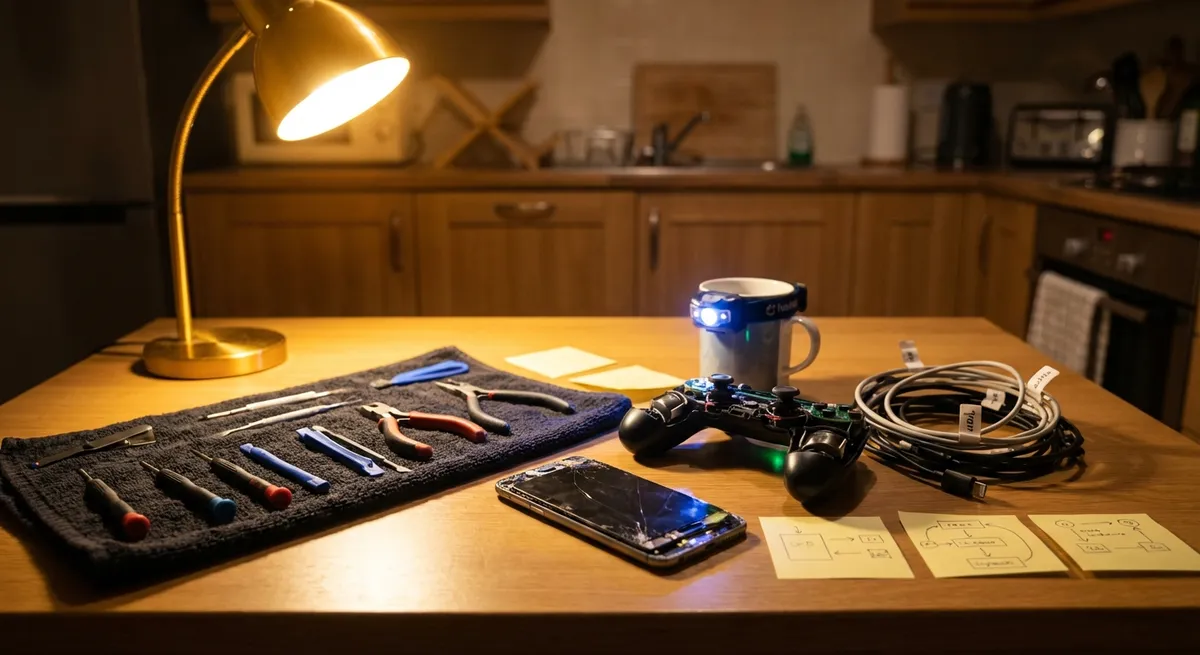
When electronics act up, it’s tempting to panic, power-cycle everything, and hope for the best. Instead, treat every glitch like a small repair project: identify the symptom, try structured fixes, and only then consider a replacement or a pro. This guide walks through five ultra-common electronics problems and gives you clear, step-by-step actions to get things working again—without guesswork or expensive tools.
1. When Your Phone Won’t Charge Reliably
Your cable is plugged in, but the battery barely climbs—or not at all. Before assuming the worst about your phone or buying a new charger, rule out the simple causes in order.
Step-by-step: Get charging working again
Inspect the cable and adapter closely
- Look for kinks, frayed insulation, bent connector tips, or discoloration. - Try another known-good cable and wall adapter if you have them. - If the phone charges normally with a different combo, you’ve found your culprit.
Clean the charging port (carefully)
- Power off the phone. - Use a bright light to check for lint, dust, or pocket debris in the port. - Use a wooden or plastic toothpick (never metal) to gently loosen visible debris. - Follow with a few short bursts of compressed air, holding the can upright. - Re-test charging; a surprising number of “dead ports” are just clogged.
Check for loose connections and wiggle tests
- Insert the cable and gently wiggle it up, down, and side to side. - If charging cuts in and out with very slight movement, the port may be worn or damaged. - Try a different cable to confirm it’s not just a loose connector on the cord.
Rule out software and battery calibration issues
- Restart the phone. - If it powers on, let it charge to 100%, then keep it on the charger for another 30 minutes. - Use the device’s built-in battery health feature if available (e.g., iOS Battery Health, Android vendor tools) to see if the battery is degraded.
Know when DIY stops
- If the port is physically loose inside the phone, or you see corrosion or burn marks, stop. - At that point, you’re in repair-shop territory: a board-level or port replacement is safer than home soldering.
2. When Your Laptop Suddenly Runs Like Molasses
A once-snappy laptop that now takes ages to boot, open apps, or switch tabs often has a few root causes: overloaded startup, storage problems, or heat. Work through them in sequence.
Step-by-step: Restore usable speed
Reboot properly before anything else
- Fully shut down (don’t just close the lid or use “Sleep”). - Wait 30 seconds, then power back on. - Test speed after a clean boot; if things are temporarily better, ongoing background tasks may be part of the problem.
Check storage space and free up room
- Aim for at least 15–20% free disk space. - On Windows: Settings → System → Storage. - On macOS: Apple menu → About This Mac → Storage. - Delete or move large, non-essential files (videos, installers, old backups) to an external drive or cloud storage.
Tame startup programs
- Disable apps you don’t need to launch automatically. - Windows: Ctrl+Shift+Esc → Startup tab → Disable non-essential entries. - macOS: System Settings → General → Login Items → remove unneeded apps. - Reboot and re-check performance.
Run basic malware and system checks
- Ensure your antivirus or built-in security (Windows Security, etc.) is up to date. - Run a full scan. - Windows: use “Check Disk” or chkdsk for drive errors; macOS: Disk Utility → First Aid.
Deal with heat and dust buildup
- If the fan is loud and the bottom feels hot, performance may be throttling. - Power down, unplug, and if removable, take out the battery. - Use compressed air to blow dust out of vents and fans (short bursts, from multiple angles, no spinning the fan excessively). - Use the laptop on a hard surface, not a bed or couch, to keep vents clear.
If the machine is still painfully slow after these steps, the bottleneck may be old hardware (mechanical hard drive, low RAM). Upgrading to an SSD or adding memory can dramatically improve speed and is often cheaper than replacing the whole laptop.
3. When Your TV Shows “No Signal” or a Black Screen
Before blaming the TV, remember most “no signal” errors come from the source (cable box, streaming stick, console) or the cable path. Work methodically.
Step-by-step: Bring your picture back
Confirm power status on everything
- Make sure the TV’s standby light is on and the screen backlight turns on (slight glow). - Check that your cable box, streaming device, or console shows lights or indicators. - If any device is totally dark, plug it into a known-working outlet or power strip.
Verify the correct input/source
- Use the TV remote’s “Input” or “Source” button to cycle through HDMI1, HDMI2, AV, etc. - Pause a couple of seconds on each input to see if video appears. - Match the label on the TV’s physical port (e.g., HDMI 2) to the input you select.
Check and reseat cables
- Power off devices. - Disconnect HDMI or AV cables from both the TV and the source device. - Inspect connectors for bent pins, cuts, or kinks. - Firmly plug them back in until fully seated; a half-inserted HDMI is a very common cause. - If you have another HDMI cable, swap it in and test again.
Test with a different source or different TV input
- Plug a different device into the same HDMI port on the TV. - If that works, your original source device may be the problem. - Conversely, plug your original source into a different HDMI port on the TV; if it works there, the first port may be faulty.
Try a full power cycle (“cold reboot”)
- Turn off the TV and source device. - Unplug both from power for 60 seconds. - If the TV has a power button, hold it for 10–15 seconds while unplugged (if accessible). - Plug everything back in and power on the TV first, then the source.
If you can see menus or streaming apps on the TV itself but no image from external devices, you’ve narrowed the problem to inputs or cables. If the screen stays black even for the TV’s own menu, you’re likely facing a panel, backlight, or internal board failure that requires a professional or manufacturer support.
4. When Wi‑Fi Drops or Crawls in One Room
If some parts of your home have solid Wi‑Fi but one room is a dead zone or painfully slow, you’re dealing with signal strength and interference—not necessarily a bad internet connection. Fix the environment first.
Step-by-step: Improve weak wireless coverage
Check baseline speed near the router
- Stand close to your router and run a speed test using a phone or laptop. - If speeds are good there but bad in the problem room, the issue is coverage, not your ISP. - If speeds are bad everywhere, troubleshoot with your internet provider first.
Reposition the router for better reach
- Place it in a central, elevated, open area if possible. - Avoid tucking it into cabinets, behind TVs, or near large metal objects or aquariums. - Keep some distance from cordless phone bases, microwaves, and baby monitors.
Change the Wi‑Fi channel or band
- Log into your router’s admin page (address is often on a label, such as 192.168.0.1). - On 2.4 GHz, manually set channels 1, 6, or 11 and test each for stability. - If your device supports 5 GHz, connect to that network name—it’s often less congested and faster over short distances.
Reduce competing devices and background traffic
- Temporarily pause large downloads, streaming on multiple TVs, or game updates. - Turn off or disconnect unused Wi‑Fi devices that might be hogging bandwidth. - Re-test performance in the problem room.
Use a wired connection or basic extender for stubborn spots
- For a desktop PC or console, use an Ethernet cable if practical. - For phones/laptops, consider a simple Wi‑Fi range extender or a mesh system if coverage issues are widespread. - Install the extender halfway between the router and the dead zone, where the signal is still decent.
If nothing helps and Wi‑Fi issues persist across multiple devices, consider that your router may simply be outdated. Consumer routers often benefit from replacement after several years of continuous use, especially if your household has grown in devices and streaming needs.
5. When a Device Freezes and Won’t Respond
Phones, tablets, streaming boxes, and even smartwatches sometimes hang on a single screen and ignore every tap. The goal is to restart safely without data loss and to prevent a repeat.
Step-by-step: Unfreeze and prevent future lockups
Give it a short wait first
- If the freeze happens during an update or when opening a heavy app, wait 1–2 minutes. - Rapid-tapping or force-closing repeatedly can make things worse.
Try a standard restart
- Use the usual power menu: hold the power button until you see shutdown/restart options. - If you can, choose “Restart” or “Power off,” then wait 30 seconds and turn it on again. - Test the same app or action that caused the freeze.
Use the force-restart key combo
- Many devices support a specific button combination when the normal restart fails. - Examples (always confirm for your exact model): - Smartphones: typically power + volume-down, held for 10–20 seconds. - Laptops: hold the power button for 10–15 seconds until fully off, then restart. - Avoid doing this while a system update is in progress unless it’s clearly stuck for an extended period.
Clear problematic apps or cache
- On phones/tablets: - Uninstall or update any app that repeatedly causes freezes. - Clear the app’s cache/storage if it misbehaves right after opening. - On streaming devices, clear app data or reinstall the app that locks up.
Check for system updates and free space
- Install pending OS and firmware updates once the device is stable. - Make sure there is sufficient free storage; very low space can cause instability. - If the device continues to freeze even after updates and cleanup, back up your data and consider a factory reset as a last DIY step.
If frequent freezing continues after a factory reset, you’re likely dealing with failing storage, aging hardware, or a deeper software/firmware fault best handled under warranty or by a qualified repair service.
Conclusion
Most everyday electronics problems can be handled with structured, low-risk steps: check power and connections, rule out simple configuration issues, clear dust and debris, and isolate whether the fault is in the device, the accessory, or the environment. Work through problems slowly and in order, and you’ll often avoid both unnecessary replacements and rushed repair bills. When you hit clear signs of physical damage, burned components, or repeated failures after basic troubleshooting, that’s your cue to stop, protect your data, and bring in a professional.
Sources
- [Apple Support – If your iPhone or iPad won’t charge](https://support.apple.com/en-us/HT201569) - Official guidance on troubleshooting mobile charging issues
- [Microsoft Support – Tips to improve PC performance in Windows](https://support.microsoft.com/en-us/windows/tips-to-improve-pc-performance-in-windows-0bb2c163-1165-4c44-940e-3c73cd3127b9) - Explains storage, startup, and performance tuning for Windows laptops
- [Federal Communications Commission (FCC) – Interference and consumer devices](https://www.fcc.gov/consumers/guides/interference-consumer-electronics) - Covers how interference affects Wi‑Fi and other electronics
- [Consumer Reports – How to fix your TV: troubleshooting tips](https://www.consumerreports.org/tvs/how-to-fix-your-tv-troubleshooting-tips-a1962080167/) - Practical TV troubleshooting overview
- [Android Open Source Project – Power management and battery](https://source.android.com/docs/core/power) - Technical background on charging and power behavior in Android devices
Key Takeaway
The most important thing to remember from this article is that this information can change how you think about Electronics.



