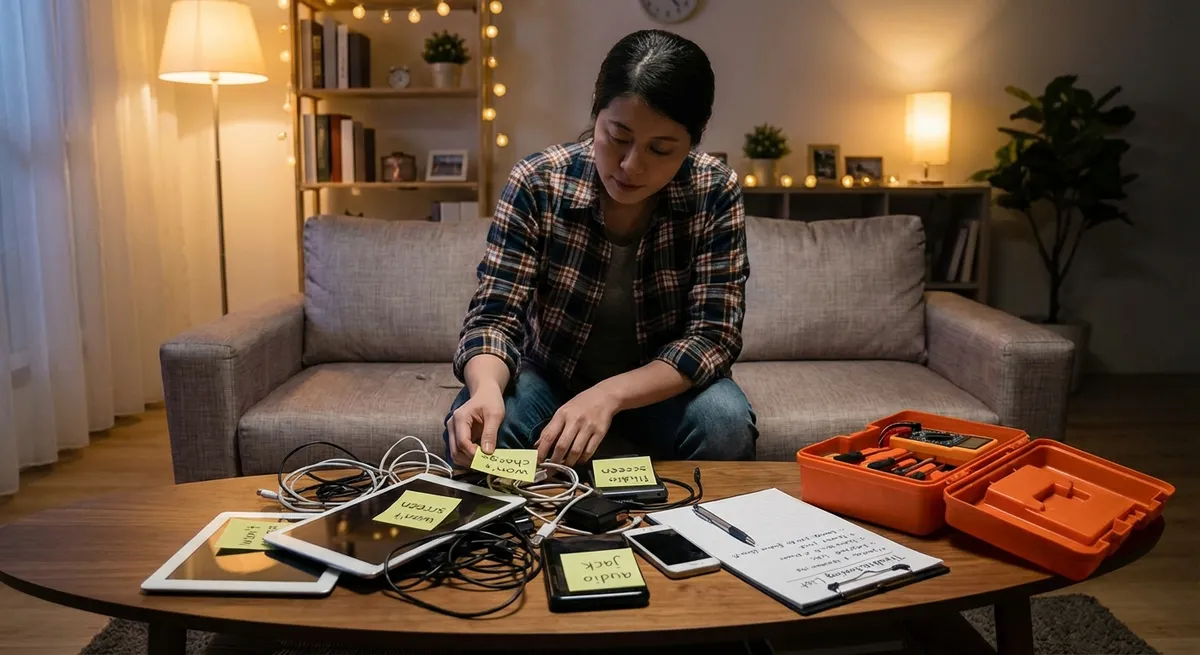
When your gadgets suddenly stop cooperating, you don’t always need a new device—or an expensive repair bill. Many “broken” electronics are really just suffering from dust, loose connections, or misconfigured settings. This step-by-step guide walks through five practical fixes you can try right away, using basic tools you probably already own.
1. When Your TV Won’t Turn On (But the Standby Light Is On)
A TV that won’t fully power on—even though a small standby light is glowing—is often stuck in a protection mode or has a simple power issue.
Step-by-step fix
Unplug and drain residual power
- Turn the TV off (if possible) and unplug it from the wall. - Wait at least 60 seconds. - While unplugged, press and hold the TV’s power button (on the TV itself, not the remote) for 15–30 seconds to discharge residual power. - Plug it back in and try turning it on again.
Check the power source, not just the TV
- Plug another device (like a lamp or phone charger) into the same outlet to confirm the outlet works. - If you’re using a surge protector or power strip, bypass it and plug the TV directly into the wall. - Inspect the power cable: look for kinks, cuts, or loose connectors at both ends.
Try a different input and remove accessories
- Disconnect all HDMI devices, streaming sticks, and USB drives. - Turn on the TV with nothing attached—some faulty devices can prevent startup. - Then press the “Input” or “Source” button to cycle through inputs in case it’s on a dead source.
- Remote vs. TV button check
- Try turning the TV on using the button on the TV, not the remote.
- If that works, your issue may be the remote:
- Replace the batteries with fresh ones, making sure polarity (+/–) is correct.
- Clean the battery contacts with a dry cloth.
- If it’s an IR remote, make sure nothing is blocking the sensor on the TV.
When to stop and call a pro
- If the standby light blinks in a pattern (e.g., 2 or 3 flashes repeatedly), search online for “your TV brand standby light blinking code” to see what it means. - If you smell burning, hear crackling, or see visible damage to the power cord or TV, stop troubleshooting and contact the manufacturer or a certified repair service.
2. Fixing a Phone That Won’t Charge Reliably
If your phone charges only at certain angles, charges very slowly, or won’t charge at all, the problem is often dirt, cables, or a small software glitch—not a dead battery.
Step-by-step fix
Inspect the cable and power adapter first
- Try another known-good cable and charger, ideally from the phone’s manufacturer. - Test your cable and adapter with a different device. If that device also charges poorly, you’ve found the culprit. - Avoid ultra-cheap, no-name chargers—they can be underpowered or unsafe.
Clean the charging port safely
- Turn the phone off. - Use a wooden toothpick or a soft, dry brush (like a clean, unused toothbrush) to gently remove dust and lint from the port. - Do not use metal pins or liquid cleaners—these can damage the contacts. - After cleaning, plug the cable in firmly and see if it sits more securely.
Check for loose connections or damage
- Wiggle the cable gently at the phone end—there should be minimal movement. - Inspect the port with a flashlight: bent pins, corrosion, or warping may require professional repair. - Check the cable for fraying near the connector and cuts along its length.
Rule out simple software issues
- Restart your phone and try charging again. - If your phone has a battery health or charging optimization setting (common on iOS and Android), review it in Settings to see if charge limits have been set. - For wireless charging issues, remove thick or metal cases and center the phone precisely on the pad.
Try a different power source
- Plug into a different wall outlet. - Avoid low-power sources like some USB ports on older computers or car stereo units. - If fast charging doesn’t seem to work, confirm the outlet, adapter, cable, and phone all support the same fast-charging standard.
3. Bringing a “Dead” Laptop Back After It Refuses to Start
A laptop that shows no lights or screen doesn’t always mean a failed motherboard. Often, it’s a stuck power state, depleted battery, or faulty charger.
Step-by-step fix
Check the basics: power and indicators
- Plug the laptop into its charger and look for any charging light on the case. - If there’s no light, test another outlet and inspect the charging cable and adapter for fraying or damage. - If possible, try a compatible spare charger (e.g., from a coworker or another device).
Perform a hard reset (power drain)
- Unplug the charger. - If the battery is removable, remove it. If not, leave it as is. - Hold down the power button for 15–30 seconds to clear any residual power. - Reconnect the charger (and reinstall the battery if removable). - Press the power button once and wait up to 30 seconds to see if it boots.
Test with and without the battery (for removable-battery laptops)
- With the battery removed, plug in the charger and try to turn the laptop on. - If it powers on only when plugged in and with no battery, your battery may be bad but the laptop itself is fine. - If it won’t power on in either configuration, suspect the charger or internal hardware.
Check display-related issues
- Listen for sound: fans spinning, startup chimes, or drive activity. If you hear signs of life but no image, the screen may be the issue. - On Windows: try pressing Windows key + P, then press the arrow keys and Enter to cycle display modes in case it’s outputting to an invisible external display. - Try connecting an external monitor via HDMI/DisplayPort to see if you get video there.
Use built-in diagnostics if available
- Many laptops (HP, Dell, Lenovo, Apple) include startup diagnostics: - Look for a prompt like “Press F2/F10/F12 for Diagnostics” when powering on. - On Macs, pressing and holding the Power button on Apple Silicon machines can bring up recovery options. - If diagnostics report a battery, memory, or storage failure, you’ll likely need professional help—but now you have clear information to share with a repair tech.
4. Restoring Sound When Speakers or Headphones Go Silent
When audio suddenly disappears from your speakers or headphones, the cause is often muted settings, wrong output choices, or a loose connection rather than a blown speaker.
Step-by-step fix
Start with the volume and mute controls
- Confirm the volume on your device (TV, computer, phone) is turned up and not muted. - Check the volume knob on external speakers or the inline remote on wired headphones. - Look in your operating system’s sound settings for any muted applications.
Confirm the correct audio output is selected
- On a computer: - Windows: Right-click the sound icon → “Open Sound settings” → choose the correct output device. - macOS: Go to System Settings → Sound → Output, and pick your speakers/headphones. - On a TV: - Open Audio or Sound settings and make sure speakers are set to the internal TV speakers or the actual soundbar/receiver you’re using.
Check physical connections
- For wired speakers/headphones, ensure the plug is fully inserted—it should “click” into place. - Verify that you’re using the right port (headphone-out vs. line-in, or HDMI vs. optical). - For HDMI/ARC setups with soundbars, make sure the HDMI cable is in the correct labeled port (often “ARC” or “eARC”) on both the TV and soundbar.
Test with another device or app
- Try a different app or video to rule out problems with a single file or service. - Connect your headphones/speakers to another device (phone, tablet, laptop). - If they work elsewhere, the issue is with your original device’s settings or hardware.
Reset Bluetooth audio connections
- Turn Bluetooth off and back on. - “Forget” the headphones/speaker in your Bluetooth settings, then re-pair them. - Make sure no other nearby device is connected to the same headphones/speaker and stealing the connection.
5. Stabilizing Wi‑Fi When Your Internet Keeps Dropping
Unstable Wi‑Fi doesn’t always mean your internet provider is failing you. Signal interference, overworked routers, or simple placement issues often cause slow or flaky connections.
Step-by-step fix
Quick reset of modem and router
- Unplug both the modem and router from power. - Wait 30–60 seconds. - Plug in the modem first and wait until all key lights stabilize. - Then plug in the router and wait a couple of minutes before testing connection again.
Check where your router lives
- Place the router in a central, elevated, open location—not in a cabinet, behind a TV, or on the floor. - Keep it away from big metal objects and appliances like microwaves, cordless phones, or baby monitors. - If your home is large or has many walls, consider adding a Wi‑Fi extender or mesh system for better coverage.
Change congested Wi‑Fi channels
- Log into your router’s admin page (check the sticker on the router for the address, often 192.168.0.1 or similar). - In the wireless settings, switch the 2.4 GHz band to a less crowded channel (1, 6, or 11 are common options). - For 5 GHz, enable automatic channel selection if available. - Apply changes and reconnect.
Separate heavy and light users
- If your router supports dual-band or “Smart Connect,” make sure high-bandwidth devices (smart TVs, gaming consoles, laptops) use the 5 GHz network where possible. - Reserve 2.4 GHz for devices that don’t move much data (smart bulbs, plugs, older devices). - This separation reduces congestion and improves stability.
Wired where it matters most
- For devices that stream 4K video or online games, use an Ethernet cable if possible. - Direct wiring bypasses Wi‑Fi’s interference and is more stable for critical tasks. - If you can’t run long cables, consider powerline adapters as a backup (they use your home’s electrical wiring to carry data).
Conclusion
Most “dead” or “broken” electronics are actually suffering from fixable issues: dust in a charging port, a misbehaving power strip, a muted audio setting, or an overworked Wi‑Fi router. By following these step-by-step checks before assuming the worst, you can often revive your devices, avoid unnecessary replacements, and get back to using your tech with minimal downtime.
If you reach a step where you see physical damage, smell burning, or get clear error codes from diagnostics, that’s the moment to stop DIY and bring in a qualified repair service—armed with the information you’ve already gathered.
Sources
- U.S. Consumer Product Safety Commission – Home Electrical Safety - Guidance on safe practices when working with electrical devices and outlets
- Apple Support – If your iPhone or iPad won’t charge - Official troubleshooting steps for charging issues that also apply conceptually to many phones
- Microsoft Support – Fix sound problems in Windows - Detailed instructions for resolving common audio output issues on Windows PCs
- Federal Communications Commission – Wi‑Fi Interference - Explains common sources of wireless interference and how to reduce them
- HP Support – Computer does not start or boot - Manufacturer guidance on diagnosing laptops and desktops that won’t power on or boot
Key Takeaway
The most important thing to remember from this article is that this information can change how you think about Electronics.



