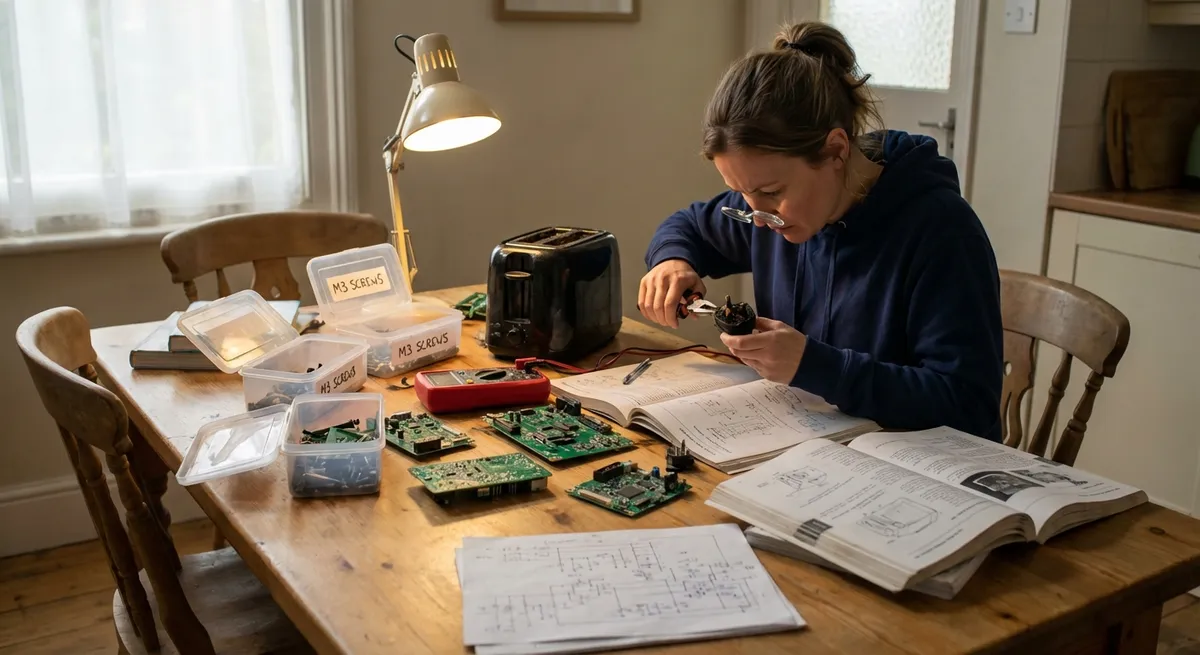
Most electronics don’t fail catastrophically—they just get glitchy, slow, or unreliable. You don’t always need a new device, a paid app, or a repair shop. With a methodical approach and a few basic tools, you can solve many issues on your own and extend the life of your gear.
This guide walks through five common electronic problems and shows you exactly how to troubleshoot and fix them step by step.
1. Wi‑Fi Keeps Dropping or Feels Sluggish
When your internet cuts in and out, it’s often a local problem you can fix—long before calling your provider.
Step-by-step fix
Confirm the problem isn’t the website or app
- Test multiple sites/apps (e.g., a speed test site and a news site). - If only one site is slow or down, it’s likely their issue, not yours.
Restart the right way
- Unplug your modem and router (or gateway) from power. - Wait 30–60 seconds. - Plug the modem back in, wait until its lights stabilize. - Plug the router back in, wait another 2–3 minutes. - Reconnect your device and test again.
Check signal strength and interference
- Move closer to the router and test. - Avoid placing the router: - Behind TVs or inside cabinets - Next to microwaves, cordless phone bases, or thick walls - If your router offers 2.4 GHz and 5 GHz: - 2.4 GHz = better range, slower - 5 GHz = faster, shorter range Try both and see which is more stable.
Reduce device overload
- Log in to your router’s admin page (address is usually on a sticker, like 192.168.0.1). - Check how many devices are connected. - Disconnect anything not in use (old phones, TVs, guests). - Pause big downloads/streams and run a speed test again.
Change the Wi‑Fi channel
- In the router settings, find Wireless or Wi‑Fi settings. - On 2.4 GHz, change the channel to 1, 6, or 11. - On 5 GHz, choose “Auto” or a different channel from your current one. - Save and reboot the router.
If nothing helps and your wired (Ethernet) connection is fast but Wi‑Fi is still bad, your router may simply be outdated and need replacing.
2. Phone Won’t Charge Reliably (Loose Cable or Slow Charging)
Intermittent charging is often dust, a worn cable, or a low-quality power source—not a dead battery.
Step-by-step fix
Inspect the cable and adapter
- Look for: - Frayed or bent cable ends - Burn marks or warping on the plug - Very loose fit in either the phone or the charger - Try a different, known-good cable and adapter (preferably from a reputable brand).
Clean the charging port safely
- Power off your phone. - Use: - A wooden or plastic toothpick, or - A soft brush (like a clean, dry toothbrush) - Gently scrape or brush out lint and dust from the port. - Do not use metal tools or liquids.
Check for a secure connection
- Plug the cable in and gently wiggle it: - If it feels loose in the phone port but tight in other phones, your port might be damaged. - If it’s loose in every device, the cable is likely the problem.
Test different power sources
- Plug into: - A wall outlet (not a power strip or extension cord if you can avoid it). - A computer USB port (it will charge slower but should be stable). - Avoid very cheap, unbranded adapters—they can be unreliable or unsafe.
Check settings and battery health (if available)
- On many phones: - Look for Battery or Battery Health in settings. - If battery health is significantly degraded (e.g., under ~80%), slow or short charging might be expected. - Disable temporary limits like: - “Optimized Charging” or “Battery Protection” features when testing; they may slow charging at high charge levels.
If your port is physically damaged (wiggles, cracked plastic inside, or visible metal damage), stop forcing cables into it and consider a professional repair. Forcing it can cause board damage, which is much more expensive to fix.
3. Laptop Overheating or Fan Running Constantly
Overheating reduces performance and can shorten component life. Dust and poor airflow are big culprits.
Step-by-step fix
Identify heat and fan symptoms
- Signs: - Hot underside or keyboard area - Fan at full speed most of the time - Random shutdowns during heavy tasks or games
Improve airflow immediately
- Place the laptop on: - A hard, flat surface (desk, table), not beds or couches. - Elevate the back slightly (small stand or even a thick book at the rear edge). - Avoid blocking side or bottom vents.
Close heavy background apps
- Open Task Manager (Windows) / Activity Monitor (Mac). - Sort by CPU or Energy impact. - Close browsers with many tabs, game launchers, or other high-usage apps you don’t need open.
Clean the vents externally
- Power off and unplug the laptop. - Use compressed air to blow dust out of: - Side vents - Rear vents - Keyboard (if it has top vents) - Short bursts are safer than a continuous blast. - Do not spin the fans aggressively; short, angled bursts help reduce that.
Adjust performance and power settings
- On Windows: - Go to Settings → System → Power & battery → Power mode. - Choose Balanced or Best power efficiency. - On macOS: - Go to System Settings → Battery. - Set “Low power mode” when on battery, and adjust performance options if available.
If overheating persists even with light use and clean vents, internal dust or dried thermal paste may be the problem. That often requires opening the device; if you’re not comfortable with that, a repair shop can do an internal clean and thermal service.
4. TV Has No Signal or Shows “No Input” (Streaming/HDMI Issues)
A blank TV screen with “No signal” is usually a simple input, cable, or device-boot problem.
Step-by-step fix
Confirm the TV itself works
- Turn on the TV and open its menu/settings. - If the menu displays correctly, the panel is working—your issue is input or source.
Check the input source
- Use the Input or Source button on the remote. - Cycle through HDMI 1, HDMI 2, AV, etc. - Match the input with: - Where your streaming box, console, or cable box is physically plugged in.
Inspect HDMI cables and ports
- Power off the TV and device. - Unplug the HDMI cable from both ends. - Look for: - Bent pins - Loose connectors - Plug it back in firmly until it clicks or feels fully seated. - If possible, try: - A different HDMI cable - A different HDMI port on the TV
Restart both TV and attached device
- Unplug the TV’s power cord for 30 seconds. - Unplug the external device (streaming stick, console, etc.). - Plug the TV back in, then the device. - Turn the TV on first, then the external device.
Check resolution and compatibility
- Some older TVs can’t handle certain resolutions or refresh rates. - On your console or streaming box: - Go to Display or Video settings. - Set resolution to 1080p or Auto. - Disable advanced modes like 4K/120Hz or variable refresh rate if the TV is older.
If an HDMI port never works, even with multiple cables and devices that work elsewhere, that specific port may be defective. Use another port or consider a small HDMI switch to route devices through a known-good port.
5. Bluetooth Devices Won’t Pair or Keep Disconnecting
Wireless headphones, speakers, and keyboards often fail to connect because of pairing confusion or interference—not hardware failure.
Step-by-step fix
Confirm Bluetooth is on and visible
- On your phone, tablet, or computer: - Ensure Bluetooth is turned on in Settings. - Open the Bluetooth device list and stay on that screen while pairing.
Reset the Bluetooth accessory
- Turn it off, then back on. - Put it into pairing mode: - Typically by holding the power or Bluetooth button for several seconds until a flashing light appears. - Check the manual or manufacturer’s site for exact instructions.
“Forget” old connections
- On your phone/computer: - In Bluetooth settings, find the accessory in the list. - Tap Forget, Remove, or Unpair. - Then try pairing from scratch: - Put accessory in pairing mode. - Select it when it appears in the list.
Eliminate interference
- Move away from: - Routers, microwaves, and crowded USB hubs. - Temporarily: - Turn off other Bluetooth devices nearby. - Test with the device close (within 1–2 meters) and in line-of-sight.
Update firmware and system software
- On your phone/computer: - Check for system updates in Settings. - For the accessory: - Visit the manufacturer’s website or app. - Some earbuds/headphones and speakers have firmware updates that fix connection issues.
If your device pairs fine with one phone but never shows up on another, the problem is often with that second phone’s Bluetooth stack or settings. A full network settings reset (after backing up Wi‑Fi passwords) can help, but do this only if other steps don’t work.
Conclusion
You don’t need to be an engineer to fix most everyday electronics problems. By approaching issues systematically—checking power, connections, settings, and then possible interference—you can solve many Wi‑Fi glitches, charging failures, overheating laptops, TV input issues, and Bluetooth headaches on your own.
When a fix requires opening devices, soldering, or replacing critical components, that’s a good time to stop and weigh the cost and risk. For everything else, a careful, step-by-step approach like the one in this guide will keep your electronics working longer and save you from unnecessary replacements.
Sources
- [Federal Communications Commission (FCC) – Interference Basics](https://www.fcc.gov/consumers/guides/interference-home-electronics) - Explains how wireless and electronic interference affects home devices and connections
- [Apple Support – If your iPhone or iPad won’t charge](https://support.apple.com/en-us/HT207412) - Official guidance on diagnosing and resolving common charging issues
- [Microsoft Support – Improve PC performance](https://support.microsoft.com/en-us/windows/improve-pc-performance-in-windows-5bc16b48-95a0-41c2-9f5c-6b45fbc31c3b) - Details on reducing load and managing power settings to avoid overheating and slowdowns
- [Sony – HDMI Troubleshooting Guide](https://www.sony.com/electronics/support/articles/00032677) - Practical steps for resolving HDMI “No Signal” problems on TVs and connected devices
- [Bluetooth SIG – Bluetooth Technology Overview](https://www.bluetooth.com/learn-about-bluetooth/tech-overview/) - Background information on how Bluetooth works and why pairing and interference issues occur
Key Takeaway
The most important thing to remember from this article is that this information can change how you think about Electronics.



