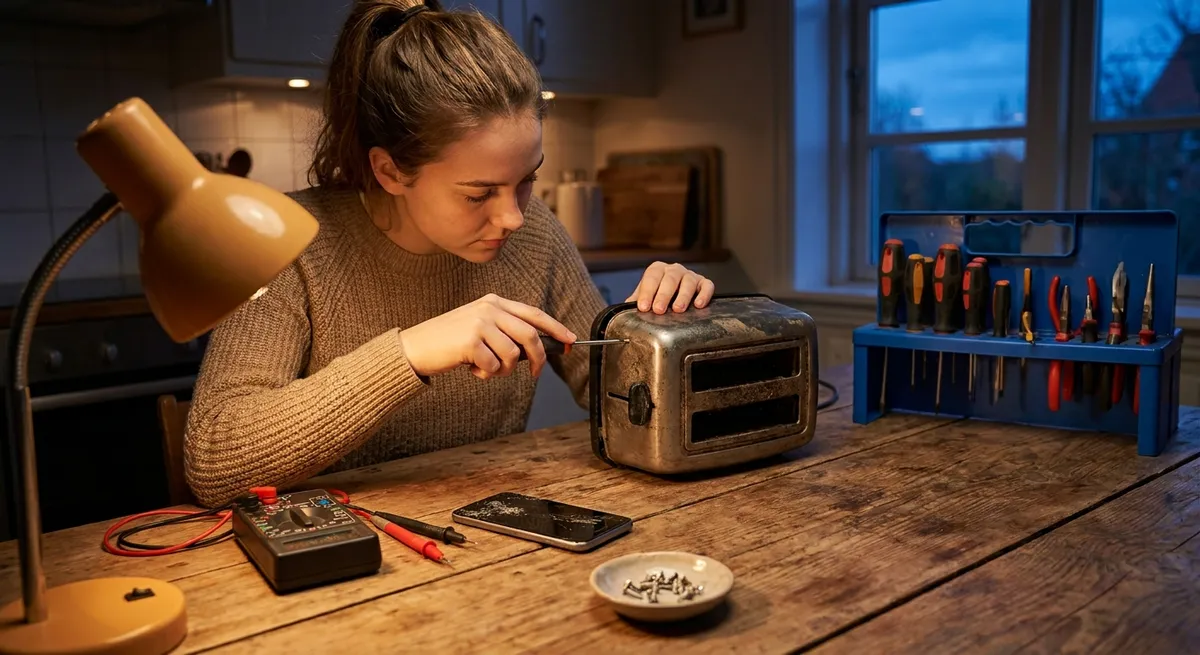
When a gadget stops working, most people think “time to replace it.” In reality, many everyday electronics issues can be fixed at home with simple tools and a methodical approach. This guide walks you through five common problems and shows you exactly how to tackle them safely and effectively—before you spend money on a new device.
1. TV Won’t Turn On (But the Standby Light Is On)
If your TV refuses to power up but the little standby light is glowing, there’s a good chance the problem is external—not a dead TV.
Step‑by‑step fix
Power reset the TV (soft reset)
- Turn the TV off with the remote. - Unplug the TV from the wall outlet. - Wait at least 60 seconds. - While unplugged, press and hold the TV’s physical power button (usually on the bottom or side) for 10–15 seconds to discharge residual power. - Plug it back in and try turning it on using the TV’s button (not the remote).
Bypass power strips and surge protectors
- Plug the TV directly into a known‑working wall outlet. - Avoid smart plugs or old power strips during testing—they can fail without obvious signs. - If the TV works directly in the wall, replace the suspect strip or smart plug.
Check the remote, not just the TV
- Replace all batteries with fresh ones and ensure correct polarity (+/–). - Clean the battery contacts with a dry cloth if they look dull or dirty. - Test if the TV turns on using the physical power button. If it does, your remote is likely the problem.
Disable power‑saving features (if it turns back on)
- Go to your TV’s settings. - Turn off features like “Eco Mode,” “Energy Saver,” or “Auto Power Off” temporarily. - Some aggressive energy‑saving settings can make the TV seem dead if it fails to wake properly.
When to stop and call a pro
- If there’s no standby light at all and the outlet is known good, the internal power supply may be faulty. - If you hear buzzing, popping, or smell burning, unplug immediately and contact a qualified technician. Don’t open the TV—internal components can hold dangerous voltages even when unplugged.
2. Laptop Overheating and Shutting Down
Frequent overheating causes slow performance and surprise shutdowns—and can eventually damage components. Often, the fix is cleaning, ventilation, and smarter usage.
Step‑by‑step fix
Check where you’re using it
- Avoid soft surfaces (bed, couch, blanket) that block vents. - Place the laptop on a hard, flat surface or a cooling pad. - Make sure vents (usually on sides, back, or bottom) are not blocked.
Clean the vents from the outside (no opening required)
- Power off the laptop and unplug it. - If the battery is removable, take it out. - Use a can of compressed air to blow short bursts into the vents. - Hold the can upright and avoid letting moisture spray out. - Do not use a vacuum directly on vents—it can create static.
Reduce background load
- On Windows: - Press Ctrl + Shift + Esc to open Task Manager. - Check the “Processes” tab and end unnecessary apps using lots of CPU. - On macOS: - Open “Activity Monitor” (Applications → Utilities). - Sort by CPU and close heavy apps you don’t need. - Uninstall or disable startup apps you never use.
Adjust performance and power settings
- On Windows: - Go to Settings → System → Power & battery (or Power & sleep). - Select a Balanced or Power saver plan instead of High performance. - On macOS: - Go to System Settings → Battery. - Enable “Low Power Mode” (on supported models) or reduce “Energy” usage options. - This reduces heat by limiting maximum performance slightly.
When to consider internal cleaning or service
- If the laptop still gets very hot quickly or the fan runs at full speed constantly, internal dust buildup or dried‑out thermal paste may be the cause. - Internal cleaning involves opening the laptop, which can void warranties and risks damage. If you’re not confident and the device is valuable, use a professional repair service.
3. Smartphone Won’t Charge Reliably (Loose or Intermittent Charging)
A cable that only works if you bend it “just right” or a phone that charges slowly can often be fixed with careful cleaning and basic checks.
Step‑by‑step fix
Rule out the easy stuff: cable and charger
- Test with another cable and another charging brick that you know works (for example, with another phone). - Try a different wall outlet. - Avoid low‑quality or very cheap third‑party chargers—they can be unsafe and unreliable.
Inspect and clean the charging port (gently)
- Power off the phone. - Use a bright light to inspect the port for lint, dust, or debris. - Use a wooden or plastic toothpick (never metal) to very gently lift out any visible lint. - Follow up with a few short bursts of compressed air. - Do not use liquids or metal pins—both can damage the port.
Check for port damage
- Look inside the port: the tiny pins should appear straight and centered. - If you see bent pins, corrosion (greenish/white spots), or severe wear, avoid forcing the cable in. Continuing to use it can cause worse damage. - In this case, consult a repair shop—port replacement is common and usually cheaper than a new phone.
Check charging settings and power source
- Some phones have “USB usage” or “Data only” options—ensure standard charging is enabled. - Try charging from a wall outlet instead of a laptop USB port (which may provide limited power). - If you’re using a smart power strip or extension, try plugging the charger directly into the wall.
Battery health and software issues
- On iPhone: Settings → Battery → Battery Health & Charging to check battery condition. - On many Android phones: look for “Battery” or “Device care” in Settings for battery stats. - If the phone gets extremely hot while charging, unplug it and let it cool. Overheating can throttle or stop charging. - If problems began after installing a new app or update, try: - Restarting the phone. - Booting into safe mode (Android) or doing a standard restart (iOS) to rule out software glitches.
4. Bluetooth Speaker Won’t Pair or Keeps Disconnecting
When your Bluetooth speaker refuses to connect—or randomly drops out—the problem is often pairing confusion or interference, not a dead speaker.
Step‑by‑step fix
Reset the pairing relationship
- On your phone or laptop, go to Bluetooth settings. - Find the speaker in the device list and choose “Forget” or “Remove”. - Turn Bluetooth off, wait 10 seconds, then turn it back on.
Force the speaker into pairing mode
- Power off the speaker. - Power it back on while holding the Bluetooth or pairing button (check your model’s manual if unsure). - Wait for a blinking light or tone indicating pairing mode. - On your phone/computer, scan for new devices and select the speaker.
Check distance and obstacles
- Keep the speaker and device within 1–2 meters (3–6 feet) during pairing. - Move away from microwaves, crowded Wi‑Fi routers, and thick walls, all of which can interfere with Bluetooth. - Once connected, most speakers work best within 10 meters (about 30 feet) in open space.
Limit competing connections
- Turn off Bluetooth on nearby devices that may be trying to auto‑connect to the same speaker. - If the speaker supports multiple devices, clear its memory or factory reset it (check manual for the specific button combination). - Avoid streaming heavy video over Wi‑Fi in the same band if audio dropouts are frequent; try moving closer to your Wi‑Fi router or reducing Wi‑Fi congestion.
Update software and firmware
- On phones and laptops, install pending system and Bluetooth driver updates. - For brand‑name speakers, check the manufacturer’s app or website—many support firmware updates that improve compatibility and stability. - After updates, repeat the “forget device” and new pairing process.
5. Home Wi‑Fi Feels Slow or Keeps Dropping
Before you pay for a faster internet plan or replace your router, a few targeted adjustments often restore stable, usable Wi‑Fi.
Step‑by‑step fix
Restart in the right order
- Unplug the modem (device from your internet provider). - Unplug the router (if separate). - Wait 30 seconds. - Plug in the modem first; wait until all its lights stabilize. - Then plug in the router and wait a few minutes before testing.
Optimize router placement
- Place the router in a central, elevated spot—ideally off the floor, away from thick walls or metal cabinets. - Avoid placing it next to microwaves, cordless phone bases, or large appliances. - If your home is large or multi‑story, the router should be near the area where you use Wi‑Fi the most.
Connect to the best band and network
- Modern routers usually have 2.4 GHz and 5 GHz bands: - 2.4 GHz: better range, slower speed, more interference. - 5 GHz: faster, shorter range, less interference. - If you’re close to the router, choose the 5 GHz network (often labeled with “5G” or similar). - Ensure you’re not accidentally connected to a far‑away “guest” network or an old router.
Reduce interference and congestion
- Disconnect devices you’re not using (smart TVs, game consoles, old phones). - Pause large downloads or cloud backups on one device to free up bandwidth. - Log into your router’s admin page (address is often on a sticker, e.g., 192.168.0.1) and: - Change the Wi‑Fi channel to a less crowded one if your router supports it. - Turn off “legacy” modes (like very old b/g wireless) if all your devices are relatively modern.
When to upgrade or call your provider
- If speeds are consistently far below what you’re paying for on a wired connection, contact your ISP—there may be a line or provisioning issue. - If wired speed is good but Wi‑Fi is bad everywhere, your router may be outdated. Consider: - A newer router that supports Wi‑Fi 5 (802.11ac) or Wi‑Fi 6 (802.11ax). - A mesh Wi‑Fi system if you have a large home or multiple floors.
Conclusion
Most everyday electronics problems have straightforward causes: dust, loose connections, overloaded software, poor placement, or simple settings conflicts. By working through these issues step by step—starting with the safest, simplest checks—you can often revive TVs, laptops, phones, speakers, and Wi‑Fi without a costly replacement.
The key is to stay systematic: change one thing at a time, test after each step, and know when to stop and call a professional. With these five practical fixes, you’ll be better equipped to keep your electronics running longer and working the way they should.
Sources
- U.S. Consumer Product Safety Commission – Product Safety Guidance - General safety advice for working with consumer electronics and avoiding electrical hazards
- Apple Support – If your iPhone or iPad won’t charge - Official guidance on diagnosing and resolving common mobile charging issues
- Microsoft Support – Reduce laptop heat with power and performance settings - Explains how adjusting power modes can reduce heat and improve stability on Windows devices
- Federal Communications Commission (FCC) – Wi-Fi interference and your home network - Describes common causes of wireless interference and how to minimize them
- Bluetooth SIG – Bluetooth basics and troubleshooting tips - Technical overview and relevant info for understanding Bluetooth connections and issues
Key Takeaway
The most important thing to remember from this article is that this information can change how you think about Electronics.



