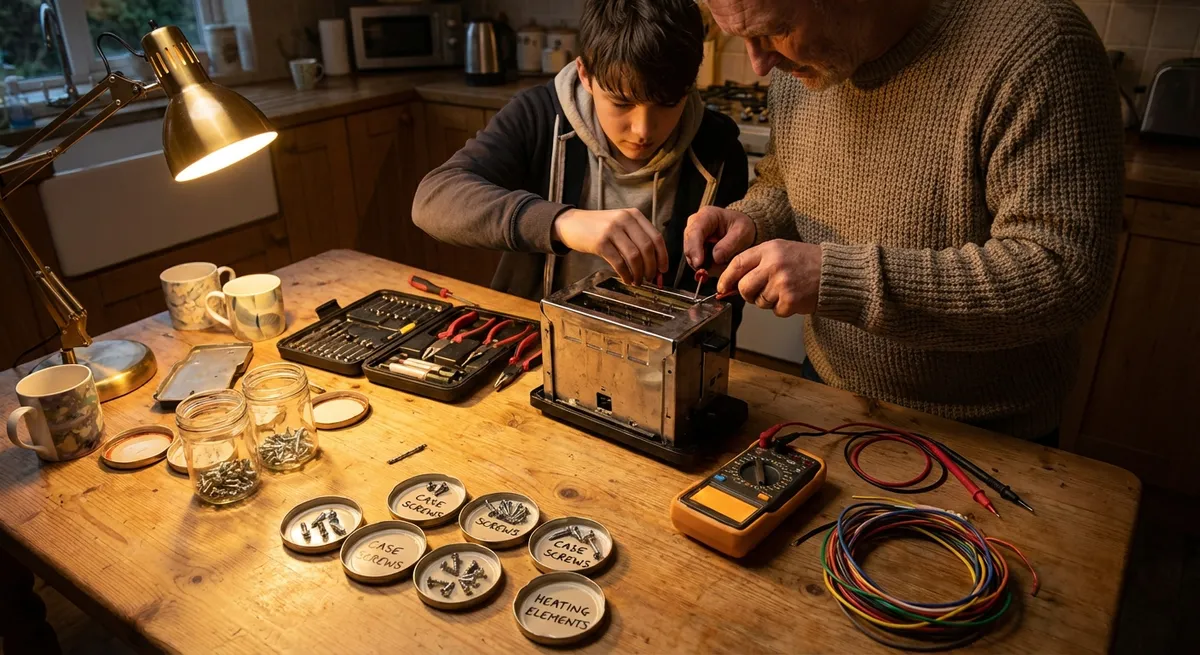
Modern electronics fail at the worst possible moments—right before a work call, during a movie night, or when you really need your phone. You don’t always need a repair shop or new device; many issues can be fixed at home with a few checks and basic tools. This guide walks through five common electronics problems and gives you clear, step‑by‑step ways to fix them safely.
1. When Your Phone Won’t Charge Reliably
A loose cable or dead battery isn’t always the real problem. Very often, the charging port or cable is dirty, worn, or damaged.
Step-by-step fix
Rule out the outlet and adapter
- Plug another device into the same wall outlet. - Try a different USB power adapter with your phone’s cable. - If other devices charge fine, the outlet is OK. If not, switch outlets.
Inspect and test the charging cable
- Look for kinks, frayed areas, bent connectors, or discoloration. - Try your cable on another device that uses the same connector. - If the other device also charges poorly, replace the cable.
Clean the charging port carefully
- Turn off your phone completely. - Use a flashlight to look inside the port for lint, dust, or debris. - Use a wooden or plastic toothpick (never metal) to gently lift out lint. - Finish with a few short bursts of compressed air at an angle (not directly inside).
Check for loose fit
- Plug the cable into the phone and gently wiggle it. - If it feels very loose or only charges at certain angles, the port may be worn or damaged. - Avoid forcing or bending the cable—this can make the issue worse.
Try a different power source
- Plug into a computer USB port, a different adapter, or a power strip with USB ports. - If the phone charges only on specific sources, suspect the adapter or power strip.
Decide if it’s time for professional repair
- If the port is cracked, misaligned, or gets hot during charging, stop using it. - For phones with glued cases or sealed designs, DIY port replacement is risky—contact a professional or the manufacturer.
2. TV Won’t Turn On (But the Standby Light Is On)
A TV that won’t fully power up can look “dead,” but often the issue is simple: input selection, remote problems, or a minor power glitch.
Step-by-step fix
Confirm it’s not just the remote
- Try turning the TV on using the power button on the TV itself. - Replace the remote batteries and make sure they’re oriented correctly. - Clean the remote’s front with a soft cloth to remove smudges or dirt.
Check the power connection
- Unplug the TV from the wall outlet. - Inspect the power cord for cuts, kinks, or burn marks. - Plug into a different, known‑working outlet (avoid power strips for this test).
Do a “power reset”
- With the TV unplugged, press and hold the TV’s power button (not the remote) for 10–15 seconds. - Wait another 30 seconds. - Plug the TV back in and try turning it on.
Verify the input/source
- Turn the TV on; even if the screen is black, press the “Input” or “Source” button on the remote repeatedly. - Wait a few seconds between presses to see if a picture appears. - Make sure your streaming box, game console, or cable box is powered on and connected firmly.
Look and listen for signs of life
- Check if you can hear audio when you change channels or inputs. - In a dark room, look for any faint glow on the screen after turning the TV on. - These can indicate the TV is on but has a backlight or display issue.
When to stop and seek service
- If you hear a repeated clicking sound from inside the TV, or the standby light blinks in a pattern, it may be a power board or internal fault. - Do not open the TV; internal components can hold dangerous voltages. - Note the model number and light-blink pattern and contact the manufacturer or a qualified tech.
3. Laptop Overheating or Suddenly Shutting Down
If your laptop gets extremely hot, slows down, or turns off, it may be overheating. Dust buildup and poor airflow are common and fixable causes.
Step-by-step fix
Shut down and unplug safely
- Turn the laptop off completely (not just sleep). - Disconnect the charger and any accessories (USB drives, hubs, etc.). - Let it cool for at least 10–15 minutes before working on it.
Improve airflow immediately
- Place the laptop on a hard, flat surface (not a bed, couch, or blanket). - Prop the back edge up slightly using a book or stand to allow more air underneath. - Avoid covering the side or rear vents.
Clean the vents from the outside
- Locate all vents (usually on the sides, back, and bottom). - Use short bursts of compressed air to blow dust out of the vents at an angle. - Don’t spin the internal fans extremely fast—use brief, controlled bursts.
Check for software overload
- Turn the laptop back on. - Open Task Manager (Windows) or Activity Monitor (macOS). - Close programs using high CPU for no good reason (e.g., a browser tab stuck at 100% usage). - Uninstall unnecessary startup apps that load every time you boot.
Adjust power and performance settings
- On Windows: - Go to Settings → System → Power & battery and choose a balanced or power‑saving plan. - On macOS: - Go to System Settings → Battery and select more energy‑efficient options. - This reduces heat by limiting how hard the CPU runs under light loads.
Consider a cooling pad and deeper cleaning
- Use a laptop cooling pad with fans for extra airflow during gaming or heavy work. - For older laptops, internal dust on the heatsink may require opening the case, which can void warranties if not done properly. - If you’re not comfortable opening the laptop, take it to a repair shop and request a professional internal cleaning.
4. Bluetooth Headphones Won’t Connect or Keep Dropping
Bluetooth problems often come from old pairings, interference, or low battery. You can usually fix them without any tools.
Step-by-step fix
Charge both devices first
- Charge your headphones until the indicator shows full. - Make sure your phone, laptop, or tablet has at least 30–40% battery. - Low battery can cause weak or unstable connections.
Clear old pairings on your phone or computer
- Go to Bluetooth settings. - Find your headphone name and select “Forget,” “Remove,” or “Unpair.” - Do the same for any other old or unused Bluetooth devices.
Reset the headphones
- Check the user manual or manufacturer’s site for the reset method (often holding the power or pairing button for 10–15 seconds). - Perform the reset; you should see a change in indicator light (flashing pattern or color). - Turn the headphones off and back on after resetting.
Pair again in a clean environment
- Move away from microwaves, Wi‑Fi routers, and crowded electronics if possible. - Put the headphones in pairing mode (usually flashing blue or blue/red). - In your device’s Bluetooth menu, select the headphones from the list and confirm pairing.
Reduce interference and distance
- Keep your phone or laptop within a couple of meters during testing. - Avoid putting the phone in a backpack, metal bag, or behind your body where the signal is blocked. - Turn off other unused Bluetooth devices nearby to reduce conflicts.
Update firmware or drivers
- For headphones: check the brand’s official app or website for firmware updates. - For computers: update Bluetooth drivers (Windows) or run system updates (macOS). - After updates, restart both devices and test again.
Test on another device
- Pair the headphones with a different phone/tablet/computer. - If they work fine elsewhere, the original device’s Bluetooth hardware or settings may be the issue; consider a system reset or professional help.
5. Game Console Won’t Read Discs (But Powers On)
If your console powers on but refuses to read game discs, you may be dealing with a dirty disc, dirty lens, or software glitch.
Step-by-step fix
Check the disc itself
- Inspect the shiny side under good light. - Wipe from the center outward in straight lines with a soft microfiber cloth (never in circles). - Avoid glass cleaner or harsh chemicals; a tiny bit of water or a dedicated disc‑cleaning solution is enough.
Test multiple discs
- Try at least two or three different games or movies. - If only one disc fails, the disc is likely damaged. - If all discs fail, the issue is likely the console (hardware or software).
Restart and power cycle the console
- Turn the console off completely (not just rest mode). - Unplug it from power for 30–60 seconds. - Plug it back in and power on, then try the disc again.
Check for system updates
- Connect your console to the internet. - Go to system settings and check for updates. - Install any available updates, restart, and retest your discs.
Position and ventilation
- Make sure the console is on a stable, flat surface. - Avoid tilting or stacking it on soft materials. - Ensure vents are not blocked; poor cooling can affect internal components.
Use a disc cleaning kit carefully (if recommended)
- Some manufacturers don’t recommend lens cleaners; check your console’s manual or support site first. - If acceptable, use a reputable disc‑based cleaner according to instructions. - Never open the console casing yourself unless the warranty is expired and you understand the risks.
Know when to get professional help
- If the console makes grinding or scraping noises when pulling in discs, stop using it to avoid further damage. - A failing laser or mechanical drive problem usually requires professional repair or drive replacement.
Conclusion
Many “broken” electronics aren’t truly broken—they’re blocked by dust, confused by bad settings, or held back by worn cables and simple glitches. By systematically checking power, cleaning ports and vents, resetting connections, and updating software, you can solve a surprising number of issues at home. When you hit a point that involves opening devices or dealing with high voltage, that’s your cue to stop and call in a pro. Start with the safe fixes in this guide, and you’ll often get your devices back in action faster—and cheaper—than a replacement.
Sources
- [U.S. Consumer Product Safety Commission – Product Safety Guidelines](https://www.cpsc.gov/Safety-Education) - General home electronics safety information, including guidance on handling and maintaining consumer devices
- [Apple Support – If your iPhone or iPad won’t charge](https://support.apple.com/en-us/HT207975) - Official steps for diagnosing charging issues, including port cleaning and cable checks
- [Sony Electronics Support – TV Troubleshooting](https://www.sony.com/electronics/support/articles/00032656) - Example of manufacturer-recommended checks for TVs that won’t power on or display correctly
- [Microsoft Support – Troubleshoot game discs on Xbox consoles](https://support.xbox.com/en-US/help/hardware-network/disc-drive/disc-does-not-play) - Detailed, brand-specific troubleshooting for consoles not reading discs
- [Harvard University IT – Tips to Keep Your Computer Running Smoothly](https://huit.harvard.edu/news/tips-keep-your-computer-running-smoothly) - Practical advice on ventilation, updates, and maintenance that supports the laptop overheating section
Key Takeaway
The most important thing to remember from this article is that this information can change how you think about Electronics.



