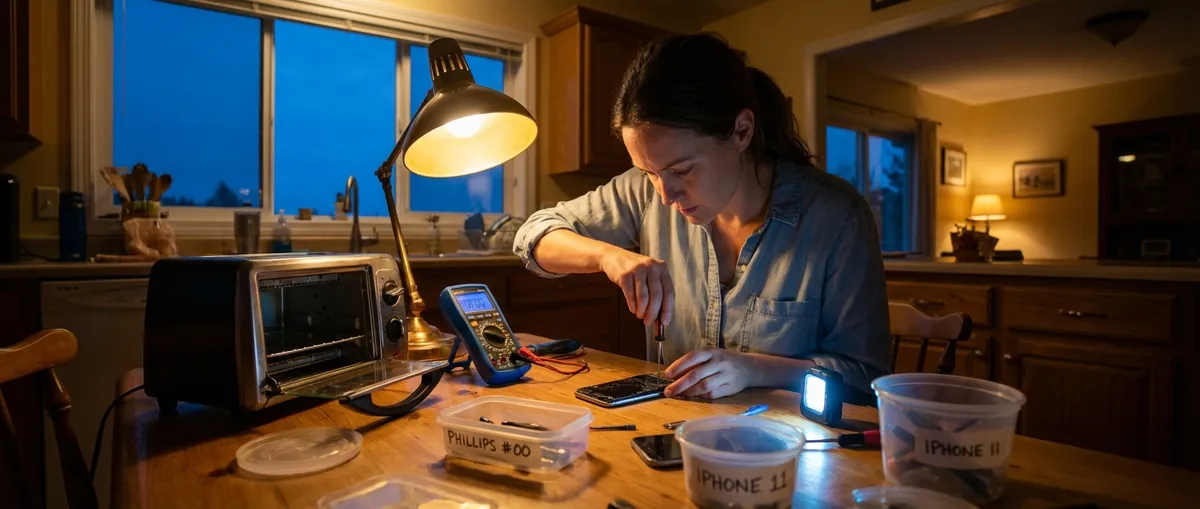
When a gadget dies, glitches, or just refuses to cooperate, most people jump straight to replacing it. But a lot of “broken” electronics only need a careful reset, a small part swap, or a simple cleaning. This guide walks you through five common problems and shows you, step by step, how to bring your devices back to life before you spend money on replacements.
Fix 1: When Your TV Won’t Turn On (But the Standby Light Is On)
If your TV’s standby light is glowing but the screen stays black, the issue is usually power, inputs, or a simple internal crash—not a dead TV.
Step‑by‑step
Confirm it’s not the remote
- Try the power button on the TV itself (usually on the underside or back). - Replace the remote batteries and make sure nothing is blocking the IR sensor on the TV.
Perform a full power reset (soft discharge)
- Turn the TV off and unplug it from the wall. - Press and hold the TV’s physical power button for 15–30 seconds to discharge residual power. - Leave it unplugged for at least 5 minutes. - Plug it directly into a wall outlet (not a surge protector or power strip) and turn it on again.
Check input/source settings
- Turn on the TV and press the “Input” or “Source” button on the remote. - Cycle through HDMI, AV, and any other listed sources. - Make sure your streaming box, game console, or cable box is also powered on and connected securely.
Test with a different HDMI cable and port
- Move your device’s HDMI cable to a different port on the TV. - If nothing changes, swap the HDMI cable with one you know works (e.g., from another device).
Look for faint images (backlight check)
- In a dark room, turn the TV on and shine a flashlight closely at the screen. - If you can see a very faint image, your TV’s backlight may be failing (repairable, but usually a professional job).
If the standby light starts blinking in a pattern, search “[Brand] TV standby light blinking [number] times” to identify an error code. At that point, you’re often looking at an internal hardware issue, and it’s time to compare the cost of repair vs. replacement.
Fix 2: Laptop That Overheats and Shuts Down
Laptops that suddenly power off, feel too hot, or sound like a jet engine usually suffer from poor airflow, dust buildup, or overworked fans.
Step‑by‑step
Check ventilation and basic positioning
- Use the laptop on a hard, flat surface—never on a bed, blanket, or pillow. - Ensure side and bottom vents are not blocked by papers or your lap. - Raise the back slightly with a book or stand to improve airflow.
Clean the vents (no disassembly required)
- Turn off the laptop and unplug it. - If the battery is removable, take it out. - Use short bursts of compressed air at an angle into the vents. - Avoid spinning fans excessively—short, controlled bursts are safer.
Reduce background load in the operating system
- On Windows: press Ctrl + Shift + Esc → Task Manager → “Processes” tab. - Sort by CPU usage, and close unneeded programs using high CPU. - On macOS: open “Activity Monitor” (Applications → Utilities) and close heavy apps you’re not using.
Adjust power and performance settings
- On Windows: - Go to Settings → System → Power & battery. - Choose a balanced or power-saver plan instead of high performance. - On macOS: - System Settings → Battery → reduce “Energy” usage and disable “High power” mode if available.
Do a more thorough internal clean (if you’re comfortable opening it)
- Power off, unplug, and hold the power button for 10 seconds. - Remove the bottom cover (consult your model’s service manual online). - Use compressed air to blow dust off the fan and heat sink. - Avoid touching sensitive components; don’t use a vacuum directly on the board.
If the laptop still overheats after cleaning and adjusting settings, the thermal paste between the CPU and heat sink may need to be replaced—a job best left to a repair shop unless you have experience with electronics disassembly.
Fix 3: Phone That Won’t Charge Reliably
When your phone only charges at a certain angle, connects and disconnects randomly, or charges very slowly, the problem is often physical: dust, debris, or a worn cable—not a dead battery.
Step‑by‑step
Rule out a bad cable or adapter
- Test with a different charging cable you know is good. - Try a different wall adapter and a different wall outlet. - Avoid off‑brand ultra‑cheap chargers; use certified or manufacturer‑approved models.
Inspect and clean the charging port
- Turn off the phone completely. - Use a bright light to look inside the port. - If you see lint or dust, gently loosen it with a wooden toothpick or a soft, anti‑static brush. - Tilt the phone so debris falls out; don’t push it deeper.
Check for loose or wobbly connection
- Plug in the cable and gently wiggle it side to side. - If it feels very loose but you’ve cleaned the port, the internal port may be damaged. - Stop wiggling to avoid pulling the port off the board—this is a repair‑shop issue.
Test different power sources for charging speed
- Plug into a wall outlet rather than a laptop USB port. - Disable battery‑draining features temporarily (GPS, hotspot, high brightness). - For wireless charging‑capable phones, test a wireless charger to confirm the battery can still accept charge.
Reset charging‑related settings (software check)
- Restart the phone. - Update to the latest system software (Settings → Software Update). - On Android, you can also boot into safe mode to check if a third‑party app is interfering with charging.
If the port is physically damaged or cleaning doesn’t help, a local repair shop can usually replace a charging port at a lower cost than a full device replacement—especially for popular models.
Fix 4: Wi‑Fi Router That Keeps Dropping or Slowing Down
Intermittent Wi‑Fi is often caused by interference, overheating, old firmware, or poor placement, not necessarily a failing router.
Step‑by‑step
Power cycle the router and modem correctly
- Unplug the power from both modem and router. - Wait 30–60 seconds. - Plug in the modem first and wait until all lights stabilize. - Then plug in the router and wait another 2–3 minutes.
Move the router to a better location
- Place it in a central, elevated spot (on a shelf or table). - Keep it away from thick walls, metal cabinets, microwaves, and cordless phones. - Avoid placing it on the floor or inside a closed cabinet.
Change the Wi‑Fi channel and band
- Log into your router’s admin page (check the label for the IP, e.g., 192.168.0.1). - Change the 2.4 GHz channel to 1, 6, or 11 (whichever is least crowded; you can test each). - If your router supports 5 GHz, connect capable devices to that band for less interference.
Update router firmware
- In the router admin page, look for “Firmware Update” or “Administration.” - Check for and apply any available updates. - Don’t interrupt power while an update is installing.
Check for overloaded network and reset settings if needed
- Disconnect devices you’re not using (old phones, smart TVs, etc.). - If the router is old (5+ years), consider that it may not handle modern speeds and multiple devices. - If problems persist, perform a factory reset using the small reset button (hold 10–15 seconds), then set up the Wi‑Fi again with a strong password.
If your wired (Ethernet) connections are fast but Wi‑Fi is still poor after these steps, a mesh Wi‑Fi system or a newer router may be the most effective long‑term solution.
Fix 5: Bluetooth Headphones That Won’t Pair or Keep Cutting Out
Bluetooth issues are usually about pairing history, interference, or software—not permanent hardware failure.
Step‑by‑step
Reset the Bluetooth connection on your device
- On your phone or computer, go to Bluetooth settings. - “Forget” or “Remove” the headphones from the paired devices list. - Turn Bluetooth off, wait 10 seconds, then turn it back on.
Put the headphones into pairing mode properly
- Check the manual or manufacturer’s site for your exact model. - Typically, hold the power or pairing button for 5–10 seconds until a flashing light appears. - Make sure the headphones are charged (at least 20–30%).
Minimize interference and distance
- Move within 1–2 meters of the device you’re pairing with. - Avoid walls, metal objects, and other wireless sources (microwaves, crowded office hubs) during pairing. - Turn off Bluetooth on other nearby devices that may auto‑connect to the headphones.
Reboot the audio source device
- Restart your phone, tablet, or computer. - After reboot, turn Bluetooth on first, then put the headphones into pairing mode, and pair again.
Reset the headphones themselves (factory reset)
- Many models have a reset combination (e.g., holding volume up + volume down for 10 seconds, or holding power for 20 seconds). - Look up “[Brand] [Model] Bluetooth reset” on the official site. - After resetting, pair as if they were new.
If you experience constant cut‑outs when your phone is in a pocket or bag, test with another device. If the problem only happens with one specific phone or computer, updating that device’s OS or Bluetooth drivers often fixes the issue.
Conclusion
You don’t need to be an engineer to solve many everyday electronics problems. By starting with simple checks—power, connections, settings, and cleaning—you can revive a “dead” TV, cool down a struggling laptop, get your phone charging again, stabilize your Wi‑Fi, and tame misbehaving Bluetooth headphones. The key is to work step‑by‑step, change only one thing at a time, and stop if you reach anything that feels unsafe or beyond your comfort level. When that happens, you’re in a much better position to talk to a repair shop, because you already know what you’ve tested and what you can rule out.
Sources
- U.S. Federal Communications Commission (FCC) – Interference FAQs - Explains wireless interference issues that can affect Wi‑Fi and Bluetooth performance
- Apple Support – If your iPhone, iPad, or iPod touch won’t charge - Official guidance on diagnosing and cleaning charging ports and resolving charging problems
- Microsoft Support – Troubleshoot blue screen errors and overheating - Covers system crashes and performance issues that can be linked to heat and hardware stress
- Sony Support – TV troubleshooting guide - Step‑by‑step ideas for handling TVs that won’t turn on or display correctly
- Netgear Support – Improving poor or intermittent WiFi connection - Practical tips on router placement, channel changes, and interference reduction
Key Takeaway
The most important thing to remember from this article is that this information can change how you think about Electronics.



