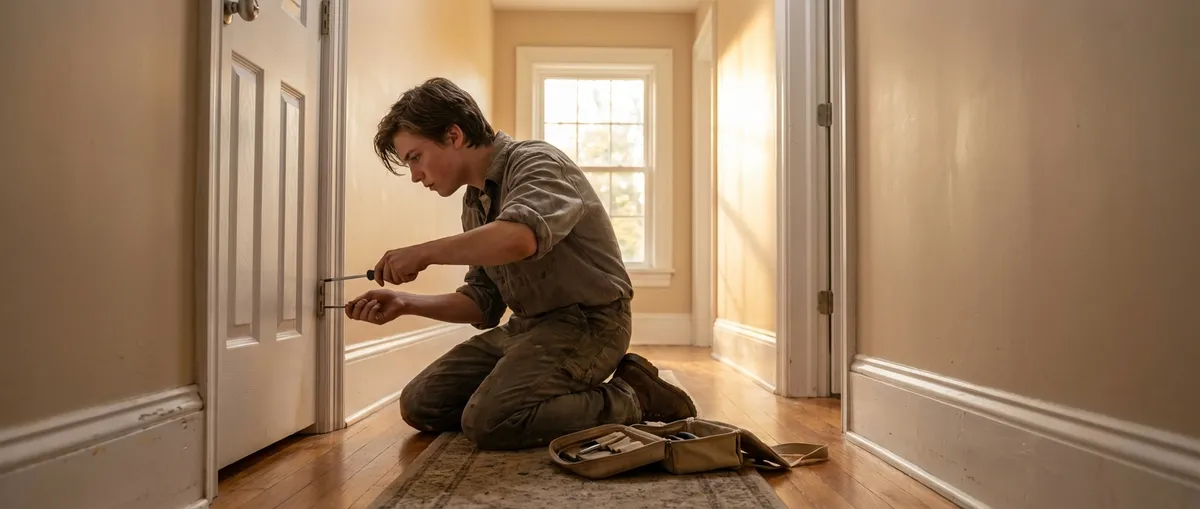
When something breaks, the first reaction is often panic… and then Googling repair services. But a lot of common problems don’t need an urgent (and expensive) call-out. With a calm approach and a few basic moves, you can safely stabilize or even fully fix the issue yourself. This guide walks you through five practical quick fixes you can try first—no advanced tools, no deep technical knowledge required.
1. Stop a Running Toilet That Won’t Quit
A constantly running toilet wastes water and money, but most causes are simple and inside the tank.
Step-by-step:
Remove the tank lid
Place it gently on a towel to avoid cracking.
Check the flapper
- Flush once and watch. - If the rubber flapper (at the bottom) doesn’t seal fully, water keeps flowing. - Gently push it down with a finger—if the noise stops, this is your culprit.
Reseat or clean the flapper
- Turn off the water at the shutoff valve behind/under the toilet. - Flush to empty the tank. - Wipe the flapper and the seat (where it rests) with a rag to remove mineral buildup. - Make sure the chain is not too tight or tangled—it should have a little slack.
Adjust the fill level
- Turn the water back on. - If water goes over the top of the overflow tube, adjust the float: - On older ball floats: turn the screw on the fill valve arm to lower the ball. - On newer cylinder floats: squeeze the clip and slide the float down.
Test your fix
- Flush two or three times. - Listen for a minute—no hissing or trickling sound should remain.
When to call a pro:
If water is leaking at the base of the toilet or you see cracks in the tank or bowl, stop and contact a plumber.
2. Revive a Phone That Won’t Charge Reliably
If your phone only charges at certain angles or disconnects with the slightest movement, the fix is often simple: clean and inspect before you replace.
Step-by-step:
Power down first
Turn off your phone to avoid short circuits while you’re working near the port.
Inspect the charging cable
- Try a different known-good cable and plug. - Check for kinks, frayed ends, or bent connectors. - If another cable works fine, recycle the faulty one and you’re done.
Clean the charging port
- Use a bright light to look inside for lint or debris. - Use a wooden or plastic toothpick (never metal) to very gently lift out compacted dust. - Finish with a puff of compressed air if available (short bursts, not continuous).
Check for a loose fit
- Insert the cable; it should click in snugly. - Wiggle gently—if it’s extremely loose or falls out, the port may be damaged.
Disable power-hungry apps while charging
- Close background apps. - Switch to Airplane Mode to test if it charges faster and more steadily, especially with older batteries.
When to call a pro:
If the phone or charger smells burnt, gets very hot, or you notice scorch marks around the port, stop using it and seek professional repair immediately.
3. Get a Streak-Free Fix for Foggy or Streaked Windows
Foggy, streaked, or cloudy windows make everything look worse, but you don’t need fancy products. Correct technique matters more than the cleaner brand.
Step-by-step:
Choose the right time
- Clean when the glass is cool—early morning, evening, or in the shade. - Direct sun dries cleaner too fast and leaves streaks.
Make a simple cleaner
- Mix in a spray bottle: - 1 part white vinegar - 1 part water - For very greasy glass (kitchen windows), add 1–2 drops of dish soap.
Pre-clean heavy grime
- Wipe off thick dirt, cobwebs, or sticky residue with a damp cloth first. - This keeps your glass cloth from getting overloaded and streaky.
Use two cloths, not one
- Cloth 1: For applying and spreading the cleaner (microfiber or lint-free). - Cloth 2: For final drying and buffing. - Spray the cleaner lightly on the glass (or onto the cloth if you’re near electronics or window frames that stain easily).
Use a consistent pattern
- Indoors: Wipe horizontally. - Outdoors: Wipe vertically. - If you see streaks later, you’ll know which side they’re on.
When to call a pro:
If double-pane windows are foggy between the glass layers, the seal is failing. That usually needs professional repair or replacement, not surface cleaning.
4. Silence a Squeaky Door Without Special Lubricants
A squeaky door might be the most annoying problem per second of your day. You can usually quiet it with what you already have at home.
Step-by-step:
Identify the noise source
Slowly open and close the door and listen: - If the sound comes from the hinges, that’s your target. - If it comes from the latch area, it may be rubbing on the strike plate instead.
Tighten loose screws first
- Use a screwdriver to snug up hinge screws—don’t overtighten and strip them. - Check both door side and frame side.
Apply a basic household lubricant
If you don’t have silicone spray or dedicated hinge lubricant, you can: - Rub a small amount of petroleum jelly on the hinge pin and around the hinge joints. - Or use a few drops of cooking oil as a temporary fix (can attract dust, so plan to clean and relube later).
Work the lubricant in
- Open and close the door 10–15 times. - Wipe away any drips or excess to avoid staining paint or floors.
Fix latch rubbing (if needed)
- If the door sticks or squeaks at the latch, mark where it rubs with a bit of lipstick or a dry-erase marker on the latch, close and open, then see where it transfers to the strike plate. - Lightly file or sand the marked spot on the strike plate, or slightly bend the plate outward with a screwdriver and gentle taps.
When to call a pro:
If the door is badly misaligned, scraping the floor, or the frame is cracked or shifting, those can indicate structural or settling issues that may need a carpenter or contractor.
5. Restore Wi‑Fi When the Internet Randomly Drops
Before you blame your provider or buy a new router, work through a simple reset and check routine. Many connection problems are local and fixable.
Step-by-step:
Confirm the problem
- Check another device (phone, tablet, laptop). - If all devices are offline, the issue is likely with the router or modem. If only one is affected, it’s a device-specific problem.
Power cycle, but in the right order
- Unplug the modem first. - Then unplug the router (if separate). - Wait 30 seconds. - Plug in the modem; wait until all lights stabilize (often 1–2 minutes). - Plug in the router; wait another minute.
Move or clear obstacles around the router
- Place the router off the floor, in an open area, away from thick walls and metal objects. - Keep it away from microwaves, cordless phones, and baby monitors that can interfere with Wi‑Fi.
Forget and reconnect the network
On your device: - Go to Wi‑Fi settings, select your network, and tap “Forget.” - Reconnect by selecting the network and entering the password again. - This clears old connection glitches.
Check for updates and device overload
- Log into your router’s web interface (check the sticker on the router for login info). - Look for “Firmware Update” or similar and apply if available. - Disconnect or pause devices you’re not using—too many streaming devices can choke older routers.
When to call your provider or a tech:
If the modem’s “Internet” or “Online” light never comes on after a proper restart, or your provider shows an outage in your area, you’ll need their help rather than more DIY tweaking.
Conclusion
Quick fixes aren’t about replacing professional repair; they’re about buying yourself control, time, and sometimes real savings. By learning how to stabilize a running toilet, clean a charging port, clear up streaky windows, silence squeaky doors, and revive a flaky Wi‑Fi connection, you reduce stress and keep small issues from spiraling into bigger ones. The next time something acts up, pause before you panic—and work through a simple, safe checklist first. In many cases, that’s all it takes.
Sources
- [U.S. Environmental Protection Agency – Fix a Leak Week](https://www.epa.gov/watersense/fix-leak-week) – Explains how common toilet leaks waste water and simple ways to detect them
- [Apple Support – If your iPhone or iPad won’t charge](https://support.apple.com/en-us/HT201569) – Official guidance on checking ports, cables, and safe charging practices
- [Energy.gov – Windows, Doors, and Skylights](https://www.energy.gov/energysaver/windows-doors-and-skylights) – Covers window performance, condensation, and when replacement may be needed
- [Harvard University – Computer Network Troubleshooting Tips](https://huit.harvard.edu/service/computer-network-troubleshooting-tips) – Basic steps for diagnosing and fixing common network issues
- [Federal Communications Commission (FCC) – Consumer Guide to Broadband](https://www.fcc.gov/consumers/guides/getting-broadband) – Background on home internet connections and factors that affect performance
Key Takeaway
The most important thing to remember from this article is that this information can change how you think about Quick Fixes.