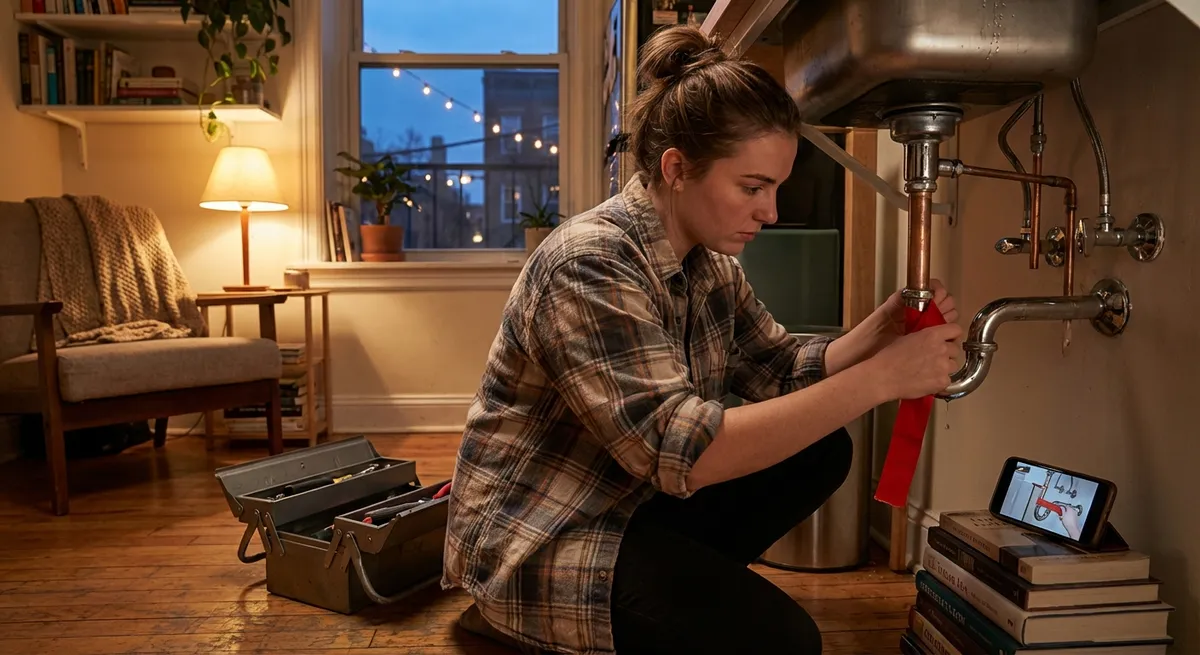
Small problems around the house or with your devices don’t always need a repair tech or a full weekend project. With a few reliable “rescue moves,” you can get things working again fast, avoid damage, and buy time before a bigger repair is needed—if it’s needed at all.
This guide walks you through five practical, step‑by‑step fixes for common issues: a dead phone that won’t charge, a slow-draining sink, a laptop that overheats, a door that won’t latch, and a dripping faucet. Each fix is designed to be simple, safe, and doable with basic tools.
1. Phone Won’t Charge: Simple Port and Cable Rescue
A “dead” phone is often just a dirty charging port or a bad cable—not a dead battery.
What you’ll need
- A different charging cable and wall adapter (borrow if needed)
- Wooden or plastic toothpick (no metal)
- Small, soft brush (clean, dry toothbrush works)
- Good lighting
Steps
Test the easiest thing first: the outlet
- Plug a different device or a lamp into the same outlet. - If that doesn’t work either, switch outlets or reset the circuit breaker before blaming your phone.
Swap the cable and adapter
- Try a known-good cable and wall plug with your phone. - If it charges now, your original cable/adapter is the problem. Replace the failing part and label it “bad” so no one reuses it.
Power off your phone
- Turn it fully off before cleaning the port. This reduces the chance of shorting anything and lets dust move more easily.
Inspect the charging port
- Use a flashlight to look inside the port. - If you see lint or dust packed in, that’s likely blocking the connector.
Gently remove debris
- Use a wooden or plastic toothpick—never metal. - Insert very gently, scrape along the bottom and sides of the port with tiny motions. - Tap the phone lightly (port facing down) so loosened debris can fall out.
Brush and test
- Use the soft brush to gently clean around and just inside the port. - Plug in the charger, press the connector firmly but gently, and check if the phone recognizes charging (battery icon, sound, or vibration).
If it still doesn’t charge
- Try wireless charging (if your phone supports it). If wireless works but the cable doesn’t, the port is likely damaged. - If nothing works and you’ve tried multiple chargers/outlets, stop and contact a repair shop or the manufacturer—forcing cables or tools into the port can cause permanent damage.
2. Slow-Draining Sink: Restore Flow Without Harsh Chemicals
Most slow bathroom or kitchen drains are caused by hair, soap scum, or grease buildup right near the top of the pipe, not a deep clog.
What you’ll need
- Rubber gloves
- Small bucket or bowl
- Old rag or paper towels
- Plastic drain snake (cheap, widely available) or a straightened plastic zip tie
- Hot (not boiling) tap water
Steps
Clear the area and protect the space
- Remove items from under the sink. - Place a small bucket under the P‑trap (the U‑shaped pipe) in case you loosen anything.
Remove the drain stopper or strainer
- For pop‑up stoppers: - Look under the sink for the horizontal rod that connects to the stopper. - Loosen the retaining nut by hand (or gently with pliers). - Slide the rod out, then pull the stopper straight up from the sink. - For simple strainers: just lift them out.
Manually remove visible debris
- Put on gloves. - Pull out hair, gunk, and buildup from the drain opening. - Wipe it onto paper towels and throw it away—don’t rinse it back down the sink.
Use a plastic drain snake
- Insert the snake into the drain, teeth facing down. - Push it as far as it will go, then slowly pull it back while twisting. - Remove any debris caught on the teeth and repeat a few times.
Flush with hot water
- Run hot tap water for 1–2 minutes to rinse out loosened buildup. - Avoid boiling water on PVC pipes; very hot tap water is enough.
Reassemble and test
- Reinstall the stopper: insert it from the top, reconnect the rod under the sink, and hand‑tighten the nut. - Fill the sink partially and then release the water to check drainage. - If it’s significantly better, you’re done. If water still pools for a long time, the clog may be deeper and may need a professional mechanical clean-out.
Prevention move
- Use a simple mesh drain screen and clean it weekly. - Avoid pouring fats, oils, and coffee grounds down kitchen drains.
3. Overheating Laptop: Quick Cooling and Dust Cleanup
A hot, loud laptop that slows down or shuts off is often dealing with blocked vents or dust buildup, not a failing processor.
What you’ll need
- A clean, hard surface (table or desk)
- Soft, dry cloth
- Compressed air can (optional but useful)
- Small Phillips screwdriver (only if you’re comfortable opening basic panels)
Steps
Shut it down, don’t just sleep it
- Power the laptop off completely. - Unplug the charger and disconnect all accessories (USB drives, hubs, external monitors).
Check where the vents are
- Look along the sides, back, and bottom for vent openings and fan grilles. - Make sure you’re not blocking them with your hands, bed covers, or your lap during use.
Move to a hard, flat surface
- Never use a laptop directly on a bed, couch, or carpet; fabric blocks airflow. - Place it on a table, a laptop stand, or even a large book as a temporary fix.
Clean external vents
- Use a soft cloth to wipe dust from the outside of vents and fan openings. - Hold a can of compressed air upright and use short bursts from a slight angle to blow dust out, not deeper in. - Aim through the vents on the back/sides, never spin the fans excessively—short bursts are enough.
Optional: open basic access panel (if user‑serviceable)
- Only do this if your laptop has clearly labeled user-accessible panels and you’re comfortable with a screwdriver. - Remove the panel that exposes the fan(s) and heatsink (consult your manufacturer’s support page for a diagram). - Gently blow dust off the fan blades and heatsink fins using compressed air. Avoid touching circuitry.
Restart and listen
- Power the laptop back on and listen for the fan: - If it runs briefly then quiets down and the laptop stays cooler, you’ve helped airflow. - If the fan remains extremely loud or the laptop shuts down again while doing light tasks, you may need professional cleaning or thermal paste replacement.
Daily use habits that help
- Keep the laptop elevated slightly at the back (a simple laptop stand or even bottle caps under the rear corners). - Avoid blocking side/rear vents with external devices or walls. - Keep food and drinks away—sticky dust is harder to clear.
4. Door Won’t Latch: Fast Alignment Fix
A door that won’t stay closed or needs a hard shove usually has a latch and strike plate that are slightly misaligned—not necessarily a warped frame.
What you’ll need
- Screwdriver (usually Phillips)
- Pencil or masking tape
- Small file or sandpaper (optional)
- Thin cardboard or matchbook (temporary shim)
Steps
Find where the latch hits
- Close the door slowly and watch where the latch bolt (the angled metal piece) meets the strike plate on the frame. - If you can’t see it clearly, stick a piece of masking tape over the strike plate, close the door until it bumps, then open it and look for the mark in the tape.
Check for simple hinge looseness
- Open the door fully. - Tighten all hinge screws on both the door and the frame. Even a little looseness can drop the door enough to cause a latch miss.
Adjust the strike plate position (small move first)
- If the latch is hitting above or below the hole in the strike plate, you may only need a tiny shift. - Slightly loosen the strike plate screws, move the plate in the needed direction (up, down, or inward), then re‑tighten. Test the door.
Use a temporary shim behind the strike plate
- If the latch doesn’t go into the strike plate far enough (door pops open easily), remove the strike plate. - Cut a piece of thin cardboard to match the shape of the plate. - Place the cardboard behind the plate as a shim and screw it back in. - This pulls the strike plate slightly closer to the latch, helping it catch better.
Fine-tune with minimal filing (if needed)
- If the latch only needs a tiny bit more room, you can slightly enlarge the strike plate opening. - Remove the plate, use a metal file to widen the opening in the direction you need (often a millimeter or two), then reinstall. - File slowly and check fit often—you can’t “un‑file” metal.
Test full motion
- Close the door gently. It should latch without force. - Try turning the handle and pushing lightly to confirm it’s secure but not stuck.
When to stop DIY
- If the door frame is visibly cracked, badly warped, or the latch hardware is broken, pause and consult a professional—more force isn’t the answer and can make damage worse.
5. Dripping Faucet: Quick Cartridge or Washer Check
That constant drip isn’t just annoying; it wastes water and money. Many modern faucets can be quieted with a simple cartridge or washer inspection.
(Note: These steps are for a typical single-handle kitchen or bathroom faucet. Designs vary, so check your brand’s support page for diagrams.)
What you’ll need
- Adjustable wrench or appropriate wrench set
- Screwdriver (Phillips or flathead, depending on handle)
- Allen (hex) key (common for some handles)
- Old towel
- Small container to hold screws
- Replacement cartridge or washers (optional, if you confirm the exact model)
Steps
Turn off the water supply
- Look under the sink for two shutoff valves (hot and cold). - Turn both clockwise until they stop. - Turn the faucet on to confirm water flow stops completely.
Plug the drain and prep the area
- Use the sink stopper or a rag to block the drain so you don’t lose screws. - Lay a towel in the sink to protect parts and surfaces.
Remove the handle
- Look for a small cap or cover on the handle (often red/blue or brand-marked). - Pry it off gently with a flat screwdriver or fingernail. - Underneath you’ll usually find a screw or hex bolt—remove it to lift off the handle.
Access the cartridge or valve
- Depending on the design, you may need to remove a decorative collar or retaining nut. - Use your wrench carefully; avoid scratching visible finishes. - Take a photo of each stage so you remember how parts go back.
Inspect for obvious wear or debris
- For cartridge faucets: gently lift out the cartridge. Check for cracks, warped rubber seals, or mineral buildup around the base. - For older compression faucets: inspect the rubber washer at the end of the stem for cracking or flattening.
Clean or replace
- If parts look intact but dirty, soak them briefly in white vinegar and scrub gently with a soft brush to remove mineral deposits. - If you see clear damage (torn washer, cracked cartridge), take the part to a hardware store to get an exact match for replacement. - Reinstall the cleaned or new part in the exact orientation as removed.
Reassemble and test
- Put everything back in reverse order: cartridge/stem, retaining nut, collar, handle, screw, decorative cap. - Open the shutoff valves slowly and check for leaks under the sink. - Turn the faucet on and off a few times. If the drip is gone, you’ve fixed it. If it persists, the valve seat or internal surfaces might be worn and may need professional attention.
Conclusion
Fast, targeted fixes can save you time, money, and frustration—without turning your home into a weekend-long job site. By starting with simple checks (power, alignment, cleaning, tightening) and working step‑by‑step, you can solve a surprising number of “broken” problems in minutes.
When something still doesn’t behave after these quick moves, that’s a useful signal too: it means it’s time to stop guessing and bring in a pro or the manufacturer’s support. Use these five repairs as your go‑to playbook, and you’ll be better prepared the next time your phone won’t charge, your sink slows, your laptop overheats, your door won’t latch, or your faucet won’t stop dripping.
Sources
- U.S. Department of Energy – Faucets and Showerheads – Explains how leaky faucets waste water and energy, plus basic conservation guidance
- EPA WaterSense – Fix a Leak Week – Reliable stats and tips on common household leaks and simple repairs
- Apple Support – If your iPhone or iPad won't charge – Official guidance on troubleshooting charging issues and cleaning the charging port
- Microsoft Support – Reduce laptop overheating – Practical steps for improving airflow and reducing thermal issues on laptops
- Family Handyman – How to Fix a Door That Won’t Latch – Detailed walkthrough of door latch and strike plate adjustments
Key Takeaway
The most important thing to remember from this article is that this information can change how you think about Quick Fixes.