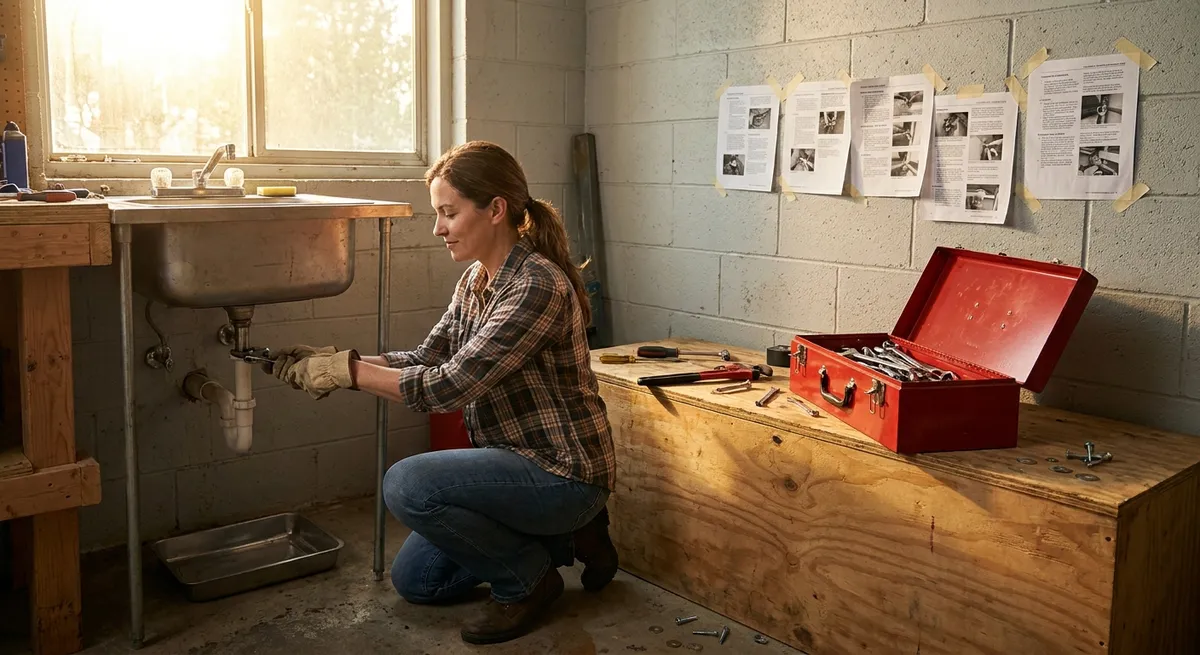
Minor problems pile up fast: a door that squeaks, a laptop that overheats, a drain that’s always slow, or a phone that never seems to stay charged. Left alone, these small issues turn into bigger (and more expensive) ones.
This guide walks you through five practical, step-by-step DIY solutions you can tackle today with basic tools and a bit of patience. No advanced skills required—just follow the steps.
Silence That Squeaky Door (Without Removing It)
A squeaky door is usually caused by friction and dirt inside the hinge. You don’t need to pull the whole door off to fix it.
What you’ll need:
- Paper towel or rag
- Mild cleaner (dish soap + water) or all-purpose cleaner
- Lubricant (silicone spray, white lithium grease, or petroleum jelly)
- Optional: small flathead screwdriver or toothpick
Steps:
Identify the noisy hinge
Open and close the door slowly. Listen and watch which hinge squeaks. Often it’s the top hinge, but not always.
Wipe away dust and grime
Spray a little cleaner on a rag (not directly on the hinge to avoid drips) and wipe around the hinge pins and plates. Remove visible dust, paint chips, and old gunk.
Expose the hinge pin (optional but helpful)
If accessible, gently insert a flathead screwdriver under the head of the hinge pin and wiggle it up just a few millimeters. You don’t need it completely out—just enough to let lubricant penetrate.
Apply lubricant precisely
- For spray: Spray a very small amount directly on the hinge pin and where the plates pivot. Wipe excess immediately. - For grease or petroleum jelly: Use a toothpick or your finger to dab a thin layer around the pin and moving parts.
Work the hinge
Open and close the door 15–20 times to work the lubricant in. The squeak should fade quickly. If it’s still noisy, add a tiny bit more lube and repeat.
Clean up and protect surfaces
Wipe away any drips so they don’t attract dust or stain nearby surfaces. For painted doors, double-check the surrounding trim for overspray or smears.
Monitor for recurring noise
If the squeak returns within days, the hinge may be misaligned or bent. In that case, tighten the hinge screws and ensure the door isn’t rubbing on the frame before re-lubricating.
Stop a Slow Sink Drain Before It Becomes a Clog
A slow drain is usually caused by buildup (soap scum, hair, grease) partially blocking the pipe. Clearing it early prevents full blockages and costly plumbing calls.
What you’ll need:
- Rubber gloves
- Old toothbrush or small nylon brush
- Cup or small container
- Baking soda
- White vinegar
- Kettle or pot for hot water
- Optional: plastic drain snake
Steps:
Remove the stopper or drain cover
- Bathroom sink: Most pop-up stoppers pull straight out. If not, check under the sink for a small rod connected to the drain and loosen the nut holding it. - Kitchen sink: Unscrew or lift the strainer if removable.
Physically remove debris
Put on gloves. Use your fingers or a plastic drain snake to remove visible hair and gunk. Scrape off buildup on the stopper or strainer with an old toothbrush.
Brush the accessible drain area
Scrub the inside of the drain opening with the toothbrush to loosen soap scum and residue. Wipe the brush on a paper towel as you go.
Flush with hot water
Boil water (or get it very hot from the tap). Slowly pour it down the drain to soften grease and flush loose material.
Use the baking soda + vinegar method
- Pour about 1/2 cup of baking soda into the drain. - Follow with 1/2–1 cup of white vinegar. - The fizzing reaction helps break down light buildup. Cover the drain with a plug or cloth and let it sit for 10–15 minutes.
Final hot water rinse
Pour another pot of hot water down the drain to clear out loosened residue.
Reinstall the stopper/strainer and test
Reassemble everything and run water for 30–60 seconds. If the flow is still slow, repeat once. If it stays slow after two attempts, you may have a deeper clog that requires a plunger, a longer drain snake, or a professional.
Keep Your Laptop from Overheating and Shutting Down
Overheating makes laptops loud, slow, and unstable. Most of the time, dust buildup and poor airflow are the main culprits—and both are fixable without opening the device on many models.
What you’ll need:
- Soft cloth or microfiber towel
- Compressed air can (with straw nozzle)
- Flat, hard surface (desk or table)
- Optional: laptop stand or cooling pad
Steps:
Shut down and unplug
Turn the laptop completely off (not just sleep). Unplug the charger and any accessories. Let it cool for at least 10 minutes if it was very hot.
Locate the air vents
Look along the sides, back edge, and underside. Typically: - Intake vents: bottom or sides - Exhaust vents: back or sides, where hot air blows out
Clean external dust
Wipe the vents gently with a dry cloth to remove surface dust. Avoid liquids near openings.
Blow out dust with compressed air
- Hold the laptop at an angle so dust can fall out. - Short, controlled bursts of air into the vents (do not hold continuously to avoid condensation). - Alternate between intake and exhaust vents to dislodge dust. - Keep the air can upright to prevent liquid propellant from spraying out.
Improve airflow during use
- Always use the laptop on a hard, flat surface (not blankets, couches, or soft beds). - If possible, use a stand or cooling pad to elevate the back and increase airflow underneath.
Tweak basic settings to reduce heat
- Lower screen brightness. - Close unused apps and browser tabs. - In power settings, choose a balanced or power-saving mode instead of performance/high power.
Monitor for recurring overheating
If the laptop still gets extremely hot or shuts down after these steps, internal fans or thermal paste may need professional servicing—especially if you’re uncomfortable opening the case.
Fix a Phone That Won’t Charge Reliably
If you have to hold your charger at a certain angle, or it connects and disconnects repeatedly, the problem is often simple: lint or debris in the charging port or a bad cable.
What you’ll need:
- Good-quality charging cable (known to work with another device)
- Wooden or plastic toothpick (not metal)
- Soft brush (small paintbrush or dry, clean toothbrush)
- Optional: isopropyl alcohol (at least 70%) and cotton swab (for cable cleaning only)
Steps:
Eliminate the obvious: test the cable and charger
- Try your cable and charger with another phone. - Try a different, known-good cable and charger with your phone. A surprisingly high number of “bad ports” are actually bad cables.
Power down the phone
Turn the device completely off before working on the port.
Inspect the charging port with light
Use a flashlight to look inside. Lint, dust, and compacted debris can prevent the plug from seating fully.
Gently remove debris
- Use a wooden or plastic toothpick to very carefully scrape along the bottom and sides of the port. - Work slowly and avoid poking aggressively—you don’t want to damage pins or contacts. - Tilt the phone so loosened debris can fall out.
Brush and blow out the port
- Use a soft, dry brush to sweep inside the port very gently. - You can blow gently with your mouth; avoid high-pressure compressed air in very delicate ports unless you keep it at a distance and use short bursts.
Clean the cable end (if dirty)
- Unplug the cable from everything. - Lightly dampen a cotton swab with isopropyl alcohol (not dripping). - Wipe the metal connector ends and let them dry completely before use.
Test charging again
Plug in the charger and see if it clicks in more firmly and stays charging consistently. Wiggle slightly—there should be a secure connection without cutting out.
Know when to stop DIY
If the port feels loose, wobbly, or still doesn’t charge after cleaning and cable replacement, the port may be physically damaged. That usually requires professional repair.
Quiet a Noisy Bathroom Fan and Boost Its Performance
A noisy bathroom fan is often dirty, unbalanced, or starved for airflow. Cleaning and simple checks can make it quieter and more effective at removing moisture.
What you’ll need:
- Screwdriver (usually Phillips)
- Vacuum with brush attachment
- Damp cloth
- Mild cleaner
- Optional: small nylon brush
Steps:
Turn off power (safely)
- Turn off the fan at the switch. - For extra safety, switch off the circuit breaker that controls the bathroom fan/light combo if accessible.
Remove the cover
Most covers either: - Pull straight down and then squeeze metal spring clips to release, or - Have visible screws. Remove them and gently lower the cover.
Vacuum dust from the cover and housing
- Vacuum the grille cover inside and out with the brush attachment. - Vacuum around the fan blades (or squirrel-cage wheel), motor, and surrounding housing to remove built-up dust.
Wipe and detail clean
- Use a damp cloth with mild cleaner to wipe the cover thoroughly. - Wipe the accessible plastic/metal surfaces and fan blades gently. For stubborn dust or grime, use a small nylon brush.
Check for loose parts
- Ensure the fan housing is firmly attached to the ceiling or joists. - Gently wiggle the fan motor mount and any brackets. Tighten loose screws that might cause rattling.
Reinstall the cover
Once everything is dry, clip or screw the cover back in place securely.
Restore power and test
Turn the breaker and switch back on. The fan should sound smoother and slightly quieter. It should also clear steam more effectively after a shower.
Plan simple maintenance
Repeat this clean-out every 6–12 months, especially in bathrooms used for daily hot showers. Regular cleaning extends fan life and prevents mold problems from poor ventilation.
Conclusion
Most everyday issues don’t require a service call—they require a clear process, a few simple tools, and the willingness to try. By:
- Silencing that squeaky door,
- Clearing a slow drain,
- Keeping your laptop cooler,
- Restoring reliable phone charging, and
- Calming a noisy bathroom fan,
you’re not just fixing annoyances—you’re extending the life of what you already own and saving money long term.
Use this as your starting playbook. The more small repairs you tackle, the more confident you’ll become handling the next problem that shows up at home.
Sources
- U.S. Department of Energy – Home Cooling Tips - General guidance on airflow, equipment efficiency, and reducing heat buildup, relevant to laptop and fan cooling concepts.
- Harvard University – Guidance on Cleaning and Disinfection - Offers safe cleaning practices and material considerations when working around electronics and household fixtures.
- University of Arkansas Division of Agriculture – Household Drain Care - Covers causes of clogged drains and practical, safe methods to maintain and clear them.
- Apple Support – Cleaning Your iPhone - Official instructions on safely cleaning device surfaces and ports, relevant to phone charging port care.
- U.S. Consumer Product Safety Commission - General home safety recommendations, including electrical safety and safe use of household tools.
Key Takeaway
The most important thing to remember from this article is that this information can change how you think about DIY Solutions.