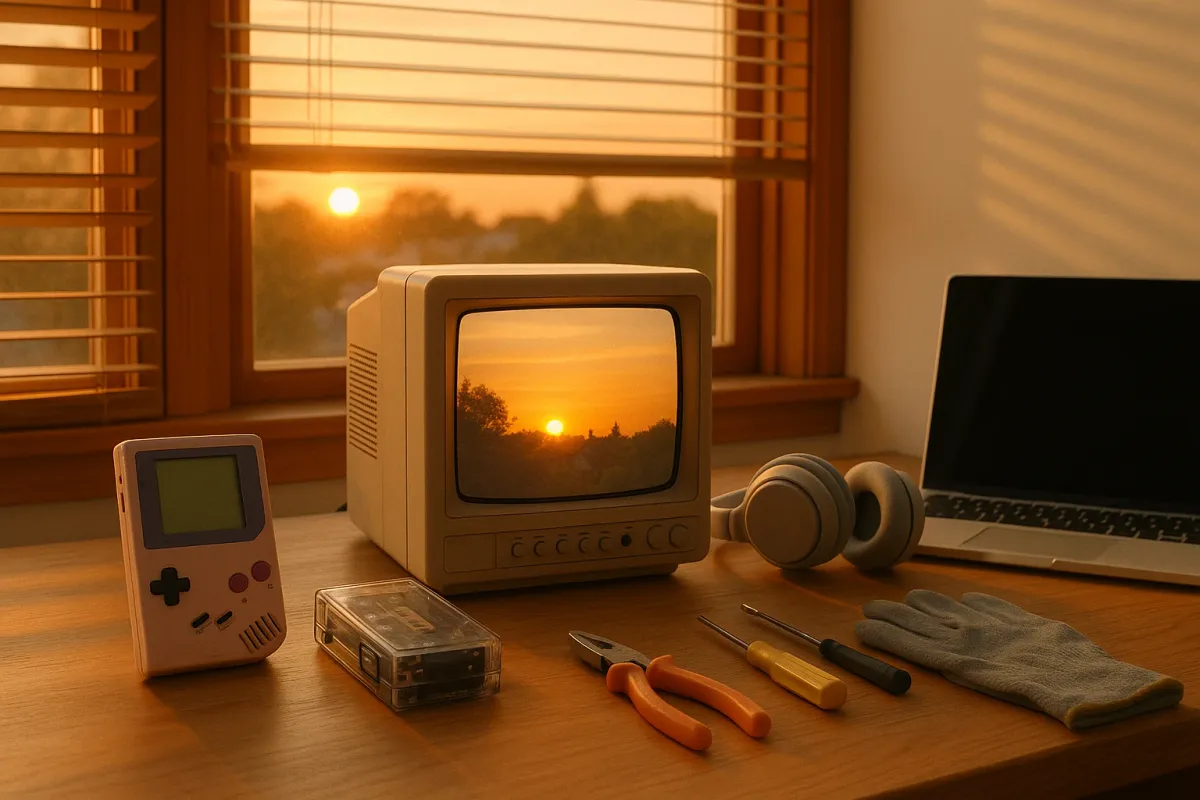
Trending photos of “how apps looked in the 1980s,” retro gaming rooms, and cassette-themed decor are everywhere right now. Graphic designer Luli Kibudi’s viral “Once Appon a Time” series, which reimagines today’s apps as 80s gadgets, has tapped into a huge nostalgia wave. But there’s a practical problem behind the aesthetic: more people are digging real vintage electronics out of closets and thrift stores—and then discovering they don’t actually work.
If you’ve pulled out an old Walkman, VCR, CRT TV, tape deck, or early game console to match your retro-inspired setup, you’ve probably hit issues: no power, distorted picture, noisy sound, or mystery cables that don’t fit anything modern. Before you give up and buy a fake “retro-style” device, there’s a lot you can safely fix yourself.
Below are five practical, step-by-step fixes to help you bring genuine old-school hardware back to life—without ruining the look or frying the electronics.
---
1. When Your Retro Device Won’t Power On
Old electronics often “die” simply because of bad connections, dried-out power bricks, or a tripped safety feature—not a catastrophic failure.
Step-by-step:
**Check the basics first**
- Try a different wall outlet you know works. - Remove any power strips or extension cords from the equation. - Confirm any outlet switches are ON (common on power strips and older surge protectors).
**Inspect the power cord carefully**
- Look for cracks, cuts, or exposed copper. - Gently bend suspicious areas—if the device flickers on, the cable is failing. - If the cord is detachable (figure‑8, cloverleaf, IEC “computer” cord), swap it with another known-good one.
**Verify the power brick (adapter)**
- Read the label: voltage (V), current (A or mA), and polarity (often a little diagram with + and –). - If you have a universal adapter, match **voltage exactly**, **current equal or higher**, and **polarity identical**. - Never “try your luck” with a random adapter; wrong voltage can instantly kill vintage gear.
**Clean the power jack**
- Unplug from the wall. - Use a can of compressed air to clear dust from the power socket on the device. - For stubborn debris, use a wooden toothpick very gently—avoid metal tools.
**Let internal protection reset**
- Some older devices have thermal fuses or protect circuits. - Unplug everything for 15–30 minutes, then plug back in and try again.
**Stop and call a pro if you notice:**
- A burnt smell - Melted plastic on the plug or brick - The adapter getting **hot within seconds** of plugging in
Those signs point to failing internal components (often capacitors) that should be handled by a repair technician, not at home.
---
2. Cleaning Dusty, Sticky, And “Garage-Scented” Gadgets Safely
Old electronics that look like they’ve lived in a smoker’s den or a dusty attic can usually be cleaned up without harsh chemicals that damage plastics.
Step-by-step:
**Power down and unplug**
- Always disconnect from power first. - Remove batteries from any compartment to avoid leaks while you work.
**Start with a dry clean**
- Use a soft brush (makeup brush or camera lens brush works well) to loosen dust from vents, ports, and buttons. - Follow up with compressed air, holding the can upright to avoid spraying liquid.
**Wipe the exterior surfaces**
- Mix a small amount of mild dish soap in warm water. - Dampen (not soak) a microfiber cloth, wring it out very well. - Wipe plastic and metal surfaces gently; follow with a dry cloth. - Avoid getting moisture into seams, vents, or jacks.
**Tackle sticky residues and yellowing**
- For adhesive or gunk: use isopropyl alcohol (70–90%) on a cotton pad. Test a hidden spot first. - For light yellowing, focus on **cleaning**, not bleaching—strong chemicals and retrobright treatments can weaken plastic if done incorrectly.
**Clean ports and connectors**
- For audio jacks, cartridge slots, and RCA ports: - Use a dry cotton swab first. - If contacts look dirty/corroded, a tiny amount of contact cleaner (or isopropyl alcohol) on a swab can help. - Never spray contact cleaner directly into the device; always onto the swab first.
**Dealing with odor**
- Place the powered‑off device in a large plastic bin with **open** baking soda boxes or odor-absorbing charcoal nearby (not touching the electronics). - Seal for 24–72 hours, then air out. Repeat as needed.
Avoid aggressive cleaners like acetone, bleach, or strong solvents—they can remove paint, blur logos, or permanently damage plastics that are already brittle from age.
---
3. Getting Old Consoles & VCRs Working On Modern TVs
A big frustration with retro setups: you have the original Nintendo, Sega, or VCR, but your sleek new TV has no idea what to do with their old cables.
Step-by-step:
**Identify the output on your old device**
Common ones: - **RF coaxial** (screw-on cable labeled “ANT” or “RF OUT”) - **RCA composite** (yellow video + red/white audio) - Occasionally **S‑Video** (round multi-pin connector).
**Check your TV’s inputs**
- Many newer TVs drop RF and composite; some still hide a 3.5mm “AV in” jack that uses a special adapter cable. - If your TV has no compatible ports, you’ll need a **converter**, not just a cable.
**Use the right converter (not just a cheap adapter plug)**
- For **RF-only devices**: - Use RF → RCA (a small RF demodulator box) and then RCA → HDMI if needed. - For **composite (yellow/red/white) to HDMI**: - Look for a powered “AV to HDMI” converter (with USB or wall power), not a passive $3 adapter that won’t actually convert the signal.
**Set the correct TV input and format**
- On the TV, select the HDMI port or AV input you’re using. - If the picture is black-and-white or rolling, check the converter’s NTSC/PAL switch and match your region (NTSC for North America, PAL for much of Europe/Asia).
**Fine-tune the picture**
- Some TVs over-sharpen or blur low-resolution signals. - Turn off “noise reduction,” “motion smoothing,” or “sharpness” enhancements in your TV’s picture settings when using retro gadgets.
**If nothing shows up at all**
- Confirm the device actually powers on (LEDs, sounds, or motor noise). - Try another cable—old RCA cables often crack internally. - Test on a different TV if possible to confirm the device vs. TV is at fault.
This setup keeps your aesthetic authentic—using the real hardware—while still working with modern screens.
---
4. Fixing Warped Audio: Tapes, Walkmans, And Vintage Stereos
If your tape deck or Walkman sounds like it’s underwater, speeding up, or slowing down, there’s usually a mechanical cause you can address without complex tools.
Step-by-step:
**Test with more than one tape**
- Try at least two different cassettes. - If only one sounds bad, the tape itself may be stretched or damaged.
**Inspect the tape cassette**
- Look through the window: are the tape spools tangled, wrinkled, or bunched up? - Gently wind the tape with a pencil inserted into the reel hole to even it out.
**Clean the tape path (heads, capstan, and pinch roller)**
- Open the door; unplug if it’s a mains-powered deck. - Use a cotton swab dampened (not dripping) with isopropyl alcohol. - Gently clean: - The **tape head** (shiny metal block) - The **capstan** (small metal post) - The **pinch roller** (rubber wheel pressed to the capstan). - Let everything air-dry fully before playing a tape.
**Check battery or power level**
- Weak batteries can cause slow or warbly sound on portable players. - Use fresh alkaline batteries or a stable wall adapter that matches the voltage.
**Exercise the mechanism**
- With no tape inserted, press play, fast-forward, and rewind a few times. - Listen for grinding or slipping noises that might indicate worn belts.
**Know when to stop**
- If the device won’t move at all, or makes loud grinding sounds, the internal belt(s) or gears are likely failing. - Replacing belts is possible as a DIY project, but it requires careful disassembly and sometimes soldering—this is where a dedicated tape repair shop earns its fee.
By restoring the basic mechanics and cleaning, many “dead” tape players become perfectly usable again for your retro-themed space.
---
5. Handling Weak Or Leaking Batteries In Old Electronics
Old devices pulled from storage often come with a nasty surprise: corroded batteries that threaten to destroy the contacts and electronics inside.
Step-by-step:
**Open the battery compartment slowly**
- Do this over a trash bin or an old towel. - If you see white/blue powder or crust, that’s leaked battery material.
**Protect yourself**
- Wear disposable gloves. - Avoid breathing in dust—do not blow on it.
**Remove the old batteries carefully**
- If they’re stuck, gently lever them out with a plastic tool (like an old credit card), not metal. - Don’t crush or puncture them.
**Neutralize and clean the contacts**
- For alkaline batteries (the usual AA/AAA), residue is typically basic. - Light corrosion: - Use cotton swabs with a tiny amount of **white vinegar** or **lemon juice** to neutralize. - Follow with a swab dampened with clean water. - Finish by drying thoroughly with a paper towel or dry swab. - Stubborn corrosion: - Use a fiberglass pen or very fine sandpaper gently on the metal contacts after neutralizing.
**Check for deeper damage**
- If corrosion has traveled onto circuit boards or wiring, or you see green/black buildup beyond the contacts, more advanced repair is needed. - In that case, stop DIY work and consult a technician—trying to scrape circuit boards can make things worse.
**Reassemble and test**
- Let everything dry fully (at least 30–60 minutes). - Insert fresh batteries, respecting polarity (+/–). - If the device doesn’t power on but the contacts are clearly clean and shiny, the leak may have damaged internal traces—again, time for a professional.
Once you’ve saved a device from a battery leak, make a habit of removing batteries from anything you only use occasionally. It’s the simplest long-term “repair” you can do.
---
Conclusion
The renewed obsession with 80s and 90s style—fueled by artists like Luli Kibudi reimagining modern apps as chunky, analog gadgets—doesn’t have to stop at your social feeds. You can bring real vintage electronics back into your home, as working gear, not just props.
By safely restoring power, cleaning years of neglect, connecting properly to modern TVs, fixing basic audio issues, and dealing with battery corrosion, you keep authentic hardware alive instead of buying disposable “retro-look” clones. That’s better for your wallet, better for the planet, and way more satisfying every time you press play, power, or start and watch a piece of history actually work.
Key Takeaway
The most important thing to remember from this article is that following these steps can lead to great results.



