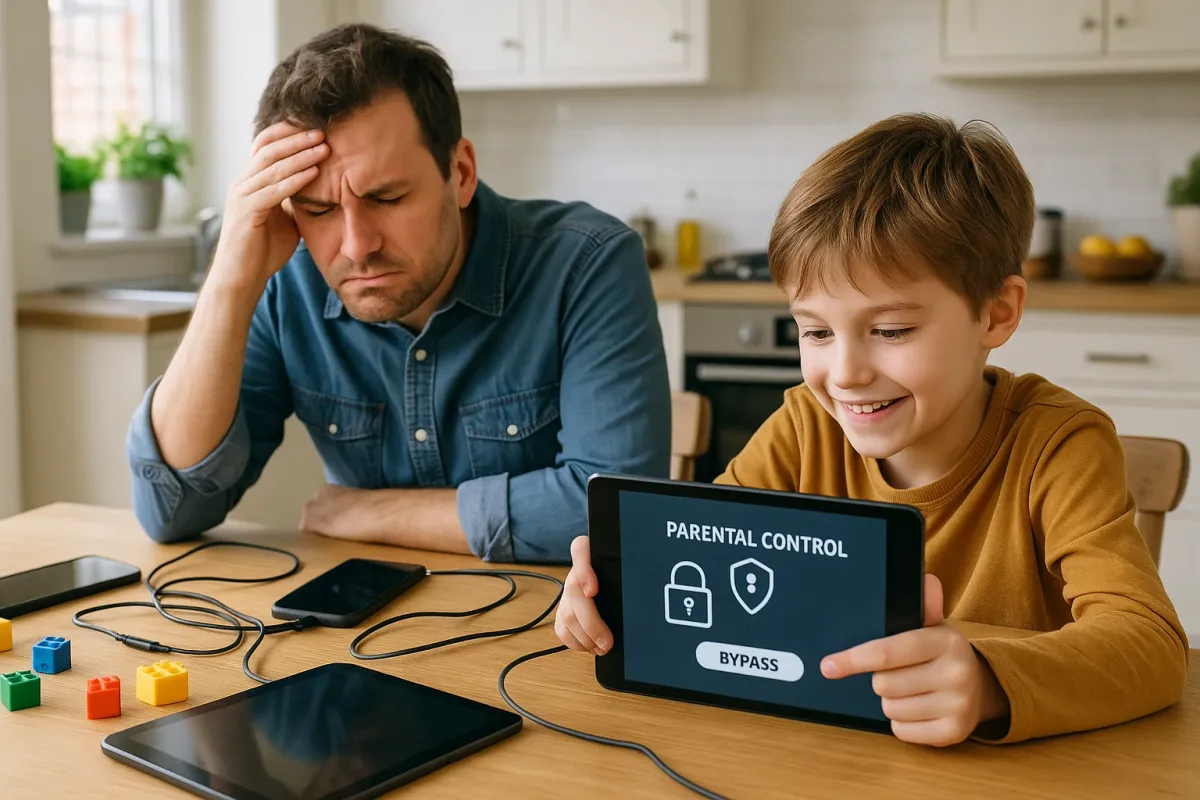
Kids are growing up in a world where every screen is tappable, every device is connected, and every password looks like a challenge. That viral article about parents on Twitter realizing their kids are “criminal masterminds” with tech isn’t an exaggeration—between silent in-app purchases, “accidental” smart TV marathons, and parental controls mysteriously disappearing, modern electronics take a beating from tiny hackers every day.
If your kid just ordered something on Amazon with your voice assistant, locked themselves out of the family tablet, or figured out your streaming PIN, you don’t need a new TV—you need a smarter setup. Below are five practical, step‑by‑step fixes to lock down your electronics, prevent kid‑caused chaos, and keep your gear working (and affordable) long‑term.
---
Lock Down Purchases On Phones And Tablets
Kids are incredibly fast at tapping “Buy” before you even realize they’re holding your phone. With app stores and in‑game purchases just a tap away, an “innocent” game can turn into a surprise bill.
Step‑by‑step fix (Apple iPhone/iPad)
**Turn on Screen Time**
- Go to **Settings > Screen Time**. - Tap **Turn On Screen Time** and set it up. - Create a **Screen Time passcode** your kid doesn’t know.
**Block in‑app purchases**
- Inside Screen Time, go to **Content & Privacy Restrictions** and toggle it ON. - Tap **iTunes & App Store Purchases**. - Set **In‑app Purchases** to **Don’t Allow**. - Set **Require Password** to **Always Require**.
**Require biometric or password for every purchase**
- Go to **Settings > [your name] > Media & Purchases > Password Settings**. - Turn OFF “Free Downloads” if you want extra control. - Make sure “Require Password” is set to **Always**.
**Separate kid Apple ID (recommended)**
- Use **Family Sharing** to create a child account. - Turn on **Ask to Buy** so you must approve every purchase from your device.
Step‑by‑step fix (Android phones/tablets)
**Require authentication for Play Store purchases**
- Open **Google Play Store**. - Tap your profile icon > **Settings > Authentication**. - Tap **Require authentication for purchases**. - Select **For all purchases through Google Play on this device**.
**Disable in‑app purchase shortcuts in games**
- In many games, go to **Settings** and turn off **in‑app offers** or **promotions**. - Sign out of payment methods inside the app where possible.
**Create a restricted profile or child account**
- On many Android tablets: **Settings > Users & accounts > Users**. - Add a **Restricted profile** or use **Google Family Link** for a managed kid account. - Install apps only through the managed profile.
**Remove stored cards from kid devices**
- On your Google account in a browser, go to **payments.google.com**. - Remove cards you don’t want accessible from shared devices.
Result: Kids can still use the device, but surprise charges and game “accidents” get cut off at the source.
---
Child‑Proof Your Smart TV And Streaming Apps
That funny post about kids secretly watching shows they shouldn’t on Netflix feels a lot less funny when it’s your watch history full of random cartoons and mature content. The good news: your TV probably has more built‑in control than you’re using.
Step‑by‑step fix (Smart TVs – general approach)
**Turn on a TV PIN**
- On most TVs: **Settings > Security / System > Parental Controls**. - Set a **4‑digit PIN** that’s NOT a birthday or 0000/1234. - Disable showing PIN entry on screen if the TV allows it.
**Block inputs or apps you don’t want kids using**
- Within Parental Controls, lock specific **HDMI ports** (e.g., game console) or apps. - Require the PIN to open them.
**Disable or PIN‑lock app installation**
- On Samsung, LG, and many Android TVs you can require the PIN to **add or remove apps**. - Turn that on so kids can’t just install a different streaming app.
Step‑by‑step fix (Netflix, Disney+, etc.)
**Create kid profiles**
- In Netflix: go to **Manage Profiles**, add a **Kid** profile. - In Disney+: create a **Kid profile** and set age limits. - Repeat for any other major streaming apps you use.
**Add profile lock PIN for adult profiles**
- Netflix: **Account > Profile & Parental Controls > [Your Profile] > Profile Lock**. - Turn it on and create a PIN. - Do the same on any platform that supports it.
**Restrict content ratings**
- For each kid profile, set a **maximum rating** (e.g., TV‑PG, TV‑Y7). - Save and test by trying to access a mature show from the kid profile.
**Disable autoplay (optional but recommended)**
- In settings, turn off **autoplay next episode** to prevent 4‑hour “accidents.”
Result: Kids can still enjoy shows, but your TV isn’t an open door to every app and every rating level.
---
Stop Mystery Smart Speaker Commands (Alexa, Google, Siri)
Parents online have shared stories of their kids asking Alexa to “order toys” or playing loud music in the middle of the night. Voice assistants are handy, but they’re also incredibly easy for kids to trigger—often by accident.
Step‑by‑step fix (Amazon Alexa devices)
**Turn on voice purchase protection**
- Open the **Alexa app**. - Go to **More > Settings > Account Settings > Voice Purchasing**. - Turn **Voice Purchasing** OFF, or enable **purchase confirmation code**.
**Disable one‑click shopping on the account**
- On Amazon (website), go to **Your Account > Your Payments**. - Remove or limit stored payment methods, or set gift card balance only for Alexa.
**Enable kid mode on specific Echo devices**
- In the Alexa app, go to **Devices > Echo & Alexa > [Device]**. - Turn on **Amazon Kids** (if supported). - This filters explicit content and adds kid‑friendly features.
**Mute microphones when needed**
- Use the **physical mic mute button** on the Echo when kids are playing in the room. - Light ring will show it’s muted—no accidental commands.
Step‑by‑step fix (Google Assistant / Nest devices)
**Limit personal results and purchases**
- In the **Google Home app**, select your device. - Go to **Settings > Recognition & sharing > Recognition & personalization**. - Turn off what you don’t want accessible (purchases, personal results).
**Set up Voice Match (adults only)**
- In Google Home, go to **Settings > Google Assistant > Voice Match**. - Train your voice and **do not** add your kids. - Then restrict certain actions to recognized voices only, where available.
**Use Digital Wellbeing**
- Go to **Settings > Digital Wellbeing** in the Home app. - Create filters for content and usage times (e.g., quiet hours).
Result: Smart speakers remain useful for timers, music, and questions—but not as an open shopping channel or midnight DJ booth for your kids.
---
Protect Your Devices From “Curious Hands” Damage
Alongside digital chaos, there’s the physical side: tablets used as Frisbees, laptops full of crumbs, and game controllers drowned in juice. You don’t need to bubble‑wrap your entire living room, but a few low‑cost steps can extend your electronics’ life by years.
Step‑by‑step fix (phones and tablets)
**Use serious drop protection**
- Choose a **rugged case with raised edges** (brands like OtterBox, Spigen, UAG, or similar). - Add a **tempered glass screen protector**—cheap, and it takes the hit instead of your screen.
**Add a kid‑safe charging setup**
- Use **short, durable cables** and keep chargers out of reach when not in use. - Consider **magnetic charging tips** to reduce port damage from rough unplugging.
**Set a “kid zone”**
- Define a **single spot** for tablet use (e.g., couch corner, dining table). - No electronics in the kitchen, bathroom, or near sinks/bathtubs.
**Teach basic handling rules**
- No carrying devices by the cable. - No walking around while watching a video. - Sit, use, put it back in the same place.
Step‑by‑step fix (game consoles, remotes, controllers)
**Elevate the console**
- Place on a **high shelf or wall‑mounted bracket** with airflow. - Keep at least a hand’s width of space around vents.
**Add controller protection**
- Use **silicone controller skins** and **thumbstick caps**. - These are cheap and protect against drops and snack‑covered hands.
**Use rechargeable battery packs**
- Replace disposable batteries with **rechargeable packs** and a **charging dock**. - Store the dock out of reach; kids bring controllers, not the whole console.
**Create a “no drink” zone near electronics**
- Draw a simple line: no cups, bottles, or food on the same surface as electronics. - Use a separate side table for snacks.
Result: Your gear survives everyday kid chaos without needing constant repair or replacement.
---
Use Kid Accounts And Local Backups To Contain Damage
One of the nastiest surprises parents share online: a kid deletes photos, changes passwords, or installs something nasty, and suddenly the whole family’s digital life is at risk. The fix: don’t let kids use your main account, and always have a backup ready.
Step‑by‑step fix (separate accounts on computers)
**Create a standard user for your kid**
- **Windows:** Settings > Accounts > Family & other users > Add family member. - **macOS:** System Settings > Users & Groups > Add User; set as **Standard** or **Managed with Parental Controls**.
**Block admin access**
- Make sure your daily login is **not** an admin if possible; use a separate admin account. - Protect the admin account with a **strong, unique password**.
**Limit software installation**
- On the kid account, restrict installation rights so they can’t install programs without the admin password. - Use built‑in parental controls (Family Safety on Windows, Screen Time on macOS) to limit app types and sites.
**Use browser kid settings**
- Chrome: use **Family Link** and supervised accounts. - Edge: enable **family safety**. - Safari: combine with macOS Screen Time website limits.
Step‑by‑step fix (backups for when things still go wrong)
**Turn on automatic cloud backups**
- iPhone/iPad: **Settings > [your name] > iCloud > iCloud Backup** ON. - Android: **Settings > System > Backup** ON (Google backup). - For photos, also use Google Photos, iCloud Photos, or OneDrive.
**Add a local backup (extra protection)**
- For computers: use an external drive and **Time Machine** (Mac) or **File History / backup software** (Windows). - For Android, you can periodically copy photos and videos to a computer or external drive.
**Test restore options once**
- Try restoring one file or photo from backup, so in a real emergency you’re not guessing.
Result: Even if a “kid genius” wipes something important, you can roll back and recover.
---
Conclusion
Kids will always be three steps ahead of whatever tech we think they can’t figure out. That viral thread about “criminal mastermind” children just proves the point: today’s kids are growing up fluent in taps, swipes, and voice commands. The answer isn’t getting rid of electronics—it’s setting them up to survive real family life.
By locking down purchases, tightening streaming and smart speaker controls, physically protecting your gear, and using separate kid accounts with solid backups, you turn fragile, expensive gadgets into durable, family‑ready tools. You don’t need to be an IT pro to do this—just work through the steps above one device at a time. The payoff: fewer surprise charges, fewer broken screens, and electronics that work the way you want, not the way your tiny tech hacker feels like experimenting today.
Key Takeaway
The most important thing to remember from this article is that this information can change how you think about Electronics.



