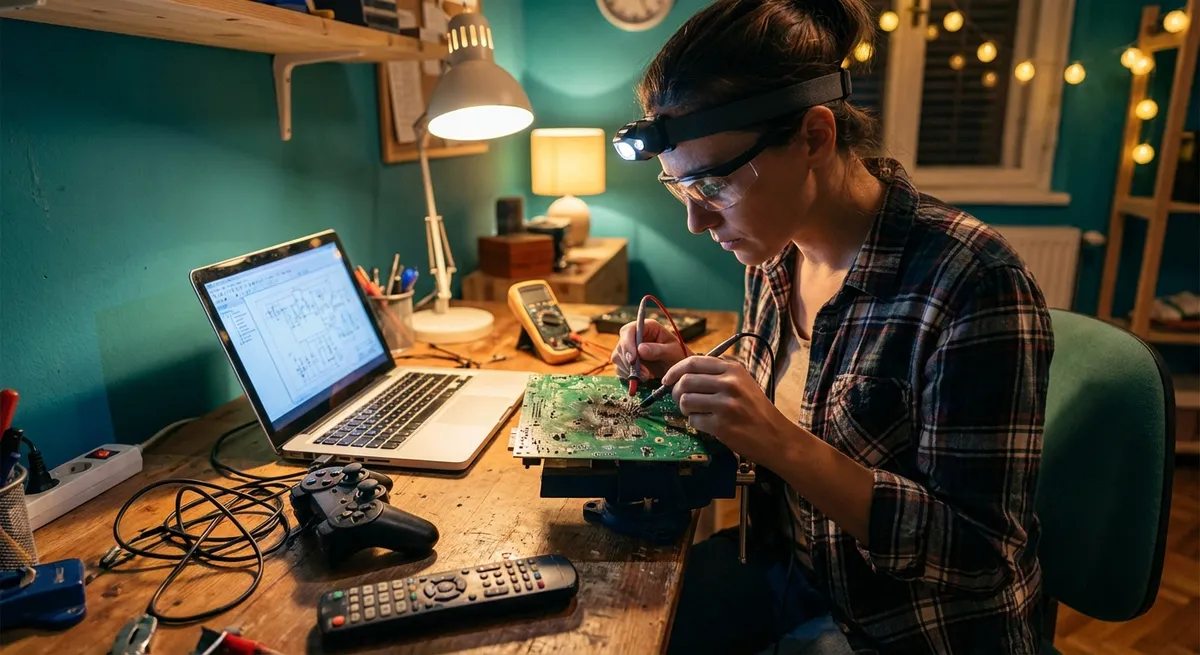
When a gadget stops working, most people jump straight to “I need a new one.” In reality, many electronics problems come down to dirt, loose connections, or simple settings. With a bit of patience and the right steps, you can often get your devices back on track without a repair shop visit.
Below are five common electronics problems and clear, step‑by‑step solutions you can safely try at home before you replace anything.
---
1. Laptop That Overheats and Randomly Shuts Down
An overheating laptop can feel like a lost cause, but it’s often caused by dust buildup and poor ventilation.
Step‑by‑step fix
**Power down and unplug**
Shut down the laptop completely. Unplug the charger and remove the battery if it’s removable.
**Move to a hard, flat surface**
Stop using the laptop on soft surfaces (bed, couch, blanket). Place it on a desk or table to keep vents clear.
**Inspect and clean the vents**
- Locate the air intake and exhaust vents (usually on the sides or bottom). - Use a can of compressed air to blow dust out of the vents in short bursts. - Keep the can upright to avoid moisture, and don’t spin the fans excessively—short taps are best.
**Check for blocking accessories**
Remove stickers, tape, or any covers around the vents. Make sure a case or skin isn’t blocking airflow.
**Adjust power and performance settings**
- On Windows: Go to **Settings > System > Power & battery > Power mode** and choose **Balanced** or **Power saver** instead of **Best performance**. - On macOS: Go to **System Settings > Battery** and reduce **Energy usage**, lower screen brightness, and disable high‑performance modes if enabled.
**Update BIOS/firmware and drivers (if comfortable)**
Visit your laptop manufacturer’s support page, look up your exact model, and install any recommended BIOS and thermal management updates.
**Use a cooling pad if needed**
If your laptop still runs hot (but not dangerously), a USB‑powered cooling pad can help move more air around the base.
If the laptop remains very hot to the touch and still shuts down, the internal thermal paste or fan could be failing. At that point, consider a professional cleaning and inspection.
---
2. TV With No Picture but You Still Hear Sound
A TV that plays sound but shows a black screen can seem like it’s “dead,” but it’s often a settings or connection issue.
Step‑by‑step fix
**Confirm the TV is actually powered on**
Look for a power indicator light changing color or a brand logo when starting up. If there’s truly nothing at all, skip to checking power.
**Test with the TV’s built‑in menu**
- Press the **Menu** or **Settings** button on the TV’s physical buttons or remote. - If the menu appears, your TV panel works, and the problem is likely with the input device or cable.
**Check input source and cable connections**
- Press the **Input/Source** button and cycle through HDMI 1, HDMI 2, AV, etc. - Firmly unplug and reinsert HDMI or AV cables on both the TV and device (game console, streaming box, etc.). - Try a different HDMI port and/or a different cable entirely.
**Test with a different device**
Connect another known‑good device (like a different streaming box, laptop, or Blu‑ray player). If the picture appears, the original device is the problem.
**Adjust brightness and picture settings**
- Go to **Picture/Display Settings**. - Make sure **Brightness**, **Backlight**, and **Picture Mode** are not at zero or set to an extreme power‑saving mode.
**Power cycle the TV**
- Turn the TV off and unplug it from the wall. - Press and hold the TV’s power button (on the unit, not the remote) for 10–15 seconds. - Leave it unplugged for at least 1–2 minutes, then plug back in and power on.
If there’s still sound but never any menu or logo visible—even in a dark room—your backlight or panel may be failing, which typically requires professional repair.
---
3. Smartphone That Won’t Charge Reliably
A phone that only charges at certain angles or not at all doesn’t necessarily need a new battery. Often, the charging port or cable is the culprit.
Step‑by‑step fix
**Try a known‑good charger and cable first**
- Use an original or certified cable and wall adapter. - Test your cable and charger on another device to confirm they work properly.
**Inspect the charging port for debris**
- Power off your phone. - Shine a flashlight into the port (USB‑C, Lightning, or micro‑USB) and look for lint or dust.
**Gently clean the port**
- Use a wooden or plastic toothpick (never metal) to **very gently** lift out lint. - Follow up with short bursts of compressed air if available. - Avoid pushing debris further inside.
**Check for loose or wobbly port**
Insert the cable and see if it feels loose. A slightly snug, firm click is normal. If it moves freely or cuts in and out with tiny movements, the port may be physically damaged.
**Clean the cable ends**
Wipe the metal connectors on your cable with a soft, dry cloth. If there’s sticky residue, slightly dampen the cloth with 70% isopropyl alcohol and let it dry completely before use.
**Check charging settings and port mode (Android)**
On some Android devices, when plugged into a computer: - Swipe down the notification shade. - Tap **Charging this device via USB** and ensure it’s not set to “Charge only at low speed” or restricted by battery saver.
**Try wireless charging (if supported)**
If wireless charging works fine but the cable doesn’t, it’s a strong sign the physical charging port needs professional repair.
If the phone still won’t charge after cleaning with a known‑good charger, avoid forcing the cable or wiggling it aggressively—this can worsen any damage. Seek a repair shop, especially for port replacements and battery diagnostics.
---
4. Wi‑Fi Router That Constantly Drops the Connection
Before blaming your internet provider, it’s worth checking your router’s setup and environment. Interference and overheating cause a surprising number of dropouts.
Step‑by‑step fix
**Power cycle properly**
- Unplug the modem and router from power. - Wait 30 seconds. - Plug in the modem first and wait until all its usual lights stabilize. - Plug in the router and wait another 1–2 minutes.
**Check cables and connections**
- Ensure the Ethernet cable from the modem to the router is firmly seated. - Replace that cable if you see damage or if it feels loose.
**Reposition the router**
- Place it in a central, elevated spot (like a shelf) away from thick walls, metal objects, and large appliances. - Keep it away from microwaves, cordless phones, and baby monitors, which can cause interference.
**Check for overheating**
- Touch the router—warm is normal, hot is not. - Ensure vents are not blocked and there’s airflow around it. - If it’s stacked on top of other electronics, separate them.
**Switch Wi‑Fi channels or bands**
- Log in to your router’s admin page (usually printed on a sticker on the device). - Change the 2.4 GHz channel to a less crowded one (e.g., 1, 6, or 11). - If your router has dual‑band, connect modern devices to 5 GHz for a more stable connection at short range.
**Update router firmware**
- In the router’s admin interface, look for **Firmware Update** or **Software Update**. - Install any recommended updates from the manufacturer.
**Test with a wired connection**
- Connect a computer directly to the router via Ethernet. - If the wired connection is stable but Wi‑Fi isn’t, the problem is likely wireless settings, interference, or the router’s radio hardware.
If dropouts persist on both wired and wireless, contact your ISP to check for line problems. If only Wi‑Fi is unstable across multiple devices, it may be time for a newer router.
---
5. Game Console That Turns On but Won’t Display on the TV
Game consoles (PlayStation, Xbox, Nintendo Switch docked) sometimes appear “dead” because of a handshake issue with the TV or a bad video setting.
Step‑by‑step fix
**Verify basic power and indicators**
- Confirm the console’s power light turns on and stays solid (check your model’s manual for status light meanings). - Listen for startup sounds or fan noise.
**Check HDMI cable and ports**
- Unplug the HDMI cable from both console and TV, then firmly reconnect. - Try a different HDMI port on the TV. - Test a completely different HDMI cable if you have one.
**Confirm the correct input on the TV**
Use the TV’s **Input/Source** button to select the HDMI port the console is connected to.
**Force a lower resolution or safe mode (varies by console)**
Many consoles let you reset display settings on boot: - **PlayStation 4/5:** Completely power off. Hold the power button until you hear a second beep (~7 seconds) to enter Safe Mode, then choose “Change Resolution.” - **Xbox Series X|S / One:** Power off. Press and hold **Pair** + **Eject** (or just Pair on some models), then press the **Xbox** button to enter a lower‑resolution mode. - **Nintendo Switch (docked):** Ensure the console is fully seated in the dock, then unplug and replug the HDMI and power cables at the dock.
**Disable special HDMI features (on TV)**
- On some TVs, disable **HDMI-CEC**, **eARC**, or advanced HDMI modes for the input your console is on. - Set the HDMI input mode to “Standard” instead of “Enhanced” or “PC” while troubleshooting.
**Try a different TV or monitor**
If possible, connect the console to another display. If it works there, your original TV’s HDMI port or settings may be the problem.
If no display appears on any screen with multiple cables, but the console clearly powers on, internal hardware may be failing. At that stage, consult the manufacturer’s support or a repair service.
---
Conclusion
Most electronics issues start with something simple: dust, heat, bad cables, or misconfigured settings. By working through safe, structured steps, you can rule out easy fixes and often solve the problem without spending money on replacements.
The key is to move methodically: check power, cables, settings, and environment before assuming hardware is dead. When these steps don’t solve it, you’ll at least have clear information to give a repair technician—or to decide, with confidence, that it’s time to upgrade.
---
Sources
- [U.S. Department of Energy – Proper Computer Use and Maintenance](https://www.energy.gov/energysaver/tips-office-and-electronics) – General guidance on efficient and safe operation of computers and electronics
- [Apple Support – If your Mac gets too hot](https://support.apple.com/en-us/HT201640) – Details on overheating behavior, ventilation, and safe operating practices
- [Microsoft Support – Improve PC performance and battery life](https://support.microsoft.com/en-us/windows/improve-pc-performance-and-battery-life-12ef85b0-1941-48e2-b014-f2d4dcbb36f2) – Official steps for managing performance, power, and heat on Windows devices
- [Federal Communications Commission (FCC) – Interference to Home Electronic Entertainment Equipment](https://www.fcc.gov/consumers/guides/interference-home-electronic-entertainment-equipment) – Information about interference that can affect Wi‑Fi and other consumer electronics
- [PlayStation Support – Safe Mode on PS4 and PS5](https://www.playstation.com/en-us/support/hardware/safe-mode-playstation/) – Official instructions for entering Safe Mode and changing display settings on PlayStation consoles
Key Takeaway
The most important thing to remember from this article is that this information can change how you think about Electronics.



