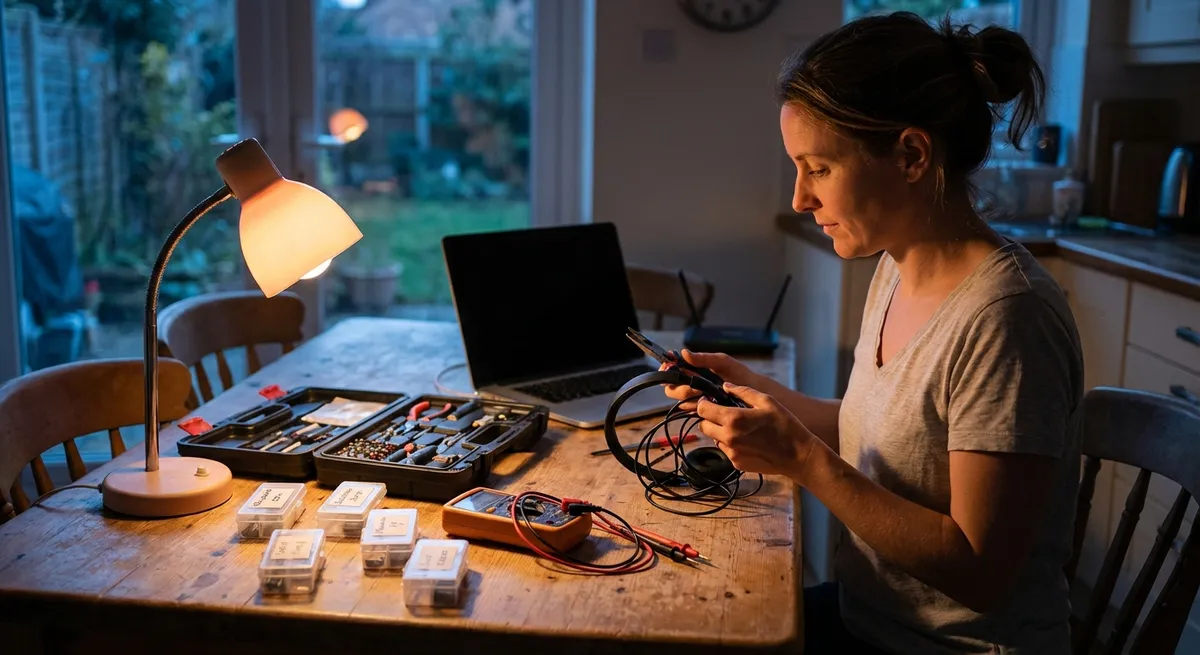
When your electronics stop working, it’s usually at the worst possible moment—right before a meeting, a trip, or a deadline. The good news: many “dead” or glitchy devices aren’t actually broken. They’re stuck, dirty, misconfigured, or missing one simple step. This guide walks you through five practical, step‑by‑step fixes you can do yourself before you pay for a repair or replace your gear.
---
1. Laptop That Won’t Turn On (But Isn’t Really Dead)
A laptop that appears completely dead often has a power, battery, or static (electrical) issue—not a failed motherboard.
Step-by-step: Basic power reset
**Check the obvious power points**
- Plug the charger directly into a wall outlet (avoid power strips for now). - Make sure the charger’s indicator light is on (if it has one). - Inspect the cable for frays, kinks, or burn marks. If you see damage, stop using it.
**Remove all power sources**
- Shut the laptop (if it’s on or half-on). - Unplug the charger. - If your laptop has a removable battery, take it out. If not, skip to step 4.
**Discharge leftover (static) power**
- Press and hold the power button for **15–30 seconds**. - This clears residual charge that can prevent startup.
**Reconnect power and test**
- Reinstall the battery (if removable). - Plug in the charger. - Press power once (don’t hold it down). Look for: - Keyboard lights - Fan sound - Screen backlight glow - If nothing happens, try a **different charger** that matches your laptop’s specs (correct voltage and connector).
**Try a bare‑minimum boot**
- Disconnect all USB devices, memory cards, and external screens. - Try turning it on again. A bad USB device can sometimes prevent boot.
**When to stop and seek help**
- No lights, no sounds, and you’ve tried another known‑good charger. - You hear repeated beeps or see unusual blinking patterns (these can be diagnostic codes—check your brand’s support site).
---
2. Phone That Won’t Charge Properly
If your phone charges slowly, only at certain angles, or not at all, the port or cable is usually to blame—not the battery.
Step-by-step: Restore a reliable charge
**Check the cable and charger first**
- Try **a different cable** and **different charging block** that you know work with another device. - Avoid ultra‑cheap off‑brand cables; they often fail internally.
**Inspect and clean the charging port**
- Turn the phone off. - Use a flashlight to look into the port. Lint and dust can block contact. - Gently use: - A wooden toothpick, or - A plastic dental pick to loosen debris. - Do **not** use metal objects—they can damage pins or short the port.
**Check for loose connection**
- Plug the cable in firmly and gently wiggle it: - If the plug moves around a lot or falls out easily, the internal port may be worn or broken. - If it feels snug and solid, the port is likely okay.
**Test wireless charging (if supported)**
- Place the phone on a known‑good wireless charger. - If it charges wirelessly but not by cable, the charging port is the likely problem, not the battery.
**Check software and settings**
- Restart the phone. - Make sure battery saver or restricted charging modes (like “Optimized Charging”) aren’t limiting charge speed. - Update your operating system if an update is available—charging bugs do get patched.
**When to seek repair**
- The port feels loose or wobbly even with a new cable. - The phone heats up excessively when charging. - You see corrosion, greenish residue, or bent pins inside the port.
---
3. TV With No Signal or No Picture (But Sound Might Work)
Modern TVs are more like computers than old televisions. No signal, black screen, or “HDMI 1 – No input” errors are often caused by settings, cables, or external devices—not a bad TV screen.
Step-by-step: Get the picture back
**Confirm the TV actually powers on**
- Look for: - Standby light changing when you press the power button. - A faint “backlight glow” in a dark room when the TV is on. - If there’s no response at all, unplug the TV for 1 minute, plug it back in, then turn it on again.
**Check the correct input**
- Press the “Input” or “Source” button on the remote. - Cycle through HDMI 1, HDMI 2, AV, etc. - Stop on the port where your cable box, streaming stick, or game console is connected.
**Confirm the external device is working**
- Make sure your streaming stick, console, or cable box is powered on. - Check for lights on the device. - Try unplugging the device’s power for 15 seconds, then plugging it back in.
**Test HDMI cables and ports**
- Unplug and firmly reinsert both ends of the HDMI cable. - Try a different HDMI port on the TV. - Try a different HDMI cable if you have one. - If a second device works on the same port and cable, the original device is likely the problem.
**Fix “black screen with sound”**
- This sometimes happens with streaming devices or game consoles: - Turn off TV and device. - Unplug the HDMI cable at both ends. - Wait 30 seconds. - Plug HDMI back in, then power on the TV first, then the device. - Check if any “HDR” or advanced video settings were recently changed on the device—set them back to default.
**When to call a pro**
- There’s backlight glow but **no menu appears** even with no devices connected. - The screen shows lines, flickers badly, or has large dark patches (panel or backlight failure). - The TV won’t respond to buttons on the set itself (not just the remote).
---
4. Wi‑Fi That Keeps Dropping or Feels Slower Than It Should
If streaming freezes, video calls stutter, or pages crawl, your Wi‑Fi setup or interference is often the cause—not necessarily your internet provider.
Step-by-step: Stabilize and speed up your Wi‑Fi
**Start with a full reboot**
- Unplug the **modem** (the box connected to the wall). - Unplug the **router** (if separate from the modem). - Wait **30–60 seconds**. - Plug the modem back in first; wait until all lights stabilize. - Then plug in the router and wait a few minutes.
**Check the basics on your device**
- Turn Wi‑Fi off and back on. - Forget the network and reconnect, entering the password again. - Move closer to the router to test. If speed improves, range/interference is the issue.
**Improve router placement**
- Place the router: - In a central, open area (not in a cabinet). - Away from thick walls, metal objects, microwaves, and cordless phones. - Elevate it (on a shelf or table rather than on the floor).
**Use the right Wi‑Fi band**
- If your router has both **2.4 GHz** and **5 GHz** networks: - Use **5 GHz** near the router for higher speeds and less interference. - Use **2.4 GHz** farther away for better range through walls. - Rename the two bands (e.g., “Home_2G” and “Home_5G”) so you can pick intentionally.
**Reduce congestion**
- Disconnect devices you’re not using (old phones, smart plugs, tablets). - Pause large downloads or updates on one device while streaming on another. - Log into your router’s admin page (address and login often printed on the router) and: - Change the Wi‑Fi channel if your neighborhood is crowded on one channel. - Update the router firmware if an update is available.
**When to upgrade or call support**
- Your router is more than **5–6 years old**. - You consistently get much lower speeds over Wi‑Fi than when using a wired connection. - Your ISP’s support page reports an outage or line issue in your area. - You need coverage in a large home—consider a **mesh Wi‑Fi** system.
---
5. Bluetooth Devices That Refuse to Pair or Keep Disconnecting
Bluetooth glitches are often caused by outdated pairing info or interference, not by broken hardware.
Step-by-step: Make Bluetooth behave
**Reset the connection from your phone or computer**
- Open Bluetooth settings. - Find the problem device (e.g., “WF‑1000XM,” “JBL Speaker”). - Tap “Forget,” “Remove,” or “Delete” device. - Turn Bluetooth off, wait 10 seconds, then turn it back on.
**Put the device into pairing mode properly**
- For headphones or speakers, this typically means: - Holding the power or Bluetooth button for several seconds until a light flashes or a voice prompt says “pairing mode.” - Check your device’s manual or manufacturer website if you’re unsure—each brand is a little different.
**Eliminate interference during pairing**
- Move away from microwaves, cordless phones, and crowded Wi‑Fi routers. - Turn off other Bluetooth devices nearby or move them to another room temporarily. - Keep the device and phone/computer within 1–2 meters (3–6 feet) with a clear line of sight.
**Confirm the device isn’t already connected elsewhere**
- Some headphones or speakers can only connect to one device at a time. - Turn Bluetooth off on other phones, tablets, or laptops that might already be paired. - Then try pairing again with your chosen device.
**Update firmware and OS**
- On your phone/computer, install any available system updates. - For many headphones, earbuds, and speakers, use the official app (e.g., Bose, Sony, Jabra) to: - Check for firmware updates. - Reset or clear Bluetooth pairings from within the app.
**When to suspect hardware failure**
- The device never shows up in any Bluetooth scan, even with different phones. - The device won’t enter pairing mode (no lights or prompts even after proper button presses). - Connections drop every few seconds at short range even after resets and updates.
---
Conclusion
You don’t need a workbench full of tools to solve many electronics headaches. Methodically checking power, connections, settings, and simple resets can revive laptops, phones, TVs, Wi‑Fi, and Bluetooth gadgets that seem “dead” or unreliable. Treat these step‑by‑step checks as your personal pre‑repair checklist: if you can solve it here, you save time and money; if not, you walk into a repair shop already knowing what you’ve ruled out. Either way, you’re in control of your tech instead of the other way around.
---
Sources
- [Apple Support – If your Mac won’t turn on or start up](https://support.apple.com/en-us/HT204267) – Official troubleshooting steps for power issues and startup problems on Macs, many of which apply conceptually to other laptops.
- [Samsung – Phone or tablet not charging or taking too long to charge](https://www.samsung.com/us/support/troubleshooting/TSG01001435/) – Detailed guidance on diagnosing charging issues, ports, and cables.
- [Roku – What to do if you do not see a picture on your TV](https://support.roku.com/article/208756908) – Explains common causes of “no picture” on TVs and HDMI troubleshooting steps.
- [Federal Communications Commission (FCC) – Interference to Home Electronics](https://www.fcc.gov/consumers/guides/interference-home-electronics) – Overview of how wireless interference affects home devices, including Wi‑Fi and Bluetooth.
- [Google – Improve your Wi‑Fi network and signal](https://support.google.com/googlenest/answer/6242708) – Practical recommendations on router placement, bands, and reducing interference to stabilize wireless networks.
Key Takeaway
The most important thing to remember from this article is that this information can change how you think about Electronics.



