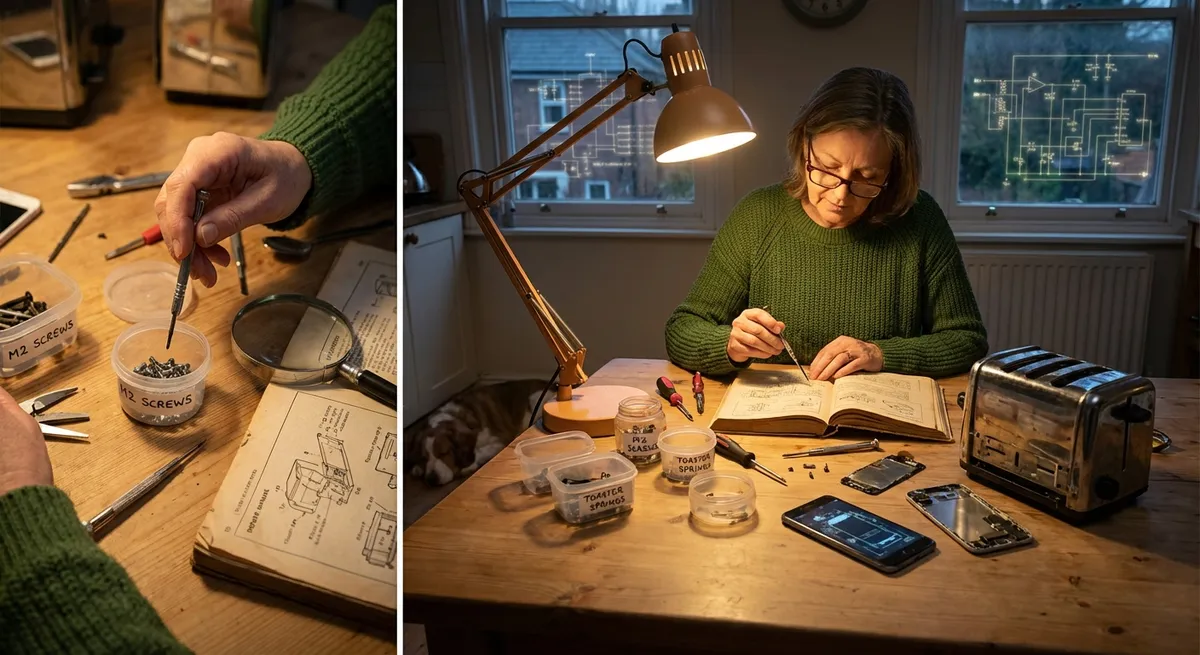
Electronics rarely fail “out of nowhere.” Most everyday glitches come from a handful of repeat offenders: bad cables, weak power, dirty contacts, and confusing settings. The good news is that you can solve many of these issues at home with simple checks and basic tools—no deep tech knowledge required.
This guide walks you through five common electronics problems and gives you clear, step-by-step solutions. Work through them in order, and you’ll often fix the issue before you even consider a repair shop.
1. Device Won’t Turn On (Or Randomly Shuts Off)
When a device won’t power up—or dies without warning—the cause is often power-related, not a “dead” device.
Step 1: Confirm the outlet or power strip is working
- Plug in a different device you know works (like a phone charger or lamp).
- If that device also fails, try a different outlet in another room.
- Check whether the power strip has a reset switch or breaker and press it.
- Avoid daisy-chaining multiple power strips; they can cause voltage drops.
Step 2: Inspect the power cable and adapter
- Run your fingers along the entire cable, feeling for kinks, soft spots, or exposed wires.
- Check both ends for bent pins, burns, or loose connectors.
- Try another compatible cable/adapter if you have one; swap only one piece at a time so you know what fixed it.
- If the adapter makes crackling noises or smells burnt, unplug it immediately and replace it.
Step 3: Remove all external accessories
- Unplug USB devices, memory cards, external drives, and HDMI cables.
- Try powering the device with just the power cable connected.
- Some devices refuse to turn on properly if a shorted accessory is attached.
Step 4: Perform a power reset
- Unplug the device from power.
- If it has a removable battery, take it out.
- Hold the power button down for 15–30 seconds to drain any residual charge.
- Reconnect power (and battery if applicable) and try turning it on again.
Step 5: Look for signs of life
- Notice any blinking LEDs, fan noise, or screen backlight, even if there’s no image.
- If you get lights or sounds but no display, jump ahead to the display section in your device’s manual or the “screen issues” fix below.
- If there is absolutely no reaction and you’ve tried a known-good outlet and cable, the power supply or internal board may need professional repair.
2. Screen Is On But Nothing Shows (Or Looks Wrong)
Black screens, flickering displays, and “no signal” errors are usually connection or settings problems, not instant death.
Step 1: Confirm the device is actually on
- Listen for fan noise, startup chimes, or vibration.
- On laptops or phones, shine a flashlight at an angle on the screen—if you see faint images, the backlight may be the issue, not the whole display.
Step 2: Check cable connections (for TVs, monitors, consoles, PCs)
- Power off the device and display.
- Unplug and replug the HDMI/DisplayPort cable at both ends, ensuring it clicks or fits firmly.
- Inspect ports for dust or bent pins; gently blow out dust with compressed air (short bursts, can held upright).
- If you have another cable, swap it and test again.
Step 3: Select the correct input
- Use the TV/monitor remote or buttons to cycle through inputs (HDMI1, HDMI2, etc.).
- Note which port the cable is physically plugged into and match that on the input list.
- Wait a few seconds after changing inputs—some devices take time to detect a signal.
Step 4: Adjust resolution and refresh rate (for PCs and laptops)
- Connect the computer to a different display if possible (or use Safe Mode).
- Lower the resolution to a safe default like 1280×720 or 1920×1080.
- Set the refresh rate to 60 Hz.
- Reconnect to the original display and see if it now shows an image.
Step 5: Reset display settings (TVs and monitors)
- Look for a “Reset Picture” or “Factory Reset” option in the display’s menu.
- Apply the reset, then reconnect your device.
- Avoid “overdriving” the picture with unsupported modes; stick to recommended resolutions listed in the manual or on the manufacturer’s website.
3. Battery Drains Too Fast (Phones, Laptops, Wireless Gadgets)
Fast battery drain is often caused by background activity, poor charging habits, or aging batteries—not just “bad luck.”
Step 1: Check what’s using the battery
- On phones: go to Settings → Battery (or similar) and review the apps at the top of the list.
- On laptops: open the battery or power usage report in the system settings.
- Identify any apps or programs consuming an unusual amount of power.
Step 2: Reduce background activity
- Turn off Bluetooth, Wi-Fi, and GPS when not in use.
- Disable “always on” features like constant location tracking or live wallpapers.
- Restrict background activity for apps you rarely use (Battery or App settings).
- Close unnecessary desktop apps and browser tabs on laptops.
Step 3: Optimize charging habits
- Avoid letting the battery hit 0% or stay at 100% for long periods.
- Aim to keep the charge between ~20% and 80% for daily use.
- Use quality, certified chargers—not ultra-cheap knockoffs.
- Keep devices cool while charging; remove thick cases if they trap heat.
Step 4: Clean the charging port
- Power off the device.
- Use a wooden toothpick or a soft brush to gently remove lint and dust from the port.
- Do not use metal objects that could short the contacts.
- After cleaning, reconnect the charger firmly and check if charging is more stable.
Step 5: Evaluate battery health
- On phones and some laptops, check “Battery Health” or similar in settings.
- If health is under ~80%, the battery capacity is significantly reduced.
- Decide whether a battery replacement is worth it based on the device’s age and value.
- If the device gets hot and drains quickly even after all these steps, stop using it until a professional inspects it for safety.
4. No Sound, Weak Sound, or Distorted Audio
Audio issues often come down to wrong settings, bad connections, or dirt buildup—especially in headphone jacks and speaker grilles.
Step 1: Confirm the basics
- Make sure volume is turned up on both the device and the app you’re using.
- Ensure mute isn’t enabled (check physical mute switches and on-screen icons).
- Try a different app or media file to rule out a bad recording.
Step 2: Check where the sound is going
- Look for a Bluetooth icon; if it’s connected to a speaker or headset in another room, sound will redirect there.
- Turn off Bluetooth temporarily to force audio back to the main speakers.
- On computers, open sound settings and confirm the correct output device (speakers vs. headphones vs. HDMI).
Step 3: Inspect physical connections
- For wired headphones/speakers, fully insert the plug until it clicks or seats firmly.
- Gently twist the plug; if sound cuts in and out, the cable or jack may be worn.
- Test with another pair of headphones or another cable if available.
Step 4: Clean speaker grilles and ports
- Power off the device.
- Use a soft, dry brush or unused, clean toothbrush to loosen dust from speaker holes.
- Blow away debris or use compressed air in brief bursts (not too close).
- Avoid liquids directly on the device; if needed, lightly dampen a cloth with isopropyl alcohol and wipe around—never inside—openings.
Step 5: Reset audio settings
- On phones, reset sound/equalizer settings to default.
- On TVs and PCs, disable “enhancements” like extreme bass boosts that can cause distortion.
- Update or reinstall audio drivers on computers if sound is missing after updates.
- If one channel (left/right) is dead across multiple headphones, the internal jack or audio circuit may require professional repair.
5. Device Is Slow, Freezing, or Overheating
Sluggish performance and overheating commonly come from overloaded storage, too many apps, dust buildup, or poor ventilation.
Step 1: Give it breathing room
- Move the device off soft surfaces like beds or couches that block vents.
- For laptops, use a hard, flat surface and avoid covering side or bottom vents.
- For consoles and PCs, leave a few inches of clearance on all sides for airflow.
Step 2: Close what you’re not using
- On phones, close background apps you don’t need right now.
- On computers, open Task Manager/Activity Monitor to see what’s eating CPU and memory.
- End or uninstall high-usage programs that you don’t actually use.
Step 3: Free up storage
- Delete unused apps, old videos, and duplicate photos.
- Clear temporary files or system caches via built-in storage tools.
- Aim to keep at least 10–20% of total storage free to prevent slowdowns.
Step 4: Remove dust from vents and fans (for devices with fans)
- Power off and unplug the device.
- Use compressed air to blow dust out of vents in short bursts, keeping the can upright.
- For PCs, if you’re comfortable and the warranty allows, open the case and carefully blow dust off fans and heat sinks.
- Avoid spinning fans at high speed with compressed air; hold them still with a plastic tool or a finger if needed.
Step 5: Check for software issues
- Run a malware or antivirus scan on computers.
- Update the operating system and key apps to the latest stable versions.
- Disable unnecessary startup programs that automatically launch every time.
- If performance is still poor, consider a factory reset (after backing up your data) to start from a clean slate.
Conclusion
Most everyday electronics problems are fixable at home with methodical checks and simple tools. By working through power, connections, settings, cleanliness, and basic maintenance, you can often bring a “dead,” glitchy, or overheating device back to life without spending money on replacements.
Save or share this guide so you have a practical checklist the next time your gear acts up. When you hit a wall—or see signs of burning, swelling, or damage—that’s your cue to pause and involve a professional. Until then, systematic troubleshooting is your most reliable repair tool.
Key Takeaway
The most important thing to remember from this article is that this information can change how you think about Electronics.



