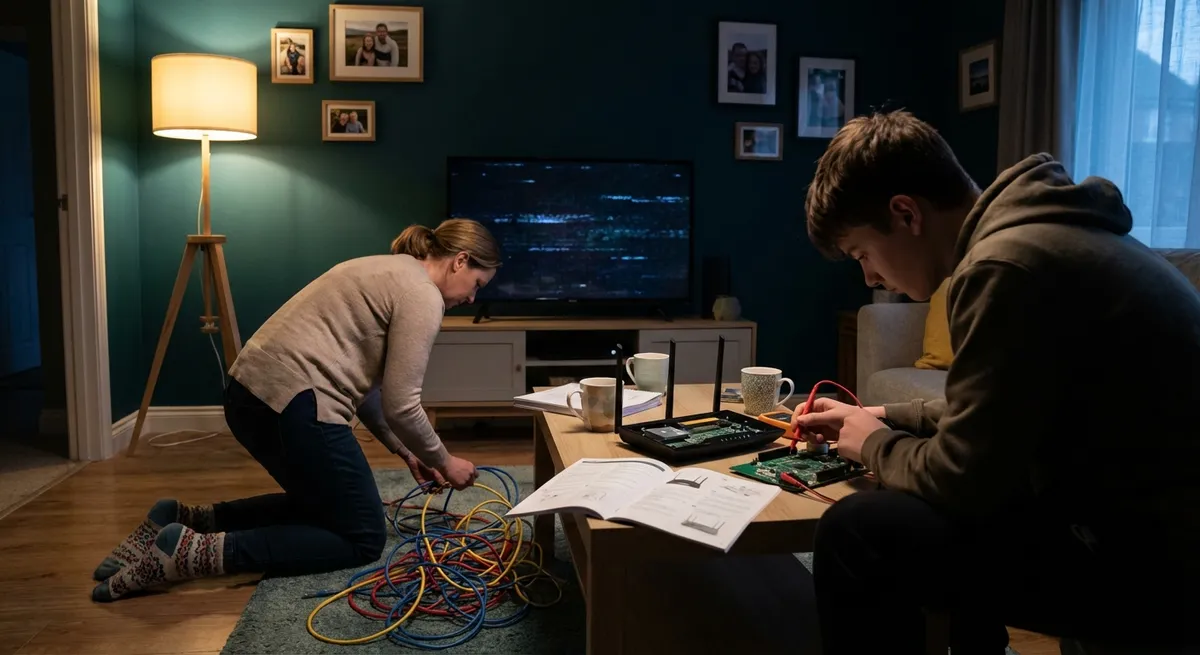
Electronics usually fail at the worst possible time: the TV won’t show a picture, the laptop won’t charge, or the Bluetooth speaker suddenly goes silent. Most people jump straight to “it’s broken” and start shopping for a replacement. In reality, many of these problems come from simple issues you can fix in minutes with basic checks and a bit of patience. This guide walks you through five practical, step‑by‑step solutions you can try before paying for a repair or buying something new.
---
1. When Your TV Powers On but Shows No Picture
A black screen with sound (or no sound) often looks like a dead TV, but in many cases the issue is with cables, inputs, or settings.
Step-by-step fix:
**Confirm the TV really turns on**
Check for a power light, brand logo on startup, or a faint glow from the screen in a dark room. - If there’s no indication of power at all, test a different outlet or power strip first. - Try unplugging the TV for 60 seconds, then plug it back directly into the wall.
**Check the input source**
Use the TV remote’s *Input* or *Source* button. Slowly cycle through HDMI1, HDMI2, AV, etc. - Pause 5–10 seconds on each input to see if a picture appears. - Make sure the device (cable box, game console, streaming stick) is actually powered on.
**Inspect HDMI and other cables**
- Turn off both TV and connected devices. - Unplug HDMI cables, then firmly plug them back in until you feel them “click.” - Check for bent or damaged connector pins and try a known‑good HDMI cable if you have one. - If you’re using an HDMI splitter or adapter, temporarily connect the device directly to the TV.
**Test with a different device**
- Connect a different device (laptop, game console, streaming stick) to the TV using the same HDMI port. - If the new device works, the original source device is likely the problem, not the TV.
**Reset picture settings**
- Open the TV’s menu (using the remote or buttons on the set). - Look for a “Reset picture” or “Reset settings” option under Picture or System. - Apply the reset and test again.
If you still have a completely black screen with clear signs of power (sound but absolutely no image even in a dark room), the backlight or internal components may be failing. At that point, a professional diagnosis or manufacturer support is the safest next move.
---
2. When Your Laptop Won’t Charge or Power On
A dead laptop doesn’t always mean a dead battery or motherboard. Often, a loose connection, drained battery, or minor power glitch is to blame.
Step-by-step fix:
**Start with the basics**
- Plug the charger directly into a wall outlet (avoid power strips at first). - Confirm the outlet works by testing it with another device (like a lamp or phone charger). - Inspect the charger brick and cable for damage, kinks, or burn marks.
**Check for charging indicators**
- Look for a charging light on the laptop or an indicator on the power brick. - If there’s no light, try gently wiggling the connector where it plugs into the laptop—not hard, just enough to see if the light flickers (a flicker suggests a loose port or failing cable). - If possible, test with a compatible spare charger.
**Perform a “static” or “power” reset** (common for many Windows laptops)
- Disconnect the charger. - If the battery is removable, take it out. - Press and hold the power button for 15–20 seconds to discharge residual power. - Reinsert the battery (if removable), plug in the charger, and try turning it on again.
**Boot with minimal load**
- Disconnect all accessories: USB drives, external monitors, printers, hubs. - Try powering on with only charger and battery connected. - Listen for fan noise or hard drive spin; a blank screen with system noise may indicate a display issue instead of a power failure.
**Check battery and power settings (if it finally turns on)**
- In Windows: go to *Settings → System → Power & battery* and check battery health if available. - On macOS: click the Apple menu → *System Settings → Battery* and check battery condition. - If the system only works when plugged in, your battery may be worn out and ready for replacement.
If the laptop shows no signs of life with a known‑good charger and outlet, avoid opening it yourself unless you’re experienced and the warranty has expired. Contact the manufacturer or a trusted repair shop for a diagnostic; serious power board or charging circuit problems are not good DIY candidates.
---
3. When Your Phone Won’t Connect to Wi‑Fi Reliably
Intermittent Wi‑Fi, dropped connections, or “Connected without internet” messages are common—and frequently fixable with a few targeted steps.
Step-by-step fix:
**Verify the network works with another device**
- Use a laptop or another phone on the same Wi‑Fi network. - If multiple devices are offline, the problem is likely the router or internet service, not your phone.
**Restart your phone and router (in that order)**
- Turn your phone completely off, wait 20 seconds, then turn it back on. - Unplug your router and modem (if separate) from power for 30–60 seconds, then plug them back in and wait a few minutes.
**Forget and rejoin the Wi‑Fi network**
- On your phone, open Wi‑Fi settings. - Tap the problematic network and select *Forget* or *Remove*. - Reconnect by entering the password again carefully. - Make sure you’re joining the correct band (2.4 GHz often has better range than 5 GHz).
**Check for software and firmware updates**
- On your phone, install any pending system or security updates. - Log in to your router’s admin page (address is usually on a label on the router) and check for firmware updates. - Outdated software can cause random disconnects and compatibility issues.
**Adjust network settings on your phone**
- Turn Airplane Mode on, wait 10 seconds, then turn it off. - On Android, consider resetting network settings: Settings → System (or General Management) → Reset → Reset network settings. - On iPhone: Settings → General → Transfer or Reset iPhone → Reset → Reset Network Settings (this will remove saved Wi‑Fi networks and Bluetooth pairings, so you’ll need to reconnect later).
If you still have problems on only one specific network (like at work or a café), their router may be using advanced security settings or access controls. In that case, ask the network administrator for help rather than endlessly debugging your phone.
---
4. When Your Bluetooth Speaker Won’t Pair or Play Sound
Bluetooth issues usually come down to pairing confusion: the speaker is connected to something else, in a stuck state, or not properly in pairing mode.
Step-by-step fix:
**Reset the connection on your phone**
- Turn Bluetooth off on your phone, wait 10 seconds, then turn it back on. - In the Bluetooth settings list, find your speaker and choose *Forget*, *Unpair*, or *Remove* if it’s listed.
**Put the speaker in proper pairing mode**
- Turn the speaker off, then back on. - Press and hold the Bluetooth or pairing button until you hear a sound or see a flashing light (check the user manual for the exact behavior). - Stand close to the speaker (within a few feet) to reduce interference.
**Eliminate other competing connections**
- Turn off Bluetooth on nearby phones, tablets, or laptops that have previously paired with the speaker. - Some speakers will auto‑connect to the last known device, which can prevent new pairing attempts.
**Pair again step by step**
- On your phone, open Bluetooth settings and wait for available devices to populate. - Tap your speaker’s name and accept any pairing prompt. - If a PIN is requested and none is listed in the manual, try 0000 or 1234 (common defaults).
**Verify audio output selection**
- After pairing, play audio and check your phone’s output settings. - On many phones, you can tap the output icon in the media player and switch to the Bluetooth speaker. - Make sure the speaker’s volume is turned up and not muted.
If the speaker pairs with other devices but not one specific phone, backup your phone and consider resetting its network/Bluetooth settings. If it won’t pair with any device, a factory reset of the speaker (usually done through a key combination in the manual) is the next step before contacting the manufacturer.
---
5. When Your Game Console Overheats or Shuts Down Mid‑Game
Modern game consoles generate a lot of heat. If ventilation is poor or dust builds up, the system may crash or shut down to protect itself.
Step-by-step fix:
**Power down properly**
- Shut the console down from the menu instead of yanking the power cord. - Unplug it from the power outlet and let it sit for at least 15–20 minutes to cool.
**Inspect placement and airflow**
- Make sure the console is not inside a closed cabinet or stacked on other electronics. - Leave several inches of space around all vents, especially at the back and sides. - Avoid placing it directly on soft surfaces like carpets or beds that can block vents.
**Clean dust from vents**
- Use a can of compressed air; keep the nozzle a few inches away and use short bursts. - Blow air into the vents from different angles to loosen dust. - Do **not** open the console casing unless the manufacturer’s guide explicitly allows it without voiding the warranty.
**Check room conditions**
- If the room is hot or poorly ventilated, use a fan to increase airflow around the console area. - Avoid positioning the console in direct sunlight or near heaters.
**Update system software and check power**
- After it cools, plug it back in and power on. - Check for system updates in the console’s settings menu; firmware updates can improve fan control and thermal management. - If you use a third‑party power strip or surge protector, try connecting the console directly to a wall outlet to rule out power fluctuations.
If the console continues to overheat or shut down quickly after these steps, there may be internal fan failure or thermal paste issues. At that point, professional service or manufacturer repair is the safest option—especially if your device is still under warranty.
---
Conclusion
You don’t need advanced tools or deep technical knowledge to solve many everyday electronics problems. By working through simple, structured checks—power, cables, settings, and environment—you can often restore TVs, laptops, phones, speakers, and consoles to normal operation without spending money on replacements. Start with the low‑risk, easy steps in this guide, document what you try, and only then consider professional help. A calm, methodical approach is usually the fastest route from “it’s broken” to “it’s working again.”
---
Sources
- [Federal Communications Commission (FCC) – Interference and Poor Reception](https://www.fcc.gov/consumers/guides/consumer-guide-tv-reception) – Background on TV reception and troubleshooting signal-related issues.
- [Apple Support – If your Mac won’t turn on or start up](https://support.apple.com/en-us/HT204267) – Official guidance on diagnosing power and startup problems for laptops and desktops.
- [Microsoft Support – Troubleshoot network connection issues in Windows](https://support.microsoft.com/en-us/windows/fix-network-connection-issues-in-windows-166a28c4-14c1-68bf-97f6-1047f4e5f85f) – Detailed steps for resolving Wi‑Fi and network connectivity problems.
- [Bluetooth SIG – Bluetooth Technology Overview](https://www.bluetooth.com/learn-about-bluetooth/tech-overview/) – Explains how Bluetooth connections work and common interoperability considerations.
- [Sony PlayStation Support – PS5 Console is Too Hot](https://www.playstation.com/en-us/support/hardware/ps5-console-is-too-hot/) – Manufacturer recommendations for ventilation, cleaning, and overheating prevention for consoles.
Key Takeaway
The most important thing to remember from this article is that this information can change how you think about Electronics.



