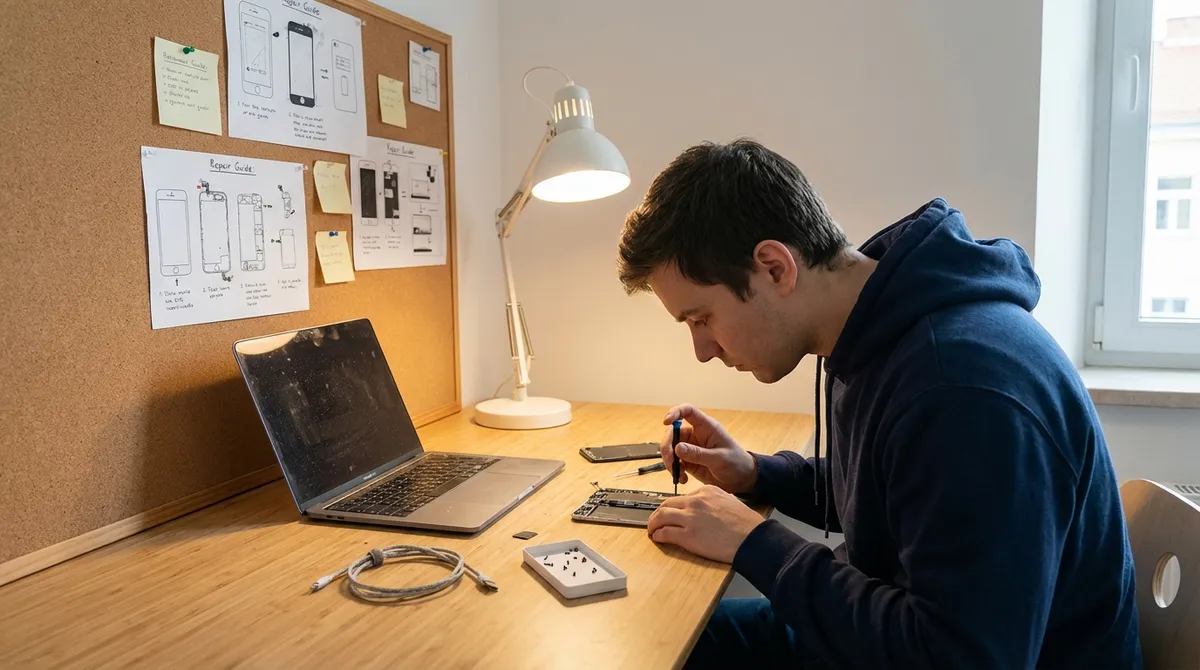
When a gadget stops working, most people jump straight to “I need a new one.” In reality, a lot of electronics problems come down to simple issues you can fix in minutes with basic tools and a bit of patience. This guide walks you through five common problems and exactly how to troubleshoot and repair them safely at home—before you spend money on replacements.
---
1. Phone Won’t Charge Reliably
A flaky charger can feel like the beginning of the end for your phone, but it’s often a physical connection issue you can fix yourself.
Step‑by‑step: Clean and Check the Charging Port
**Power down the phone**
Turn it completely off and unplug any cables. This reduces the risk of short circuits and accidental damage.
**Inspect the port with a light**
Use a flashlight to look inside the charging port. Lint, dust, and pocket debris often build up and block the connector.
**Gently remove debris**
- Use a plastic or wooden toothpick (never metal) or a soft, dry brush. - Gently scrape and lift out lint, working around the sides. - Do not force or bend the internal connector.
**Clean the cable ends**
Wipe the USB connector with a slightly damp microfiber cloth, then dry it thoroughly. Check for bent or corroded pins.
**Test with a different cable and charger**
- Try a known‑good charger and cable. - Plug into a wall outlet instead of a computer USB port for more stable power. If it charges fine, your original cable or adapter is likely faulty.
**Check for loose fit**
Plug the cable into the port and gently wiggle it: - If it feels loose or only charges at certain angles, the port may be worn or damaged. - In that case, stop forcing it and consider a professional port replacement.
**Update software and restart**
Occasionally, charging issues are software-related. Ensure your OS is up to date and restart the device once after cleaning and testing.
If the phone still won’t charge after cleaning, cable swapping, and testing different outlets, you may be dealing with an internal battery or power management issue that requires professional repair.
---
2. Laptop Overheating or Suddenly Shutting Down
Overheating shortens your laptop’s lifespan and can lead to surprise shutdowns. Dust buildup and poor airflow are common culprits—and both are fixable.
Step‑by‑step: Improve Cooling and Airflow
**Shut down and unplug**
Turn the laptop off, disconnect from power, and remove the battery if it’s removable.
**Clear vents with compressed air**
- Use a can of compressed air to blow dust out of the side and bottom vents. - Short bursts, at an angle, from a few inches away. Avoid spinning fans aggressively; hold the fan blades still with a toothpick if accessible.
**Check the surface you use it on**
- Hard, flat surfaces only—no beds, couches, or blankets. - Soft surfaces block vents and trap heat.
**Raise the rear for better airflow**
Use a stand, small blocks, or a cooling pad to lift the back edge of the laptop and improve air circulation underneath.
**Check for background processes**
- Open Task Manager (Windows) or Activity Monitor (macOS). - Look for apps using high CPU when you’re idle (browsers with many tabs, background updaters, etc.). - Close or uninstall heavy, unnecessary software.
**Clean the keyboard area**
Dust and crumbs can indirectly affect thermals by blocking internal airflow paths. Use compressed air at an angle across the keys.
**Monitor temperatures**
Install a reputable hardware monitor (e.g., HWMonitor for Windows, Macs Fan Control for macOS) to see whether temperatures drop after cleaning.
If the laptop still overheats or shuts down quickly under light use, dried thermal paste or failing fans may be to blame—both are usually repair‑shop jobs unless you’re comfortable opening the chassis.
---
3. TV Has Sound but No Picture
A blank screen with working sound is often caused by backlight or connection problems rather than a completely dead TV.
Step‑by‑step: Diagnose Picture vs. Backlight Issues
**Perform the “flashlight test”**
- Turn the TV on and play something (TV channel or streaming). - In a dark room, shine a flashlight at the screen from close range. - If you can faintly see images, the LCD panel is working but the backlight isn’t.
**Check all cables and inputs**
- Ensure HDMI or component cables are fully plugged in on both the TV and the source device. - Try another HDMI port on the TV. - Try a different cable to rule out a faulty wire.
**Test a different source**
- If you’re using a streaming box or game console, plug in another source (like a DVD player or a different console). - If the new source works, the issue lies with the original device, not the TV.
**Reset input and picture settings**
- Use the TV remote to open the menu (if visible). - Reset picture settings to default. - Confirm the correct input (HDMI1, HDMI2, etc.) is selected.
**Power cycle the TV**
- Turn it off and unplug it from the wall. - Press and hold the power button on the TV (not the remote) for 10–15 seconds to discharge residual power. - Wait 1–2 minutes, plug back in, and power on.
**Check for a “backlight” or “brightness” mishap**
Sometimes a setting gets turned way down: - Look for “Backlight,” “Brightness,” or “Eco” modes in the picture menu. - Turn off aggressive power‑saving modes and raise brightness.
If the flashlight test shows faint images but no visible picture even after these steps, the backlight (LED strips or inverter board) may be failing—usually a repair for experienced DIYers or a professional shop.
---
4. Bluetooth Headphones Won’t Pair or Keep Disconnecting
Wireless audio issues are often software or interference problems. Systematically ruling out each cause restores stable connections in most cases.
Step‑by‑step: Reset and Reconnect Cleanly
**Remove old pairings**
- On your phone/PC, go to Bluetooth settings. - Find your headphones in the list and choose “Forget,” “Remove,” or “Delete” device. - This avoids configuration conflicts.
**Reset the headphones**
- Check the manufacturer’s instructions (often holding the power or pairing button for 10–20 seconds). - Look for flashing LEDs or a voice prompt indicating reset.
**Charge fully before pairing**
Low battery can cause unstable connections. Charge the headphones until the indicator shows full or at least 60–70%.
**Move away from interference**
- Avoid pairing near Wi‑Fi routers, microwaves, crowded public spaces, or many active Bluetooth devices. - Stand within 1–2 meters of your phone or laptop during the first pairing.
**Enable pairing mode properly**
- Power on the headphones and hold the pairing button until the LED flashes in the specified pattern. - On your device, open Bluetooth settings and select the headphones when they appear.
**Update firmware and drivers**
- Some headphones have companion apps that provide firmware updates—install and check for updates. - On a computer, update Bluetooth drivers and OS updates.
**Test with another device**
- If they pair fine with a second phone or laptop, the original device likely has a software or Bluetooth radio issue. - Restart that device and try again.
If disconnects persist within a short range and after resets and updates, the internal Bluetooth module or antenna may be damaged, and repair or replacement may be more practical than continued troubleshooting.
---
5. Game Console Won’t Read Discs
When a console refuses to read game discs, you may be dealing with dirty media, a misbehaving drive, or outdated system software.
Step‑by‑step: Clean, Test, and Calibrate the Basics
**Check the disc condition**
- Examine the underside under a bright light. - Light smudges and fingerprints are usually fixable; deep scratches may not be.
**Clean discs properly**
- Use a soft, lint‑free cloth. - Wipe straight from the center outward in radial lines (never in circles). - If needed, lightly dampen the cloth with water or a bit of isopropyl alcohol, then dry completely.
**Try multiple discs**
- Test 2–3 different games or movies. - If only one disc fails, that disc is likely defective. - If all fail, the drive or firmware is suspect.
**Restart and eject properly**
- Power the console off fully (not just rest mode). - Unplug for 1–2 minutes, then plug back in. - Insert a known‑good disc and listen for normal spin sounds.
**Update system software**
- Connect the console to the internet. - Go to system settings and check for updates. - Some disc‑reading issues are resolved by firmware updates or drive calibration improvements.
**Check console orientation and ventilation**
- Use the recommended position (horizontal or vertical) per the manufacturer. - Ensure it’s on a stable, level, vibration‑free surface and well‑ventilated.
**Avoid repeated forced insertions**
If the console repeatedly ejects discs or makes grinding noises, stop trying to force them. Continued attempts may worsen mechanical damage.
If the console consistently fails to read clean, original discs after updates and basic checks, the laser or drive mechanism may require professional servicing or a drive replacement.
---
Conclusion
Many electronics “failures” are really simple maintenance issues: dirty ports, blocked vents, bad cables, or outdated software. By working through these step‑by‑step checks—cleaning carefully, swapping components, resetting settings, and testing methodically—you can often revive phones, laptops, TVs, headphones, and consoles without a trip to the store or repair shop. When your basic troubleshooting hits a wall, that’s your signal to shift from DIY to professional help, but these practical fixes will solve a surprising share of everyday electronics problems on their own.
---
Sources
- [Apple Support – If your iPhone or iPad won’t charge](https://support.apple.com/en-us/HT201569) – Official guidance on troubleshooting charging issues and checking cables, adapters, and ports
- [Microsoft Support – Reduce heat and fan noise in your PC](https://support.microsoft.com/en-us/windows/reduce-fan-noise-and-keep-your-pc-cool-c68ddfd0-9a2e-0b70-84dd-d99fa208dfb2) – Explains causes of overheating and practical steps to improve cooling and performance
- [Sony Support – No picture or black screen from the TV](https://www.sony.com/electronics/support/articles/00023076) – Manufacturer walkthrough for diagnosing TV display issues, including input and backlight checks
- [Sony PlayStation Support – PS5: Disc troubleshooting](https://www.playstation.com/en-us/support/hardware/ps5-disc-troubleshooting/) – Official troubleshooting steps for consoles that won’t read discs
- [FCC – Interference with consumer electronics](https://www.fcc.gov/consumers/guides/interference-consumer-electronics) – Background on wireless interference that can affect Bluetooth and other wireless devices
Key Takeaway
The most important thing to remember from this article is that this information can change how you think about Electronics.



