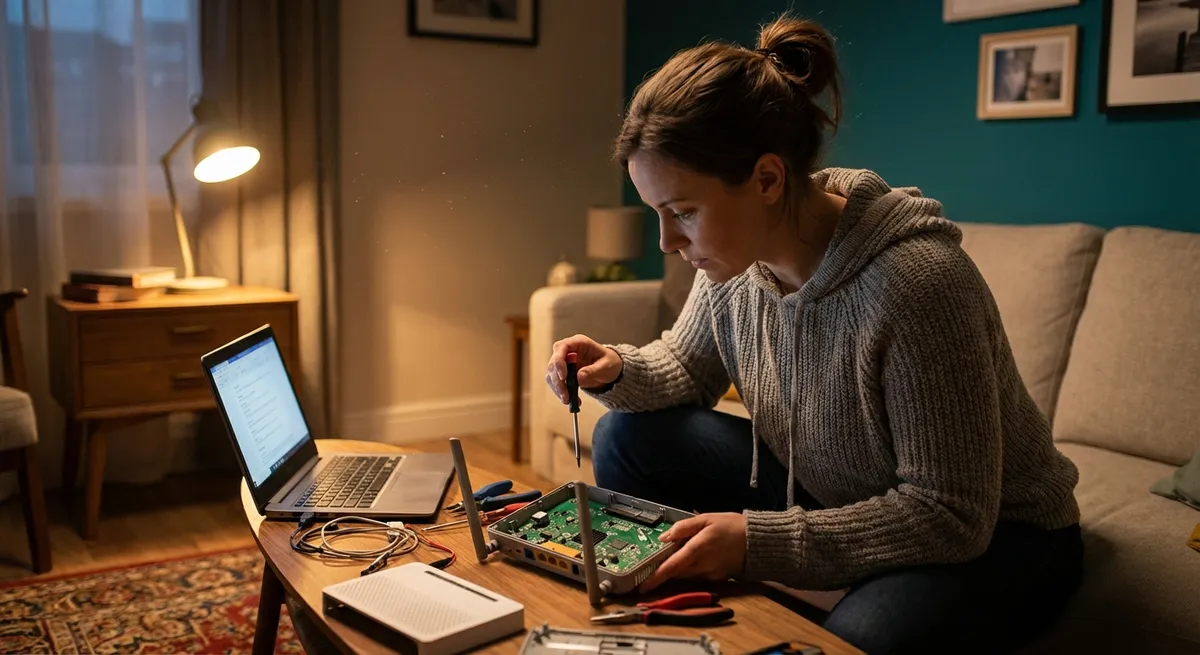
When home electronics stop cooperating, everything from work calls to movie night can fall apart fast. The good news: a lot of “broken” devices aren’t broken at all—they just need a smart reset, a deeper clean, or one simple setting change. This guide walks you through five practical, step‑by‑step solutions you can safely try before paying for a repair or replacement.
Each section tackles a real‑world problem you’re likely to face, with clear instructions and quick checks you can do in minutes.
---
1. TV Has Power But No Picture (Or Random Black Screen)
Your TV turns on, maybe you hear sound, but the screen is black or flickering. Before you assume the panel is dead, walk through these steps.
Step 1: Confirm It’s Not the Source
- Press the **Input** or **Source** button on your remote.
- Cycle through HDMI1/HDMI2/AV/etc.
Try a different source:
- Plug in a game console, streaming stick, or laptop. - Use a different HDMI port than usual. 4. If one source works and another doesn’t, the problem is likely the cable or connected device, not the TV.
Step 2: Check Cables and Ports
- Turn the TV **off** and unplug it from the wall.
Unplug each HDMI cable and inspect:
- Bent pins - Loose connectors - Frayed or pinched cable 3. Plug one known‑good HDMI cable into a **different HDMI port** on the TV. 4. Reconnect power and turn the TV on.
If the picture returns with a new port/cable, you’ve found the culprit.
Step 3: Run a Power Drain Reset
- Turn the TV off.
- Unplug the power cord from the outlet.
- Press and hold the TV’s **power button** (on the frame or underside) for **15–20 seconds**.
- Leave it unplugged for **2–3 minutes**.
- Plug it back in and turn it on.
This discharges residual power and can clear glitches in the main board.
Step 4: Disable Problematic Features
On many modern TVs, certain features can cause black screens:
- Open **Settings > Picture** (names vary by brand).
Temporarily turn **off**:
- Energy‑saving/eco mode - Local dimming - Motion smoothing or dynamic contrast
If you’re using a soundbar/receiver with **ARC/eARC**, test without it:
- Plug your source (e.g., streaming stick) directly into the TV. - Disconnect the HDMI ARC/eARC cable to the sound system.
If the TV works fine without these extras, the issue is likely with connected gear or specific picture features.
Step 5: Look For Backlight Failure Signs
- In a dark room, turn the TV on.
- Shine a flashlight at an angle on the screen.
- If you can faintly see the menu or image, the **backlight** may be failing.
Backlight or panel issues usually require professional repair. At this point, check warranty status on the manufacturer’s website and consider support.
---
2. Laptop Won’t Charge (Or Only Charges Sometimes)
A laptop that only works when plugged in—or not at all—can often be rescued with systematic checks.
Step 1: Inspect the Power Brick and Cable
- Unplug everything from the wall and laptop.
Check for:
- Warped, swollen, or **overheating** power brick - Frayed or chewed wires - Loose or bent barrel connector/USB‑C plug 3. Plug the charger into a **different outlet** (ideally on a different wall/circuit). 4. If you have access to another compatible charger, test with that. - If the other charger works, your original one is bad.
Step 2: Clean the Charging Port
Dust and lint can block proper contact.
- Turn the laptop **off** and unplug it.
- Use a flashlight to inspect the port.
Gently remove lint with:
- A wooden or plastic toothpick (never metal) - A can of compressed air (short bursts, held upright) 4. Reconnect the charger firmly until you feel a solid “click” or snug connection.
Step 3: Check Battery and Power Settings (Windows/macOS)
On Windows:
- Plug in the charger.
Look at the **battery icon** in the taskbar:
- If it says “**Plugged in, not charging**,” open **Settings > System > Power & battery**. 3. Turn off any **battery conservation** or “battery health” mode that caps charge at ~80%.
Update battery drivers:
- Right‑click **Start > Device Manager** - Expand **Batteries** - Right‑click each entry > **Uninstall device** - Restart the laptop; Windows will reinstall drivers.
On macOS:
- Go to **System Settings > Battery**.
- Check if **Optimized Battery Charging** is limiting charge; temporarily disable for testing.
- Restart your Mac while connected to power and watch if charging resumes.
Step 4: Try a Hard Power Reset
Sometimes the embedded controller gets stuck.
For most Windows laptops:
- Shut down the laptop.
- Unplug the charger.
If battery is removable:
- Remove the battery. - Hold **power button** for 15–20 seconds. - Reinstall battery. 4. Plug the charger back in and power on.
For many MacBooks (with Apple silicon):
- Shut down the Mac.
- Wait 30 seconds.
- Press and hold the power button until you see “Loading startup options,” then release and start normally.
Step 5: Decide If It’s Battery vs. Motherboard
These signs point toward battery failure:
- Battery percentage doesn’t move at all.
- Laptop shuts off instantly if you unplug it.
- Battery health (in system settings) is “Service recommended.”
- Several different chargers don’t work.
- Port feels loose or wiggles excessively.
- Charger’s indicator light blinks or turns off when plugged in.
These signs point toward charging circuit/motherboard:
Battery replacements are often cheaper and simpler than board repairs; check your model’s official service options and pricing before giving up.
---
3. Wi‑Fi Is Connected But Internet Is Slow or Drops Constantly
Random buffering, video call freezes, or “connected without internet” can often be fixed without your ISP.
Step 1: Restart the Right Way (Modem + Router)
- Unplug the **modem** (the box from your internet provider).
- Unplug the **router** (your Wi‑Fi box), if separate.
- Wait **60 seconds**.
- Plug the **modem** back in first. Wait until:
- Lights stabilize (usually 2–3 minutes).
- Then plug in the **router**.
- Wait another 2–3 minutes before testing.
This forces a clean reconnection to your ISP and devices.
Step 2: Check for Local Interference and Overload
Move the router to:
- A central, open location - Away from thick walls, metal shelves, microwaves, and cordless phone bases 2. Disconnect or power off devices you aren’t using (old phones, smart speakers, etc.). 3. On your phone or laptop, move closer to the router and test again. - If speed improves significantly up close, your issue is **signal strength**, not the internet line.
Step 3: Switch Wi‑Fi Bands and Channels
- Log into your router’s web interface (address is usually on a sticker; often `192.168.0.1` or `192.168.1.1`).
Look for wireless settings:
- Enable **both** 2.4 GHz and 5 GHz bands. - Rename them to something clear like `Home_2G` and `Home_5G`. 3. On your device, manually connect to **5 GHz** for faster, short‑range use (streaming, gaming near the router). 4. If you’re in an apartment building, change the **Wi‑Fi channel** from “Auto” to a less crowded one; apps like Wi‑Fi analyzers (on your phone) can show congestion.
Step 4: Test Wired vs. Wireless
- Connect a laptop directly to the router using an **Ethernet cable**.
- Run an internet speed test (e.g., at speedtest.net).
Compare:
- If wired speed is fine but Wi‑Fi is poor → Wi‑Fi/router issue. - If wired is also slow → ISP or modem issue; contact your provider.
Step 5: Update Firmware and Lock Down Unauthorized Users
In your router’s admin page:
- Look for **Firmware Upgrade** and install any available update. 2. Change your Wi‑Fi password to a **strong, unique** one. 3. Use at least **WPA2** (or WPA3 if available) for security.
After changing the password:
- Reconnect only your own devices. - Check the “Connected devices” list and remove unknown ones.
A cleaner, updated network with fewer leeching devices almost always feels faster and more stable.
---
4. Smartphone Overheating or Battery Draining Too Fast
If your phone feels hot or the battery plummets even on standby, a few quick checks can restore normal behavior.
Step 1: Remove Case and Let It Cool
- Take off any **thick or rubberized case**.
- Move the phone out of direct sun or a hot car.
Stop intensive tasks:
- Pause gaming, HD video recording, or navigation. 4. Let it sit for **10–15 minutes** on a hard, cool surface.
If it cools and behaves normally afterward, heat plus heavy load is the main issue.
Step 2: Identify Power‑Hungry Apps
On Android:
- Go to **Settings > Battery** or **Battery & device care**.
- View battery usage by app.
- Look for apps with unusually high background use.
- Force stop or uninstall anything you don’t need.
On iPhone:
- Go to **Settings > Battery**.
- Check **Battery Usage by App**.
- Delete, offload, or restrict apps hogging power.
Step 3: Adjust Display and Connectivity
- Lower **screen brightness** to about 40–60%.
- Turn off **Always On Display** (if supported) in settings.
Disable extras you aren’t using:
- Bluetooth - Mobile hotspot - Location services for non‑essential apps - 5G (temporarily switch to LTE if signal is weak) 4. Enable **Battery saver/Low power mode** for a few days to observe behavior.
Step 4: Clear Cache and Update Software
- Update all apps via the **App Store** or **Google Play**.
- Update the phone’s operating system to the latest stable version.
On Android, periodically clear cache for problem apps:
- **Settings > Apps > [App] > Storage > Clear cache**.
Software bugs and outdated apps are common causes of runaway battery drain.
Step 5: Check Battery Health and Consider Replacement
On iPhone:
- Go to **Settings > Battery > Battery Health & Charging**.
- If **Maximum Capacity** is below ~80% or it says “**Service**,” the battery is worn.
On Android (varies by brand):
- Some manufacturers show battery health in **Settings > Battery**.
- If not, watch for:
- Unexpected shutdowns at 20–30%.
- Battery percentage jumping around rapidly.
If the phone is more than 2–3 years old and the above issues appear, a battery replacement (through the manufacturer or a reputable shop) is often cheaper than a new phone and can dramatically improve performance.
---
5. Game Console Not Displaying on TV (No Signal)
Your console powers on, but the TV says “No signal” or shows a blank screen. This is usually fixable with cable, input, or resolution tweaks.
Step 1: Verify Inputs and Cables
- Turn off the console and TV.
- Unplug the HDMI cable on **both** ends.
Inspect for:
- Bent or damaged connectors - Loose ports on either device 4. Plug the HDMI into a **different HDMI port** on the TV. 5. Turn on the TV and select the correct input (e.g., HDMI2). 6. Turn on the console.
If another HDMI cable is available, test with that as well.
Step 2: Power Cycle Console and TV
- Turn off the console completely (not just rest/sleep mode).
- Unplug it from power for **60 seconds**.
- Unplug the TV from power for **60 seconds**.
- Plug both back in and power up again.
This can clear HDMI handshake issues that block the signal.
Step 3: Force Safe/Lower Resolution Mode
Many consoles allow a low‑resolution boot to rescue mismatched display settings.
PlayStation (PS4/PS5):
- Turn off the console.
- Press and hold the **power button** until you hear a second beep (about 7 seconds).
- Connect the controller via USB and select **Change Resolution** or start in **Safe Mode**.
- Choose **720p** or **Automatic** and reboot.
Xbox (One/Series):
- Turn off the console.
- Press and hold the **Pair** button and the **Eject** button (or only Pair on some models), then press the **Xbox** button.
- Hold Pair + Eject until you hear two power‑up tones.
- The console should start with a low‑resolution mode; adjust display settings from there.
Step 4: Try a Different TV or Monitor
- Move the console to another TV or computer monitor.
- Use a known‑good HDMI cable.
If it works there, your original TV may have:
- A failing HDMI port - Strict HDMI version/HDCP compatibility limits
You can sometimes fix this by using:
- A different HDMI port (e.g., not the ARC port), or
- A simple HDMI switch or adapter that negotiates compatibility.
Step 5: Turn Off Extra HDMI Features
On the TV:
- Look for **HDMI‑CEC**, **Anynet+**, **Bravia Sync**, etc., in Settings.
- Temporarily turn them **off**.
- Disable any “HDMI Ultra HD Deep Color” or similar for the console’s port.
- Restart both TV and console.
If this stabilizes the connection, leave the problem feature disabled or test enabling features one at a time until you find the troublemaker.
---
Conclusion
Most “dead” or “broken” electronics fail in predictable ways: bad connections, confused software, overheated parts, or misconfigured settings. With a calm, step‑by‑step approach, you can often isolate the real cause and bring devices back without spending a cent. The key is to start with the simplest, safest checks—power, cables, ports, and settings—before assuming it’s time to replace.
Bookmark this guide, share it with someone who’s always rebooting in frustration, and the next time a screen goes black or Wi‑Fi crawls, you’ll have a clear, practical playbook ready to go.
---
Sources
- [Consumer Reports: How to Fix Common TV Problems](https://www.consumerreports.org/electronics-computers/televisions/how-to-fix-common-tv-problems-a6449783750/) - Covers frequent TV issues such as no picture, poor sound, and connectivity problems
- [Microsoft Support: Surface Battery and Power](https://support.microsoft.com/en-us/surface/battery-and-power-for-surface-devices-22a61b62-4163-1f8f-c0eb-bfa05c77fa3c) - Explains troubleshooting steps for charging and battery issues on laptops (also applicable conceptually to other PCs)
- [Apple Support: If your iPhone, iPad, or iPod touch gets too hot or too cold](https://support.apple.com/en-us/HT201678) - Official guidance on overheating behavior and safe operating temperatures for mobile devices
- [Federal Communications Commission (FCC): Interference to Home Electronic Entertainment Equipment](https://www.fcc.gov/consumers/guides/interference-home-electronic-entertainment-equipment) - Discusses sources of interference that can affect Wi‑Fi and other home electronics
- [Sony PlayStation Support: Safe Mode Options](https://www.playstation.com/en-us/support/hardware/safe-mode-playstation/) - Details how to start a PlayStation in Safe Mode and adjust display settings to recover from signal issues
Key Takeaway
The most important thing to remember from this article is that this information can change how you think about Electronics.



