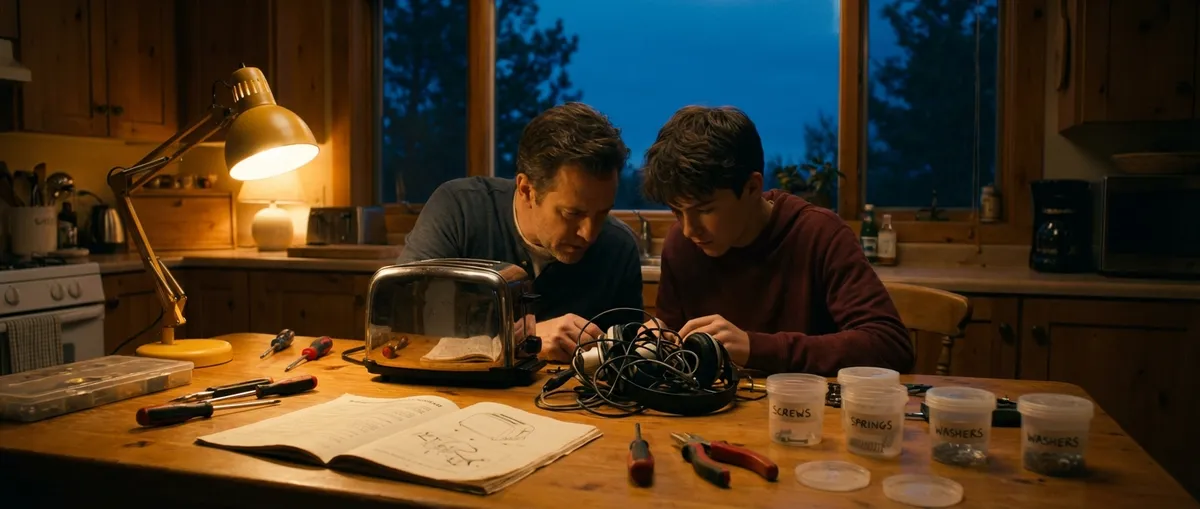
Electronics rarely fail at a “good” time—usually it’s right before a work call, movie night, or a deadline. Instead of panicking or immediately replacing your gear, you can often bring devices back to life with a few simple checks. This guide walks through five common electronics problems and shows you, step by step, how to fix them safely and efficiently.
---
1. When Your TV Shows “No Signal”
A blank screen with a “No Signal” message often looks worse than it is. In most cases, the TV is fine; the problem is usually the input, cable, or connected device.
Step-by-step fix
**Confirm the input source**
- Use the TV remote’s *Input* or *Source* button. - Slowly cycle through HDMI 1, HDMI 2, AV, etc. - Pause 3–5 seconds on each to see if the picture returns.
**Check cable connections**
- Power off the TV and connected device (cable box, streaming stick, console). - Unplug the HDMI (or AV) cable at both ends. - Inspect the cable ends and ports for bent pins or debris. - Firmly reconnect until you feel a solid “click” or snug fit.
**Test with a different cable**
- Swap in another HDMI or AV cable if you have one. - If the picture comes back, the old cable is likely damaged.
**Test with a different device/port**
- Move your device from HDMI 1 to HDMI 2 on the TV. - If possible, connect a different device (like a laptop or game console) to the same port. - If one device works and another doesn’t, the issue is with the failing device, not the TV.
**Power cycle the system**
- Turn off TV and device. - Unplug both from the wall for 60 seconds. - Press and hold the TV’s physical power button (on the frame) for 10–15 seconds (discharges residual power). - Plug back in and turn both on.
If you still see “No Signal” after testing cables, ports, and devices, the issue may be with the signal provider (cable/internet/antenna) or an internal hardware fault in the TV or connected box. Contact your service provider or a repair technician if all external checks are exhausted.
---
2. Laptop Won’t Charge or Power On
A “dead” laptop is often not dead at all—many issues are related to the charger, battery, or simple static buildup inside the system.
Step-by-step fix
**Confirm the outlet and power strip**
- Plug in a lamp or phone charger to confirm the outlet works. - If you use a power strip, press its reset/switch and test another device in it.
**Inspect the charger and cable**
- Check for fraying, cuts, or kinks in the cord. - Ensure the power brick’s indicator light (if present) is on. - Make sure connections between the wall, brick, and laptop are all secure.
**Try a different outlet and remove extras**
- Plug directly into a wall outlet, skipping surge protectors or hubs. - Disconnect USB drives, external monitors, and printers from the laptop.
**Hard reset (for laptops with removable batteries)**
- Shut the laptop down. - Remove the battery (if accessible). - Disconnect the charger. - Hold the power button for 15–20 seconds. - Reinsert the battery, plug in the charger, and try powering on.
**Power drain reset (for laptops with built-in batteries)**
- Unplug charger. - Hold the power button for 30–60 seconds. - Plug in the charger again and wait 5 minutes. - Try turning it on.
**Check for charging indicators**
- Look for a charging LED or on-screen battery icon. - If it shows “plugged in, not charging,” the charger or battery may be failing. - Try another compatible charger if available.
If the laptop still won’t power on, the battery or internal power circuitry may need professional service. Get a quote before replacing the device; a battery or DC jack repair can be much cheaper than a new laptop.
---
3. Bluetooth Headphones Won’t Pair or Keep Disconnecting
Bluetooth issues are often about confusion—devices trying to connect to old pairings or being too close to other signals.
Step-by-step fix
**Start with a clean slate**
- Turn Bluetooth off on your phone/tablet. - On the headphones, power them off completely. - Wait 10 seconds.
**Forget old connections**
- On your phone: - Go to *Settings → Bluetooth*. - Tap the (i) or gear icon next to your headphones. - Select *Forget This Device* or *Remove*. - This prevents your phone from trying to use a corrupted pairing profile.
**Enter pairing mode correctly**
- Usually: hold the power button 5–7 seconds until you see a flashing light (check your user manual for the exact method). - Some models have a dedicated **Pair** button; use that instead. - Stay within 3 feet of your phone during pairing.
**Reconnect carefully**
- Turn Bluetooth back on in your phone settings. - Wait for the headphones to appear on the device list. - Tap to connect; wait for the “Connected” status or audio confirmation.
**Eliminate interference and conflicts**
- Turn off Bluetooth on nearby devices (laptops, tablets, second phone) that might grab the headphones first. - Move away from crowded Wi‑Fi routers or microwave ovens, which can cause interference. - Avoid standing between two large metal objects, which can weaken signals.
**Reset the headphones**
- Many models support a factory reset (for example: hold Volume Up + Volume Down for 10 seconds, or power + volume key). - Check the manufacturer’s manual or website for the exact reset sequence. - After resetting, repeat the pairing steps as if it’s a new device.
Persistent pairing problems can indicate a failing Bluetooth chip in the headphones or compatibility issues with older devices. Test them with another phone or laptop; if they still misbehave, contact the manufacturer about firmware updates or warranty options.
---
4. Smartphone Overheating and Slowing Down
Phones get warm during gaming, navigation, or video calls, but constant overheating and slowdown is a warning sign. Ignoring it can shorten battery life and cause random shutdowns.
Step-by-step fix
**Remove cases and clear airflow**
- Take the phone out of thick or rubberized cases while troubleshooting. - Avoid placing it on soft surfaces like beds or couches that trap heat.
**Close demanding apps**
- On Android: open the recent apps view and swipe away all running apps. - On iPhone: swipe up from bottom (or double-click Home button) and close non-essential apps. - Stop heavy tasks like games, 4K recording, or video editing.
**Reduce screen and radio load**
- Lower brightness to 30–50%. - Turn off 5G, Bluetooth, GPS, and Wi‑Fi temporarily if not needed. - Enable *Battery Saver* (Android) or *Low Power Mode* (iOS).
**Give it time to cool**
- Move the phone to a cool, shaded place. - Do NOT place it in a fridge or freezer—rapid temperature shifts can cause condensation and damage. - Let it rest for 10–20 minutes before using again.
**Check for software updates and rogue apps**
- Install the latest system updates from *Settings → System/Software Update*. - In battery settings, see which apps are using the most power. - Uninstall or disable apps that consistently drain battery or run in the background for hours.
**Avoid charging while heavily using the phone**
- Fast charging while gaming or streaming videos generates extra heat. - When possible, let the phone charge undisturbed, or use a slower charger if overheating is frequent.
If overheating messages continue even with light use, the battery may be degraded or a background process may be stuck. Back up your data and consider a factory reset as a last software step. If that doesn’t help, schedule a battery and hardware diagnostic with a certified repair shop.
---
5. Wi‑Fi Is Connected but Internet Is Slow or Drops Out
Seeing “Connected” but watching web pages crawl or video calls freeze is incredibly frustrating. Most Wi‑Fi problems come down to distance, interference, or a tired router.
Step-by-step fix
**Restart your network in the right order**
- Power off your modem and router (and mesh units if you have them). - Wait 30–60 seconds. - Turn on the modem first; wait until all its lights stabilize. - Turn on the router next; wait 2–3 minutes before testing internet.
**Check speed directly at the modem**
- If possible, connect a laptop to the modem with an Ethernet cable. - Run a speed test (e.g., speedtest.net). - If speeds are normal via Ethernet but slow over Wi‑Fi, the issue is your router or wireless environment, not your internet service line.
**Optimize router placement**
- Place the router in a central, elevated location, not on the floor or in a cabinet. - Keep it away from thick walls, large metal objects, and microwaves. - Aim antennas (if adjustable) at slightly different angles to improve coverage.
**Reduce congestion and interference**
- Disconnect idle devices from Wi‑Fi (old phones, unused tablets, smart plugs not in use). - For dual-band routers, move streaming and gaming devices to the 5 GHz network, leaving 2.4 GHz for smart devices and longer range. - Change your Wi‑Fi channel in the router settings if neighbors use the same one (many routers have an “auto” option that does this).
**Update router firmware and device software**
- Log in to your router’s admin page (address is usually printed on the label, like 192.168.0.1). - Look for a *Firmware* or *Update* option and apply available updates. - Update your computer/phone operating system and network drivers when possible.
**Set up a simple coverage test**
- On your phone, stand next to the router and run a speed test. - Move to another room and test again. - If speeds drop dramatically or you lose connection in specific areas, you may need a Wi‑Fi extender or mesh system for full coverage.
If wired speeds are also slow or unstable, contact your internet service provider and report the test results. Mention that you’ve already rebooted the modem/router and tested over Ethernet—this helps them skip basic scripts and move to more advanced line checks.
---
Conclusion
Most everyday electronics problems look intimidating until you break them into simple checks: power, connections, settings, and environment. By following these step-by-step approaches, you can often restore your TV, laptop, headphones, phone, and Wi‑Fi without a service call. When a fix doesn’t work or symptoms keep returning, that’s your sign to stop guessing and get a professional diagnosis—before a small issue becomes a costly replacement. Save this guide, share it with someone who always calls you for tech help, and use it as your quick reference the next time a device acts up.
---
Sources
- [Federal Communications Commission (FCC) – Interference Issues](https://www.fcc.gov/consumers/guides/interference-defining-source) - Explains common causes of wireless interference and how they affect devices like Wi‑Fi and Bluetooth
- [Apple Support – If your iPhone, iPad, or iPod touch gets too warm or too cold](https://support.apple.com/en-us/HT201678) - Official guidance on phone overheating, safe operating temperatures, and protective steps
- [Microsoft Support – Troubleshoot power and charging for Surface devices](https://support.microsoft.com/en-us/surface/troubleshoot-surfaces-that-are-not-charging-or-won-t-run-on-battery-4c5d9585-1d84-4319-ae3a-19a9b57f6069) - Generalizable power and charging troubleshooting steps relevant to many laptops
- [Google – Improve your Wi‑Fi network and signal](https://support.google.com/googlenest/answer/6246634) - Practical advice on router placement, interference, and optimizing home Wi‑Fi
- [Sony Support – Bluetooth Pairing Troubleshooting](https://www.sony.com/electronics/support/articles/00008609) - Manufacturer recommendations for resolving Bluetooth pairing and connection issues
Key Takeaway
The most important thing to remember from this article is that this information can change how you think about Electronics.



