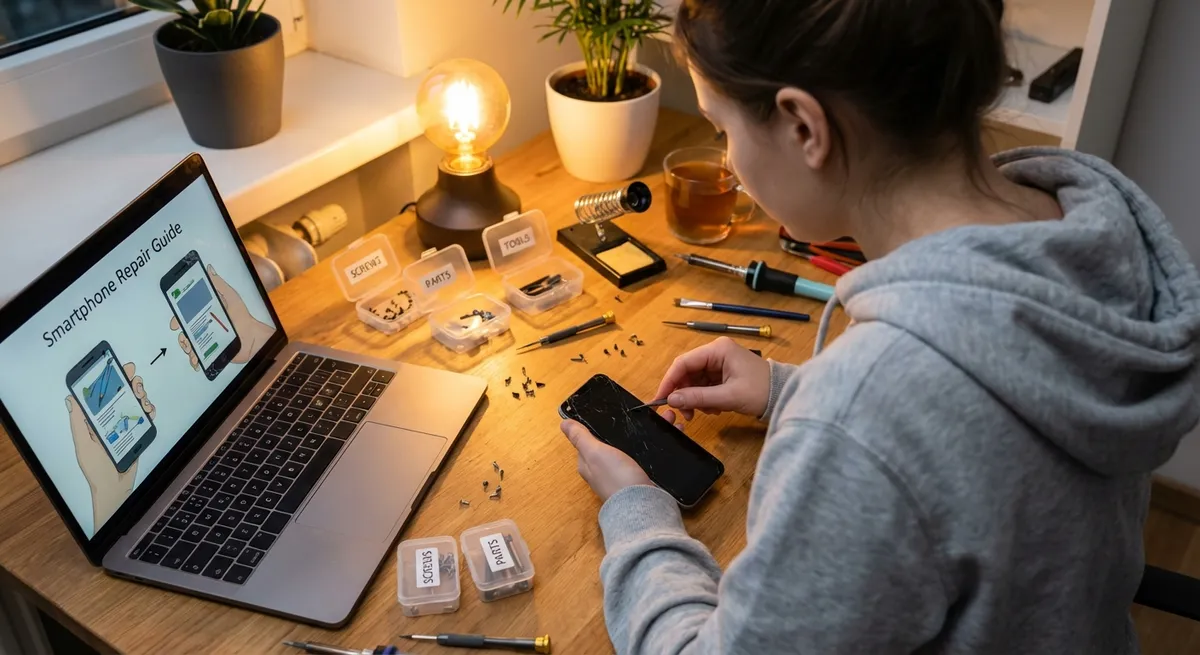
Modern electronics rarely fail completely—they usually get “annoying” first: batteries drain too fast, Wi‑Fi drops, screens freeze, or laptops overheat. The good news: many of these issues are fixable at home with simple tools and a clear plan.
This guide walks you through five common electronics problems and exactly what to do, step by step. No fluff, just practical actions you can take today.
---
1. Phone That Won’t Charge Reliably
If you have to wiggle the cable to get your phone to charge, solve it before the port fails completely.
Step 1 – Rule Out a Bad Cable or Charger
- Try a different charging cable (preferably from a reputable brand).
- Plug into a different wall adapter or USB port.
- Test your cable and adapter on another device.
- If other devices charge fine, the issue is likely your phone.
- If nothing charges, replace the cable/adapter first.
- Power off your phone completely.
- Use a bright light to look inside the charging port.
- Disable USB power restrictions or battery optimization modes temporarily while testing.
- On some phones, enable “USB charging only” when connecting to a computer to rule out data/driver issues.
Step 2 – Inspect and Clean the Charging Port
If you see lint or dust:
- Use a wooden or plastic toothpick (never metal) to gently loosen debris. - Hold the phone port facing down so debris can fall out. - Follow up with a few short bursts of compressed air (keep the nozzle a few cm away). 4. Re-test charging with a known-good cable and adapter.
Step 3 – Check for Loose or Damaged Ports
Gently insert the cable and move it slightly:
- If it feels wobbly or only charges at certain angles, the port may be physically worn.
Try wireless charging (if supported):
- If wireless charging works reliably but cable charging does not, the port is likely the issue.
Step 4 – Adjust Software Settings That Affect Charging
Step 5 – Decide: DIY or Repair Shop
- **DIY-friendly:** Cleaning the port and replacing a cable.
- **Repair shop:**
- Port is loose, bent, or visibly damaged.
- Phone overheats heavily while charging.
- Phone shows “liquid detected” or similar warnings even when dry.
---
2. Laptop Overheating or Fan Running Constantly
If your laptop feels like a space heater or the fan is screaming all the time, overheating can shorten component life and throttle performance.
Step 1 – Give the Laptop Room to Breathe
- Use the laptop on a hard, flat surface—never on a bed or couch.
- Make sure vents (usually on sides or bottom) are not blocked.
- Prop the back slightly using a stand or even a book to improve airflow.
- Retest: if temperatures and fan noise drop, you’ve found part of the problem.
- Power off the laptop and unplug it.
- If the battery is removable, take it out.
- Boot up and open Task Manager (Windows) or Activity Monitor (macOS).
- Look for apps using unusually high CPU (browsers with many tabs, heavy software, etc.).
- Close or uninstall apps you don’t need running.
- Set a balanced or power-saving mode instead of high performance for everyday tasks.
Step 2 – Check for Dust Buildup
Use compressed air:
- Short, controlled bursts into the vents. - Don’t spin fans excessively—hold the fan blades still with a toothpick if accessible. 4. Avoid vacuum cleaners that can generate static.
Step 3 – Reduce Background Load
Disable unnecessary startup programs:
- Windows: Task Manager → Startup tab. - Mac: System Settings → General → Login Items.
Step 4 – Adjust Power and Cooling Settings
Limit maximum processor state (Windows):
- Control Panel → Power Options → Change plan settings → Advanced → Processor power management. 3. On some laptops, use built-in “Silent” or “Cool” modes through manufacturer utilities.
Step 5 – When to Open the Laptop or Seek Help
- Open the laptop (if comfortable and warranty allows):
- Remove the bottom cover following a model-specific guide.
- Clean fans and heatsinks more thoroughly with compressed air.
- Inspect for dust mats over air intakes.
- Go to a pro if:
- The laptop shuts down randomly from heat.
- Fans rattle or grind (fan replacement needed).
- You suspect thermal paste replacement but have no experience.
---
3. TV or Monitor Shows “No Signal” (But Seems to Power On)
If your screen lights up but shows “No Signal” or stays blank, the issue is usually the connection or input settings.
Step 1 – Confirm the Device and Screen Both Have Power
- Make sure the monitor/TV has a power light on.
- Check that the source device (PC, console, streaming box) is actually on, not in sleep mode.
- Try waking the device with keyboard/mouse or console controller.
- Use the TV/monitor remote or buttons to cycle through inputs (HDMI 1, HDMI 2, DisplayPort, etc.).
- Make sure you’ve selected the exact port your cable is plugged into.
- Wait a few seconds on each input; some devices take time to sync.
- Turn off both the screen and source device.
- Unplug the HDMI/DisplayPort cable from both ends.
- Inspect both connectors for bent pins, corrosion, or damage.
- Firmly reconnect both ends until they click or feel fully seated.
- Connect your PC to a different known-working display (or use Safe Mode).
- Lower the resolution to something standard (e.g., 1920×1080) and apply.
- Reconnect to the original screen.
- For dual monitors, ensure “Extend” or “Duplicate” is enabled rather than “Second screen only” or “PC screen only,” depending on your setup.
Step 2 – Verify Input Source Settings
Step 3 – Check and Reseat Cables
If available, try:
- A different cable. - A different port on the TV/monitor. - A different device (e.g., plug in a laptop or console to test the screen).
Step 4 – Adjust Resolution and Display Settings (for PCs)
Step 5 – Identify a Hardware Failure
You may have a failing device if:
- Other devices work fine on the same screen and same cable.
- Your PC’s graphics card ports don’t output video to any display.
- The TV/monitor shows no menu or on-screen display even with no inputs connected.
In those cases, the likely culprits are the graphics card (PC), the HDMI/DisplayPort output (console), or the TV/monitor’s internal video board—jobs for a technician or warranty service.
---
4. Bluetooth Headphones Keep Cutting Out or Won’t Pair
Bluetooth issues are often about distance, interference, or confused pairing history—not permanent failures.
Step 1 – Start with the Basics
- Charge the headphones fully. Low battery can cause drops.
- Turn Bluetooth off and back on in your phone/computer settings.
- Move within 1–2 meters of your device with no walls in between.
- Turn off other nearby Bluetooth devices temporarily.
- Put the headphones into pairing mode.
- On your device, scan for new Bluetooth devices.
- Select your headphones from the list and complete pairing.
- If asked for a PIN, use 0000 or 1234, or check the manual.
- Check the headphone manufacturer’s app or website for firmware updates.
Step 2 – Clear Old Pairings
On your phone/computer:
- Open Bluetooth settings. - Find your headphones in the list of paired devices. - Select “Forget” or “Remove.”
On the headphones:
- Enter pairing/reset mode (check the manual or manufacturer’s support page). - Often this involves holding the power or multi-function button for 5–10 seconds until an LED flashes.
Step 3 – Re-Pair Properly
Step 4 – Reduce Wireless Interference
Keep devices away from:
- Microwaves, cordless phones, some older wireless speakers. 2. If using a PC, avoid having the tower hidden inside a metal desk or cabinet. 3. On Wi‑Fi routers, try switching from the 2.4 GHz band to 5 GHz to reduce overlap with Bluetooth.
Step 5 – Update Firmware and Drivers
On computers, update Bluetooth and audio drivers via:
- Windows Update or your PC manufacturer’s support page. - macOS: keep the system updated via Software Update.
If dropouts persist even with a clean pairing, close range, and updated software, the internal Bluetooth radio or antenna may be failing—especially if the problem appears across multiple devices.
---
5. Gadget Won’t Turn On (Phone, Tablet, Console, or Smart Device)
A “dead” device isn’t always truly dead. Often it’s a drained battery, a stuck state, or a simple power issue.
Step 1 – Try a Different Power Source
- Plug into a different wall outlet.
- Use a different charger and cable (ideally from the device’s brand or a reputable manufacturer).
- For battery-powered devices, replace the batteries with new, high-quality ones—don’t reuse “almost empty” batteries from other gear.
Step 2 – Perform a Forced Restart
Each device has a forced restart method; examples:
- Many phones: hold Power + Volume Down (or Power alone) for 10–30 seconds.
- Some tablets: hold Power for 30+ seconds.
- Game consoles: hold the power button on the console for 10–15 seconds until it fully powers off, then press again to turn on.
Check the official support page for your exact model to confirm the correct method and timing.
Step 3 – Look for Life Signs
- Plug the device in for at least 15–30 minutes.
- Make sure the power button isn’t stuck or physically damaged.
Check for:
- Any lights or LED indicators. - A faint low-battery icon. - Vibration or startup sounds. 3. If you see a battery icon, let it charge to at least 20% before heavy use.
Step 4 – Inspect Physical Buttons and Ports
Inspect the charging port:
- Look for bent pins, corrosion, or obvious damage. - Clean gently with a wooden toothpick and compressed air if dirty.
Step 5 – Decide When to Call the Pros
Seek professional help if:
- The device shows no response on any charger, cable, or outlet.
- There are signs of liquid damage (corrosion, residue, or a known spill).
- The battery shows swelling (case bulging, screen lifting)—stop using immediately.
- The device is under warranty or covered by extended protection—attempting internal repairs might void coverage.
---
Conclusion
Most electronics problems start small and get worse if ignored. By following a structured approach—rule out simple causes, test one change at a time, and know when to stop and call a pro—you can solve many issues yourself and extend the life of your gear.
Use this guide as a checklist:
- Charging weird? Start with cables and ports.
- Overheating? Clean, cool, and lighten the workload.
- No signal? Verify inputs and connections methodically.
- Bluetooth flaky? Reset pairings and reduce interference.
- “Dead” device? Systematically test power, restart options, and physical damage.
The faster you act, the more likely you’ll fix it without expensive repairs—or a complete replacement.
---
Sources
- [Apple Support – If your iPhone or iPad won’t charge](https://support.apple.com/en-us/HT207412) – Official guidance on troubleshooting charging problems, portable device ports, and power adapters.
- [Microsoft – Reduce fan noise and overheating in Windows PCs](https://support.microsoft.com/en-us/windows/reduce-fan-noise-and-heat-in-your-laptop-or-computer-93a8a0d5-a85c-646f-3d9a-0043e0c3795f) – Explains causes of overheating and practical steps for cooling and performance tuning.
- [Sony – No signal error message on the TV screen](https://www.sony.com/electronics/support/articles/00023313) – Covers systematic checks for “No Signal” issues with TVs and connected devices.
- [Bluetooth SIG – Avoiding interference with Bluetooth technology](https://www.bluetooth.com/learn-about-bluetooth/tech-overview/interference/) – Background on Bluetooth operation and interference sources, plus mitigation tips.
- [U.S. Consumer Product Safety Commission – Safety tips for rechargeable batteries](https://www.cpsc.gov/Battery-Safety) – Guidance on recognizing battery damage, swelling, and safe handling practices.
Key Takeaway
The most important thing to remember from this article is that this information can change how you think about Electronics.



