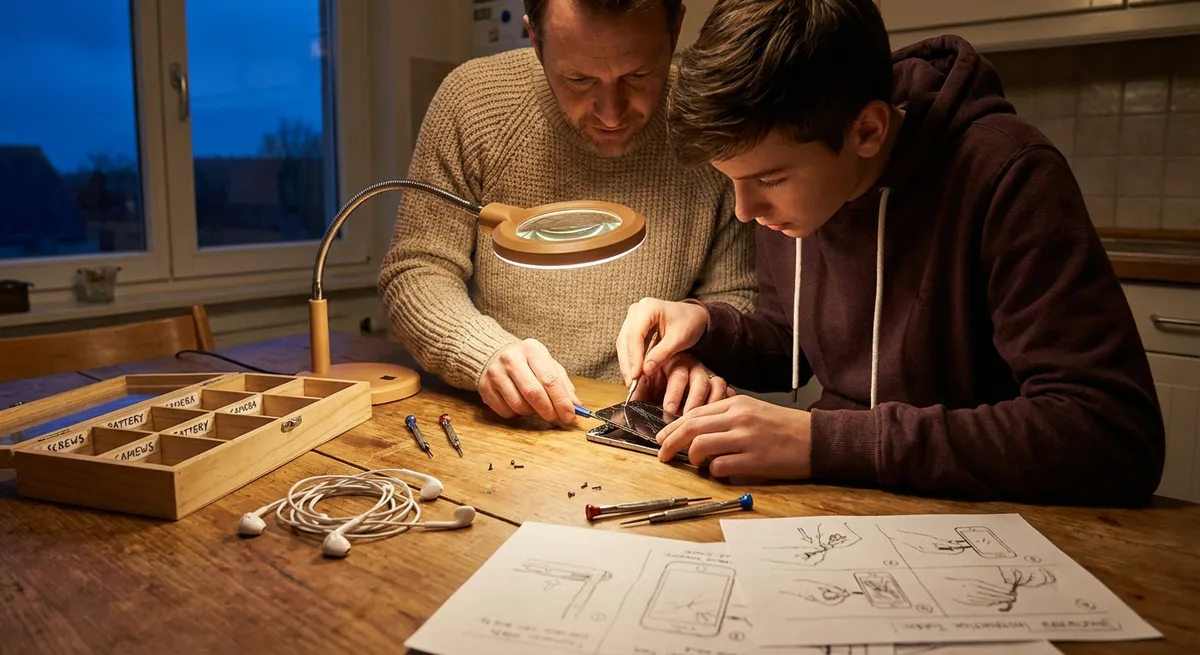
When a gadget stops working, most people jump straight to “I need a new one.” In reality, a big chunk of “dead” devices are suffering from simple, fixable issues you can tackle at home with basic tools and a bit of patience. Learning a few core troubleshooting moves can save serious money and keep your electronics out of the trash.
This guide walks you through five practical, repeatable repair patterns you can use on phones, laptops, TVs, game consoles, and more. Follow the steps in order, stay safe, and you’ll be surprised how often you can bring “broken” electronics back to life.
---
1. When It Won’t Turn On: Power & Charging Rescue
Before assuming a device is dead, treat “no power” like a detective case. Start with the supply, not the gadget. Unplug everything, then plug a known‑working device (like a lamp or phone charger) into the same outlet to confirm the outlet works. If it’s on a power strip or surge protector, plug directly into the wall—strips fail more often than you think. For battery‑powered devices, remove the battery (if possible) and inspect for swelling, leaks, or corrosion; if you see any of that, stop using it and plan for a replacement battery.
Next, inspect cables and adapters. Look for bent prongs, frayed insulation, kinks near the plug ends, or loose connectors. Try a different compatible charger or cable that you know is good; a shocking number of “dead” laptops and phones are just paired with tired chargers. If the device has a removable power cord (like many monitors and game consoles), reseat both ends firmly, then try again. For laptops, disconnect everything (charger, USB devices, external displays), hold the power button for 15–20 seconds to drain residual power, then reconnect just the charger and try to boot. On phones and tablets, perform a forced restart (for example, on many devices: hold Power + Volume Down for 10–20 seconds). Only after you’ve ruled out outlet, strip, cable, adapter, and simple resets should you consider an internal hardware failure and look into a pro repair or detailed teardown guide.
---
2. When It’s Glitchy or Frozen: The Smart Reset Sequence
Random freezes, unresponsive apps, or weird behavior are usually software problems, not signs your device is “dying.” Start with a clean restart instead of just turning the screen off. Fully shut down—don’t just sleep or lock—wait 30 seconds, then power back on. For laptops and desktops, close all programs before shutdown; for phones and tablets, trigger a forced restart if a normal one isn’t possible. After restarting, test the specific action that was failing (opening a certain app, connecting to Wi‑Fi, etc.) and see if the issue repeats.
If glitches continue, look at storage and updates. On phones, tablets, and computers, check storage usage; if you’re above 80–90% full, clear unnecessary photos, downloads, and unused apps—low storage can cause major slowdowns and crashes. Next, check for system and app updates; install critical updates first, restart again, and retest. Still stuck? Boot into a “safe mode” if your device supports it (many Android phones, Windows PCs, and some TVs do). Safe mode loads only core software; if the problem disappears there, a third‑party app or driver is the likely culprit. Disable or uninstall anything installed right before the problems began. Keep notes as you go; if you end up needing professional help, being able to say “I restarted, freed storage, updated, and tested in safe mode” gives a technician a strong head start and can save you diagnosis fees.
---
3. When There’s No Sound or Distorted Audio: Audio Path Check
Audio failures often come from a broken “audio path” rather than a dead speaker. Work through that path step by step. First, verify volume and mute: check the device volume, app volume, and any physical mute switches or keyboard mute keys. Plug in headphones and see if you get sound there. If headphones work but speakers don’t, you’ve narrowed it to speaker settings or hardware. If nothing has sound, it’s earlier in the chain—software, settings, or the media itself.
Next, inspect connections. For wired speakers, soundbars, and headsets, firmly reseat all plugs. Look inside headphone and AUX ports for lint or debris; a toothpick or soft brush can gently clear gunk that blocks proper contact (do this carefully and always with the device powered off). On Bluetooth devices, disconnect and “forget” the accessory, then re‑pair it; sometimes devices remain stuck sending audio to an old Bluetooth connection you’re not actively using. On computers and smart TVs, open the sound settings and confirm the correct output device is selected—many systems silently switch outputs when a new device is connected. If audio is distorted, crackly, or only comes from one side, try another cable or headset first; these fail far more often than built‑in speakers. Only if you get distortion from multiple audio sources and accessories should you suspect a failing speaker or sound card, which may need a professional repair or a more advanced DIY replacement.
---
4. When It Won’t Connect: Wi‑Fi & Bluetooth Recovery
Network issues are usually fixable with a clean reset sequence and a bit of setting hygiene. Start with a simple local test: can other devices in your home connect to the same Wi‑Fi or Bluetooth accessory? If they can, the problem is your device. If nothing connects, focus on the router, modem, or the accessory itself. For Wi‑Fi, unplug your modem and router (or combined unit), wait 30–60 seconds, then plug them back in and give them a few minutes to fully reboot; many “mysterious” connection problems vanish after this. For Bluetooth speakers, earbuds, or controllers, fully turn them off, then back on, and ensure they’re in pairing mode.
On the problem device, “forget” the troublesome network or Bluetooth device, then reconnect from scratch. Enter Wi‑Fi passwords manually instead of copy‑pasting. On phones and laptops, toggle Airplane Mode on, wait 10 seconds, then off again to reset radios. If only one specific app can’t connect, check that app’s permissions and any built‑in offline/download modes. Still no luck? On routers, log into the admin page (usually listed on a label underneath) and check if parental controls, MAC filtering, or device limits are turned on and blocking your device. For persistent Wi‑Fi issues in one room, try relocating the router or adding a cheap Wi‑Fi range extender before assuming your device’s Wi‑Fi chip is failing. For stubborn Bluetooth problems, clear the Bluetooth cache (on phones that support it) and limit paired devices; too many remembered connections can cause conflicts and random dropouts.
---
5. When It Overheats or Runs Loud: Cooling & Dust Clean‑Up
Overheating causes shutdowns, slowdowns, and fan noise—and in most homes, dust is the main culprit. Power down the device fully and unplug it. For laptops, desktops, game consoles, and some smart TVs, inspect all vents and fan grills. If you see a gray mat of dust, that’s blocking airflow. Use a can of compressed air in short bursts at an angle to blow dust out of vents; avoid spinning fans wildly with the air blast—hold the blades still with a toothpick or cotton swab if you can reach safely. For removable vacuum filters and dust screens, slide them out, vacuum gently, and reinstall. Never spray liquid cleaners into vents.
Next, give the device room to breathe. Laptops should sit on a hard, flat surface when working hard, not on beds or couches; soft surfaces choke off vents. Game consoles need a few inches of clearance on all sides; don’t stack them in closed cabinets without airflow. On PCs, check software: background apps can force the CPU to run hot. Open Task Manager/Activity Monitor and close heavy apps you’re not using. Updating graphics drivers and system BIOS/firmware can also improve thermal control on some machines. If overheating persists even after cleaning and airflow fixes, it might need new thermal paste or internal fan replacement—tasks that are doable with a good guide but require opening the device. At that point, decide if you’re comfortable following a teardown tutorial, or if it’s time to hand it to a pro.
---
Conclusion
Most “broken” electronics are really just stuck in one of a few common failure patterns: no power, software glitches, bad audio paths, connection tangles, or cooling problems. When you approach them methodically—checking power, resetting, cleaning, and testing one step at a time—you turn guesswork into a repeatable repair process you can use across almost any gadget.
The next time a device misbehaves, don’t jump straight to “replace.” Walk through these steps, keep notes on what changes, and you’ll either fix it yourself or have a clear story for a repair shop. Share this playbook with a friend who’s about to toss a “dead” gadget—you might save them a trip to the store and keep one more device out of the landfill.
Key Takeaway
The most important thing to remember from this article is that this information can change how you think about Electronics.



