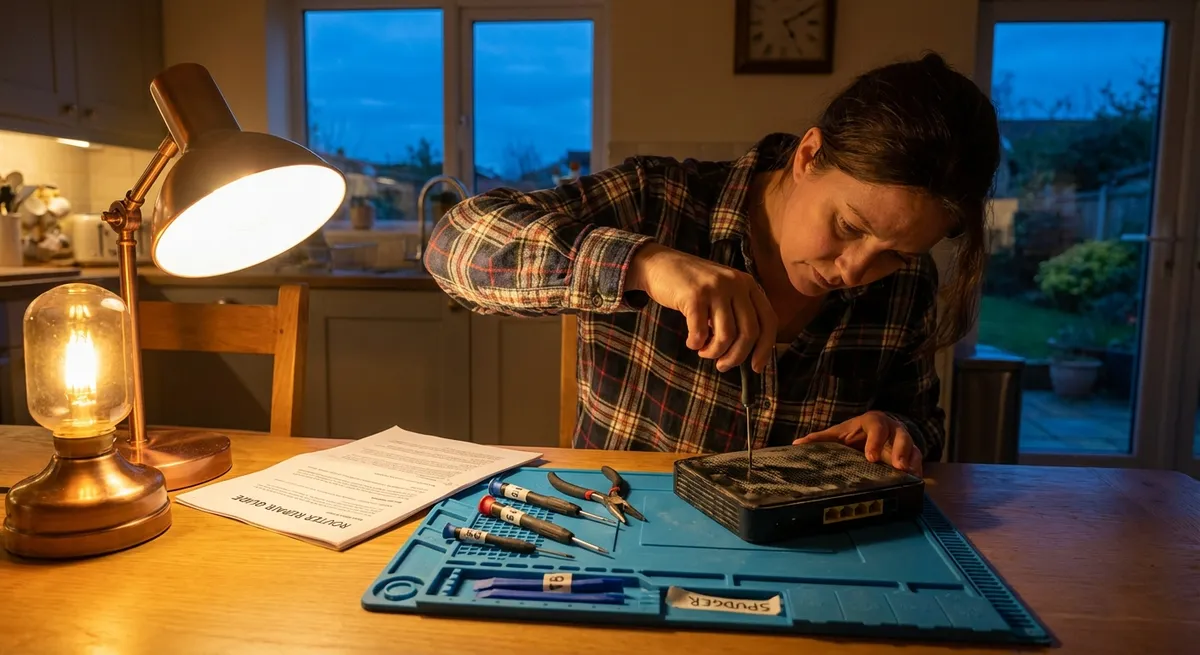
When a device suddenly stops working, it’s tempting to panic or instantly shop for a replacement. In many cases, the problem is simple—and fixable at home with basic tools and a calm, methodical approach. This guide walks through five of the most common everyday electronics issues and how to tackle them safely, step by step, without guesswork or risky shortcuts.
---
1. Device Won’t Power On (Phones, Laptops, Consoles)
When a device appears “dead,” the issue is often power-related, not a total failure.
Step‑by‑step solution
**Verify the outlet and power strip**
- Plug in a lamp or phone charger you know works. - If that also fails, reset the power strip and check the circuit breaker. - Try a second outlet in a different room to rule out a bad socket.
**Inspect and test the power cable**
- Look for kinks, frayed insulation, burn marks, or bent connectors. - Gently wiggle the plug at both ends while the device is connected—if the power flickers, the cable is likely failing. - If possible, test with a compatible known‑good cable or charger.
**Check the power button and indicator lights**
- Hold the power button for at least 10–15 seconds (some devices require a long press to start or hard reset). - Look for tiny LEDs on the charger brick or near the charge port—no light can mean a dead adapter.
**Perform a “power drain” reset (laptops, some consoles)**
- Disconnect the charger and remove the battery if it’s removable. - Hold the power button for 15–30 seconds to discharge residual power. - Reinstall the battery (if applicable), reconnect the charger, and try powering on again.
**Test the charger separately (laptops, phones)**
- For laptop chargers, many have a small indicator light—if it’s off when plugged in, the adapter may be bad. - If you have a multimeter and know how to use it, verify output voltage against the label on the adapter.
**Try a minimal‑configuration start (laptops, desktops)**
- Remove external drives, USB devices, and accessories. - Try powering on with only the charger connected (no dock, no hub).
**Stop if you smell burning or see smoke**
- Unplug immediately and do not attempt further DIY repair—internal damage or a short circuit is likely. This is a job for a professional.
---
2. Screen Is On but Nothing Responds (Frozen or Laggy Devices)
A frozen phone, tablet, or laptop can often be revived in minutes with the right reset steps—without erasing your data.
Step‑by‑step solution
**Wait 30–60 seconds first**
- Heavy apps or updates can make devices briefly unresponsive. - Check for signs of activity: spinning icon, blinking LED, or drive light.
**Force close the current app (if you can)**
- On phones/tablets, use the app switcher (usually swipe up or use the recents button) to close the stuck app. - On computers: - **Windows**: Press `Ctrl + Shift + Esc` to open Task Manager, select the app, choose “End task.” - **macOS**: Press `Option + Command + Esc`, select the app, click “Force Quit.”
**Perform a forced restart**
- **Windows laptop**: Hold the power button for 10–15 seconds until it shuts down, wait 10 seconds, then power on. - **MacBook with Touch ID/power button**: Hold the power button for ~10 seconds until it turns off, wait, then restart. - **iPhone/Android**: Use your device’s specific “force restart” key combination (often volume + power). Check the official support site if unsure.
**Free up space and resources after restart**
- Uninstall apps you don’t use, especially those that constantly run in the background. - Delete or move large files (videos, downloads, old backups) to external storage or cloud. - Ensure you have at least 10–20% free storage to prevent performance issues.
**Check for system and app updates**
- Outdated software can cause freezing. - On phones: update via Settings → System/Software Update. - On computers: use Windows Update or macOS Software Update, and update important apps (browsers, drivers, security tools).
**Scan for malware (computers)**
- Run a full scan with built‑in security tools (Windows Security, XProtect on macOS) or a reputable antivirus. - Quarantine or remove any threats, then restart.
**If freezing continues regularly**
- Back up key data immediately. - The problem may be failing storage (like a hard drive or SSD) or faulty RAM—these typically require professional diagnostics.
---
3. Charging Problems (Slow, Intermittent, or Not Charging)
Charging issues are often caused by cables, ports, or simple dirt buildup rather than the battery itself.
Step‑by‑step solution
**Confirm the basics**
- Try a different outlet and a different charger if available. - Connect the same charger to another compatible device—if that device charges fine, focus on the original device.
**Inspect and clean the charging port**
- Power off the device. - Use a bright light to check the port for lint, dust, or debris. - Gently remove debris with a wooden or plastic toothpick, or a soft anti‑static brush. Do not use metal pins or nails. - Avoid canned air directly into the port, as forceful pressure can push debris deeper or damage delicate pins.
**Examine the cable and adapter**
- Flex the cable gently along its length while charging—if charging cuts in and out, the cable is likely internally damaged. - Look for bent USB or Lightning/USB‑C connectors. Even slight bends can cause unreliable contact. - Try a certified or original‑brand replacement cable and adapter.
**Check battery and charging settings**
- Some devices limit charging to protect battery health (e.g., “optimized charging”). Check Settings → Battery. - Disable low‑power or battery‑saver modes temporarily and test again. - Close heavy apps and turn off screen while charging to see if speed improves.
**Check for temperature‑related limits**
- If the device is hot, it may slow or stop charging until it cools down. - Remove bulky or insulated cases, move the device away from direct sun or heat, and let it rest for 10–20 minutes before retrying.
**Try different USB ports (for laptops, game controllers, accessories)**
- Some USB ports supply less power than others. - Plug directly into the device rather than via a hub, especially for high‑draw items.
**When to suspect a failing battery**
- Device only charges when off, loses charge very quickly, or randomly shuts down at high percentages. - Batteries are wear items; replacement may be needed. For sealed devices, seek a qualified repair shop.
---
4. Overheating and Sudden Shutdowns (Laptops, Consoles, Routers)
Heat is a major enemy of electronics. Persistent overheating can shorten component life, but it’s often fixable with cleaning and better airflow.
Step‑by‑step solution
**Identify symptoms of overheating**
- Fans run loudly for long periods. - The device is hot to the touch, especially around vents or bottom panels. - Performance drops sharply during games or heavy apps, or the device suddenly shuts down.
**Improve ventilation immediately**
- Move the device away from walls and soft surfaces (beds, couches, carpets) that block vents. - Place laptops on a hard, flat surface so bottom vents are not covered. - For consoles and routers, keep a few inches of space around all sides.
**Clean vents and fans from the outside**
- Power down and unplug the device. - Use short bursts of compressed air aimed at vents from the outside to blow out dust. Keep the can upright to avoid moisture. - Do not spin fans aggressively with compressed air; quick, controlled bursts are safer.
**Use cooling accessories where needed (laptops)**
- A cooling pad with fans can help reduce temperatures during gaming or heavy workloads. - Elevate the back of the laptop slightly to improve airflow, but keep it stable.
**Reduce workload and background processes**
- Close unused apps and browser tabs. - Check Task Manager (Windows) or Activity Monitor (macOS) for processes using high CPU or GPU and close unneeded ones. - Reduce in‑game graphics settings or video rendering quality if the device frequently overheats during these tasks.
**Check for dust buildup internally (advanced users only)**
- If you’re comfortable and it won’t void warranty, some laptops, desktops, and consoles allow safe access to internal fans. - Always power off, unplug, and follow manufacturer instructions. If in doubt, stop and seek professional help.
**When to get professional service**
- If overheating continues even after cleaning and improving airflow. - If you smell burning, see melted plastic, or the device is almost too hot to touch. - Thermal paste, internal fans, or heat sinks may need repair or replacement.
---
5. No Sound or Distorted Audio (Speakers, Headphones, TVs)
Audio problems can be software, settings, or hardware related. Systematically checking each layer usually reveals the culprit.
Step‑by‑step solution
**Check physical volume and mute controls**
- Verify volume on both the device and the app (video player, music app, browser tab). - Confirm any physical mute switches or buttons on headphones or speakers are off. - Test with multiple apps or sources (e.g., YouTube, music player, a local file).
**Confirm the correct audio output is selected**
- **Windows**: Click the speaker icon → choose the intended output device (speakers, headphones, HDMI, Bluetooth). - **macOS**: System Settings → Sound → Output → select the correct device. - TVs: Check audio output settings (TV speakers vs. soundbar vs. HDMI ARC).
**Test with and without accessories**
- Plug in wired headphones—if sound works there, the issue may be with built‑in speakers. - Disconnect Bluetooth headphones or speakers and test device speakers alone. - On TVs, temporarily disconnect soundbars and HDMI receivers to test built‑in sound.
**Inspect cables and connectors**
- For wired setups, ensure audio cables are fully inserted into the correct ports (line out vs. headphone vs. mic). - Check for bent or broken tips on 3.5mm jacks. - Swap in a known‑good cable if possible.
**Update or reinstall audio drivers (computers)**
- **Windows**: Use Device Manager to check for audio device errors; update drivers from the manufacturer’s site if needed. - **macOS**: Audio drivers are integrated; make sure the OS is up to date.
**Check audio format and enhancements (TVs, receivers, computers)**
- Set output to a standard format (like stereo/PCM) rather than advanced surround formats that some devices don’t support. - On computers, disable audio “enhancements” or special effects in the sound settings and retest.
**Test with a different device**
- Connect the same speakers or headphones to another phone, laptop, or TV. - If the problem follows the audio device, it may need repair or replacement. - If the problem stays with the original device, the internal audio circuitry or speakers may be faulty—contact a repair shop.
---
Conclusion
Most everyday electronics problems can be broken down into a few themes: power, connections, heat, and software. By working through each issue step by step—starting with the simplest checks and moving toward more advanced ones—you often avoid unnecessary purchases and keep your devices running longer. When you hit a step that involves opening a device, smelling burning, or dealing with liquid damage, that’s your sign to stop and bring in a professional. But for many power, freezing, charging, overheating, and audio issues, a careful DIY approach is all you need.
---
Sources
- [U.S. Consumer Product Safety Commission – Electrical Product Safety](https://www.cpsc.gov/Safety-Education/Safety-Education-Centers/Electrical-Safety) - Guidance on safe use and handling of electrical products, relevant for DIY troubleshooting.
- [Apple Support – If your iPhone or iPad won’t charge](https://support.apple.com/en-us/HT201569) - Official instructions on diagnosing and fixing common mobile charging issues.
- [Microsoft Support – Troubleshoot blue screen errors and device not starting](https://support.microsoft.com/en-us/windows/troubleshoot-blue-screen-errors-and-no-boot-situations-51abdb8d-3cb6-4f24-a56c-1c932ad7f5f2) - Detailed steps for resolving startup and power-related problems on Windows devices.
- [Dell – How to prevent overheating and maintain system temperature](https://www.dell.com/support/kbdoc/en-us/000178365/how-to-prevent-overheating-and-maintain-system-temperature) - Practical manufacturer advice on handling and preventing overheating.
- [Harvard University IT – Basic computer troubleshooting tips](https://huit.harvard.edu/pages/basic-computer-troubleshooting) - General troubleshooting strategies that support many of the step-by-step approaches outlined here.
Key Takeaway
The most important thing to remember from this article is that this information can change how you think about Electronics.



