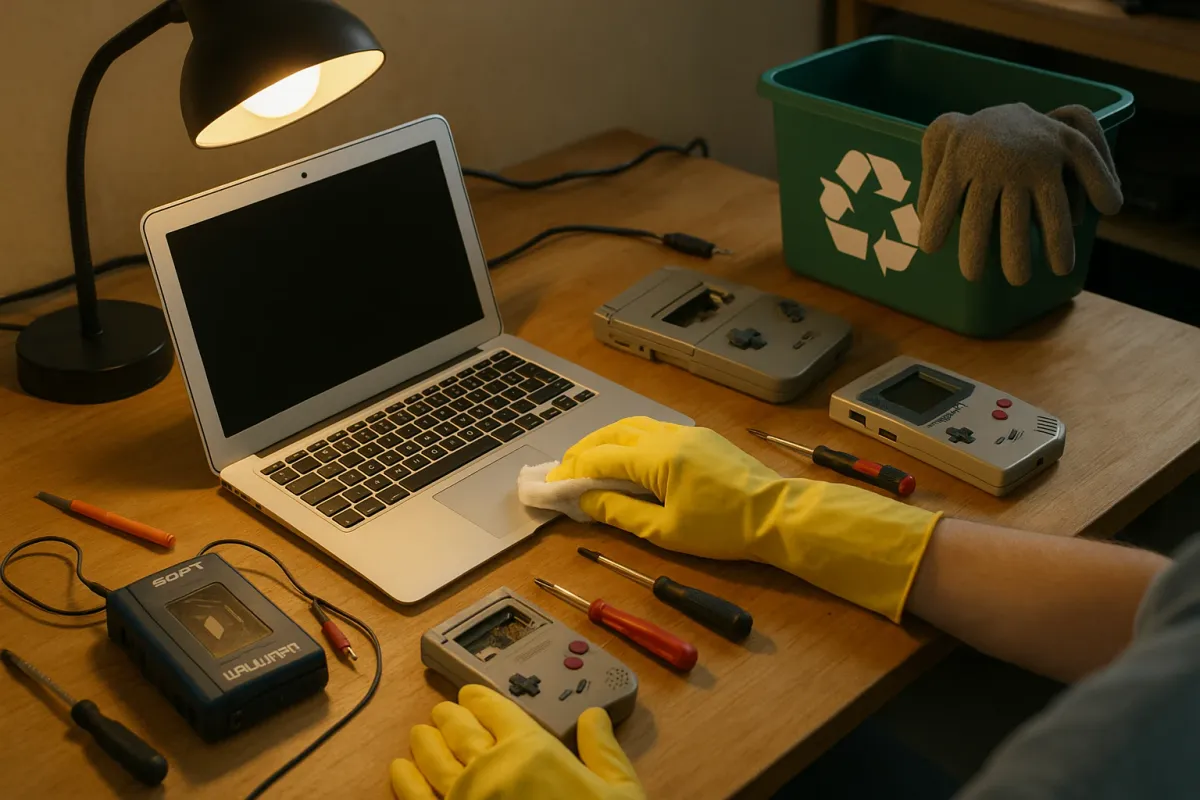
If your drawers are full of “obsolete” gadgets—old phones, dusty laptops, DVD players, MP3 players—you’re not alone. A recent viral collection of “40 Obsolete Things” making the rounds online is a reminder of how fast tech moves…and how much working hardware we quietly abandon. But a lot of that so‑called junk is only one or two simple fixes away from being useful again.
Instead of letting your older electronics sit dead in a box (or worse, tossing them in the trash), you can often repair, repurpose, or at least prepare them properly for recycling—with tools you already have at home.
Below are five practical, step‑by‑step fixes to bring common “obsolete” electronics back to life or safely out of service.
---
Revive An Old Smartphone As A Dedicated Smart Device
Old smartphones don’t have to be trash just because they’re too slow for daily use. They can still be powerful mini‑computers, especially on Wi‑Fi. Before you give up on one:
**Hard reset (after backing up):**
- If it still turns on, back up photos and contacts to Google Drive, iCloud, or a computer. - Then factory‑reset it: - **Android:** Settings → System → Reset options → Erase all data. - **iPhone:** Settings → General → Transfer or Reset iPhone → Erase All Content and Settings.
**Clean the ports and buttons:**
- Power it off. - Use a wooden toothpick to gently scrape lint from the charging port and headphone jack. - Brush around buttons and speakers with a soft, dry toothbrush. - Test charging again; a surprising number of “dead” phones are just blocked ports.
**Replace the charging cable and adapter first:**
- Rule out a bad USB cable or wall adapter. - Try a different power source (another outlet, USB port on a computer, or a different adapter).
**Battery not holding charge? Try a “light wake‑up”:**
- Plug into a known‑good charger and leave it for at least **30–60 minutes** even if the screen stays black. - Some deeply discharged batteries need time before the screen will respond. - If it only works when plugged in, the battery is likely worn out.
**Turn it into a single‑purpose device:**
- **Smart remote:** Install remote apps for your TV, streaming box, or smart lights. - **Dedicated music player:** Load it with music, connect to a Bluetooth speaker, and keep it in the kitchen, garage, or car. - **Security camera:** Apps like Alfred or Manything can turn old phones into Wi‑Fi security cameras. - **Kid device:** Install only kids’ learning apps and lock down everything else with parental controls.
If the screen is shattered or the battery is completely dead and you’re not comfortable doing parts replacement, skip to the last section to dispose of it safely.
---
Breathe Life Back Into A “Dead” Laptop That Won’t Start
Many laptops that seem “dead” are actually suffering from simple power or boot issues. Before assuming it’s gone for good:
**Power drain reset:**
- Unplug the laptop from the charger. - Remove the battery if it’s removable (older models often allow this). - Press and hold the power button for **20–30 seconds** to discharge residual power. - Reinsert the battery, plug in the charger, and try turning it on again.
**Check the charger and power jack:**
- Look for damage: frayed cable, bent plug, or a loose connection at the laptop. - If the charging light never turns on, try: - Another compatible charger (borrow from a friend or test at a repair shop). - Lightly wiggling the plug (without force). Flickering charge indicates a loose DC jack that may need pro repair.
**Boot to basic diagnostics:**
- On **Windows laptops**, try forcing a boot menu: - Turn it off completely. - Turn it on and immediately tap **F2, F10, ESC, or DEL** (varies by brand) repeatedly to enter BIOS/UEFI. - If you can get into BIOS, your hardware likely isn’t totally dead; the problem may be Windows. - On **MacBooks**, try: - **SMC reset (Intel MacBook):** Shut down, then Shift + Control + Option + Power for 10 seconds. - **NVRAM reset:** Power on and immediately hold Option + Command + P + R for about 20 seconds.
**Try safe mode (if it starts but crashes):**
- **Windows:** Hold Shift while clicking Restart → Troubleshoot → Advanced options → Startup Settings → Restart → select Safe Mode. - **macOS:** Hold the power button to see startup options, then press and hold Shift and select your startup disk.
**Clean out dust to prevent overheating shutdowns:**
- Power off and unplug. - Use short bursts of compressed air to blow through vents on the sides and bottom. - Avoid spinning fans too hard with air; block the blades with a toothpick if needed. - Overheating can trigger sudden shutdowns that look like hardware failure.
If none of this helps and the laptop is older, consider pulling the drive (or having a shop do it) to rescue your data before recycling.
---
Fix A DVD/Blu‑ray Player Or Game Console That “Can’t Read Disc”
Physical media isn’t gone yet—lots of people still use DVD/Blu‑ray players and disc‑based game consoles (PS4, Xbox One, older PlayStations). When they suddenly refuse to read discs:
**Start with the disc, not the player:**
- Inspect the underside of the disc in bright light. - If you see fingerprints or light smudges, clean it with: - A soft microfiber cloth. - Wipe from the center straight out to the edge (never in circles). - Try another known‑good disc to see if it’s a disc or player issue.
**Clean the disc tray and area:**
- Power off and unplug the device. - Use a dry microfiber cloth to gently clean dust from the tray. - Blow out dust with canned air (short bursts, tray open).
**Use a proper lens cleaning disc (not DIY methods):**
- Purchase a **DVD/Blu‑ray lens cleaning disc**—it has small brushes designed for optical lenses. - Insert and follow on‑screen instructions. - Avoid opening the device and touching the lens directly unless you’re experienced; they scratch easily.
**Check for overheating/vent blockage:**
- Feel the top/bottom of the device after it’s been on—it should be warm, not burning hot. - Make sure vents are not covered by other devices, fabric, or clutter. - Overheating can cause reading errors and random shutdowns.
**Update firmware (for consoles and some players):**
- **Game consoles:** Connect to the internet and check for system updates in Settings. - **Some Blu‑ray players:** Download firmware from the manufacturer’s website and update via USB, following their instructions. - New discs sometimes require up‑to‑date firmware to work correctly.
If your player is old enough that firmware isn’t available and cleaning doesn’t help, consider repurposing it for CD playback only (if that still works), or moving on to recycling.
---
Bring Back Old Speakers And Headphones With Simple Connection Fixes
Vintage speakers, older Bluetooth speakers, and wired headphones are some of the easiest “obsolete” electronics to save. Most issues are cable or connection related.
**For wired headphones and AUX speakers (static or one side out):**
- Plug into a different device (phone, laptop, tablet) to rule out the source. - Slowly twist and bend the plug near the end while audio plays at low volume: - If sound cuts in/out, the cable near the plug is failing. - For basic over‑ear headphones, replacing the plug or cable is often a cheap fix at a repair shop.
**Clean the audio jack on your device:**
- Power off the device. - Use a wooden toothpick to gently twist out lint from the headphone jack. - Follow with 1–2 quick blasts of compressed air. - A packed jack can make it seem like headphones are broken when the device isn’t making full contact.
**For Bluetooth speakers (won’t connect or drops connection):**
- **Reset the speaker:** Often done by holding Power + Bluetooth button for 5–10 seconds (check your model’s manual). - On your phone: Settings → Bluetooth → Forget the device, then re‑pair. - Keep the speaker within **1–2 rooms**; walls and appliances can kill Bluetooth range.
**For powered bookshelf speakers (hum or buzz):**
- Use a different outlet to rule out ground noise. - Try another audio cable—cheap cables pick up interference. - Keep the audio cable away from power strips and large power bricks.
**Check volume at every stage:**
- Source device volume (phone/computer). - App volume (YouTube, Spotify, etc.). - Speaker’s own volume knob or buttons. - Mis‑matched levels can make “quiet” sound like “broken.”
With a bit of cleaning and connection checking, many “done for” speakers become perfectly usable again—great for garages, workshops, or kids’ rooms.
---
Safely Retire Truly Dead Gadgets (Without Risking Your Data)
Some electronics really are finished: cracked beyond repair, corroded from water damage, or with parts too expensive to justify fixing. But before you throw anything away, protect your data and the environment.
**Wipe your data if it still turns on:**
- **Phones/Tablets:** Perform a factory reset (as in the first section). - **Laptops:** If possible, sign out of accounts (Google, Apple, Microsoft) and use the built‑in reset/restore options under Settings.
**If it won’t turn on, remove or destroy the storage (if you can):**
- **Laptops/Desktops:** - Remove the bottom cover (usually a few screws). - Carefully disconnect the hard drive or SSD. You can: - Keep it as a backup drive (with an enclosure), or - Physically destroy it (drill through it or hammer the platters) if you’re worried about data. - **Some phones/tablets:** Storage is often soldered; in that case, prioritize professional recycling rather than DIY destruction.
**Do NOT throw batteries in the trash:**
- Lithium‑ion batteries (phones, laptops, power banks) can ignite in garbage trucks or landfills. - Many electronics stores, supermarkets, and municipal centers have **battery and e‑waste drop‑off** points.
**Use official or reputable e‑waste recyclers:**
- Search “[your city] electronic waste recycling” or check your local government website. - Many areas run free e‑waste days where you can drop off TVs, old PCs, cables, and more. - Some phone manufacturers and retailers offer trade‑in or take‑back programs, sometimes with a credit.
**Remove accessories and cables first:**
- Chargers, HDMI cables, USB cables, and adapters are often still useful and compatible with newer gear. - Keep a labeled box for spare cables—it will save you from buying duplicates later.
Proper disposal won’t “revive” your obsolete tech, but it closes the loop responsibly and often uncovers a few parts you can still put to work.
---
Conclusion
The buzz around “obsolete” gadgets is fun nostalgia—but in real life, a lot of that gear still has plenty to give. Old phones can become smart remotes or cameras, “dead” laptops may just need a power reset, disc players and consoles often only need cleaning, and dusty speakers usually suffer from simple connection issues.
Before you toss anything, run through these repair steps. If it truly can’t be saved, wipe your data, salvage the useful bits, and recycle the rest properly. You’ll cut clutter, save money, and keep a surprising amount of electronics out of the landfill.
If you’ve just brought an “obsolete” device back to life, share what you fixed and how—you’ll help someone else rescue theirs instead of replacing it.
Key Takeaway
The most important thing to remember from this article is that following these steps can lead to great results.



