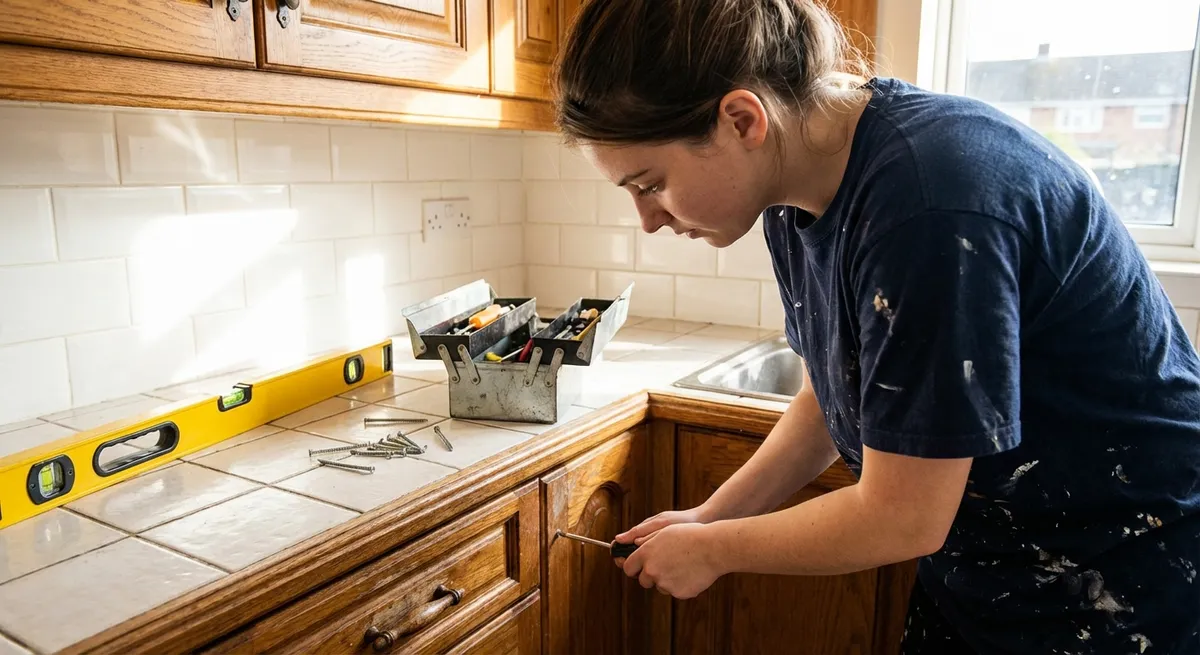
Small problems pile up fast—dripping faucets, dead remotes, slow Wi‑Fi, squeaky doors, dim lamps. You don’t always need a pro or a new gadget. With a few basic tools and a clear plan, you can solve a lot of everyday issues in under an hour. This guide walks you through five practical, step‑by‑step fixes you can handle yourself, even if you’re not “handy.”
---
Stop a Dripping Faucet (Without Replacing the Whole Thing)
A dripping faucet wastes water, raises your bill, and is just plain annoying. In many cases, the fix is simply replacing a worn‑out washer or cartridge.
What you’ll need
- Adjustable wrench or set of wrenches
- Screwdriver (usually Phillips)
- Replacement washer or cartridge (match your faucet brand/model)
- Towel or rag
- Small container for screws/parts
Step‑by‑step
**Turn off the water supply**
Look under the sink for two shutoff valves (hot and cold). Turn them clockwise until they stop. Open the faucet to release any remaining water.
**Plug the drain**
Use the sink stopper or a rag so tiny screws or parts don’t fall down the drain.
**Remove the handle**
- Pop off any decorative cap on the handle with a small flat screwdriver or fingernail. - Unscrew the handle screw and gently pull the handle off.
**Access the cartridge/valve**
- Use the wrench to loosen the packing nut or retaining nut. - Pull out the cartridge or stem. Take a photo so you remember how it goes back together.
**Inspect and replace parts**
- Check rubber washers and O‑rings for cracks or flattening. - Replace them with new ones of the same size, or swap in a new cartridge that matches your faucet brand/model. (Bring the old part to the hardware store if you’re unsure.)
**Reassemble the faucet**
- Insert the new or repaired cartridge/stem the same way it came out. - Tighten the retaining nut snugly (don’t overtighten). - Reinstall the handle and decorative cap.
**Turn water back on and test**
Slowly turn the shutoff valves counterclockwise. Open the faucet and check for leaks at the base and spout. If it still drips, gently snug up the retaining nut a bit more.
---
Bring a “Dead” Remote Back to Life
When your TV or streaming remote stops responding, it’s often something simple—batteries, contacts, or signal interference.
What you’ll need
- New batteries (correct type, usually AA or AAA)
- Cotton swabs
- Isopropyl alcohol (70% or higher)
- Soft cloth or paper towel
Step‑by‑step
**Check obvious obstacles**
Make sure nothing is blocking the line of sight to the TV’s sensor (sound bars, decorations, kids’ toys, etc.). Move within 6–10 feet and try again.
**Replace the batteries correctly**
- Open the battery cover. - Remove old batteries and check for corrosion (white or greenish powder). - Insert new batteries, matching the + and – symbols in the compartment.
**Clean corroded contacts (if needed)**
- If you see corrosion, lightly dampen a cotton swab with isopropyl alcohol. - Gently scrub the metal contacts until they look shiny. - Let it dry completely before inserting new batteries.
**Test the infrared (IR) signal (for IR remotes)**
- Open your smartphone camera. - Point the remote’s front at the camera and press any button. - You should see a faint flashing light on the phone screen. - No flash? The remote’s internal electronics may be faulty.
- **Unpair/repair for smart remotes (Roku, Fire TV, etc.)**
- Remove the batteries.
- Unplug your streaming device or TV for 30 seconds, then plug it back in.
- Reinsert batteries and follow on‑screen pairing instructions (often holding a specific button near the device).
**Minimize interference**
Move other electronics (Wi‑Fi routers, game consoles) a bit farther from the TV if you notice lag or intermittent response, especially with Bluetooth/Wi‑Fi remotes.
---
Quiet a Squeaky Door in Minutes
A squeaky door is usually just dry metal rubbing on metal. Lubricating the hinge points typically solves it fast.
What you’ll need
- Lubricant (silicone spray or white lithium grease preferred; cooking oil is a last resort)
- Rag or paper towels
- Flathead screwdriver (optional)
- Hammer (optional)
Step‑by‑step
**Identify the noisy hinge**
Open and close the door slowly to pinpoint which hinge squeaks.
**Try lubricating in place first**
- Spray or apply a small amount of lubricant directly onto the hinge pin and pivot points. - Open and close the door 10–15 times to work the lubricant in. - Wipe excess to avoid drips.
**If it still squeaks, remove the hinge pin**
- Place the flathead screwdriver under the lip of the hinge pin (bottom side). - Gently tap the screwdriver with a hammer to lift the pin up and out. - Do this with the door mostly closed so it doesn’t twist.
**Clean and lubricate the pin**
- Wipe off old dirt and rust with a rag. - Coat the pin lightly with lubricant (or rub with a thin layer of petroleum jelly).
**Reinsert the pin**
- Slide the pin back into the hinge from the top. - Tap gently with the hammer until it’s fully seated. - Open and close the door again; repeat for other hinges if needed.
**Prevent future squeaks**
Once or twice a year, give high‑use doors a quick hinge lubrication as part of routine maintenance.
---
Fix a Lamp That Won’t Turn On
Before you throw out a lamp, rule out simple electrical issues and a worn‑out socket or switch. Many lamp fixes are low‑risk and cheap.
Safety first
If you’re ever unsure, stop and call a qualified electrician. Never work on a lamp that’s plugged in.
What you’ll need
- New bulb (correct base and wattage)
- Plug‑in device you know works (for testing the outlet)
- Screwdriver (usually Phillips)
- Replacement lamp socket or cord set (if required)
Step‑by‑step
**Test the outlet**
- Unplug the lamp. - Plug in a phone charger or other working device. - If that device won’t power on, the outlet or circuit may be the issue—check your breaker panel.
**Try a new bulb**
- Install a fresh bulb of the correct type and wattage (don’t exceed the lamp’s rating on its label). - If the lamp still doesn’t work, move on.
**Check the cord and plug**
- Unplug the lamp. - Run your hand along the cord (visually first) to look for cuts, fraying, or melted spots. - If the cord is damaged, stop using the lamp until you replace the cord or have it professionally repaired.
**Test the switch**
- Turn the lamp on and off while gently wiggling the switch. - A loose or intermittent switch may indicate a failing socket/switch assembly.
**Replace the socket (common repair)**
- Unplug the lamp. - Remove the shade and bulb. - Pull up the outer shell of the socket (it usually snaps off). - Loosen the two terminal screws and note which wire goes where (take a photo). - Disconnect wires and remove the old socket. - Install the new socket: connect the ribbed (neutral) wire to the silver screw and the smooth (hot) wire to the brass screw, then tighten. - Snap the new socket shell back into place, reinstall bulb and shade, then test.
**If it still won’t work**
There may be internal wiring issues. At that point, replacement or professional repair is safer than continued DIY.
---
Boost Slow Wi‑Fi at Home Without Buying New Gear
Sluggish Wi‑Fi is often a placement or interference problem, not a hardware failure. A few smart tweaks can noticeably improve performance.
What you’ll need
- Your Wi‑Fi router login info (often on a sticker)
- Smartphone or laptop
- Basic understanding of your home layout
Step‑by‑step
**Reposition your router**
- Place it in a central, elevated location (on a shelf or table, not on the floor). - Avoid closets, cabinets, or spots directly behind TVs, aquariums, or thick walls. - Keep it away from microwaves and cordless phone bases.
**Reduce signal blockers**
- Metal objects, large mirrors, and brick walls all weaken Wi‑Fi. - If your router is tucked in a corner behind electronics, move it out into the open.
**Restart your equipment properly**
- Unplug your modem and router. - Wait 30 seconds. - Plug in the modem first; wait until all lights stabilize. - Then plug in the router and wait another 1–2 minutes before testing.
- **Change your Wi‑Fi channel (for 2.4 GHz networks)**
- Log into your router’s admin page (address like 192.168.0.1, listed on the router).
- Look for “Wireless settings” or “Advanced wireless.”
- Change the channel to 1, 6, or 11 and test which performs best.
- This can reduce interference from neighbors’ networks.
**Use the 5 GHz band if available**
- Many routers provide both 2.4 GHz and 5 GHz networks. - Connect devices that are closer to the router (like TVs, laptops) to 5 GHz for faster speeds and less interference. - Use 2.4 GHz for devices farther away or smart home gadgets.
**Secure your network**
- Make sure your Wi‑Fi has a strong password and uses WPA2 or WPA3 encryption. - Unauthorized users can slow your connection and pose security risks.
**When to consider upgrades**
If your router is 5+ years old, or you have a large multi‑story home, mesh Wi‑Fi or a modern router may be a worthwhile investment once you’ve tried these basic optimizations.
---
Conclusion
You don’t need a workshop full of tools to make your home work better—just a clear process and a willingness to try. Stopping a drip, reviving a remote, silencing a squeak, saving a lamp, and speeding up your Wi‑Fi are all realistic projects for beginners when you follow safe, step‑by‑step instructions.
Tackle one fix at a time, keep basic tools on hand, and document what you do with quick photos as you go. Over time, you’ll build confidence and save money—not by ignoring problems, but by solving them yourself.
---
Sources
- [U.S. Environmental Protection Agency – Fix a Leak](https://www.epa.gov/watersense/fix-leak-week) – Data on water waste from leaks and basic guidance on addressing common household plumbing leaks
- [Family Handyman – How to Fix a Leaking Faucet](https://www.familyhandyman.com/project/how-to-fix-a-leaking-faucet/) – Detailed breakdown of faucet types and repair steps for different designs
- [Energy.gov – Electricity & Appliance Safety](https://www.energy.gov/energysaver/safety-electrical-appliances-and-electronics) – Safety guidelines for working with lamps, cords, and electrical devices
- [Federal Communications Commission – Wi‑Fi Network Optimization Tips](https://www.fcc.gov/consumers/guides/broadband-speed-guide) – Practical advice on getting better broadband performance and understanding speeds
- [Ohio State University Extension – Home Maintenance Basics](https://ohioline.osu.edu/factsheet/hyg-5324) – General guidance on routine home maintenance, safety, and DIY readiness
Key Takeaway
The most important thing to remember from this article is that this information can change how you think about DIY Solutions.