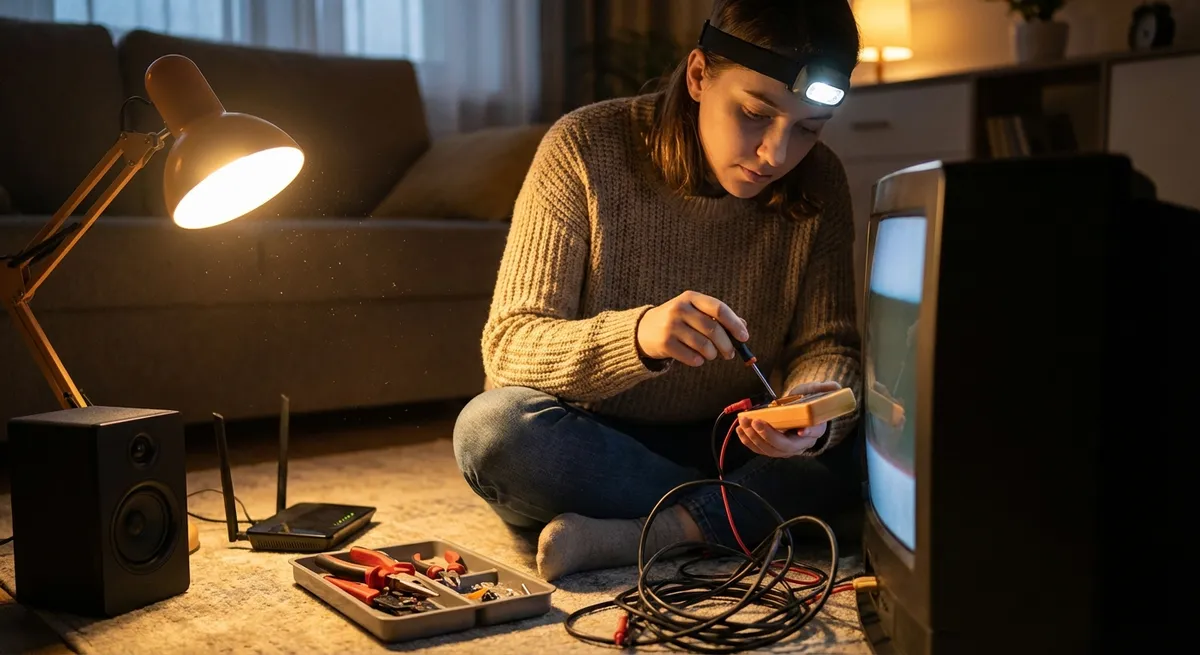
When your electronics act up, it’s tempting to assume they’re dead and start shopping for replacements. In reality, many “broken” devices are just confused, dirty, or misconfigured. With a few basic checks and simple tools, you can rescue a surprising number of gadgets at home—safely and without guesswork.
This guide walks you through five common electronics problems with clear, step‑by‑step solutions you can try right now.
---
1. Device Won’t Turn On (Phones, Laptops, Consoles)
A device that looks completely dead is often stuck in a power or software glitch—not actually fried.
Step-by-step fix
**Check the outlet and strip first**
- Plug a lamp or phone charger into the same outlet. - If that doesn’t work, try another outlet and inspect surge protectors or power strips. - Reset any power strip or GFCI outlet (the ones with TEST/RESET buttons).
**Inspect the power cable and adapter**
- Look for bent plugs, frayed insulation, or burn marks. - Wiggle the connector gently at the device end—if power cuts in and out, the cable may be faulty. - Try a known‑good, compatible charger or cable if you have one.
**Force a power reset (many devices just need this)**
- **Laptop (non-removable battery):** - Unplug charger. - Hold the power button for 15–30 seconds. - Release, plug the charger back in, and try to turn it on. - **Smartphone/tablet:** - Hold Power + Volume Down for 10–20 seconds (varies by brand) until the logo appears. - **Game console:** - Unplug it from the wall for 60 seconds. - Hold the power button (while unplugged) for 10 seconds, then reconnect and power on.
**Try a minimal boot (for laptops and desktops)**
- Disconnect all accessories: USB drives, printers, external monitors, docking stations. - For desktops: - Unplug from the wall. - Press and hold the power button 10–15 seconds. - Plug in and try again with only keyboard, mouse, and monitor attached.
**Check for signs of life**
- Any LED lights? Fan noise? Vibration when pressing power? Screen backlight glow? - If you see a charging light but no screen, move to the display section below.
**When to stop and seek help**
- You smell burning or see scorch marks. - The device got wet recently (skip powering on and go to professional repair). - The power adapter is visibly damaged or making noise (buzzing, crackling).
---
2. Screen Is On but Nothing Displays (Monitors, TVs, Laptops)
A blank or “no signal” screen can be caused by cables, wrong inputs, or brightness settings—not necessarily a dead display.
Step-by-step fix
**Confirm the device is actually on**
- Look for power LEDs on the screen and the connected device (laptop, console, PC). - Listen for startup sounds or fan noise.
**Check input and source selection (TVs/monitors)**
- On TVs: use the **Input/Source** button on the remote and cycle through HDMI1, HDMI2, etc. - On monitors: use the side or bottom buttons to select the correct input (HDMI, DisplayPort, VGA). - Make sure the cable is connected to the same port that’s selected as the input.
**Inspect and reseat cables**
- Power off both the screen and the source device. - Disconnect HDMI/DisplayPort cable at both ends, inspect for bent pins, then reconnect firmly. - Try a different cable if available; cheap HDMI cables fail more often than most people realize.
**Try a different source / different screen**
- Plug another device (like a laptop, streaming stick, or game console) into the same TV/monitor. - If the second device works, the issue is likely with your original device, not the screen. - Conversely, connect your laptop/PC/console to another monitor or TV to isolate the fault.
**Laptop-specific checks**
- Shine a bright flashlight at the screen at an angle. - If you see a faint image, the backlight may be failing (professional repair usually required). - Look for function keys with a screen icon (often F4, F5, or F8) and toggle display modes: - Laptop screen only - Duplicate - Extend - Second screen only
**Reset display settings (when you can see a bit of output)**
- If resolution is set too high, the screen can go black. - On Windows, try booting into **Safe Mode** (press F8/Shift+F8 or via advanced startup options) and reset resolution to a standard 1920x1080 or lower.
---
3. Wi‑Fi Is Slow or Keeps Dropping (Routers, Laptops, Phones)
Network issues often come from interference, router glitches, or simple placement problems—not just your internet provider.
Step-by-step fix
**Power‑cycle your modem and router**
- Unplug modem and router from power (and any backup battery if accessible). - Wait at least 30 seconds. - Plug modem back in first; wait until all lights stabilize (1–3 minutes). - Then plug in the router and wait another 1–2 minutes. - Test your connection.
**Check if it’s device-specific**
- If only one device has issues, the problem is likely with that device. - If all devices are slow, focus on the router/modem and your service.
**Move closer and reduce interference**
- Test near the router; if speed improves, distance or obstacles (walls, floors, metal appliances) are the issue. - Keep the router off the floor and away from microwaves, cordless phones, and thick walls.
**Forget and reconnect to the network (on the affected device)**
- On the device, go to Wi‑Fi settings. - Tap your network name → **Forget** (or Remove). - Reconnect and re-enter the password carefully. - This clears out corrupted settings.
- **Switch Wi‑Fi bands (2.4 GHz vs 5 GHz)**
- If you see two network names (often ending in “2.4G” and “5G”):
- Use **5 GHz** for faster speeds when close to the router.
- Use **2.4 GHz** for better range through walls but slower speeds.
**Update router firmware and device drivers**
- Log in to your router’s admin page (address is usually printed on a label, like 192.168.0.1). - Look for **Firmware Update** or **Software Update** and follow the instructions. - On laptops, update Wi‑Fi drivers via Device Manager (Windows) or Software Update (macOS).
**Check your actual internet speed**
- Use a wired connection to run a speed test (e.g., to fast.com or your ISP’s speed test). - Compare results to your plan’s advertised speed. - If wired speeds are also low, contact your provider.
---
4. Battery Dies Too Fast (Phones, Laptops, Wireless Gadgets)
Batteries naturally age, but you can usually regain hours of use by fixing settings and charging habits.
Step-by-step fix
**Identify your biggest battery drains**
- On smartphones, check **Battery** or **Battery Usage** in Settings. - Note which apps or functions (screen, games, social media, GPS) consume the most power.
**Reduce screen power usage**
- Lower brightness to the lowest comfortable level. - Turn off **Adaptive/Auto Brightness** if it frequently over-brightens. - Shorten screen timeout (e.g., 30 seconds or 1 minute).
**Disable unnecessary connections**
- Turn off Bluetooth, GPS, and Wi‑Fi when not in use. - Disable “always searching” features like Wi‑Fi scanning and Bluetooth scanning in advanced settings. - On laptops, unplug external accessories you don’t need (USB drives, dongles, lights).
**Use built-in power saving modes**
- Enable **Battery Saver** or **Low Power Mode** on phones. - On laptops, switch to **Power Saver** or **Battery** mode in your OS settings. - Reduce performance settings when on battery if you’re just browsing or doing light work.
**Optimize charging habits**
- Avoid running the battery down to 0% regularly. Aim for 20–80% in normal use. - Don’t leave devices in hot cars or direct sun while charging. Heat accelerates battery wear. - Use quality, certified chargers that match your device’s specifications.
**Calibrate the battery indicator (occasionally)**
- Once every month or two: - Charge to 100% and leave it on the charger for an extra 30–60 minutes. - Use the device until it reaches about 10–15%. - Fully charge it back to 100% without interruption. - This helps the system estimate remaining power more accurately (doesn’t “heal” the battery, but improves readings).
**Know when replacement is the real fix**
- If your phone or laptop unexpectedly shuts down at 20–40%, even after optimization, the battery is likely worn out. - Check battery health indicators (iOS Battery Health, macOS System Information, or manufacturer diagnostic tools). - Plan for a professional battery replacement if health is significantly degraded.
---
5. Overheating and Loud Fans (Laptops, Consoles, Desktops)
Heat is a silent killer of electronics. Overheating can slow devices, cause random shutdowns, and shorten component life.
Step-by-step fix
**Give the device room to breathe**
- Ensure vents aren’t blocked by blankets, pillows, or walls. - Keep laptops on hard, flat surfaces—avoid beds, couches, and thick carpets. - For consoles, leave several inches of space around all sides and the back.
**Clean dust from vents (without opening the device initially)**
- Power off and unplug the device. - Use short bursts of compressed air at vent openings, holding the can upright. - For laptops, blow air at an angle, not straight into the vents, to avoid forcing dust deeper. - Do this outside if possible; dust will blow out.
**Check for software causes of overheating**
- Open Task Manager (Windows), Activity Monitor (macOS), or equivalent: - Look for programs using high CPU (often above 80–90%). - Close browsers with many tabs, heavy games, or background apps you don’t need. - Run one demanding app at a time when possible, especially on older hardware.
**Use cooling aids (especially for laptops)**
- Use a laptop stand to improve airflow underneath. - Consider a cooling pad with built‑in fans if your laptop regularly runs hot while gaming or editing.
**Update system and drivers**
- Install the latest OS updates and manufacturer drivers, especially graphics and chipset drivers. - Many updates include thermal and fan management improvements.
**Deep cleaning (when you’re comfortable and it’s safe)**
- Desktops: - Power off, unplug, and open the side panel. - Use compressed air to blow dust out of fans, heat sinks, and power supply vents. - Hold fan blades still with a toothpick or finger while cleaning to avoid overspinning. - Laptops and consoles: - Opening them can void warranties or damage delicate connectors. - Only proceed if you have a guide specific to your model and the right tools—or seek professional service.
**Watch for warning signs**
- Frequent automatic shutdowns while under light load. - Fans running at maximum even when idle. - Very hot surfaces that are uncomfortable to touch for more than a few seconds. - In these cases, stop intensive use and get the device inspected; long-term overheating can cause permanent damage.
---
Conclusion
Most everyday electronics problems are less about catastrophic failure and more about power, settings, dust, or simple wear. By following structured checks—outlets, cables, resets, settings, cleaning—you can often bring “dead” or misbehaving devices back to life without special tools.
Use these five workflows as your go‑to playbook before you replace anything. You’ll save money, extend your gear’s lifespan, and build confidence tackling future issues instead of living with them or throwing devices away prematurely.
---
Sources
- [Apple Support – If your Mac doesn’t turn on](https://support.apple.com/en-us/HT204267) - Official step-by-step guidance for power and startup issues on Macs
- [Microsoft Support – Troubleshoot blue screen errors](https://support.microsoft.com/en-us/windows/troubleshoot-blue-screen-errors-in-windows-10-7443c8e1-8066-41fe-4d4f-932ad1df8a76) - Background on system issues that can relate to display and power problems on Windows PCs
- [Federal Communications Commission (FCC) – Interference with Wi-Fi and other communications](https://www.fcc.gov/consumers/guides/interference-home-electronics-and-cordless-telephones) - Explains common sources of wireless interference in homes
- [Battery University – How to Prolong Lithium-based Batteries](https://batteryuniversity.com/article/bu-808-how-to-prolong-lithium-based-batteries) - Detailed explanation of lithium-ion battery behavior and best practices
- [U.S. Department of Energy – Tips to Reduce Your Home’s Energy Use](https://www.energy.gov/energysaver/energy-saver) - General guidance on energy-efficient use of electronics and appliances
Key Takeaway
The most important thing to remember from this article is that this information can change how you think about Electronics.



