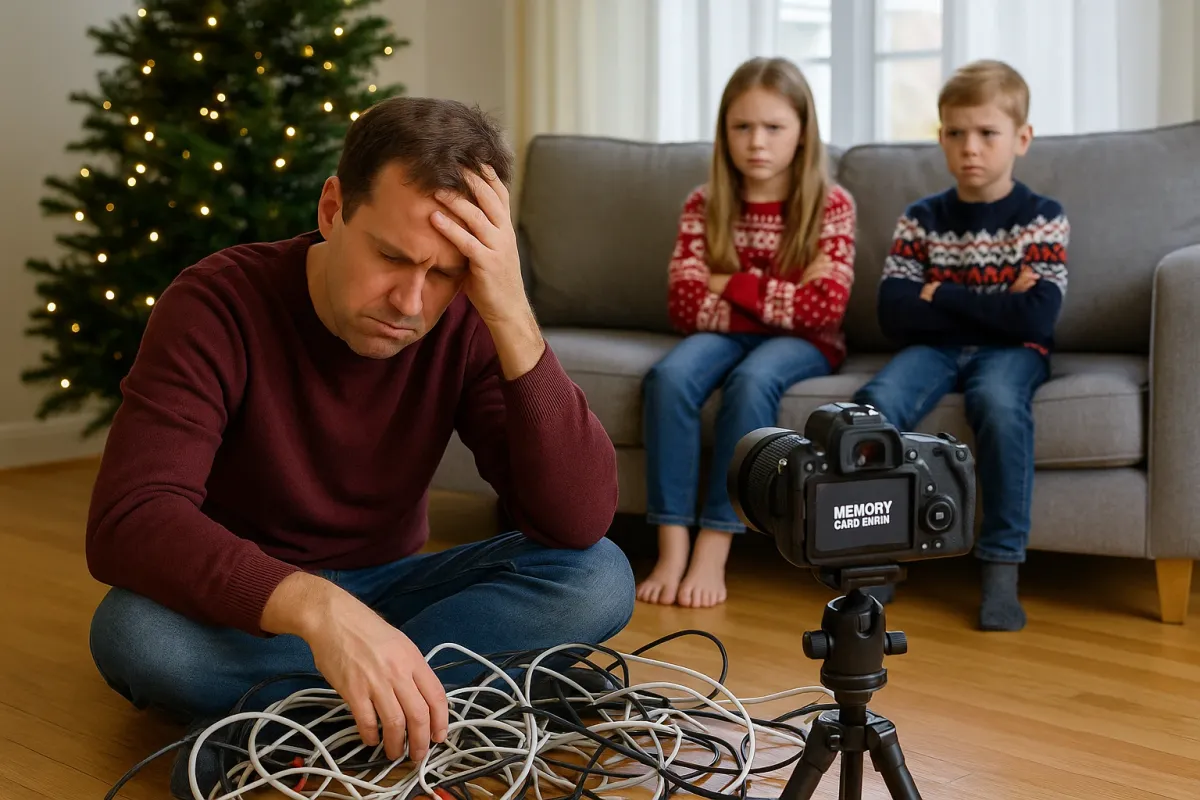
Families are gearing up to capture “first Christmas” memories, especially with pets and kids, just like the viral photo threads of cats experiencing the holidays for the first time. But while everyone shares adorable shots online, there’s a hidden villain in the background: failing phones, glitchy tablets, and cameras that decide to die right when the lights turn on and the cat finally sits still.
If your electronics aren’t ready, you won’t just miss the shot—you might lose irreplaceable photos for good. This guide walks you through practical, do‑it‑now fixes so your devices survive the holiday chaos and actually work when it matters.
We’ll focus on phones, tablets, laptops, and cameras—the real tools behind all those viral first‑Christmas and pet‑rescue photos filling social feeds right now.
---
1. Stop Sudden Shutdowns: Stabilize Your Battery Before It Quits
When your phone or camera dies at 30% while you’re trying to catch your pet knocking down ornaments, it’s usually a battery health or power‑management problem—not “bad luck.”
What to do now
**Check battery health (phone/tablet)**
- **iPhone:** - Go to **Settings → Battery → Battery Health & Charging**. - If **Maximum Capacity** is below ~80% *and* you see “Service” or “Significant degradation,” plan for a battery replacement. - **Android (varies by brand):** - Some phones: **Settings → Battery → Battery Health**. - If not available, install a reputable app like **AccuBattery** to estimate health over a few days.
**Update your software**
- Manufacturers quietly fix power‑management bugs in updates. - On phones, tablets, and laptops, go to **Settings → System / Software update** and install any pending updates before the big events.
**Turn off hidden battery killers before recording**
Right before you start taking photos or videos: - Disable **Bluetooth** if you’re not using it. - Turn off **Wi‑Fi** if you’re shooting outside or in a weak‑signal area. - Close all apps except your camera app.
**Use “Airplane Mode + Camera” for stability**
When you only need the camera: - Turn on **Airplane Mode**. - Open the **Camera** app and shoot as usual. This prevents constant signal searching, a huge drain that can trigger shutdowns on weak batteries.
**Have a backup power plan**
- Keep a **tested power bank** (10,000 mAh or more) fully charged. - Use **short, good‑quality cables**; long, thin, cheap cables can cause unstable charging that confuses the battery controller. - For cameras, charge **at least one spare battery** and label them with tape (“1”, “2”) so you rotate use evenly.
If your phone still shuts down at high percentages after these steps, the battery is likely failing internally. At that point, replacing the battery (not the entire phone) is usually the most cost‑effective move.
---
2. Fix Blurry, Grainy, or Dark Photos Before The Big Moment
Those viral “first Christmas” pet photos look great partly because the camera was set up right. If your shots come out smeared, orange, or noisy while others post crystal‑clear images, the problem is often physical—especially on older phones.
Step‑by‑step camera cleanup
**Deep‑clean the lens the right way**
- Turn your device off. - Use a **clean microfiber cloth** (not your shirt). - If there’s grease or fingerprints: - Lightly dampen a corner of the cloth with **70% isopropyl alcohol**. - Gently wipe in small circles, then dry with a clean, dry section. - Avoid tissues or paper towels—they scratch coatings over time.
**Remove “secret” blur: case and screen protector checks**
- Take off your **phone case** and shoot a test photo. - If photos improve, your case might: - Partially cover the lens, - Reflect light back into the camera, - Or have scratches/film on the lens opening. - For phones with camera lens protectors: If cracked or cloudy, remove and test again—those protectors often harm image quality more than they help.
**Control lighting, not just filters**
- Avoid having bright **windows or tree lights directly behind** your subject. - Instead, turn your subject toward the light source: - Pet facing the window during the day. - Pet facing you, with the Christmas tree just off to the side, not blasting into the lens. - Turn on more **indirect room lighting** to help your camera use a lower ISO (less grain).
**Stabilize your hands without buying gear**
- Rest your elbows on a **table, counter, or your knees**. - Or press your phone’s edge lightly against a **door frame or wall** as a makeshift tripod. - Use the **volume button** or a **2–3 second timer** to avoid shaking when you tap the shutter.
**Reset the camera app**
- On both iOS and Android, close the camera app completely, then reopen. - If it’s still buggy: - **iPhone:** Settings → General → Transfer or Reset iPhone → Reset → Reset All Settings (this keeps photos but resets preferences). - **Android:** Settings → Apps → Camera → Storage → Clear cache (and if still buggy, Clear data).
Clean glass + steady hands + better light will do more for your holiday photos than any filter or editing app.
---
3. Fix “Storage Full” Errors So You Don’t Lose Photos
Many viral pet and holiday threads start with: “I almost lost these photos when my phone said ‘Storage Full.’” That message isn’t just annoying—it can prevent your camera from saving anything new and even cause apps to crash.
Clear space without wiping your life
**Find the real space hogs**
- Go to: - **iPhone:** Settings → General → iPhone Storage. - **Android:** Settings → Storage → (tap “Apps” or “Photos & videos”). - Sort apps by size and target the top offenders first.
**Clean out hidden “Downloads” and offline files**
- Open your **Files** app (or My Files on Android). - Check: - **Downloads** folder – delete old PDFs, installers, random photos. - **Messaging apps** (WhatsApp/Telegram): go into each chat → Media → delete old memes and forwards. - On streaming apps (Spotify, Netflix, YouTube): - Go into app settings and delete **offline downloads** you don’t need.
**Back up photos safely, then remove local copies**
- Use one solid backup method **before** deleting anything: - iCloud, Google Photos, OneDrive, or a local computer backup. - After confirming backup: - Use your gallery’s “Free up space” option if available. - **Google Photos:** Library → Utilities → Free up space. - Optional but powerful: Move an entire year’s photos to a **computer or external drive**, then remove them from the phone.
**Delete “burst” and duplicate photos**
- Search your gallery for: - Multiple near‑identical shots of the same scene. - Accidental screen recordings. - Keep **1–2 best versions** and delete the rest.
**Create a “safe margin” for new memories**
- Aim to keep at least: - **5–10 GB free** on phones, - **15–20% free** on laptops/tablets. - This free space is used by: - Temporary camera files, - System updates, - App caches that prevent crashes.
If you’re the one in the family with the “good camera,” do this cleanup now—before you end up being the person who didn’t get a copy of the only good group photo because your phone refused to save it.
---
4. Rescue Overheating Devices Before They Throttle or Shut Down
Holiday chaos means lots of charging cables, space heaters, hot kitchens, and constant use. That’s a perfect recipe for overheating phones, tablets, and laptops—especially if you’re recording long videos of pets or running video calls with distant family.
Cool things down the smart way
**Recognize true overheating**
Signs include: - Screen dims unexpectedly. - Camera app closes with a temperature warning. - Device feels hot around the battery or near the top/back.
**Stop heat build‑up fast**
- Remove **cases**, especially thick or “rugged” ones. - Get the device off **blankets, couches, and beds**; place it on: - A wooden table, - A hard plastic surface, - Or a metal stand (not hot metal). - Close all open apps except the one you need.
**Never “shock cool” the device**
- Do **not** put it in the fridge, freezer, or outside in cold, humid air. - Sudden temperature drops can cause condensation **inside** the device, leading to corrosion and long‑term damage.
**Prevent overheating during long recordings**
- Record in shorter clips (2–5 minutes), especially in: - Warm rooms, - Direct sunlight, - Or crowded spaces. - Lower screen brightness manually. - On cameras, use lower resolutions if you don’t truly need 4K—1080p is usually enough for social media and generates less heat.
**Separate charging from heavy use**
- When possible, avoid: - Recording long videos **while charging**. - Running intensive games while plugged in. - If you must: - Use a **lower‑wattage charger** or a quality power bank to reduce heat. - Keep the device on a firm, cool surface, not on a couch or bed.
A device that runs cool not only behaves better in the moment—it also stays healthier over time, which matters if you’re trying to stretch another year or two out of older electronics.
---
5. Save “Dead” Devices: DIY Checks Before You Assume It’s Fried
Big holiday moments are exactly when old electronics decide to give up. Before you assume your phone, tablet, or laptop has totally died—and before you rush to replace it—run through these steps. Many “dead” devices just have charging, port, or display issues.
Step‑by‑step revival checklist
**Rule out a bad outlet, cable, or charger**
- Test the same outlet with another device (lamp, different charger). - Try **at least two different cables** and chargers, ideally: - One original brand charger, - One known‑good third‑party cable. - Look for the charging icon or LED—any sign of life is useful.
**Inspect and clean the charging port**
- Turn the device off (if possible). - Use a **bright light** and look into the port. - If you see lint or debris: - Use a **plastic or wooden toothpick** (never metal) to gently lift out the lint. - Follow up with a shot of **dry compressed air** (short bursts). - Re‑test charging with a reliable cable.
**Force restart the device**
- **iPhone with Face ID / iPhone 8 and newer:** Quickly press and release **Volume Up**, then **Volume Down**, then press and hold **Side button** until you see the logo. - **Older iPhone (Home button):** Hold **Home + Power** until the logo appears. - **Android (general):** Hold **Power + Volume Down** for at least 10–20 seconds. - **Windows laptop:** Unplug charger, hold the **power button** for 15–20 seconds, then plug in and try again. - **MacBook (Apple silicon):** Press and hold the **power button** until you see startup options.
**Check if it’s a screen problem, not a full death**
- Call the device (if it’s a phone) from another line: - If it rings or vibrates but nothing shows, your **display or backlight may have failed**, not the whole device. - For laptops: - Shine a **flashlight at an angle** on the screen while it’s “on”—faint images might show, pointing to a backlight issue. - These are generally **repairable** problems and often cheaper than replacing the whole device.
**When to seek pro help instead of forcing it**
Stop DIY attempts and power it down if: - The device was recently **dropped into liquid** (including snow), or - You hear **crackling** or see **smoke or burning smell**, or - The charger or port is getting abnormally hot. In those cases, disconnect everything and get a **qualified repair shop** to inspect it. Continuing to test at home can do more damage or create a safety risk.
Reviving a “dead” device for even a few more months can buy you time, save money, and ensure you don’t lose the photos and videos that are already stored on it.
---
Conclusion
Right now, people are flooding social media with first‑Christmas pet pictures, rescue‑animal glow‑ups, and family holiday shots—and behind every viral image is a piece of electronics that didn’t fail at the wrong time.
You don’t need new gear to join them. You need devices that:
- Stay powered on,
- Take clear photos,
- Have room for new memories,
- Avoid overheating, and
- Can be revived when they look “dead.”
Tackle these fixes before the big moments start. A few minutes of battery checks, storage cleanup, lens care, and port inspection today can be the difference between scrolling past everyone else’s holiday memories—and actually capturing your own.
Key Takeaway
The most important thing to remember from this article is that this information can change how you think about Electronics.



